

Export a CultureMonkey report to PowerPoint
How to turn a finished survey report into a shareable PowerPoint (PPTX) deck in CultureMonkey - where the export lives, what slides it produces, how long it takes, and what controls whether you see it.
On this page
When you need to walk leadership through survey results, a PowerPoint deck is often the easiest way to do it. CultureMonkey can turn a finished survey Report into a ready-to-present PowerPoint (PPTX) file: title slide, headline numbers, your strongest and weakest questions, engagement drivers, and a selection of employee comments, all laid out on slides you can drop straight into a review meeting.
This guide covers where the PowerPoint export lives, what it puts on the slides, how long it takes to arrive, and the settings that decide whether the option shows up for you at all.
Open a completed survey report, click Share, and choose Export to PPTX. CultureMonkey builds the deck in the background and emails it to you (usually within a few minutes). The option only appears once the survey has ended and your account has PowerPoint export switched on. It is still marked beta.
When PowerPoint export makes sense
The PDF and PowerPoint exports draw on the same report data, but they are built for different moments:
| Use PowerPoint when... | Use PDF when... |
|---|---|
| You want to present live and talk over the slides | You want a fixed, polished document to file or attach |
| You will edit, re-order, or re-brand slides before sharing | You want the report exactly as CultureMonkey formatted it |
| You are building a leadership or board review deck | You are archiving a survey cycle or sending a read-only summary |
Because a PPTX is fully editable, it is the right choice whenever you expect to adapt the results, add your own commentary slides, or fold survey numbers into a wider presentation. If you just need a faithful snapshot to distribute, see Export a report to PDF. If you want the short narrative write-up rather than a full deck, see Export an executive summary.
Before you start
A PowerPoint export is only available when a few conditions are met:
- The survey must have ended. The export option is tied to a completed report, not a live one. While a survey is still collecting responses, the option is hidden.
- The report needs rating questions. The deck is built around scored (rating) questions and driver scores. If a survey has no rating questions, CultureMonkey shows the option as disabled with the note "Insufficient data to generate report."
- Your account must have the feature enabled. PowerPoint export is controlled by an account setting (see Gating and permissions below). If you do not see it, it may simply be switched off for your account.
- Anonymity thresholds still apply. As with every report, groups that are too small to meet the anonymity threshold are protected. The deck reflects what you are allowed to see, nothing more.
Where to find the export
You start from the report itself, not from a separate exports area.
- 1Open the report. From Analyse > Reports, open the survey whose results you want to present. You can also reach it from the survey's report summary page.
- 2Open the Share menu. In the top-right of the report, click the Share button to open its dropdown of export options.
- 3Choose Export to PPTX. Select Export to PPTX (you may see it labelled Export to PPTX (Advanced) on some accounts). It sits alongside the XLS, PDF, and executive-summary exports.
- 4Confirm any options. If a short dialog appears, pick any options you want (see below) and click Export.
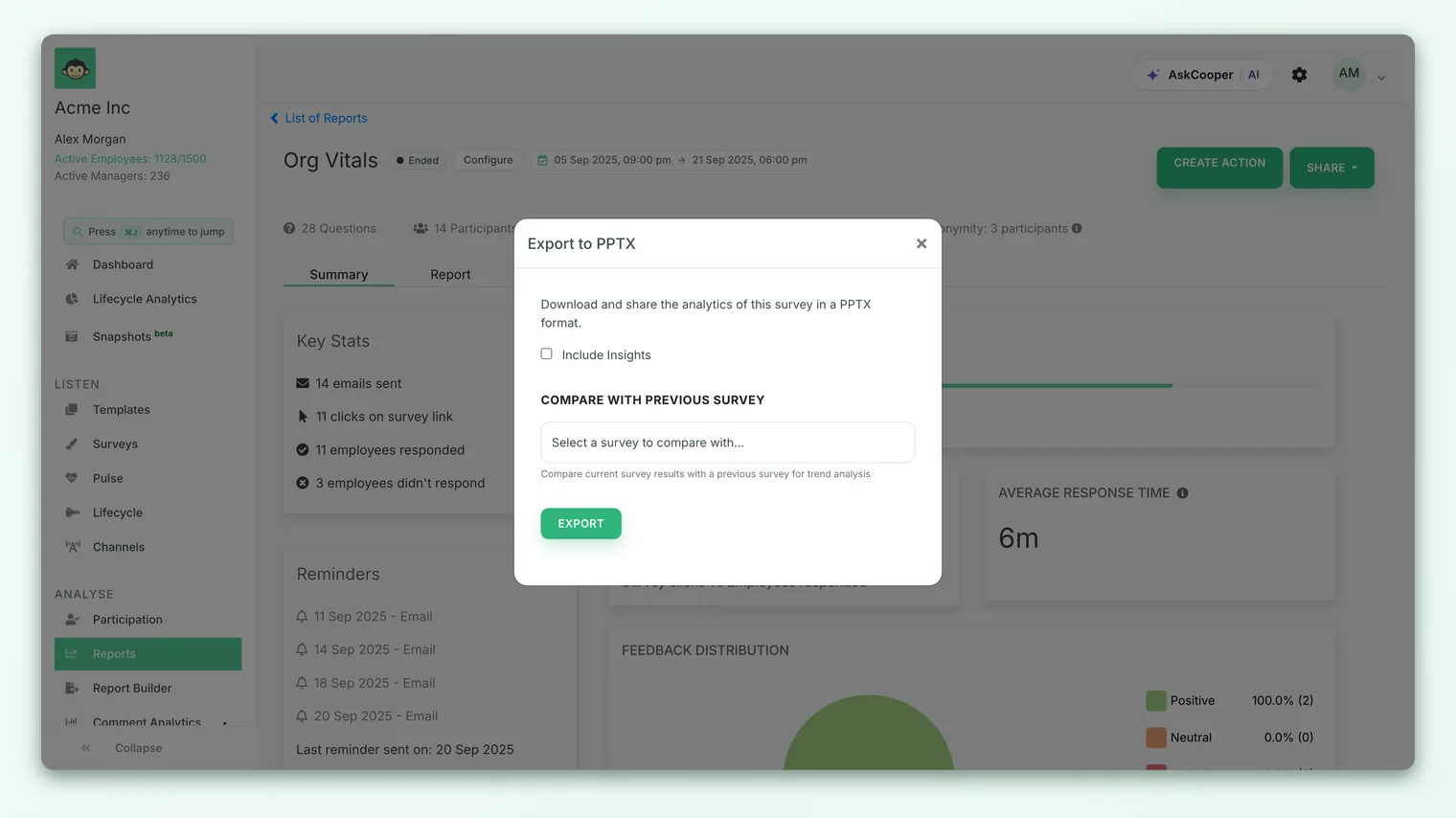
Depending on your account settings, choosing Export to PPTX either starts the export straight away or first opens a small dialog:
- Include Insights adds AI-generated insight text to the deck, where your account has insights enabled.
- Compare with Previous Survey (on advanced-export accounts) lets you pick an earlier survey so the deck shows trend movement between the two cycles.
If neither option is available for your account, the export simply begins as soon as you click.
What the slide deck contains
The deck is generated from the same numbers you see on screen in the report, arranged into presentation-ready slides. A typical export includes:
- A title slide with the survey title and description, so the deck is self-explanatory when you share it.
- A survey summary covering the run dates, the number of questions asked, the number of participants, and the overall participation rate.
- Scope details listing the teams and locations the survey covered, so viewers understand who was included.
- Top and bottom questions. Your highest-scoring and lowest-scoring questions are pulled out side by side, each with its score and the engagement driver it belongs to. This is the "what is working, what needs attention" slide leaders usually look for first.
- A driver chart. Engagement driver scores are rendered as a chart so the strengths and gaps across drivers are visible at a glance.
- Employee comments. A selection of open-text feedback is included, each comment shown with the date and (where visible) the reporting manager, to put a human voice behind the numbers.
Because it is a real editable PPTX, treat the export as a first draft. Re-order slides, drop the ones you do not need, add your own context or action-plan slides, and apply your company template. The numbers are done for you; the story is yours to tell.
On accounts using the advanced export, the deck is richer: it can carry across custom labels, fold in AI insights, and show side-by-side comparison against the previous survey you selected. The core structure (summary, top and bottom questions, drivers, comments) stays the same; the advanced version adds depth on top of it.
The comments and breakdowns in the slides follow the same anonymity rules as the on-screen report. Feedback that would identify an individual, or a segment below the response threshold, is not exposed in the export.
How long it takes
PowerPoint export runs in the background rather than downloading instantly. When you trigger it, CultureMonkey queues the job, builds the deck, and then emails it to you with a download link.
You will see a confirmation along the lines of: "The report is being generated and will be emailed to you shortly. If you do not receive it in 30 minutes, please check your spam folder, or reach out to support@culturemonkey.io."
A few practical notes:
- Expect a few minutes, not seconds. Larger surveys, with many questions, participants, and comments, take longer to assemble.
- You cannot start a second export while one is running. While a deck is being built, the option shows as (In Processing) and is temporarily disabled, so you will not accidentally queue duplicates.
- The link is emailed to you. Once the deck is ready, the download link arrives in your inbox. If more than 30 minutes pass with nothing, check spam first, then contact support.
If the export looks stuck, resist clicking it repeatedly. Because it is queued in the background and de-duplicated while in progress, extra clicks will not speed it up. Give it the full window before retrying.
Gating and permissions
Whether you see the PowerPoint export at all depends on account-level settings, and on your role.
- There is a master switch. An account-level setting turns the PowerPoint export on. With it off, the option does not appear in the Share menu for anyone. Enabling it is covered in Enable PDF and PowerPoint report exports.
- Role-specific switches extend it further. Separate settings grant the export to sub-admins and to managers, so an account can decide exactly who may generate decks.
- Advanced export is its own setting. It switches the deck to the richer advanced format and is what adds the "(Advanced)" label and the compare-with-previous-survey option.
- Insights are gated too. The Include Insights checkbox only appears where insight-in-PPTX is enabled for the account.
If PowerPoint export is missing for you, the most likely reasons, in order, are: the survey has not ended yet, the report has no rating questions, or the feature is simply not switched on for your account or your role. An account admin can confirm and enable it.
By default, the PowerPoint export is available to admins on accounts where it is enabled. Sub-admins and managers can export only when the matching role setting is switched on for the account. Availability always respects the data each role is allowed to see.
Frequently asked questions
Why don't I see the PowerPoint export option?
Most often the survey has not ended (the export only appears on completed reports), the report has no rating questions (you will see it disabled with an "insufficient data" note), or the feature is not enabled for your account or role. An account admin can turn it on. See Enable PDF and PowerPoint report exports.
Where does the finished deck go?
It is emailed to you with a download link once it is built. The export runs in the background, so you do not have to wait on the page. If nothing arrives within 30 minutes, check your spam folder, then reach out to support.
Can I compare two surveys in one deck?
On accounts using the advanced export, yes. When you export, CultureMonkey lets you pick a previous survey to compare against, and the deck shows the movement between the two cycles. On standard export, each deck covers a single survey.
Is the PowerPoint the same as the PDF?
They share the same underlying report data but serve different needs. The PowerPoint is fully editable and built for presenting; the PDF is a fixed document for filing or read-only sharing. See Export a report to PDF.
Does the deck respect anonymity?
Yes. The slides follow the same anonymity thresholds as the on-screen CultureMonkey report. Comments and segments that could identify an individual, or that fall below the response threshold, are not included.
Why is the option marked "beta"?
PowerPoint export is still evolving, so it carries a beta label. It is fully usable; the label signals that the format and options may keep improving.
Where to go next
- Prefer a fixed document? Export a report to PDF
- Want the short narrative instead of a full deck? Export an executive summary
- Missing the export option? Enable PDF and PowerPoint report exports
Your feedback helps us improve the Help Center.