

HRIS import overview - keep employees in sync with CultureMonkey
How CultureMonkey's continuous HRIS sync works, which providers are supported, how a sync stays connected, how fields are mapped, and what to prepare before you connect.
On this page
Your employee list is the foundation everything in CultureMonkey sits on. Surveys go out to the right people, results roll up by the right team, managers see the right reports, and anonymity thresholds hold - all because your employee data is accurate. The problem is that people data never sits still. New hires start, people change teams, managers change, and employees leave. Keeping all of that current by hand is tedious and easy to forget.
A continuous HRIS import solves this. Instead of uploading a spreadsheet every time something changes, you connect CultureMonkey to your HR system once, and your employee list stays current automatically. This guide explains what continuous HRIS sync is, which providers are supported, how a sync actually works, how fields are mapped, and what to prepare before you connect.
Connect CultureMonkey to your HRIS once, map your fields, and your employee list refreshes on a schedule - no more manual CSV uploads. New joiners, team and manager changes, and exits flow through automatically. You choose which HRIS fields map to which CultureMonkey fields, and the sync only ever reads from your HR system.
Continuous sync vs. manual CSV
Both approaches get employees into CultureMonkey. The difference is who does the work, and how quickly your data goes stale.
| Continuous HRIS sync | Manual CSV upload | |
|---|---|---|
| Setup | One-time connect and field mapping | None, but you build the file each time |
| Staying current | Automatic, on a schedule | Only as fresh as your last upload |
| New hires & exits | Flow through on the next sync | You remember to re-upload |
| Effort over time | Near-zero once connected | Recurring, every change |
| Best for | Organizations with a supported HRIS | One-off imports, or providers not yet supported |
A CSV import is perfectly fine for getting started or for a one-time load - see Import employees from a CSV. But if your HR system is one of the supported providers, a continuous sync is almost always worth the short setup: your data stops drifting, and you stop thinking about it.
Supported HRIS providers
CultureMonkey connects to a growing list of HR systems. The table below reflects the providers implemented in the product today, along with how each one authenticates.
| Provider | How it authenticates | Notes |
|---|---|---|
| Darwinbox | API credentials | Syncs active and inactive employees |
| Workline | API credentials | |
| Zoho People | OAuth (you authorize in Zoho) | Tokens refresh automatically |
| Keka | OAuth (you authorize in Keka) | Also syncs teams, sub-teams, locations, and business units |
| BambooHR | API key | |
| Workday | API credentials | |
| Freshservice | API key + subdomain | Also syncs departments and locations |
The list above covers every provider CultureMonkey can sync with. A few (for example Workday and BambooHR) may be in a limited or rollout state and might not appear as self-serve options in your account yet - if you don't see yours, your CultureMonkey contact can confirm availability and turn it on. Systems like ADP and Namely are on the roadmap but not yet live.
If your HR system isn't listed, you can still get everyone in with a CSV import, and it's worth letting your CultureMonkey contact know which system you use - provider demand shapes what gets built next.
How a sync works
You don't need to understand the plumbing to use HRIS sync, but a clear mental model helps you trust the results and troubleshoot if something looks off. A sync has three moving parts: authorization, a schedule, and the data that flows.
Authorization. When you connect a provider, you give CultureMonkey permission to read from your HRIS. Depending on the provider, that's either an OAuth authorization (you click through a consent screen in Zoho or Keka and approve access) or a set of API credentials - an API key, username and password, and sometimes a subdomain - that you paste in from your HR system's admin settings. These credentials are stored securely and used only to fetch employee data.
Schedule. Once connected, CultureMonkey pulls fresh data on a recurring schedule rather than in real time. The first pull happens right after you connect - this is the initial sync that loads your full employee list. After that, the sync runs automatically on a regular cadence (typically a scheduled refresh a few times a week, and daily for accounts that have daily sync enabled). Between runs, your list reflects the last successful sync.
What's kept in sync. Each run reads the current state of your workforce from the HRIS and updates CultureMonkey to match:
- New joiners are added.
- Changes - team, sub-team, location, business unit, manager, designation, job status - are updated on existing employees.
- Exits are reflected: when your HRIS marks someone inactive, CultureMonkey deactivates them (and removes any admin access they had).
- Manager relationships are resolved after employees are loaded, so reporting lines stay intact.
CultureMonkey never writes back to your HR system. The sync is one-directional: data flows from your HRIS into CultureMonkey. Nothing you do in CultureMonkey changes records in your HRIS.
An important nuance: employees are matched so the same person is never duplicated. On each run, CultureMonkey matches an incoming record to an existing employee first by a stable external ID from your HRIS, and falls back to email address if no ID match is found. If neither matches, the person is created as new. This is why a consistent, unique identifier in your HRIS matters - more on that below.
Field mapping
Every HR system names its fields a little differently. Your HRIS might call it firstName, or first_name, or something else entirely. Field mapping is where you tell CultureMonkey which field in your HRIS corresponds to which field in CultureMonkey, so the right values land in the right place.
CultureMonkey has a set of standard employee fields you can map to:
| CultureMonkey field | What it holds |
|---|---|
| First name / Last name | The employee's name |
| Email address | Their work email - the primary contact and a matching key |
| Employee ID / External ID | A unique identifier from your HRIS |
| Date of joining / Date of separation | Employment dates |
| Manager email | Used to build reporting lines |
| Team / Sub-team | Organizational grouping for roll-ups |
| Location | Where they're based |
| Business unit | Higher-level grouping |
| Designation | Job title |
| Employee type / Job status | Employment classification and active state |
| Date of birth / Gender / Phone number | Optional demographic fields |
You can also map to custom fields you've defined, so any attribute unique to your organization - a cost center, a shift, a grade - can flow in and become a filter in your reports.
Mapping is usually a simple one-to-one match: point a CultureMonkey field at the matching HRIS field and you're done. For fields where your HRIS packs several values together - for example a department path like Engineering|Backend|Platform - CultureMonkey can split the value on a separator and take a specific segment, so you can pull just the team, or just the sub-team, out of a combined field. The full mechanics of mapping, including these transformations, are covered in Map employee import fields.
Email address and a stable employee/external ID are the two fields the sync uses to recognize people run after run. Map these carefully. If they're accurate and consistent, everything else - updates, manager lines, deactivations - resolves cleanly.
What to prepare
A little preparation makes the connection smooth. Before you start:
- Confirm your provider is supported and available in your account (see the table and note above).
- Get admin access to your HRIS, or line up someone who has it - you'll need to generate API credentials or approve an OAuth authorization there.
- Know where your credentials live. For API-key providers, find the API key (and subdomain, if your provider uses one) in your HRIS admin settings. For OAuth providers, you'll authorize interactively, so you just need permission to approve access.
- Tidy up your source data. Make sure every employee has a unique identifier and a valid work email, that manager emails point to real people in the same dataset, and that team, location, and business-unit names are consistent. The cleaner your HRIS data, the cleaner your CultureMonkey list.
- Decide your field mapping - sketch which HRIS fields map to which CultureMonkey fields, especially any custom fields you want to bring across.
Connecting your HRIS
The exact screens differ by provider, but the overall flow is the same. You'll do the detailed, provider-specific steps in the per-provider setup articles under Integrations; here's the general shape so you know what to expect.
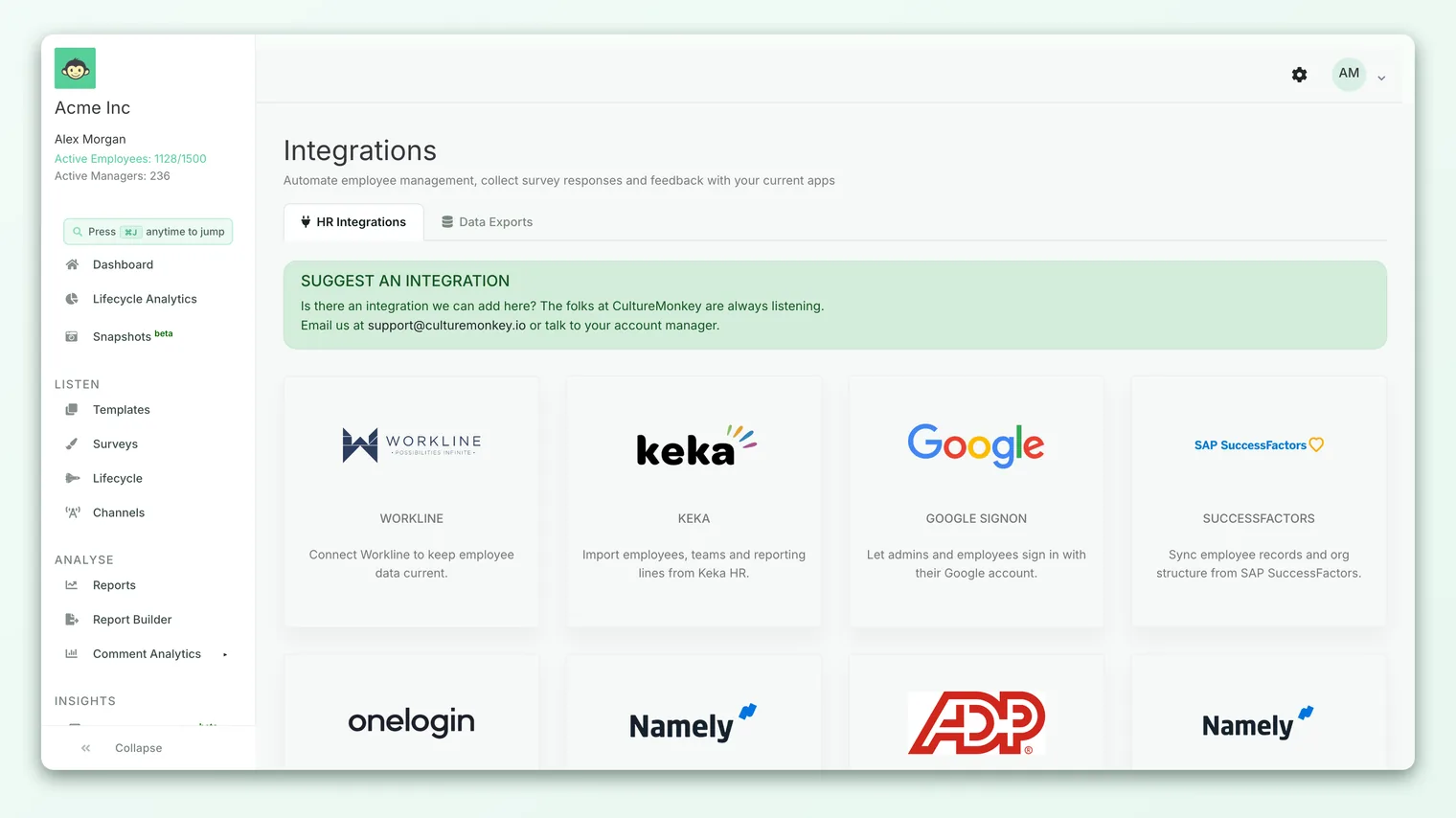
- 1Open Integrations. From the main navigation, go to Integrations and find your HR system in the list.
- 2Start the connection. Click to connect your provider, then authorize it - either by approving an OAuth consent screen in your HRIS or by entering the API credentials (and subdomain, if needed) that you prepared.
- 3Map your fields. Match each CultureMonkey field to the corresponding field in your HRIS, including any custom fields. See Map employee import fields for the details.
- 4Run the initial sync. Confirm to kick off the first pull. CultureMonkey loads your full employee list from the HRIS.
- 5Review the result. Open your employee list and spot-check a handful of records - names, emails, teams, and manager lines - to confirm the mapping did what you expected.
- 6Let it run. From here the sync refreshes automatically on its schedule. You don't need to do anything further unless your mapping or credentials change.
Once you've connected, the specific provider article - for example the Darwinbox, Zoho People, Keka, or BambooHR setup guide in Integrations - is your reference for anything unique to that system. See Integrations overview for the full list.
After you're connected
A continuous sync is meant to be set-and-forget, but a few things are worth knowing:
- Changes appear on the next run, not instantly. If someone joins or moves in your HRIS today, they'll reflect in CultureMonkey after the next scheduled sync. This is normal - it's a scheduled refresh, not a live feed.
- Deactivations follow your HRIS. An employee is only deactivated in CultureMonkey when your HR system marks them inactive. Simply being absent from a sync doesn't remove someone, which protects you from accidental mass deactivations if a data pull is incomplete.
- Credentials can expire. OAuth authorizations generally refresh themselves, but API keys and passwords can be rotated or revoked in your HRIS. If a sync stops updating, an expired or changed credential is the first thing to check.
- You can still edit in CultureMonkey, but remember the sync is the source of truth - a value that your HRIS keeps sending will be reasserted on the next run. Manage those fields in your HRIS, not in CultureMonkey.
Frequently asked questions
How often does the sync run?
After the initial pull when you connect, CultureMonkey refreshes on a recurring schedule - typically a few times a week, and daily for accounts that have daily sync enabled. It's a scheduled refresh rather than a real-time feed, so changes in your HRIS appear on the next run.
Will syncing overwrite the employees I already added?
No - it reconciles rather than replaces. Incoming records are matched to existing employees by a stable identifier, and by email as a fallback, so people aren't duplicated. Matched records are updated; genuinely new people are added.
Does CultureMonkey change anything in my HR system?
No. The sync is one-directional and read-only. It pulls data from your HRIS into CultureMonkey and never writes anything back.
What happens when an employee leaves?
When your HRIS marks someone inactive, the next sync deactivates them in CultureMonkey and removes any admin access they held. An employee simply missing from a sync is not auto-deactivated - your HRIS has to signal the exit.
My HRIS isn't in the list. What are my options?
Use a CSV import to load and update your employees, and let your CultureMonkey contact know which system you use so it can be considered for a future integration.
Can I bring in custom fields, not just the standard ones?
Yes. Any custom fields you've defined in CultureMonkey can be mapped to fields from your HRIS during setup, and they become filters you can slice reports by.
Where to go next
- Map your fields correctly: Map employee import fields
- No supported HRIS yet? Import employees from a CSV
- See all available connections: Integrations overview
Your feedback helps us improve the Help Center.