

HRIS sync isn't updating in CultureMonkey: how to diagnose it
A step-by-step guide to why a live HRIS connector stops reflecting changes in CultureMonkey - the twice-weekly schedule, expired credentials, unmapped or renamed fields, filtered-out employees, and exactly when to contact support.
On this page
You made a change in your HR system - a new hire, a team move, someone who left - and it hasn't shown up in CultureMonkey. Before assuming the connector is broken, it's worth knowing that most "sync isn't updating" reports turn out to be one of a small handful of ordinary, fixable causes. A live HRIS connector is a scheduled pull, not a live feed, so a lot of what looks like a failure is really a matter of timing, mapping, or a credential that quietly went stale.
This guide walks through those causes in the order they're worth checking: the sync schedule (so you know whether a change is even due yet), expired credentials, unmapped or renamed fields, employees filtered out by their status, and the records that fail quietly in the background. It closes with a clear line for when the problem is on CultureMonkey's side and you should contact support. If you're setting a connector up for the first time rather than troubleshooting one, start with Connect an HRIS: overview and supported systems instead.
A live CultureMonkey sync runs on a schedule, not instantly - twice a week (Tuesday and Friday) by default, or once a day if daily sync is enabled for your account. So the first question is always whether the next run has happened yet. After that, the usual culprits are expired API credentials, a provider field that was renamed or never mapped, and employees whose status marks them inactive so they drop out. Individual records that fail validation are skipped and logged rather than halting the run, which is why a sync can look "successful" yet miss a few people.
First, check the schedule
The single most common reason a change hasn't appeared is that the next sync simply hasn't run yet. A live connector doesn't stream changes in real time. It pulls the current state of your workforce from your HRIS on a fixed schedule and updates CultureMonkey to match.
The default cadence is a scheduled refresh twice a week, on Tuesday and Friday. Accounts that have daily sync enabled get a refresh once a day instead. Either way, a change you make in your HR system today shows up in CultureMonkey after the next scheduled run, not the moment you save it.
| Situation | When your change appears |
|---|---|
| Default schedule | On the next Tuesday or Friday run |
| Daily sync enabled | On the next daily run |
| A one-off change you need reflected immediately | Faster to make in CultureMonkey directly, or via a CSV import for that person |
So the first thing to establish is the date. If you added someone on a Wednesday and you're on the default schedule, they're not due until Friday. That's expected behavior, not a fault. Only once a scheduled run has genuinely passed without your change appearing is it worth digging into the causes below.
Daily sync is an account-level setting rather than something you toggle per provider, and it isn't enabled everywhere. If you don't know whether your account is on the twice-weekly or the daily cadence, your CultureMonkey contact can confirm it. Knowing which schedule you're on tells you exactly how long to wait before a missing change counts as a real problem.
Confirm what actually synced
Once a scheduled run has passed, the next step is to look at the result rather than guess at it. Open your Employees list and spot-check the specific people you expected to change. A live connector reconciles against your existing list on every run, so a working sync updates people in place: new joiners appear, team and manager changes flow onto existing records, and exits are reflected.
If the person you're looking for is missing or stale, note which kind of problem it is, because the fix differs:
- The person is missing entirely. Nobody with that record came across. This points at matching (External ID or email), a field that isn't mapped, or the person being filtered out by status.
- The person is there but a field is wrong or blank. The record synced, but one attribute (team, location, manager, a custom field) didn't fill. This is almost always a mapping issue on that one field.
- Someone who left still shows as active. The record synced, but their status didn't carry the way CultureMonkey expects. This is a status-field mapping issue, covered below.
Narrowing it to one of these three before you change anything saves you from re-checking settings that were fine all along.
Check for expired or invalid credentials
When you connect a provider, you authorize CultureMonkey to read from your HR system using a set of API credentials - typically an API key, and sometimes a username, password, or subdomain that you generate in your HRIS admin settings. For token-based providers, that authorization also produces an access token with an expiry. Those credentials are the connector's key to the front door, and when the key stops working, the sync can't fetch anyone.
Credentials go stale for ordinary reasons:
- An API key or token was rotated or revoked in your HR system, often as part of a routine security policy.
- The account or user that generated the credentials was deactivated on the HRIS side.
- A password changed for a provider that authenticates with one.
- A token expired and couldn't be refreshed because the underlying credential is no longer valid.
The tell-tale sign of a credential problem is that nothing updates - not one person - across a run that should have changed several. A single missing employee is more likely a mapping or status issue; a whole sync that goes quiet points at authorization.
The fix is to reconnect the provider. Go to the Integrations hub, open your HR system, and re-enter fresh credentials from your HRIS admin settings. Reconnecting re-authorizes the connection and kicks off a fresh sync, so a successful reconnect both proves the new credentials work and pulls your current data straight away.
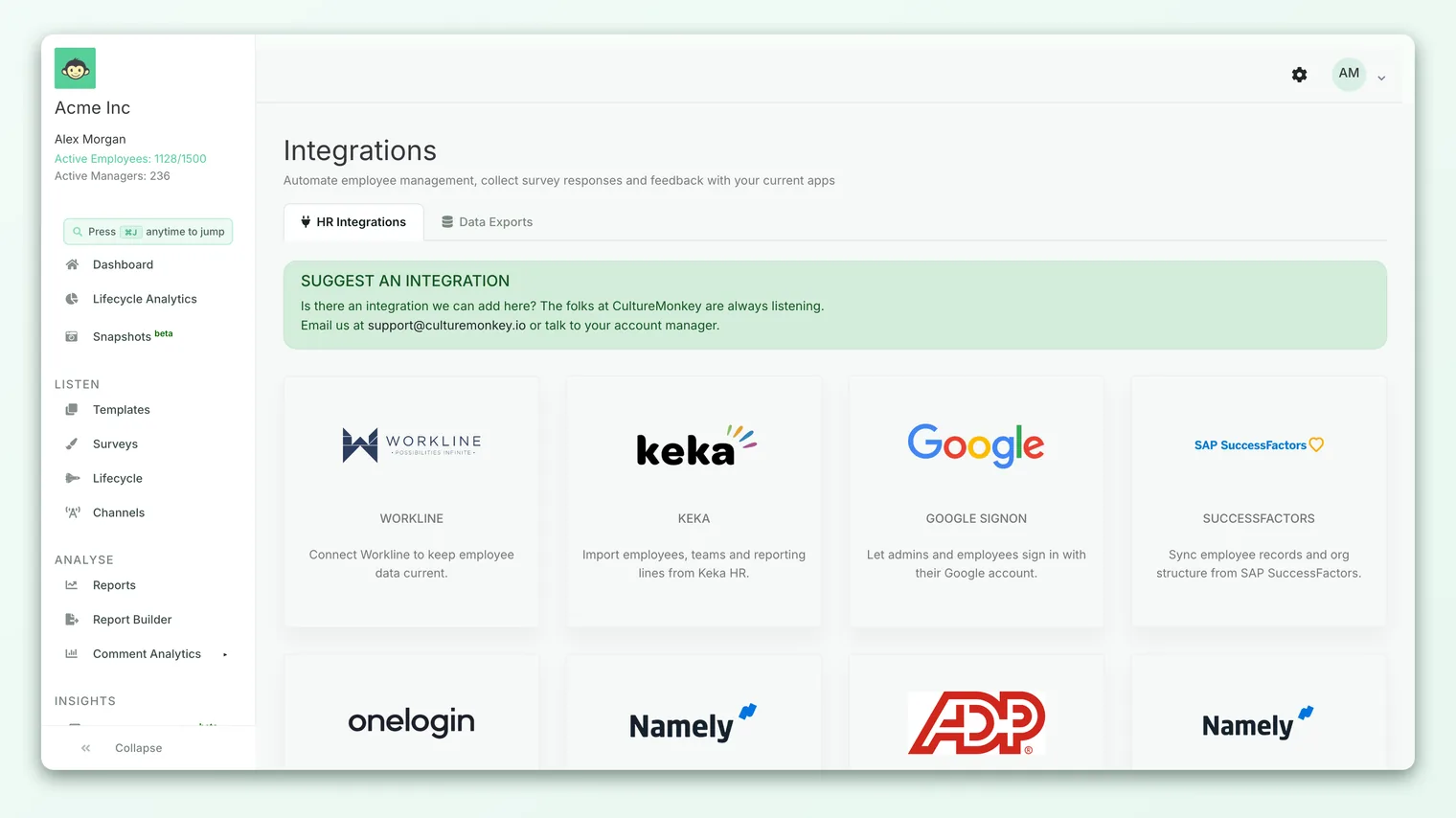
If you try to reconnect and see a message that the provider is not connecting and to contact the support team, the credentials you entered didn't authorize successfully. Double-check you copied the key, subdomain, and any other fields exactly, with no trailing spaces, and that the key is still active in your HR system. If it still won't connect, that's a genuine reason to reach out - see the last section.
Check field mapping and renamed fields
If people are syncing but a particular attribute is blank or wrong, the problem is almost always in the field mapping - the rule set that tells the sync which provider field fills each CultureMonkey attribute. Unlike a CSV import, an HRIS mapping is saved once and reused silently by every scheduled run, so a mapping that drifts out of date fails without ever prompting you.
Two things commonly break a previously-working mapping:
- A field was renamed in your HRIS. The sync matches provider keys literally. If your HR system's field changed from
departmenttodept, or an admin adjusted a custom field's key, the mapping still points at the old name, finds nothing, and that attribute quietly stops filling. A single stray capital letter or a pluralized word is enough to miss. - A field was never mapped. Anything you don't map is excluded from the integration by design. If a field you meant to sync has always been empty, it may simply have no mapping row at all.
To check, open the Employee Attribute Mappings page from Integrations and review your Mapped Fields against the attributes you care about. For the affected field, confirm the provider key exactly matches the current field name in your HRIS. The full mechanics - adding a mapping, splitting a combined field, mapping custom attributes - live in Configure HRIS field mapping.
A couple of mapping snags are worth calling out specifically, because they produce confusing symptoms:
- Manager lines that don't connect. Reporting hierarchy is built from Manager Email. If you mapped a manager's name or ID instead, the sync can't resolve the line to another employee and the reporting relationship stays blank. Managers are also wired up after everyone loads, so a manager who isn't in the sync at all can't be linked to their reports.
- A value the field won't accept. Fields like Employee Type, Base, and Job Status only accept a fixed set of values. If your provider sends something outside that set, the value is rejected for that field while the rest of the record still syncs.
Each run matches an incoming record to an existing person first by a stable External ID, then falls back to email address if there's no ID match, and creates a new record only if neither matches. If External ID is unmapped or points at a value that changes, the sync can lose track of someone and either create a duplicate or fail to update the original. A permanent identifier like an employee number keeps the same person's record intact run after run.
Check whether employees are being filtered out
If specific people are missing but the sync is otherwise working, they may be filtered out by their status. CultureMonkey uses two fields - Is Active and Job Status - to decide whether a synced person is treated as a current employee. When a sync marks someone inactive, CultureMonkey deactivates them (and removes any linked admin access) rather than deleting the record, so their history stays intact but they drop off your active roster and out of surveys.
This is exactly what you want for people who have genuinely left. It becomes a problem when the status fields are mapped in a way that marks the wrong people inactive, or fails to mark leavers inactive at all. Providers express status differently, and the mapping has to account for that:
- For Zoho People, Darwinbox, Workday, and BambooHR: the provider's date of separation field is mapped to both Is Active and Job Status (as well as to Date of Separation itself). CultureMonkey reads the presence of a separation date to derive whether someone is active.
- For Workline: the provider's employee status field is mapped directly to both Is Active and Job Status.
If leavers keep showing as active, that mapping is probably missing, which quietly inflates your headcount and can affect who receives surveys. If active employees are disappearing, the status field may be reading the wrong value. Both are fixed on the mapping page. The HRIS field mapping guide has the provider-specific detail, including the IMPORTANT RULES panel that spells these out.
When records fail quietly
A sync can finish and look completely successful while still missing a few people, and this catches admins off guard. When the sync processes your employees, each record that fails validation - a value that breaks a field's rules, a date that doesn't parse, a required attribute that came through empty - is skipped and logged, not allowed to halt the run. The rest of the run continues normally, and a handful of dropped records won't announce themselves in the interface.
That design keeps one bad row from stopping the whole sync, but it means a quiet problem can hide behind an otherwise-fine run. The practical defense is the spot-check: after a sync you're relying on, open a sample of real employees and confirm team, location, manager, and any custom attributes came through, rather than assuming a completed run means a complete one. The most common triggers for a skipped record are a value that falls outside a field's accepted set (Employee Type, Base, Job Status), a mis-typed date field data type, or a missing mandatory attribute.
When you correct a mapping or reconnect credentials, the change takes effect on the next sync rather than retroactively. If you don't want to wait for the next scheduled run to confirm the fix, reconnecting the provider from the Integrations hub triggers a fresh pull, and then you can spot-check the people who were affected.
When to contact support
Most sync issues are self-serve: wait for the schedule, reconnect credentials, correct a mapping, or fix a status field. There are a few situations, though, where the problem is on the platform side or needs a hand, and reaching out is the right move. Contact your CultureMonkey support contact when:
- A whole sync fails even after you've reconnected with fresh, valid credentials. If reconnecting still shows "not connecting" and you've confirmed the key is active in your HRIS, the connection needs investigating.
- You need to confirm your schedule or enable daily sync. Whether your account is on the twice-weekly or daily cadence, and turning daily sync on, are things support can check and configure.
- A provider you use isn't self-serve in your account. Some connectors are built but rolled out with help. If your HR system doesn't appear as connectable, support can confirm availability and enable it.
- Records are dropping and the mapping looks correct. If your spot-check keeps finding missing people but your provider keys, External ID, and status fields all check out, support can look at the sync logs to see which records were skipped and why.
- Something looks wrong in your HR system after connecting. It shouldn't happen, because the sync only ever reads. If you suspect otherwise, raise it - the connection is one-directional by design and never writes back.
When you reach out, it speeds things up to include the provider name, the date and time you expected a sync, the specific employees or fields affected, and whether you've already tried reconnecting. The more precisely you can point at the symptom, the faster support can match it to a cause.
Frequently asked questions
I changed something in my HRIS an hour ago. Why isn't it in CultureMonkey?
Because a live connector syncs on a schedule, not in real time. On the default cadence, changes appear on the next Tuesday or Friday run; with daily sync enabled, on the next daily run. If you need one change reflected immediately, it's faster to make it in CultureMonkey directly or via a CSV import for that person.
Nobody at all updated on the last sync. What does that mean?
A whole run going quiet usually points at authorization rather than mapping. Your API credentials may have been rotated, revoked, or expired on the HRIS side. Reconnect the provider from the Integrations hub with fresh credentials, which re-authorizes and triggers a new sync.
One field is blank on everyone, but people otherwise sync fine. Why?
That's a mapping problem for that single field. Either the provider key no longer matches your HRIS field name (check for a rename or a typo) or the field was never mapped. Review it on the Employee Attribute Mappings page and correct the provider key. See Configure HRIS field mapping.
An employee who left still shows as active. How do I fix it?
Their status field isn't mapping the way CultureMonkey expects. For Zoho People, Darwinbox, Workday, and BambooHR, the date of separation field must map to both Is Active and Job Status; for Workline, the employee status field maps to both. Correcting that mapping lets the next sync deactivate leavers.
The sync said it succeeded, but a few people are missing. Is that possible?
Yes. Records that fail validation are skipped and logged rather than stopping the run, so a sync can complete while quietly dropping a handful of records. Spot-check the affected people, and if the mapping looks correct, ask support to check the logs for why those records were skipped.
Can I force a sync on demand instead of waiting?
Reconnecting the provider from the Integrations hub triggers a fresh pull, which is the practical way to get an immediate run after fixing credentials or a mapping. Otherwise the connector refreshes on its schedule.
Where to go next
- Setting a connector up from scratch: Connect an HRIS: overview and supported systems
- Fixing a mapping or a renamed field: Configure HRIS field mapping
- Understanding continuous sync in depth: HRIS import overview
Your feedback helps us improve the Help Center.