

Enable, disable and monitor lifecycle stages in CultureMonkey
Day-to-day management of your employee lifecycle surveys - how to turn a stage on or off, see which employees have been triggered, and monitor per-stage runs and participation without losing your configuration.
On this page
Once your lifecycle stages are set up, the day-to-day job changes from building to managing. You'll want to turn a stage on when a moment matters, pause one that isn't relevant right now, and keep an eye on who has been surveyed and how many are responding. This guide covers that ongoing work: enabling and disabling individual stages, reading the participation figures on each stage, and understanding exactly what happens to your configuration and your employees when you flip a stage on or off.
If you haven't built your stages yet, start with Set up lifecycle surveys. This article assumes at least one stage already exists.
Lifecycle stages live under Listen > Lifecycle, shown as a timeline. Each stage carries a status of ACTIVE or INACTIVE. Open a stage with CONFIGURE to ENABLE or DISABLE it. Disabling cancels the scheduled runs, but CultureMonkey keeps the survey, template and history, so you can re-enable later without rebuilding. The stage view also shows total participation, the next run and its participant count, and any silent participants.
Where lifecycle stages live
Lifecycle sits in the Listen area of the left navigation. Open Listen > Lifecycle and CultureMonkey shows your stages as a horizontal timeline, ordered from the earliest moment in the employee journey (onboarding) through to the latest (exit). Each point on the timeline is one stage, with its title, its time span (for example, "30 days"), and a small status tag.
If you land on an empty screen instead of the timeline, no stages have been activated on your account yet. In that case, see Set up lifecycle surveys to get the first stage running.
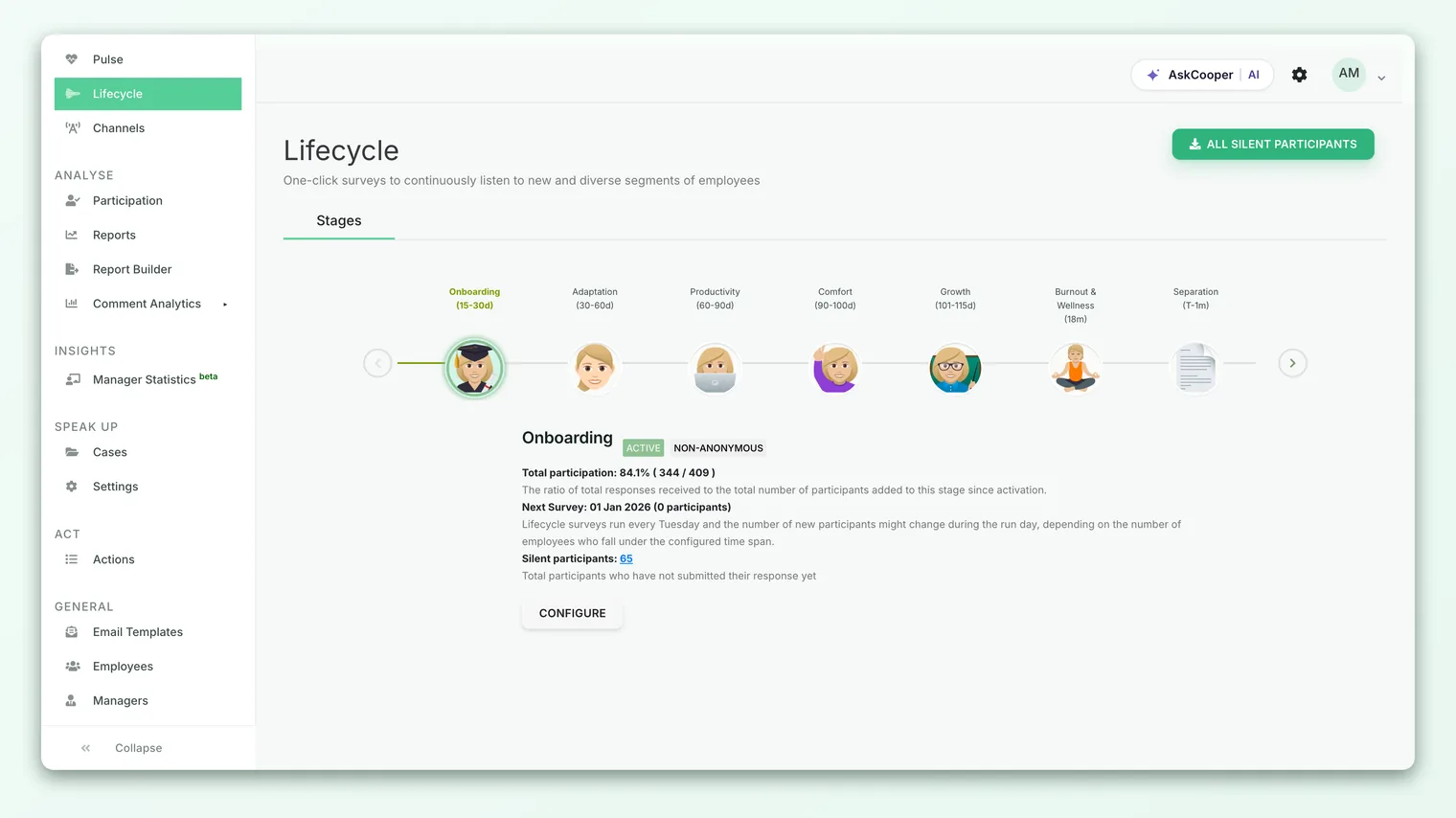
Click any stage on the timeline to expand its detail panel. That panel is where you monitor the stage and reach the CONFIGURE button that opens its settings.
Reading a stage's status
Every stage shows one of two states, printed in capitals next to its title:
| Status | What it means | Are surveys going out? |
|---|---|---|
| ACTIVE | The stage is live and watching for employees who match its time span | Yes, on the stage's schedule |
| INACTIVE | The stage is paused (either never enabled, or disabled by an admin) | No |
Next to the status you'll also see whether the stage's survey is ANONYMOUS or NON-ANONYMOUS. That reflects how the underlying survey is configured and affects what you can see later (for example, you can only chase individual non-responders when the survey is set up to allow it).
An ACTIVE stage does its work quietly in the background. It doesn't send to everyone at once. Instead, it checks who has newly entered the stage's window (for instance, employees who just crossed their 30-day mark) and sends only to them. That's why an active stage can show zero people in one run and a handful in the next.
Enabling a stage
Enabling turns a stage on so it starts triggering surveys for employees who fall into its time span.
- 1Open the stage - on the lifecycle timeline, click the stage you want, then click CONFIGURE to open its settings panel.
- 2Click ENABLE - in the panel header, choose ENABLE. The stage flips to ACTIVE and the page refreshes.
- 3Confirm the first run - the stage detail now shows a Next survey date and how many participants are queued for it. If that count is zero, no one currently falls inside the window, which is normal for a quiet stage.
Behind the scenes, enabling a stage does a few things: it marks the stage ACTIVE, attaches the stage's survey (reusing the existing one if it already exists), works out who currently qualifies, and creates the next scheduled run. From that point on the stage runs automatically on its cadence.
Depending on how your account is configured, lifecycle surveys either run weekly (every Tuesday, sending to everyone who entered the window that week) or daily (each day, sending to the employees who reached the milestone that day). The stage panel tells you which applies: a weekly stage says surveys "run every Tuesday," while a daily stage says they "run everyday." You don't choose this per stage; it's an account-level setting.
On some accounts the ENABLE button is replaced by a CONTACT US label. That means self-serve enabling isn't switched on for your account and the CultureMonkey team activates stages for you. If you see CONTACT US instead of ENABLE, reach out to your account manager or support@culturemonkey.io.
Disabling a stage without losing your setup
Disabling is the safe way to pause a stage. It stops future sends but leaves everything you configured intact, so re-enabling later is a one-click job rather than a rebuild.
- 1Open the stage - click the stage on the timeline, then CONFIGURE.
- 2Click DISABLE - in the panel header, choose DISABLE. A confirmation dialog appears.
- 3Confirm - CultureMonkey warns that scheduled surveys for this stage will be disabled, and that employees who have already received the survey can still answer it. Confirm to pause the stage.
When you disable a stage, CultureMonkey does two things. It marks the stage INACTIVE, and it cancels the stage's schedules: any live run is closed out and any pending (future) run is cancelled so nothing new goes out.
Crucially, disabling does not delete the stage's survey, its template, its questions or its past results. All of that configuration is preserved. When you re-enable later, the stage picks up the same survey it had before rather than creating a fresh one from scratch.
If a stage is temporarily irrelevant (say you're mid-reorganization and don't want to survey new joiners this month), disable it rather than trying to delete or empty it. Your questions, template choice and history are all kept, and turning it back on takes a single click.
What happens to employees when you disable
Two groups matter here:
- Employees who already received the survey keep their link and can still respond. Their answers still count. Disabling only stops the next wave; it doesn't yank the survey away from people mid-response.
- Employees who would have qualified next are not sent anything while the stage is inactive. If they still qualify when you re-enable, they'll be picked up in the next run.
Seeing which employees have been triggered
The stage detail panel is your window into who is in play right now. Depending on your account's cadence, you'll see one of these:
- Next survey and its participants. For weekly accounts, the panel shows the Next Survey date with a linked participant count, for example "Next Survey: 15 Jul (12 participants)." Click that count to open the list of exactly which employees are queued for the next run.
- Last 7 days. For daily accounts, the panel shows a Last 7 days count of participants who received the survey in the past week, again as a clickable link to the named list.
Both links open a modal listing the individual employees, so you can confirm the right people are being reached before a run goes out (or verify who was reached after one).
For a stage that hasn't run yet, the "next survey" participant number is an estimate that can change on the actual run day, because more employees may cross the milestone between now and then. Treat it as a preview, not a locked figure.
Chasing silent participants
The panel also shows Silent participants: the total number of people who received the survey for this stage but haven't submitted a response yet. When the stage's survey is set up to allow it (a non-anonymous, confidential configuration), this count is a link you can click to see who those people are, so you or their managers can nudge them.
If the survey is anonymous, you'll still see the silent count as a number, but not the individual names, because revealing them would break anonymity. That's expected behavior, not a limitation you can toggle off. For more on why names stay hidden, see Why can't I see results yet?.
Monitoring per-stage runs and participation
Beyond who's queued, each stage tracks how its runs are performing over time. Two views help here.
Total participation appears at the top of the stage detail as a rate with the raw counts behind it, for example "Total participation: 68% ( 34 / 50 )." This is the ratio of all responses received to all participants ever added to this stage since it was activated. It's your headline number for how well the stage is landing overall.
The run carousel inside the stage view breaks performance down by individual run. Scroll through it to see up to three cards:
| Card | What it shows |
|---|---|
| Previous survey | The last completed run: its date, participation rate, how many employees received it and how many answered |
| Live survey | The run currently open (if any): the same received and answered counts, updating as responses come in |
| Next survey | The upcoming run and its scheduled date, before any responses exist |
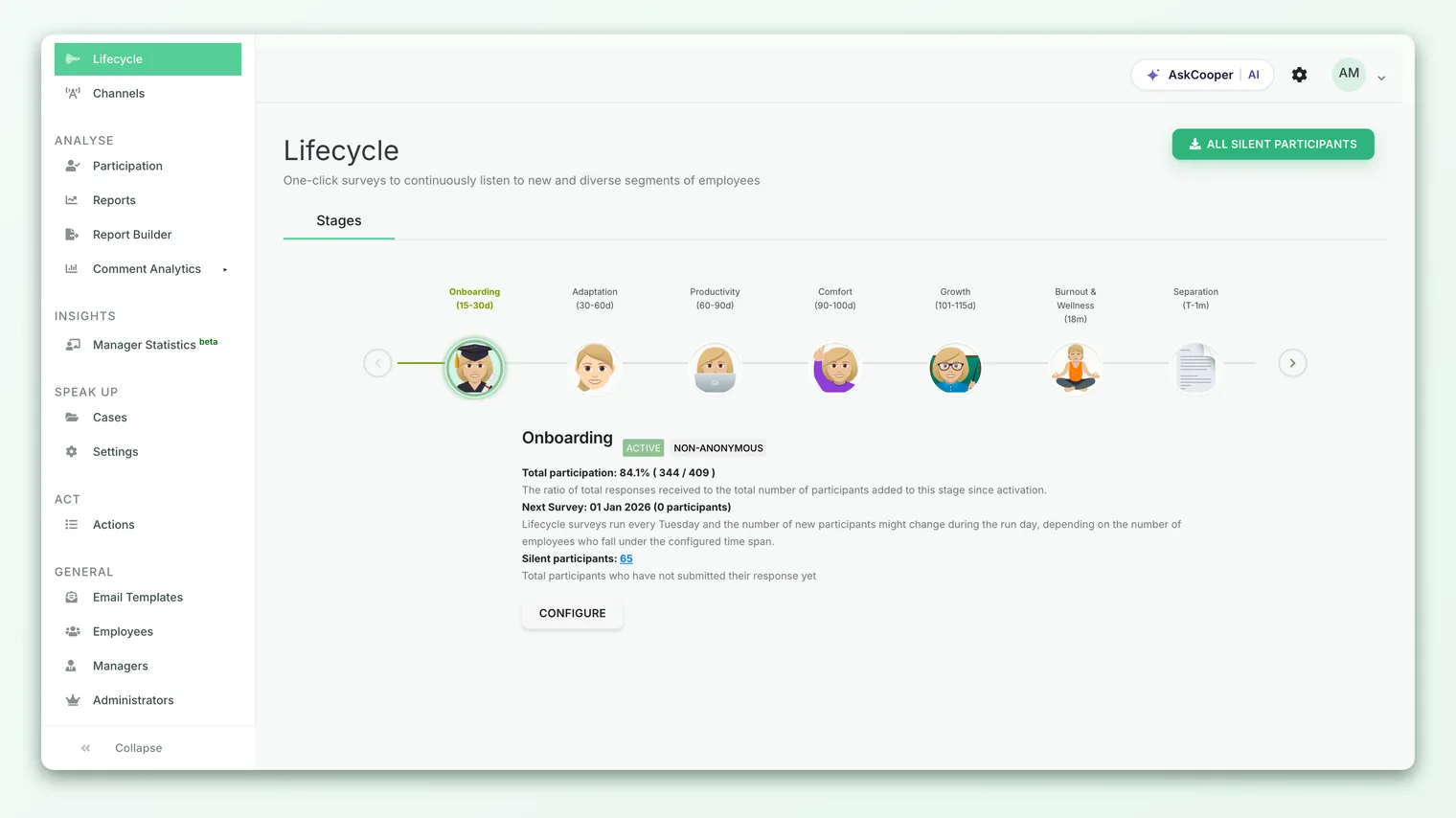
When a stage is disabled, the live and next cards read "No Live Survey: Disabled" and "No Next survey: Disabled," which is a quick visual confirmation that the pause took effect.
An onboarding stage and an exit stage naturally attract very different response rates, so a single company-wide number can be misleading. Comparing each stage's own participation over successive runs tells you far more about whether that particular moment is resonating.
Downloading non-responders
For stages where the survey configuration allows it, you can export the list of employees who haven't answered yet, either for a single stage or for all lifecycle stages at once. This is useful for handing managers a concrete follow-up list. The download options appear alongside the participant views in the lifecycle area.
Individual employees who shouldn't be surveyed
Enabling and disabling operate at the stage level, but you can also exclude a single employee from all lifecycle surveys without touching any stage. Each employee record carries a lifecycle flag; when it's turned off, that person is skipped by every active stage. This is handy for leadership, contractors, or anyone who shouldn't be part of automated lifecycle sends. Manage this on the individual's record under General > Employees rather than in the Lifecycle area.
Frequently asked questions
Does disabling a stage delete my questions and past results?
No. Disabling only cancels future scheduled runs and marks the stage inactive. Your survey, its template, its questions and all previously collected responses are preserved. Re-enabling reuses the same survey, so nothing needs to be rebuilt.
Can employees still answer after I disable a stage?
Yes. Anyone who already received the survey keeps their link and can still submit a response, and it will still count. Disabling only stops the next wave of sends; it doesn't retract surveys that are already out.
Why does an active stage show zero participants for its next run?
Because lifecycle stages send only to employees who have newly entered the stage's time window. If nobody has crossed that milestone since the last run, the next run legitimately has no one queued. The stage is still working; it's just waiting for someone to qualify.
Why can I see the number of silent participants but not their names?
When a stage's survey is anonymous, revealing who hasn't responded could expose who did, so CultureMonkey shows the count but hides the identities. On non-anonymous, confidential surveys the names are available so you can follow up.
How often do lifecycle surveys actually go out?
It depends on your account's cadence. Some accounts run lifecycle surveys weekly (every Tuesday), batching everyone who entered a stage's window that week. Others run daily, sending each day to the people who hit a milestone that day. The stage panel states which applies to you.
If I re-enable a stage, does it re-survey people who already answered?
No. Re-enabling resumes normal operation and picks up employees who currently qualify and haven't already been surveyed for that stage. People who already responded aren't sent it again.
Where to go next
- Build or reconfigure a stage: Set up lifecycle surveys
- No results appearing for a stage? Why can't I see results yet?
- Read advocacy from lifecycle surveys: View the eNPS breakdown
Your feedback helps us improve the Help Center.