

Set up lifecycle surveys and triggers in CultureMonkey
A step-by-step guide to configuring lifecycle surveys in CultureMonkey - enabling a stage, understanding the date-based trigger that fires it, attaching the survey template, and controlling timing and audience.
On this page
Lifecycle surveys let CultureMonkey listen to your people automatically at the moments that matter most - a few weeks after they join, as they settle in, when they hit key tenure milestones, and on their way out. Instead of manually building and sending a survey each time, you switch on a stage, and CultureMonkey watches each employee's dates and fires the right survey to the right people on its own.
This guide is for the person doing the setup. It walks through exactly how to enable a lifecycle stage, what date or event triggers it, how the survey gets attached, and how the timing and audience are decided. Every step maps to what actually happens in the product.
Lifecycle surveys live under Listen > Lifecycle. Each stage (Onboarding, Adaptation, Growth, Separation, and so on) has a built-in trigger based on an employee date - usually their joining date plus a tenure window, or their separation date minus a month. You open a stage, review its template, and click Enable. From then on, CultureMonkey automatically sends that stage's survey to every employee who falls into its window, with no further action from you.
Before you begin
A few things need to be in place before lifecycle setup will work as intended:
- Lifecycle surveys must be enabled on your account. This is a plan-level capability. If you don't see the Lifecycle area under Listen, or you land on an empty state asking you to contact support, lifecycle surveys aren't switched on for your account yet.
- Employee dates must be accurate. Triggers read directly from each employee's date of joining and, for exit surveys, their date of separation. If those fields are blank or wrong, the employee won't be picked up (or will be picked up at the wrong time). Get your employee data clean first.
- You need admin access. Configuring lifecycle stages is an Account Admin task. If the controls are missing, your role may not include lifecycle survey access.
If this is your first encounter with the feature, read What are lifecycle (autopilot) surveys? first. It explains the concept and the full set of stages. This article assumes you know what they are and just want to set them up.
The lifecycle stages you can configure
CultureMonkey ships with a ready-made set of lifecycle stages, each covering a distinct part of the employee journey. You don't create these from scratch - they come predefined, each with its own survey template and its own trigger window. Your job is to decide which to switch on.
| Stage | When it targets an employee | Based on |
|---|---|---|
| Onboarding | First month after joining | Joining date |
| Adaptation | Months 2-4 after joining | Joining date |
| Productivity | Months 4-6 after joining | Joining date |
| Comfort | Months 6-8 after joining | Joining date |
| Growth | Months 8-10 after joining | Joining date |
| Burnout and Wellness | After ~18 months of tenure | Joining date |
| Separation | The final month before an employee leaves | Separation date |
Each stage is shown on a timeline with its tenure label (for example, Onboarding as "1st Month", Separation as "T-1m", meaning one month before termination). Every stage carries its own survey template, tuned to the questions that matter at that point in the journey.
What makes these surveys "automatic" is the trigger. A normal survey needs you to pick recipients and hit send. A lifecycle survey instead defines a rule - "anyone in their first month" - and CultureMonkey re-evaluates that rule continuously, so new joiners flow into Onboarding, employees crossing month four flow into Productivity, and so on, without you touching it.
How a trigger actually works
This is the part worth understanding well, because it explains who gets a survey and when.
Each stage has a date-based condition evaluated against every active employee. The conditions are anchored to two dates on the employee record:
- Date of joining drives every tenure stage. For example, the Onboarding condition is effectively "today is after the joining date and within one month of it." Adaptation is "today is more than one month but no more than four months after joining," and so on up the tenure ladder.
- Date of separation drives the exit stage. Separation is "today is within one month before the separation date." That is why keeping a leaver's last day up to date matters: it is the anchor the exit survey fires from.
Because these are windows rather than single dates, an employee sits inside exactly one tenure stage at any given time and moves into the next as they cross each boundary. An employee also has to be active and have lifecycle surveying switched on for their record to be eligible.
One more rule keeps things tidy: CultureMonkey remembers who has already received a given stage's survey, so it won't send the same person the same stage survey twice. Each eligible employee gets each stage once, as they pass through its window.
If an employee's joining date is missing, they can't be placed in a tenure stage and won't be surveyed. If a separation date isn't set, the exit survey has nothing to fire from. Accurate dates are not optional here - they are the mechanism.
Step-by-step: enable a stage
Here's the actual setup flow, start to finish.
- 1Open the Lifecycle area. In the left navigation, go to Listen > Lifecycle. You'll land on the Stages tab, which shows the lifecycle timeline.
- 2Pick a stage to configure. Each stage on the timeline shows its title, its tenure window, its current status (Active or Inactive), and whether its survey is anonymous. Click Configure on the stage you want to set up.
- 3Review the survey template. The configuration panel shows the survey template attached to this stage, with a preview link and a short description. This is the survey employees will receive at this point in their journey. Preview it to check the questions fit.
- 4Set the email templates (optional). If your account uses custom email templates, choose the first email template and the reminder email template the stage should use when it invites and nudges participants. If you don't set these, the defaults apply.
- 5Enable the stage. Click Enable. CultureMonkey creates the underlying survey from the template, works out who currently falls into the stage's window, adds them as participants, and schedules the first send.
- 6Confirm it's live. The stage's status flips to Active, and the panel shows the next send date and a participant count. From here on, the stage runs on its own.
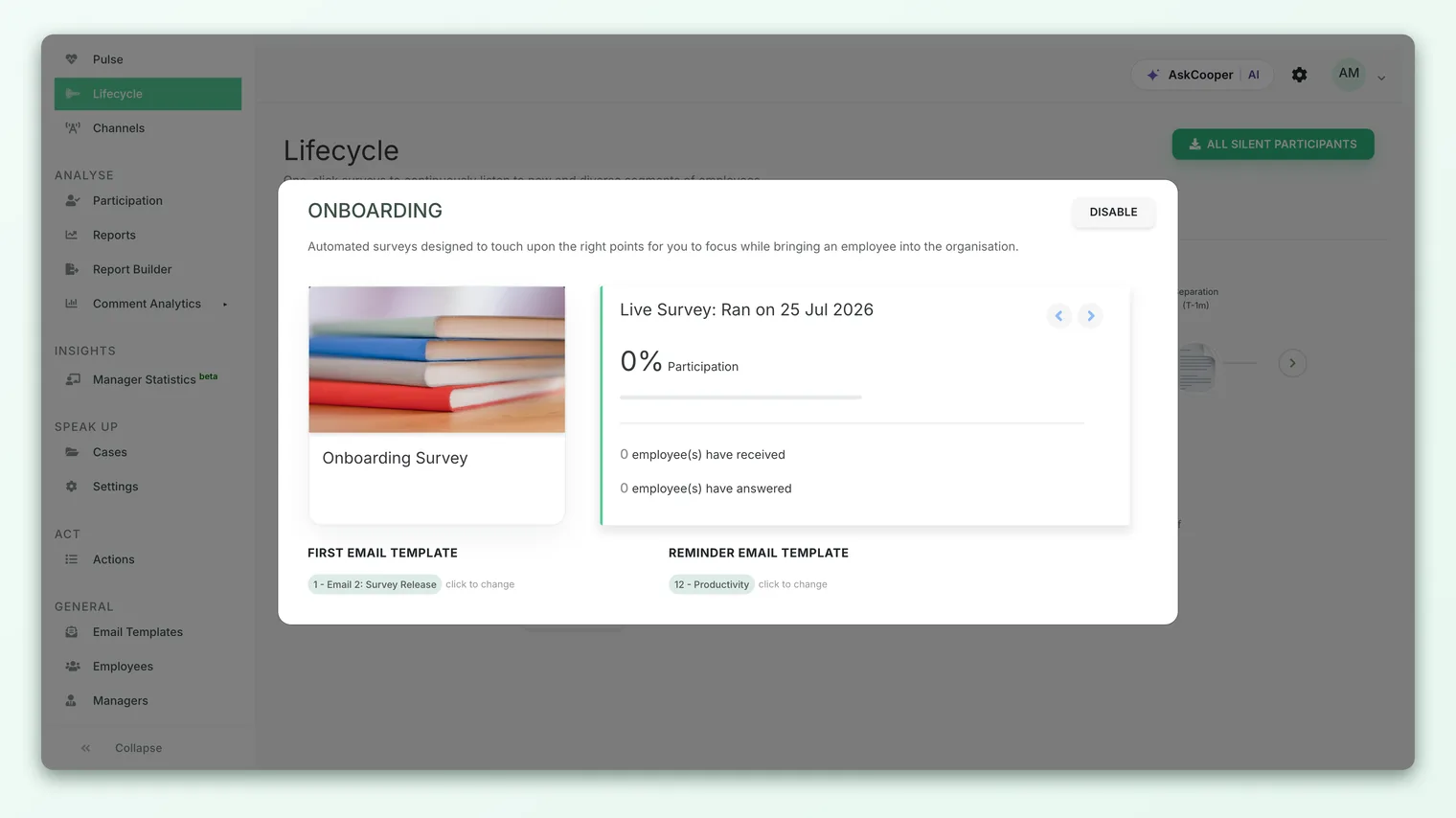
On some accounts the self-serve Enable control is replaced by a Contact us label, meaning lifecycle activation is handled with help from the CultureMonkey team rather than switched on directly. If you see this, reach out to your account contact or support to have the stage turned on.
Timing: when the survey goes out
Once a stage is active, timing is handled automatically, but it's worth knowing how it's decided so the send dates you see make sense.
CultureMonkey runs lifecycle sends in one of two modes, set at the account level:
- Weekly (default) mode. The stage sends on a fixed weekly cadence - the next run is scheduled for the coming Tuesday, and it re-runs weekly, each time picking up anyone who has newly entered the stage's window. Surveys go out at a standard time of day, and reminders follow later in the collection window to nudge people who haven't responded.
- Daily (Nth-day) mode. Instead of a weekly batch, the stage is evaluated every day, so an employee is surveyed as soon as they hit the configured point (for example, N days after joining). This gives a tighter, more precise moment of contact. In this mode the panel shows a rolling "last 7 days" participant count rather than a single weekly batch.
Which mode your account uses is a backend configuration, not a per-stage toggle in the UI, so all your stages behave the same way. If you're unsure which one is active, the stage panel's wording tells you: weekly mode says surveys "run every Tuesday," while daily mode says they "run everyday."
Unlike a one-off survey, a lifecycle survey stays open. There's no fixed close date, because new people keep entering the stage's window over time. The survey is a continuous listening channel, not a single event, so it collects responses for as long as the stage is active.
Audience: who gets each survey
You never hand-pick recipients for a lifecycle stage. The audience is derived from the trigger, and it's recalculated on every run. For any active stage, CultureMonkey includes an employee when all of these are true:
- They are an active employee (not deleted or offboarded, except for the Separation stage which is meant for leavers).
- Their record has lifecycle surveying enabled.
- Their dates place them inside the stage's window (the joining-date or separation-date condition described above).
- They haven't already received this particular stage's survey.
Because the audience refreshes each run, the participant count you see for the next send is a live figure and can change right up to the send. A new joiner added on Monday will simply be included in that week's Onboarding run; a colleague who crossed the four-month mark moves out of Adaptation and into Productivity automatically.
Anonymity and lifecycle surveys
Each stage displays whether its survey is anonymous or non-anonymous, right on the timeline. This matters for lifecycle surveys because the moments they cover - onboarding jitters, burnout, an exit - are exactly when people weigh how safe it feels to be honest.
If a stage's survey is anonymous, individual responses can't be traced back to a person, and results are subject to the usual anonymity thresholds: a stage with very few respondents will keep its results hidden until enough people answer. For non-anonymous stages, you can follow up individually, which is sometimes appropriate for onboarding check-ins. Choose deliberately, and make sure the wording of the survey matches the promise you're making.
A worked example
Say you want new hires to feel heard in their first weeks, so you enable Onboarding.
- You go to Listen > Lifecycle, click Configure on Onboarding, preview the template, and click Enable.
- CultureMonkey immediately finds every active employee whose joining date is within the last month and who hasn't had the Onboarding survey yet, and adds them as participants.
- It schedules the first send. In weekly mode that's the coming Tuesday; in daily mode it's the next daily run.
- Three weeks later, a batch of new hires joins. You do nothing. On the next run, CultureMonkey sees they're now inside the first-month window, adds them, and sends them the Onboarding survey automatically.
- Those same hires later cross the one-month mark and become eligible for Adaptation (if you've enabled it), and the cycle continues.
That's the whole point: you configure the stage once, and the trigger does the recurring work of matching the right people to the right survey at the right time.
Best practices for setup
- Start with the stages you'll actually act on. Enabling every stage at once creates a lot of listening you then have to respond to. Onboarding and Separation are the highest-value pair for most teams - begin there, then add mid-tenure stages as you build the muscle to act on the feedback.
- Clean your dates before you enable. Since triggers read joining and separation dates directly, run a quick audit of those fields first. A blank joining date means a silent new hire nobody surveyed.
- Preview every template before enabling. The default questions are sensible, but the language should feel like yours. Check the template in the configuration panel and adjust if your account allows template edits.
- Decide anonymity on purpose. Match each stage's anonymity setting to how you intend to use the results. Exit and burnout surveys usually benefit from anonymity; onboarding check-ins sometimes benefit from being non-anonymous so a manager can follow up.
- Close the loop. Automated sending is only half the value. Plan how you'll review the incoming results and act on them, or the surveys become noise. See Enable, disable and monitor lifecycle stages for the ongoing management side.
Frequently asked questions
Do I choose the send date for each stage myself?
No. Lifecycle send timing is automatic and driven by the account's run mode (weekly on Tuesdays, or daily). You control whether a stage is active, not the exact calendar date of each send. The stage panel shows you the next scheduled run.
Can I pick specific employees for a lifecycle survey?
No, and that's by design. The audience is defined by the stage's trigger - a date-based rule - and recalculated on every run. If you need to survey a hand-picked group, use a regular custom survey instead.
What happens if an employee's joining date is wrong?
They'll be triggered based on whatever date is on file. If it's wrong, they'll be surveyed at the wrong point in their journey, or missed entirely. Fix the date on the employee record and they'll be picked up correctly on a future run.
Will someone get the same lifecycle survey twice?
No. CultureMonkey tracks who has already received each stage's survey and won't re-send the same stage to the same person. Each employee passes through each stage once.
Can I turn a stage off after enabling it?
Yes. Disabling a stage stops future scheduled sends, though people who've already received the survey can still respond. See Enable, disable and monitor lifecycle stages.
Why is a stage showing "Contact us" instead of "Enable"?
On some accounts, lifecycle activation is assisted rather than self-serve. If you see Contact us, reach out to your CultureMonkey contact to have the stage switched on.
Where to go next
- Understand the feature end to end: What are lifecycle (autopilot) surveys?
- Manage stages after setup: Enable, disable and monitor lifecycle stages
- Get your dates right first: Import and manage employees
- Need a hand-picked audience instead? Create a survey from scratch
Your feedback helps us improve the Help Center.