

Your profile and notification settings
How to open and edit your CultureMonkey profile - your name, email, timezone and preferred survey language - plus how to change your password, understand your initials avatar, and what each setting actually affects.
On this page
Your profile is the small set of details CultureMonkey holds about you - your name, your email address, the timezone you work in, and the language you'd prefer to answer surveys in. It's quick to review and quick to change, and keeping it accurate makes the whole product behave the way you expect: reminders arrive at sensible hours, your name shows up correctly next to comments and actions, and surveys reach you in the right language.
This guide walks through where your profile lives, how to open and edit it, how to change your password, and what each setting actually controls. It also clears up a few things that often trip people up - like why there's no photo to upload, and where notification preferences do (and don't) live.
Open your profile from the account menu, or go straight to /admins/edit. From there you can update your name, email, timezone and preferred survey language, then save. Your password is changed through a separate secure flow, not the profile form. CultureMonkey draws your avatar automatically from your initials - there's no photo upload.
Where your profile lives
Every person in CultureMonkey - whether you're a super-admin, a manager, or an employee answering surveys - has a profile. You reach your own profile from the account menu in the top corner of the app, then choose the option to edit your details.
If you'd rather jump straight there, the edit page lives at:
> app.culturemonkey.io/admins/edit
Behind the scenes this opens the edit form for your record, so you don't need to know any IDs - the link always resolves to you.
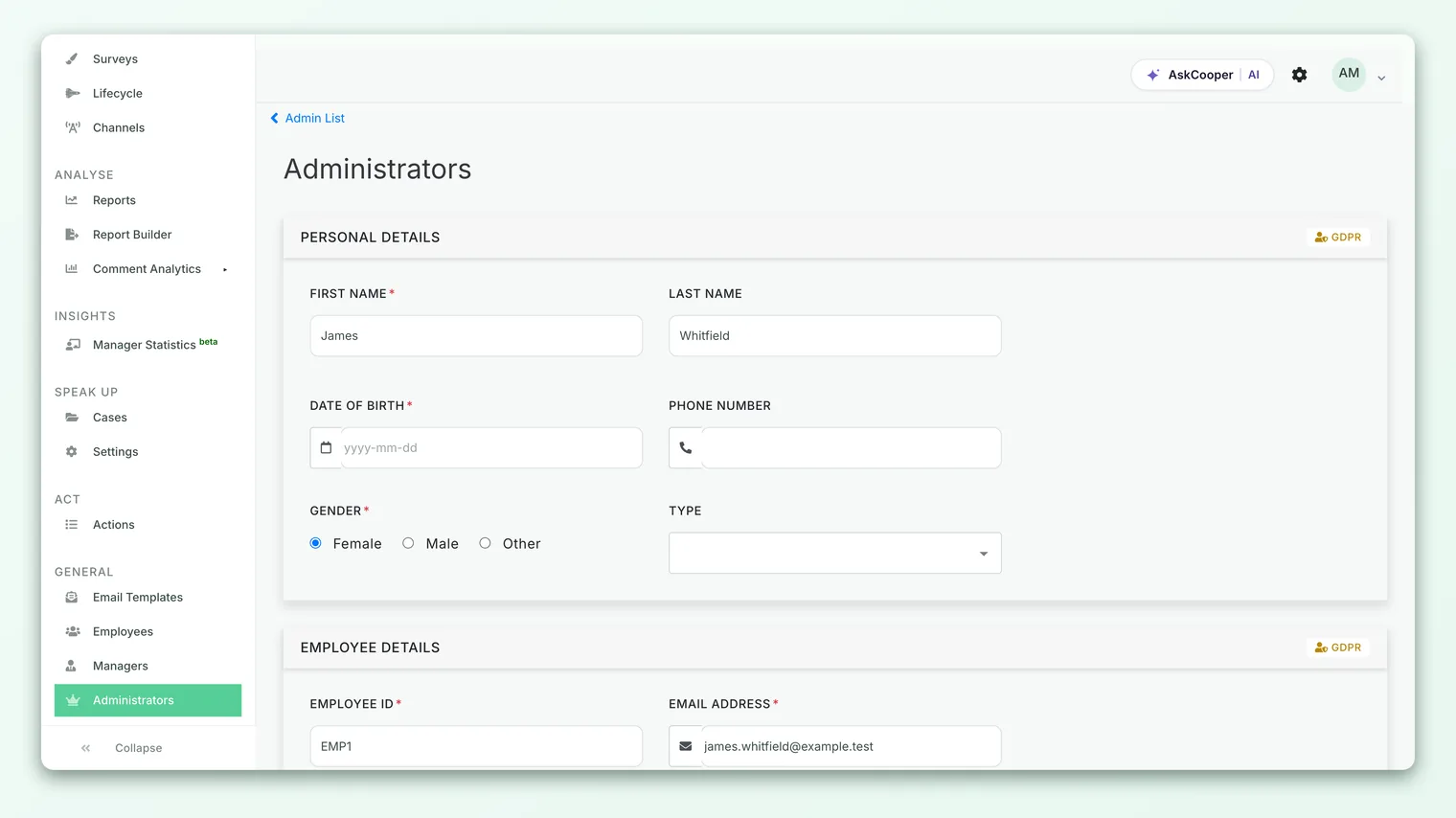
Being able to edit your own profile is a permission. Most accounts allow it by default, but if your organization has locked profile editing down, you may find some fields greyed out or the page unavailable. If that's the case, ask a super-admin to update your details for you.
How to open and edit your profile
Editing your profile is a short, save-and-done task. Here's the full flow:
- 1Open the account menu. Click your name or initials in the top corner of the app to reveal the account menu.
- 2Choose to edit your profile. Select the profile / edit option, or navigate directly to
/admins/edit. - 3Update your details. Change any of the available fields - for example your first name, last name, email address, timezone, or preferred survey language.
- 4Save your changes. Use the save button at the bottom of the form. CultureMonkey validates the fields and confirms the update.
Your changes take effect immediately. If a field won't save, check for a validation message near it - the most common causes are an email that's already in use or a required field left blank.
What each profile setting affects
It helps to know why each field matters before you change it. Here's what the main profile settings do:
| Setting | What it is | What it affects |
|---|---|---|
| First name / Last name | The name shown for you across CultureMonkey | Appears next to your comments, assigned actions, and in the account menu; also drives your initials avatar |
| Email address | The address tied to your account | Where survey invites, reminders and account emails are sent, and the address you sign in with |
| Timezone | Your working timezone | When time-sensitive emails and reminders reach you, and how dates/times are shown to you |
| Preferred survey language | The language you'd like survey questions in | Which language survey questions are presented in for you, where translations exist |
| Password | Your sign-in credential | Access to your account - changed via a separate secure flow (see below) |
A few of these deserve a closer look.
Your name and initials avatar
CultureMonkey doesn't use uploaded photos. Instead, your avatar is generated automatically from your name - specifically, the first letter of your first name and the first letter of your last name, shown as a coloured circle (for example, Priya Nair becomes PN).
This means two things. First, there's no photo to upload - if you're hunting for an image-upload button, that's why you can't find one. Second, updating your name is what updates your avatar. Change your name and your initials update everywhere they appear.
Because your name drives both how you're listed and your initials avatar, it's worth entering it exactly as you'd like colleagues to see it. Nicknames and casing carry through to comments, actions and the people directory.
Your email address
Your email is the anchor of your account: it's where every survey invite and reminder is delivered, and it's the address you use to sign in. If you change it, make sure the new address is one you actually monitor - otherwise you may stop receiving survey notifications without realizing it.
If your email doesn't save, it's usually because the address is already attached to another person in your organization. Each email can belong to only one account.
Your timezone
Your timezone controls the timing of anything time-sensitive - most importantly the hour at which reminder emails land. Set to your real working timezone, reminders arrive during your day rather than the middle of the night. The timezone list follows the standard set of named zones, so pick the city or region closest to you.
Your preferred survey language
CultureMonkey supports surveys in multiple languages. Your preferred survey language tells the platform which language to present questions in when a translation is available. If your survey hasn't been translated into your chosen language, you'll simply see it in the default language instead.
This preference controls the language of survey questions, not the language of the CultureMonkey admin interface itself. The interface language is set at the account level rather than per person.
Changing your password
Your password is deliberately kept out of the everyday profile form - you won't find a password box on the edit page. This is a security choice: changing a password is a sensitive action, so it goes through its own dedicated flow rather than sitting alongside your name and timezone.
To set or change your password, use the password reset flow:
- 1Go to the sign-in page. From the login screen, choose the forgot password option.
- 2Enter your email. CultureMonkey emails a secure reset link to the address on your account.
- 3Open the link. The link takes you to a page where you can set a new password.
- 4Set your new password. Enter and confirm your new password, meeting the strength rules below, then submit.
Your new password must meet these rules:
| Requirement | Detail |
|---|---|
| Length | At least 8 characters |
| Uppercase | At least one uppercase letter |
| Lowercase | At least one lowercase letter |
| Number | At least one digit |
| Special character | At least one symbol (for example !, @, #) |
For security, password reset links are time-limited. If you wait too long before clicking, the link may no longer work - just request a fresh one from the sign-in page and use it promptly.
If you were recently invited to CultureMonkey and are setting a password for the first time, you'll do that from the invitation link in your welcome email rather than the reset flow. The password strength rules are the same.
Notification preferences
This is the setting people most often go looking for on their profile - so it's worth being clear about where things stand.
At the moment, there is no self-service notification-preferences panel on the profile edit page. You can't currently toggle individual email notifications on or off from your own profile. Survey invites and reminders are governed by the survey's own schedule and your account's configuration, not by a personal on/off switch.
If you're receiving too many (or too few) survey emails, the levers are:
- Your email address - make sure the address on your profile is the one you actually want notifications to reach.
- Your timezone - set correctly so reminders arrive at a sensible hour.
- The survey configuration - reminder cadence and audience are set by whoever runs the survey. A super-admin can adjust these.
First check that the email on your profile is correct and that the messages aren't landing in spam. If everything looks right and you're still not receiving invites, a super-admin can confirm you're in the survey audience and that reminders are switched on. See Getting help & contacting support.
Tips for keeping your profile healthy
A few small habits keep your profile working for you:
- Keep your email current. It's your sign-in and your notification address - an out-of-date email quietly cuts you off from surveys.
- Set your real timezone. It's the difference between reminders that arrive during your workday and reminders that arrive overnight.
- Enter your name the way you want to be seen. It flows through to your avatar, comments and assigned actions.
- Use a strong, unique password. Meet the strength rules, and don't reuse a password from another service.
Frequently asked questions
How do I change my password?
Not from the profile page - password changes go through the dedicated reset flow. Choose forgot password on the sign-in screen, follow the emailed link, and set a new password that meets the strength rules. See Changing your password above.
Can I upload a profile photo?
No. CultureMonkey shows an initials avatar generated automatically from your first and last name - there's no image upload. To change how your avatar looks, change your name.
Why isn't there a notifications on/off switch on my profile?
There currently isn't a personal notification-preferences panel on the profile edit page. Survey emails are driven by the survey's schedule and your account's setup rather than a personal toggle. If you're getting too many or too few emails, check your email address and timezone, and ask a super-admin about the survey's reminder settings.
I changed my email but I'm not getting survey emails - why?
Confirm the new address is spelled correctly and check your spam folder. Remember that each email can belong to only one person, so if the address is already in use elsewhere the change won't save. If it saved but emails still aren't arriving, a super-admin can verify you're in the survey audience.
Does my preferred language change the whole app?
No. Your language preference controls the language of survey questions where a translation exists. The admin interface language is set at the account level, not per person.
What if I can't edit my profile at all?
Profile editing is a permission. If fields are greyed out or the page is unavailable, your organization may have restricted self-editing - ask a super-admin to update your details for you.
Where to go next
- The whole picture: How CultureMonkey handles multiple languages
- Can't get in? Logging in
- Moving between admin, manager and employee views: Switching between views
- Still stuck? Getting help & contacting support
Your feedback helps us improve the Help Center.