

Manage and schedule pulse reminders in CultureMonkey
How reminders work for pulse surveys - when they go out, who gets them, which channel they use, how to trigger one manually, and how they differ from one-time survey reminders.
On this page
A pulse survey only tells you something if people actually answer it. Reminders are how CultureMonkey gently nudges the employees who haven't responded yet, so a busy week doesn't quietly turn into a low participation rate.
Pulse reminders work differently from the reminders on a regular one-time survey. Because a pulse runs on a repeating cadence, its reminders are woven into that rhythm automatically: you don't schedule each one by hand. This guide explains exactly when reminders go out, who receives them, which channel they use, how to send one on demand, and how all of that interacts with your pulse cadence.
For an active pulse, CultureMonkey automatically schedules one email reminder per cycle, sent a couple of days before that cycle closes, and only to participants who haven't answered yet. You can also trigger a reminder manually from the pulse Settings screen. Reminders are email only, and the system enforces a strict limit of one reminder per day so nobody gets spammed.
How pulse reminders differ from one-time survey reminders
If you've set up reminders for a regular survey, the pulse model will feel familiar in spirit but different in practice. The key distinction is who's in control of the timing.
| One-time survey reminders | Pulse reminders | |
|---|---|---|
| Who sets the timing | You do - you pick the days and channels | The system does, tied to the cadence |
| How many | As many stages as you configure | One automatic reminder per cycle |
| When | Relative to the survey's launch/close dates you chose | Two days before the next cycle sends |
| Channels | Email plus any active channel (Slack, Teams, SMS, WhatsApp) | Email only |
| Repeats | Runs once, for that one survey | Re-scheduled automatically every cycle |
The reason for the difference is the cadence itself. A one-time survey has a fixed window, so it makes sense for you to place reminders wherever you like inside it. A pulse repeats forever on a set frequency, so CultureMonkey handles reminder scheduling for you each time a new cycle begins. That keeps the two moving in lockstep without you having to remember to set anything up.
For a fuller comparison of the two reminder philosophies, see Recurring vs one-time reminders.
When the automatic reminder is sent
Every time a pulse cycle goes out, CultureMonkey does two things at once: it schedules the next cycle, and it schedules a reminder for that next cycle.
The reminder is timed to land two days before the next cycle's send date. Because a standard pulse sends on a Wednesday, the reminder for the current cycle typically arrives the Monday before the next batch goes out, at 10:00 in your account's timezone. That gives people who haven't answered a last, well-timed prompt while the current question is still open, without overlapping the fresh cycle.
Sending the reminder a couple of days ahead of the next cycle gives it room to work. If the nudge landed the same morning as a brand-new question, the two emails would compete for attention and the reminder would be easy to ignore. The gap keeps each message distinct.
This automatic scheduling is baked into the pulse engine. As soon as one cycle finishes sending, the reminder for the following cycle is created and queued. You don't configure it, and it can't be moved to a different day from the settings screen. The cadence you choose is what drives it, so if you change how often the pulse runs, the reminder timing shifts with it. See Configure your pulse cadence for how the frequency is set.
Who receives a reminder
A reminder is deliberately narrow. It goes only to the people who still need to answer, not to everyone.
When a reminder runs, CultureMonkey looks at the live pulse cycle and finds every participant who was sent that cycle's question but has not yet submitted a response. Those, and only those, receive the reminder email. Anyone who has already answered is left alone, and inactive employees are excluded automatically.
This matters for two reasons:
- It respects people's time. Employees who've already done their bit never get pestered.
- It keeps the signal clean. Because a pulse splits your workforce into groups and rotates questions, the reminder targets exactly the group that has an open, unanswered question right now.
A pulse sends one question at a time to a rotating slice of your people. The reminder always tracks the question that's currently live, so it reaches the right group for this cycle, not people whose question has already closed.
Which channel reminders use
Pulse reminders are sent by email. Every reminder, whether automatic or manually triggered, goes out as an email from your surveys address with the subject line "CultureMonkey Pulse Survey Reminder" and a direct link back to the participant's pulse question.
This is a genuine difference from one-time surveys, where reminders can also go through Slack, Microsoft Teams, SMS, or WhatsApp if those channels are enabled. For pulse reminders specifically, email is the channel.
Even if your account has Slack, Teams, SMS, or WhatsApp turned on for surveys, pulse reminders still go out over email. Plan your messaging with that in mind, and make sure your employees' email addresses are current so reminders reach them.
Sending a reminder manually
Sometimes you want to nudge people without waiting for the automatic reminder - for example, participation is lagging and you want a push before the cycle closes. You can trigger a reminder on demand.
- 1Open your pulse survey - go to Listen > Pulse and open the active pulse.
- 2Find the Send Reminder action - on the pulse Settings screen, look for the Send Reminder button beneath the cadence options.
- 3Confirm - you'll be asked to confirm that you want to trigger a reminder for the unanswered participants. Choose to proceed.
- 4Done - the reminder is queued and sends within about two minutes. You'll see a confirmation that it's scheduled to run.
A manual reminder behaves just like the automatic one: it emails only the participants who haven't yet submitted the live cycle's question, and it goes out over email.
Whether the reminder is automatic or manual, CultureMonkey allows only one reminder per day for a pulse. If a reminder has already been sent today, a manual trigger is blocked and you'll be told to try again tomorrow. This guard is deliberate, to make sure people are never hit with repeated nudges on the same day.
Reviewing your reminders
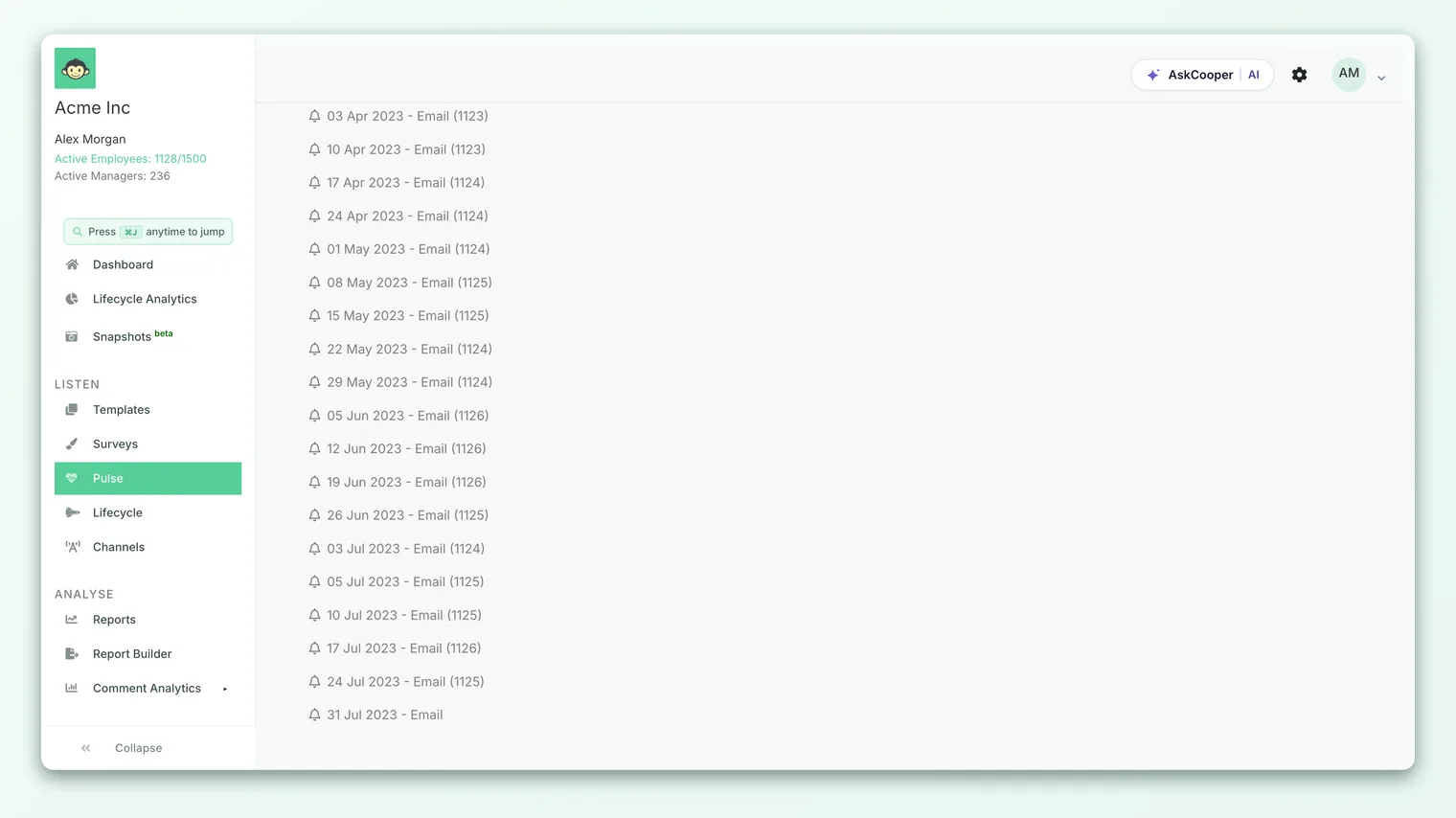
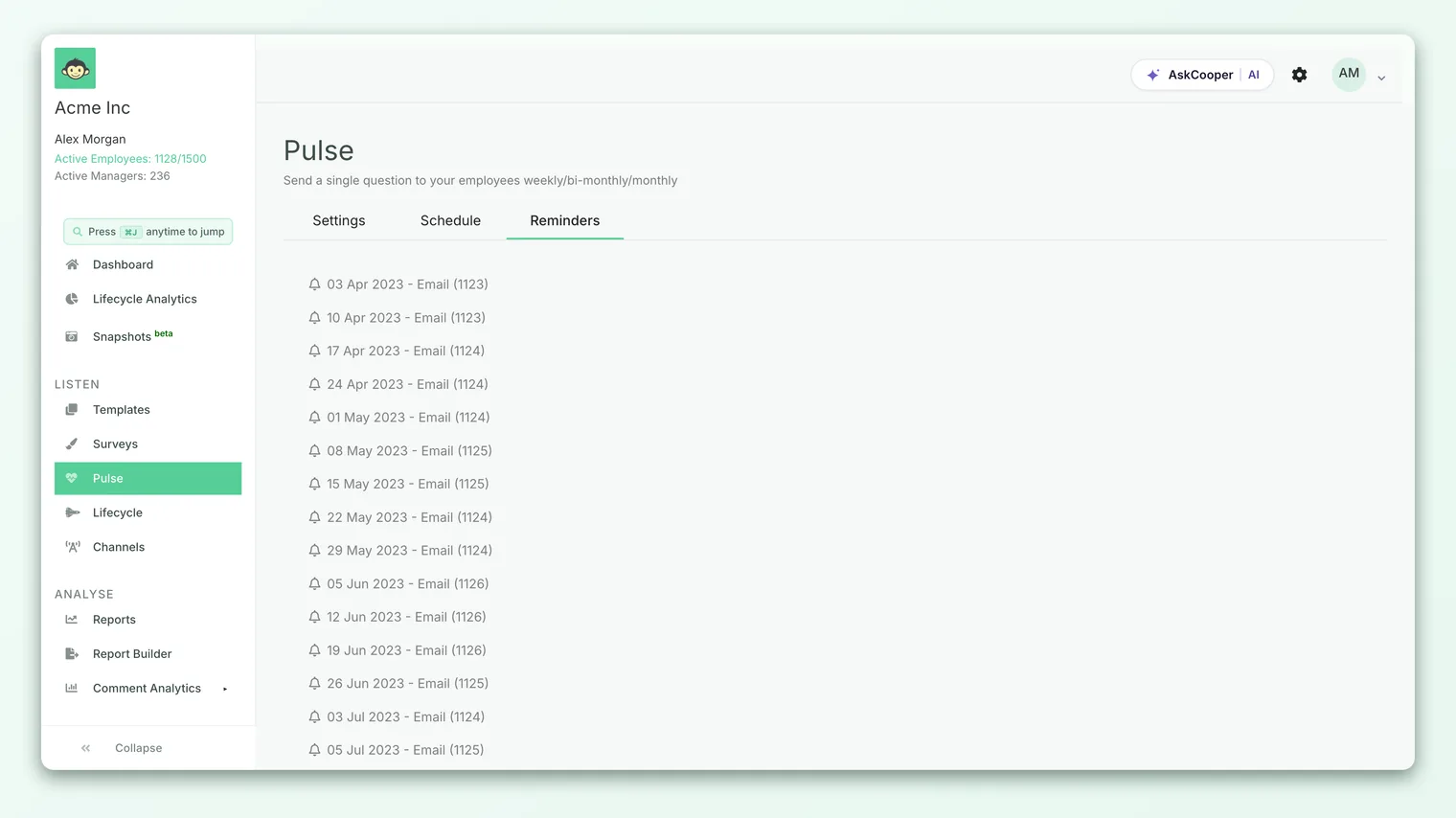
Once at least one reminder exists for the active pulse, a Reminders tab appears alongside Settings and Schedule in the pulse navigation.
The Reminders tab lists each reminder in date order. For every one you'll see:
- The date it was scheduled for.
- The channel it used (Email).
- How many participants it reached, shown in parentheses once the reminder has actually gone out.
Reminders that have already sent are marked as sent; those still queued show as pending. The participant count only appears after a reminder has run, so a freshly scheduled reminder will show a date and channel but no number until it fires.
How reminders interact with the cadence
Reminders aren't a separate schedule you manage. They are a by-product of the cadence, generated cycle by cycle. Understanding that link helps a few things make sense.
Change the frequency, and the reminders move with it. Because each reminder is timed two days before the next cycle's send date, changing your pulse from, say, weekly to fortnightly automatically shifts when the reminder lands. You never re-configure reminders separately.
Restarting the pulse restarts reminders. When you change the cadence, CultureMonkey cancels the pending cycles and begins a fresh cycle from scratch. Pending reminders tied to the old cadence are cleared along with those cycles, and new reminders are scheduled as the new cycle plays out.
Disabling the pulse stops reminders. If you disable a pulse, its scheduled cycles are cancelled, which means no further automatic reminders are created for it. Re-enabling starts the rhythm, and the reminders, again.
The single automatic reminder per cycle is designed to recover the people who simply missed the first email, not to chase everyone repeatedly. If participation is consistently low, that's usually a sign to look at the experience - question relevance, survey fatigue, or trust in anonymity - rather than to add more reminders.
Best practices
- Let the automatic reminder do its job. For most teams, the built-in one-per-cycle reminder is enough. Reserve manual reminders for cases where you genuinely need an extra push.
- Keep email addresses current. Since reminders are email only, an out-of-date address means a missed reminder. Keep your employee list clean.
- Watch the participant count. The number on the Reminders tab tells you how many people still hadn't answered when the reminder went out. A large or growing count is a useful early signal that something about the pulse needs attention.
- Don't over-nudge. The one-per-day limit exists for a reason. Manually triggering reminders day after day erodes goodwill and, ironically, tends to lower response quality.
- Match your cadence to your goal. Because reminder timing follows the cadence, choosing the right frequency in the first place is the best way to get reminder timing right. See Configure your pulse cadence.
Frequently asked questions
Can I choose when the automatic pulse reminder is sent?
Not from the settings screen. The automatic reminder is fixed at two days before the next cycle's send date (typically the Monday before a Wednesday pulse), at 10:00 in your account's timezone. To move it, you'd change the cadence, which shifts everything together. If you need an off-schedule nudge, use the manual Send Reminder action instead.
Why can't I send more than one reminder in a day?
CultureMonkey enforces a strict one-reminder-per-day limit for pulse surveys to protect employees from being spammed. If a reminder has already gone out today, a second attempt is blocked until the next day. This applies to both automatic and manual reminders.
Do reminders go out over Slack or Teams like my surveys do?
No. Pulse reminders are email only, even if Slack, Teams, SMS, or WhatsApp are enabled on your account for surveys. This is one of the ways pulse reminders differ from one-time survey reminders.
Will people who already answered get a reminder?
No. Reminders only reach participants who were sent the current cycle's question and haven't submitted a response yet. Anyone who has already answered is skipped, as are inactive employees.
Where do I see how many people a reminder reached?
On the Reminders tab of your pulse, which appears once at least one reminder exists. Each reminder shows its date, channel, and, once it has been sent, the number of participants it reached in parentheses.
What happens to reminders if I change my pulse cadence?
Changing the cadence cancels the current pending cycles and starts a fresh cycle. Pending reminders tied to the old cadence are cleared with those cycles, and new reminders are scheduled automatically as the new cadence runs. You never have to re-create them by hand.
Where to go next
- Set how often your pulse runs: Configure your pulse cadence
- Compare the two reminder models: Recurring vs one-time reminders
- Understand the survey type itself: What is a pulse survey?
Your feedback helps us improve the Help Center.