

Recurring vs one-time reminders explained
The two reminder patterns in CultureMonkey - the manual and scheduled reminders you set up for a one-off survey, versus the automatic reminders that ride along with recurring pulse and lifecycle runs - and how to tell which you'll get.
On this page
Reminders are what turn a survey invitation into a response. Very few people answer the first email, so the follow-up nudge does most of the heavy lifting on your participation rate. CultureMonkey handles those nudges in two quite different ways, and which one you get depends on the kind of survey you're running.
This guide explains both patterns clearly: the reminders you configure by hand on a one-off survey, and the reminders that are generated automatically for recurring pulse and lifecycle runs. You'll see how each is set up, when each one fires, and which to expect for which survey type - so you're never left wondering why a reminder did (or didn't) go out.
For a one-off survey, you control the reminders yourself: send one on the spot, schedule specific dates, or set a weekly recurring rule. For pulse and lifecycle surveys, CultureMonkey creates the reminders for you as part of each cycle, so there's usually nothing to configure. Both patterns only ever nudge people who haven't answered yet, and never more than once a day.
The two reminder patterns at a glance
Before the detail, here's the shape of it. Everything in CultureMonkey reminders falls into one of two buckets:
| One-time survey reminders | Recurring (automatic) reminders | |
|---|---|---|
| Survey type | A single, manually launched survey | Pulse surveys and lifecycle (autopilot) surveys |
| Who sets them up | You, the survey admin | The platform, as part of each run |
| Where you configure | The survey's Reminders area | Nothing to configure in most cases |
| When they fire | Immediately, on a date you pick, or on a weekly rule | On a schedule tied to each cycle |
| How many | As many as you schedule | One per cycle (plus manual top-ups) |
The rest of this article walks through each side of that table.
One-off surveys: you're in control
When you build and launch a single survey (an annual engagement survey, an event survey, a one-question check), reminders are entirely in your hands. From the survey's Reminders screen you have three tools, and you can mix them freely.
1. Send a reminder right now
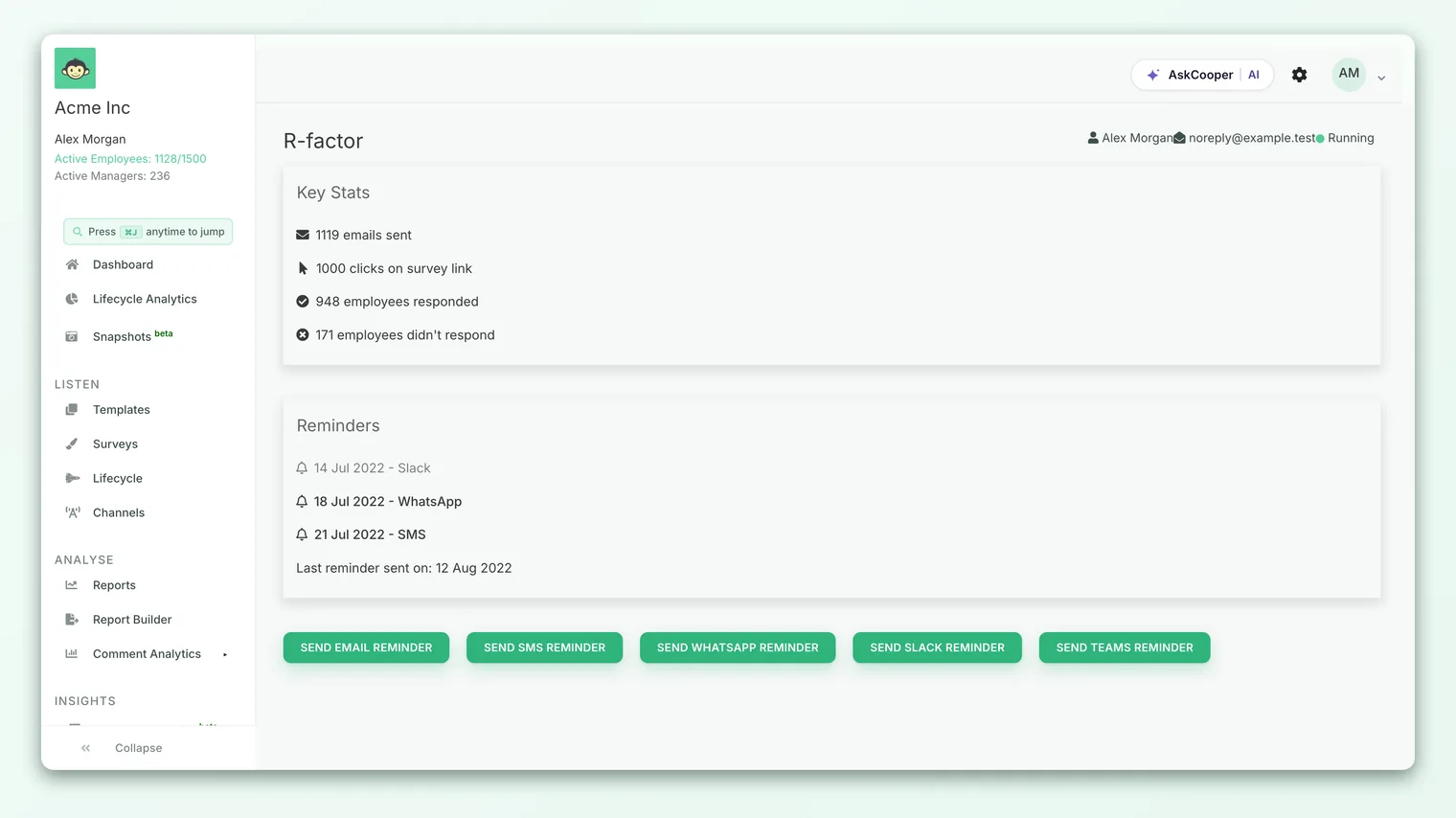
The simplest option is a manual, on-the-spot nudge. Open the survey, go to Manual reminders, pick a channel (Email, Slack, Teams, WhatsApp, or SMS), and send. The reminder queues immediately and goes out to everyone who hasn't yet submitted, roughly two minutes later.
This is the reminder to reach for when you notice participation stalling and want to act today. There's one guardrail worth knowing: a participant can only receive one reminder per day, so if the platform already nudged someone this morning, a manual reminder won't double up on them.
2. Schedule reminders for specific dates
If you already know when you want to follow up, schedule the dates in advance. Under Automate reminders, add one or more one-time reminders, each with its own date, channel, and optional send time (the default is 11:00 in your account's time zone). Each scheduled reminder fires once, on its date, and then it's done.
This is the classic "day 3, day 7, last day" pattern. You set three dates when you launch, and CultureMonkey handles the rest without you touching it again. You can cancel any upcoming reminder (or all of them at once) before it fires if plans change.
- 1Open Automate reminders - from the running survey, go to its notifications area and choose one-time reminders.
- 2Add a date - pick the calendar date you want the nudge to land on.
- 3Choose a channel - Email, Slack, Teams, WhatsApp, or SMS for that specific reminder.
- 4Set a time (optional) - leave it at the 11:00 default, or pick your own.
- 5Repeat as needed - add as many dated reminders as your rollout plan calls for.
3. Set a weekly recurring rule
For a survey that stays open for a while, dated reminders can get tedious. Instead, you can set a recurring reminder rule: choose one or more days of the week (for example, every Tuesday and Thursday) and a channel, and CultureMonkey will keep nudging non-responders on those days for as long as the survey is open.
This is genuinely recurring, but it's worth being precise about how it works under the hood. When you save a weekly rule, CultureMonkey schedules the next occurrence. Each time that reminder fires, it automatically schedules the one after it, walking forward day by day. The chain stops when the survey ends, or when you set an end date on the rule, whichever comes first. You can pause an individual day, stop the whole rule, or turn it back on at any time.
Even though this option is called "recurring," it belongs to one survey. It repeats reminders within that survey's open window - it does not launch new surveys or carry over to a future survey. That's a different feature (see Automate recurring surveys).
If a scheduled one-time reminder and a recurring reminder happen to land on the same day, CultureMonkey is smart about it: it sends only one, so nobody gets a double nudge.
Recurring surveys: reminders come built in
Now the other pattern. Pulse surveys and lifecycle (autopilot) surveys run on a repeating cadence, and their reminders are generated automatically as part of each run. You generally don't schedule these yourself at all.
Pulse reminders
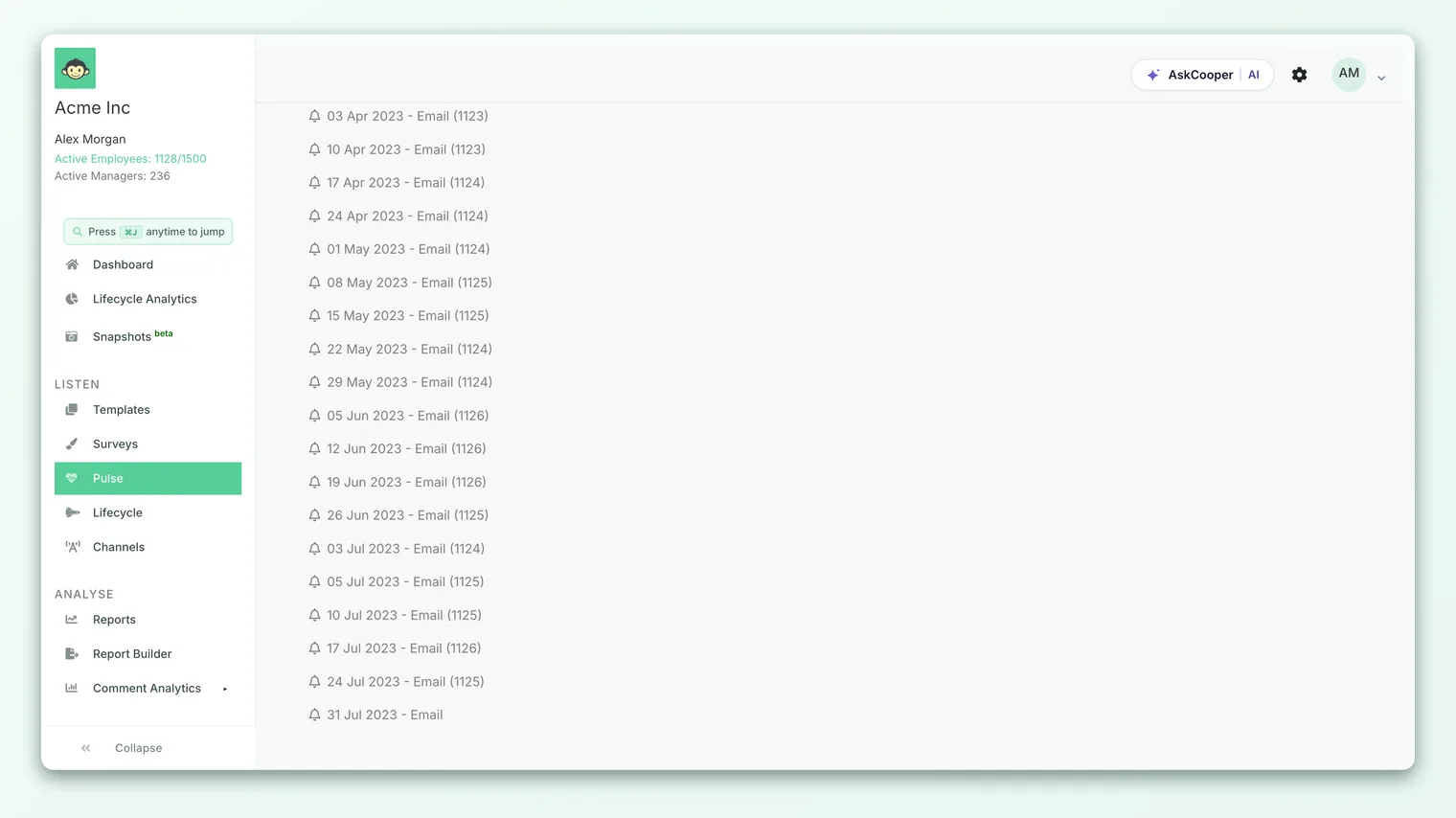
A pulse survey sends a small batch of questions on a set frequency. When one cycle goes out, CultureMonkey looks ahead to the next cycle and automatically creates a reminder for the people who haven't answered the current one. That reminder is scheduled for two days before the next batch is due (at 10:00 in your account time zone), which is the point where a gentle nudge does the most good before the questions roll over.
Because this is stitched into the pulse engine, there's nothing to set up. Turn the pulse on, and the reminders take care of themselves, cycle after cycle. If you ever want an extra push between cycles, there's a manual pulse reminder button that behaves just like the one-off manual reminder: it queues immediately and respects the one-per-day limit. Pulse reminders are covered in depth in How pulse reminders work.
Lifecycle (autopilot) reminders
Lifecycle surveys (onboarding, adaptation, exit, and the other stages) reach each employee at the right moment in their journey rather than on a fixed calendar. Their reminders behave like the weekly recurring rule described above, with one important safeguard tuned for the lifecycle context: CultureMonkey stops reminding a participant once their invitation is more than 30 days old. That prevents someone from being chased about, say, an onboarding survey long after the moment for it has passed, or once they've moved on to the next stage.
Aside from that guardrail, lifecycle reminders follow the same logic as any recurring reminder: non-responders only, one per day, and they stop when the survey window closes.
When each reminder fires
Timing is where the two patterns feel most different, so here they are side by side.
| Reminder | Trigger | Timing |
|---|---|---|
| Manual (one-off or pulse) | You click send | About 2 minutes later |
| One-time scheduled | The date you set | That date, 11:00 by default |
| Weekly recurring rule | Each chosen weekday | That day, 11:00 by default |
| Pulse (automatic) | Each pulse cycle | 2 days before the next batch, at 10:00 |
| Lifecycle (automatic) | Each chosen weekday | That day, until 30 days after the invite |
A few rules apply to every row in that table, because they're baked into how reminders are sent:
- Only non-responders are nudged. As soon as someone submits, they drop out of the reminder list. Nobody who has already answered will be reminded.
- One reminder per person per day, maximum. Whatever combination of rules you have, a given employee will never get two reminders in the same day.
- Reminders stop when the survey ends. No reminder fires after a survey's end date, and recurring chains respect any end date you set on the rule.
- QR-only surveys don't get reminders. Because there are no individually tracked recipients to nudge, reminder options aren't available for QR-only surveys.
Which pattern will I get?
Match your survey type to the reminder pattern and you'll always know what to expect:
| If you're running... | You'll use... | Do you configure reminders? |
|---|---|---|
| A one-off engagement, event, or ad-hoc survey | One-time survey reminders (manual, scheduled, or weekly rule) | Yes, in the survey's Reminders area |
| A pulse survey | Automatic pulse reminders | No (optional manual top-ups) |
| A lifecycle / autopilot survey | Automatic lifecycle reminders | No |
The quick heuristic: if you launched the survey by hand, you own the reminders; if the survey runs on a repeating engine, the engine owns them.
Best practices
- For one-off surveys, plan two to three reminders up front. Schedule dated reminders (or a light weekly rule) at launch so you're not scrambling to nudge manually later. A common rhythm is a reminder mid-way through the window and one near the close.
- Vary the channel for the final push. If early reminders went by email, a last nudge over Slack or Teams often catches the people who tune out their inbox.
- Don't over-remind. More reminders past a point annoy people without lifting responses much. The one-per-day cap helps, but restraint on your side matters too.
- Trust the automatic patterns. For pulse and lifecycle surveys, resist the urge to add manual reminders on top of the built-in ones unless a specific cycle is clearly lagging. The defaults are tuned to nudge at the right moment.
- Watch participation, then decide. Let the numbers, not habit, tell you when an extra manual reminder is worth sending.
Frequently asked questions
Can I schedule reminders for a pulse survey the way I do for a one-off survey?
Not in the same way. Pulse reminders are generated automatically for each cycle, so there's no date-picker to fill in. What you can do is send a manual pulse reminder between cycles when a particular batch is lagging.
The "recurring reminders" option is showing on my one-off survey. Is that the same as a recurring survey?
No, and this trips people up. The recurring reminder rule repeats nudges within that single survey's open window. A recurring survey is a separate automation that relaunches the whole survey on a schedule. See Automate recurring surveys for that.
Will someone who already answered still get reminders?
No. Reminders only ever go to participants with no submission yet. The moment someone responds, they're removed from every reminder list for that survey.
What if a scheduled reminder and a recurring reminder fall on the same day?
CultureMonkey sends only one of them. The one-per-day rule means an employee will never receive two reminders in a single day, no matter how your rules overlap.
Why did my lifecycle survey stop reminding some people?
Lifecycle reminders stop for a participant once their invitation is more than 30 days old. This is deliberate, so employees aren't chased about a stage that has already passed.
Can I stop reminders once they're scheduled?
Yes. For one-off surveys you can cancel individual upcoming reminders, cancel all of them, or stop a weekly rule from the Reminders area. For pulse and lifecycle surveys, disabling or ending the survey stops its reminders.
Where to go next
- The pulse side in detail: How pulse reminders work
- Relaunching surveys on a schedule: Automate recurring surveys
- Setting up the survey in the first place: Create a survey from scratch
Your feedback helps us improve the Help Center.