

Customize your direct and indirect reportee labels
What the direct and indirect reportee labels and descriptions are, where they appear across the manager dashboard and reports, how to customize them to match your org's terminology, and how they interact with your org hierarchy.
On this page
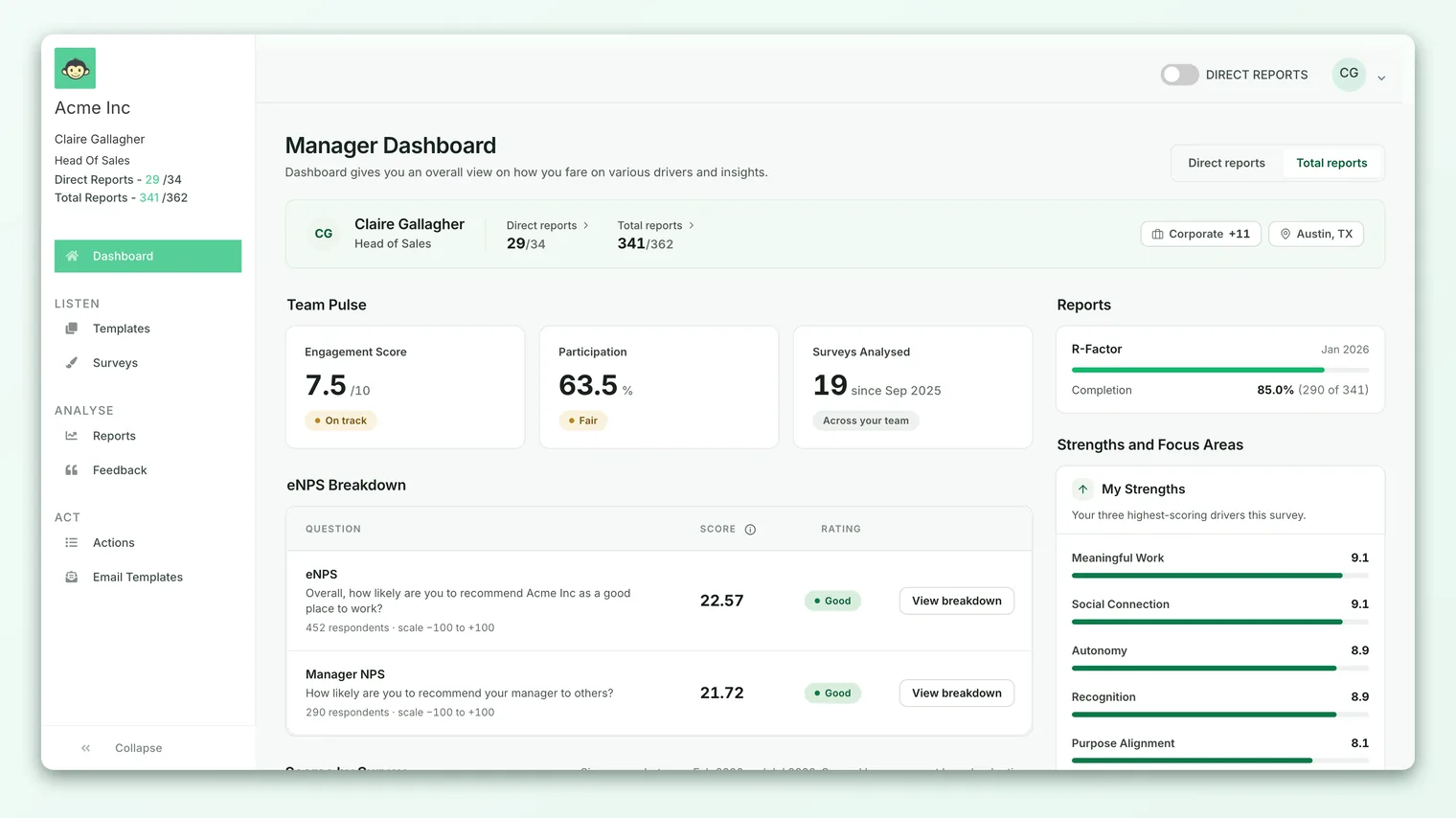
When a manager opens their dashboard in CultureMonkey, they see two groups of people: the employees who report directly to them, and the wider set of employees who sit anywhere beneath them in the reporting chain. CultureMonkey labels these two groups - by default, Direct Reports and Total Reports - and shows a short description of what each count means.
Those labels and descriptions are customizable. If your organization calls its wider reporting group something specific - "Extended team," "Skip-levels," "Org," "Function," "All reports" - you can change the wording so the dashboard speaks your language instead of ours. This guide explains what each label and description is, exactly where they appear, how to customize them, and how the whole thing sits on top of your org hierarchy.
CultureMonkey labels a manager's people as Direct Reports (people who report straight to them) and Total Reports (their full reporting chain). You can rename the indirect label to match your org's terminology and rewrite the four description texts that explain each count. The direct-reports label itself is fixed; everything else is adjustable. These labels are driven by your org hierarchy and appear on the manager dashboard, in reportee lists, and in exports.
Direct vs indirect reportees
Every manager in CultureMonkey has two distinct groups of people, and the difference matters for how results are scoped and read.
| Group | Who it includes | Default label |
|---|---|---|
| Direct reportees | Employees who report straight to this manager - one level down, with no one in between | Direct Reports |
| Indirect reportees | Everyone in the manager's entire reporting chain - their direct reports plus everyone who reports to those people, all the way down | Total Reports |
So a Director's direct reports might be five team leads, while their indirect (total) reports could be the eighty people across all five teams. On the dashboard, the two groups are shown side by side so a manager can move between "just my team" and "my whole org" views.
CultureMonkey uses Total Reports rather than "Indirect Reports" for the wider group because the count includes the direct reports - it's the total of everyone beneath the manager, not just the skip-levels. If your organization thinks of that group differently, that's exactly the label you can change.
The labels and descriptions, in detail
There are really two things you can customize, and it helps to keep them separate in your head.
1. The indirect (wider-group) label. This is the short word or phrase used wherever CultureMonkey names the wider reporting group. By default it's Total, which renders as "Total Reports," "Active Total Reports," and so on. Change it to, say, Org, and those become "Org Reports" and "Active Org Reports."
2. The four description texts. When a manager opens the details for a reportee count, CultureMonkey shows a sentence explaining what that number means. There are four such sentences you can rewrite:
| Field | What it describes | Default text |
|---|---|---|
| Direct Reports Description | The total direct-report count | "The total number of employees who have reported directly to you at any point during a managed survey period." |
| Active Direct Reports Description | The active direct-report count | "The number of current, active employees reporting directly to you." |
| Indirect Reports Description | The total (wider-group) count | "The total number of employees in your reporting hierarchy, including your Direct Reports and all employees who report to them (if applicable)." |
| Active Indirect Reports Description | The active wider-group count | "The number of current, active employees reporting below you." |
Each count also has a total and an active variant. "Total" includes anyone who reported to the manager at any point during a managed survey period - useful for understanding participation across a survey even after people move teams. "Active" counts only current, active employees. That distinction is why the descriptions exist: they tell a manager whether they're looking at a historical total or today's live team.
Where these labels appear
The labels and descriptions aren't in one place - they flow through everywhere CultureMonkey talks about a manager's people. Knowing where they surface helps you choose wording that reads well in every context.
- Manager dashboard hero stats - the headline "Direct Reports" and "Total Reports" counts a manager sees at the top of their dashboard.
- Reportee lists and detail modals - when a manager opens either group to see the people in it, the panel title, the count label, and the description text all use these values.
- Employee/manager setup screens - the helper text that explains a manager's access ("Access analytics of direct/total reports and work on assigned actions") uses the indirect label.
- Survey access notes - text describing a manager's scope ("Access is limited to this survey for this manager's direct and total reports") picks up the label.
- Exports - the manager reports-count CSV export uses the indirect label in its column headers (for example, "Total Reports" and "Active Total Reports").
When you'd want to customize them
Most organizations are fine with the defaults. You'd reach for customization when the standard wording doesn't match how your people actually talk:
- Your org uses specific terminology. If everyone internally says "skip-levels," "extended team," "function," or "line of report," matching that wording removes a small but real translation cost for managers.
- "Total" is ambiguous in your context. Some organizations read "Total Reports" as a filed report/document rather than a group of people. A clearer label like "All reports" or "Org" removes the ambiguity.
- You want the descriptions to reflect your survey cadence. If you run a specific managed-survey rhythm, rewriting the description texts to match how you explain "total" vs "active" can make the numbers easier for managers to trust.
- Localization or house style. If your org has a style guide for internal tooling, aligning these strings keeps CultureMonkey consistent with your other systems.
If none of these apply, leave the defaults - they're written to be clear on their own.
How to customize the labels
These are account-level settings that affect every manager in the account, so they're configured centrally rather than by individual managers.
These are configured on your account by CultureMonkey today rather than from a self-serve admin page. To change them, reach out to your CultureMonkey contact with the wording you want.
Here's what the change looks like end to end, so you know exactly what to ask for and what to expect:
- 1Decide your indirect label - pick the single word or short phrase for the wider reporting group (for example, Org, Extended team, or All reports). CultureMonkey appends "Reports" automatically, so "Org" becomes "Org Reports."
- 2Draft your description texts (optional) - if you want, write replacement sentences for any of the four descriptions: direct, active direct, indirect, and active indirect. Leave any you're happy with blank to keep the default.
- 3Send them to CultureMonkey - share your chosen label and any custom descriptions with your CultureMonkey contact so they can apply them to your account.
- 4Confirm on the manager dashboard - once applied, open any manager's dashboard (or use "view as" if you're a Super Admin) and check the headline stats, the reportee lists, and an export to see the new wording in place.
The description texts are independent. If you only want to change one - say, the "Total Reports" description - you can, and the other three keep their default wording. The same goes for the label: change it without touching any descriptions, and only the naming updates.
Before and after: a worked example
Suppose your organization calls the wider reporting group its "Org" and wants the description to reference your quarterly cycle. Here's how a manager's dashboard changes:
| Element | Before (default) | After (customized) |
|---|---|---|
| Wider-group stat label | Total Reports | Org Reports |
| Active variant | Active Total Reports | Active Org Reports |
| Wider-group description | "The total number of employees in your reporting hierarchy, including your Direct Reports and all employees who report to them (if applicable)." | "Everyone in your org across the current quarter, including your direct reports and everyone beneath them." |
| CSV export headers | Total Reports · Active Total Reports | Org Reports · Active Org Reports |
| Direct-reports label | Direct Reports | Direct Reports (unchanged) |
Notice the direct-reports label stays as Direct Reports - only the indirect group is renamed. And because the label flows everywhere, one change updates the dashboard, the modals, the access notes, and the exports all at once.
How it interacts with your org hierarchy
These labels are only meaningful because CultureMonkey knows who reports to whom - and that comes from your org hierarchy. The reportee groups themselves are derived from the hierarchy:
- Direct reportees are the employees mapped one level below a manager in the hierarchy.
- Indirect reportees are computed by walking down the hierarchy from that manager - their reports, and their reports' reports, all the way to the bottom.
That means the labels describe the structure; they don't create it. If your hierarchy is incomplete or a reporting line is wrong, renaming the label won't fix the underlying counts - you'll want to correct the hierarchy first. See Enable and configure your org hierarchy and Set up manager-employee relationships for how those relationships are built.
The labels also sit alongside CultureMonkey's roles and access model. A manager's ability to see their reportees at all depends on their role and scope; the labels simply name the groups they're allowed to see. For how access is scoped to the right people, see Understanding roles.
Renaming a group doesn't change what's inside it. Reportee results remain subject to CultureMonkey's anonymity thresholds - if a manager's team is too small, individual results stay hidden regardless of the label. See Why can't I see results yet?.
Frequently asked questions
Can I rename the "Direct Reports" label too?
Not in the current build. Only the wider (indirect) group has a custom label; the direct group stays as Direct Reports. You can, however, rewrite the two description texts for the direct-reports counts.
Does changing the label affect who's counted?
No. The label is purely cosmetic - it changes the wording, not the membership of the group. CultureMonkey determines who counts as a direct or indirect reportee entirely from your org hierarchy.
Where does "Total" vs "Active" come from?
Every reportee count has a total variant (everyone who reported to the manager at any point during a managed survey period) and an active variant (current, active employees only). The four description texts let you explain that distinction in your own words.
Will the new label show up in exports?
Yes. The CultureMonkey manager reports-count export uses your indirect label in its column headers, so a rename from "Total" to "Org" changes the CSV headers to "Org Reports" and "Active Org Reports" as well as the on-screen labels.
Can individual managers set their own labels?
No. These are account-level settings that apply to every manager consistently, so the terminology stays the same across the whole organization. They're configured centrally, not per manager.
I changed the label but the dashboard still shows the old one - why?
Make sure the change was actually applied to your account, then reload the manager dashboard. If a manager's browser cached the page, a hard refresh usually resolves it. If the wider-group count itself looks wrong, the issue is more likely the underlying org hierarchy than the label.
Where to go next
- Build the structure behind the labels: Enable and configure your org hierarchy
- Get reporting lines right: Set up manager-employee relationships
- Understand who sees what: Understanding roles
Your feedback helps us improve the Help Center.