

Schedule a one-time reminder
How to set a single scheduled reminder for people who haven't responded to a survey - when it sends, who it reaches, which channel it uses, and what the message says.
On this page
A one-time reminder is exactly what it sounds like: a single nudge, sent once, on a date and time you choose, to the people who still haven't responded to your survey. It's the simplest reminder in CultureMonkey, and for a lot of surveys it's all you need. Pick a day, pick a channel, save, and the platform takes care of the rest.
This guide walks through how to schedule one, when it goes out, exactly who receives it, what the message says, and how to change your mind before it sends.
Open your survey, go to the reminders area, add a one-time reminder, choose a date and channel (the time defaults to 11:00 AM in your organization's timezone), and save. When that moment arrives, CultureMonkey sends the reminder only to participants who were sent the survey and have not yet submitted a response. You can schedule several one-time reminders on different dates, and you can cancel any that haven't sent yet.
When to use a one-time reminder
Participation rarely peaks on day one. People are busy, the invite gets buried, or they mean to respond later and forget. A well-timed reminder is the single most effective way to lift a response rate, and a one-time reminder is the right tool when you want deliberate, hands-on control over each nudge.
Reach for a one-time reminder when:
- You want to place a nudge on a specific date - for example, three days after launch, or the morning before the survey closes.
- You're running a short survey where one or two well-placed reminders are plenty and a recurring schedule would be overkill.
- You want to vary the channel per nudge - send the first reminder by email and a later one by Slack, so it lands somewhere new.
If instead you'd rather set a repeating rhythm once and let it run (say, every Wednesday until the survey closes), use a recurring reminder instead. The two aren't mutually exclusive: you can layer individual one-time reminders on top of a recurring schedule when you want an extra push on a particular day.
How to schedule a one-time reminder
You schedule reminders from the survey itself, in the notifications area. The survey needs a start date before you can add reminders, so if it's still a draft without a launch date, set that first from the survey's Settings.
- 1Open the survey. From Listen → Surveys, open the survey you want to remind people about, then go to its reminders section (the notifications view for the survey).
- 2Go to the One Time Reminders tab. Reminders are split into One Time Reminders and Recurring Reminders. Choose the one-time tab.
- 3Add a reminder. Click Add reminder to create a new row.
- 4Pick the date. Use the date picker to choose the day the reminder should go out. You can only choose a date after the survey has started and before it ends, so the picker is limited to that window.
- 5Set the time (optional). The send time defaults to 11:00 AM. Leave it as is, or adjust it if you want the nudge to land at a different hour.
- 6Choose a channel. Select Email, SMS, Slack, WhatsApp, or Teams (only the channels enabled for your account appear). For more on picking a channel, see Send reminders across multiple channels.
- 7Save changes. Confirm the prompt. The reminder is now scheduled and will appear in your list of upcoming reminders.
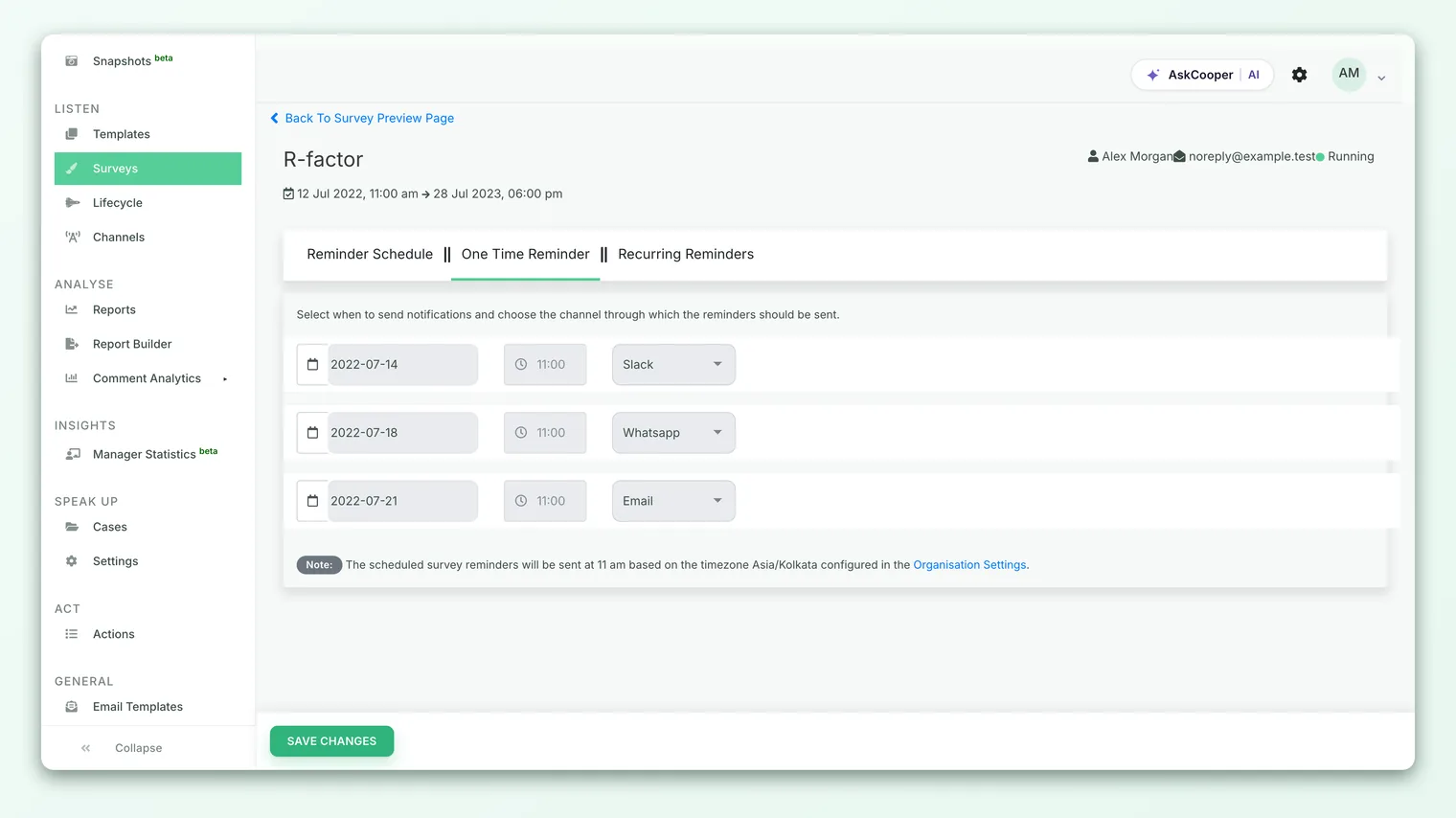
You can add more than one row before saving. That lets you line up several one-time reminders in a single sitting, each on its own date and channel. There's one rule to remember: you can only have one reminder per date per survey, so two reminders can't share the same day.
When the reminder sends (and the default time)
By default, a one-time reminder goes out at 11:00 AM. This is the platform default, and it's a deliberate choice: mid-morning tends to catch people after they've settled into the day but before the afternoon crush, which is usually a good moment for a survey nudge to be noticed.
That time is interpreted in your organization's timezone, not the individual recipient's. The timezone comes from your Organisation Settings, so a reminder set for 11:00 AM sends at 11:00 AM in whatever timezone your account is configured for. If your workforce spans multiple regions, keep that in mind: 11:00 AM at headquarters may be early evening somewhere else.
The send time is always based on the timezone configured in your Organisation Settings, shown in the note beneath the reminders list. If reminders seem to arrive at an unexpected hour, that account timezone is the first thing to check.
You're free to change the time on any reminder before it's scheduled - the default is just a sensible starting point, not a fixed rule.
Who the reminder targets
This is the most important thing to understand about reminders, and it's what makes them safe to use: a reminder is only sent to people who still need it.
When the reminder fires, CultureMonkey looks at the survey's active participants and sends the nudge only to those who:
- Were actually sent the survey. If someone hasn't received the survey invite yet, they won't get a reminder for it.
- Have not submitted a response. The moment a participant completes the survey, they drop out of the reminder audience. People who've already responded are never reminded.
In other words, you don't need a separate "non-responders" list and you can't accidentally pester someone who already took the survey. The platform filters the audience down to genuine non-responders every time a reminder runs, using the live response data at that moment. Someone who responds an hour before your 11:00 AM reminder is automatically excluded.
There's one more built-in guardrail: a given participant will receive at most one reminder per day. If you've scheduled a one-time reminder and a recurring reminder that happen to land on the same date, the platform won't send the same person two nudges that day.
Because reminders are addressed to individual participants through their own delivery channel, they don't expose who has or hasn't responded to anyone viewing results. Response tracking stays on the participation side, and it's still governed by the usual anonymity thresholds. If your results look empty, that's a separate topic - see Why can't I see results yet?.
What the reminder says
The reminder message depends on the channel and on whether you've customized the template.
If you've set a reminder email template for the survey, that's what recipients see, with the usual personalization (recipient name, survey link, and any placeholders you've used) filled in. This is the recommended path when you want the reminder to match your organization's voice.
If you haven't customized anything, CultureMonkey uses a friendly default. The default email opens with the recipient's name and a short, low-pressure message along the lines of: the survey is still pending, please take a couple of minutes to help make the workplace better. It includes a clear Start Survey button and the direct survey link (in case the button doesn't work), the survey's expiry time if one is set, and the standard identity or anonymity disclaimer. The tone is intentionally gentle - a reminder, not a demand.
The other channels (SMS, Slack, WhatsApp, Teams) carry the same intent in a format suited to that channel, each with the participant's personal survey link. To tailor wording per channel, see Send reminders across multiple channels.
Managing scheduled reminders
Once saved, every reminder appears in your reminders list with its date, time, and channel, so you can see at a glance what's queued and what's already gone out. Reminders that have sent are marked as Sent; the rest are shown as pending.
You have a couple of ways to change course before a reminder fires:
- Cancel a single reminder. Each upcoming reminder has a cancel control (the small times or cross icon next to it). Cancelling removes that one scheduled nudge and asks you to confirm first.
- Cancel all upcoming reminders. If you want to stop everything that's still queued, use Cancel All Reminders. This clears all upcoming one-time reminders in one action.
Note that you can only cancel reminders that haven't sent yet. Once a reminder has gone out, it's part of the survey's history and can't be undone. The date, time, and channel of an already-scheduled reminder are locked in as well - if you need something different, cancel the reminder and add a new one with the details you want.
Reminders only run while the survey is live. If a survey has ended (or a recurring rule has passed its end date), any scheduled reminder for that survey simply won't send. Make sure your reminder dates fall inside the survey's open window, which the date picker already helps you do.
Best practices
A few habits make one-time reminders far more effective:
- Give people room before the first nudge. A reminder on the same day as launch feels pushy. Two to three days in is usually the sweet spot.
- Save a strong nudge for near the close. A reminder the day before the survey closes catches the procrastinators, and there are always procrastinators.
- Don't over-remind. More reminders bring diminishing returns and can breed resentment. For most surveys, one or two well-placed nudges beat a barrage.
- Match the channel to the audience. Deskless or frontline teams may never see an email; SMS or WhatsApp reaches them where they are. See multi-channel reminders.
- Customize the template. A reminder in your organization's voice, ideally signed by a leader, lands better than a generic one.
Frequently asked questions
Will people who already responded get the reminder?
No. Reminders are sent only to participants who were sent the survey and have not yet submitted a response. Anyone who's already completed the survey is automatically excluded, right up to the moment the reminder sends.
Can I change the send time away from 11:00 AM?
Yes. 11:00 AM is just the default. Set any time you like on the reminder before saving. Remember the time uses your organization's timezone from Organisation Settings, not each recipient's local time.
Can I schedule more than one one-time reminder?
Yes. You can queue several one-time reminders on different dates, each with its own channel. The only limit is one reminder per date per survey. If you want a repeating cadence instead, use a recurring reminder.
What happens if a reminder and a recurring reminder fall on the same day?
CultureMonkey won't double up. A participant receives at most one reminder per day, so overlapping reminders on the same date won't send the same person two nudges.
Can I edit a reminder after scheduling it?
Not directly. The date, time, and channel of a scheduled reminder are fixed once saved. To change any of them, cancel the reminder and add a new one with the details you want. You can cancel any reminder that hasn't sent yet.
Will a reminder send if the survey has already closed?
No. Reminders only run while the survey is open. A scheduled reminder for a survey that has ended will not send.
Where to go next
- Set a repeating cadence: Set up recurring reminders
- Pick the right channel: Send reminders across multiple channels
- Results not showing? Why can't I see results yet?
Your feedback helps us improve the Help Center.