

Set up recurring reminders
A step-by-step guide to configuring reminders that repeat on the weekdays and channels you choose - how to pick your days, how the schedule advances one step ahead, what time reminders go out, and how they stop automatically when the survey closes.
On this page
If you're running a survey and want to keep chasing non-responders without scheduling every nudge by hand, recurring reminders are the tool. You pick a few weekdays and a channel for each, save once, and CultureMonkey keeps sending on that rhythm until the survey closes. This guide is the practical how-to: what to fill in, in what order, and what happens after you hit save.
For the bigger picture of what recurring automation does (and how it differs from a pulse), see Set up recurring survey automation rules. This article stays hands-on: the fields, the sequence, and the behavior you'll actually see.
Open your survey's notifications, go to Recurring Reminders, set a start date (and an optional end date), then add one or more rows that each pair a weekday with a channel. Save, and CultureMonkey schedules the next matching weekday for you. Each reminder that goes out triggers the next one, so the schedule always runs one step ahead - and it stops automatically when your end date or the survey's end date is reached.
Before you start
A recurring reminder rule lives on a single, already-created survey. A couple of things need to be true before the setup will work:
- The survey has a start date. Recurring reminders need a window to run in. The rule's own start date has to fall on or after the survey's start date, so the survey must be scheduled first.
- You know your channels. The channels you can pick (Email, SMS, Slack, WhatsApp, Teams) are the ones your account has switched on. If Slack or Teams isn't in the dropdown, it hasn't been connected yet.
- You're chasing completion, not re-surveying. Every recurring reminder targets non-responders only. Once someone submits, they drop off the list automatically.
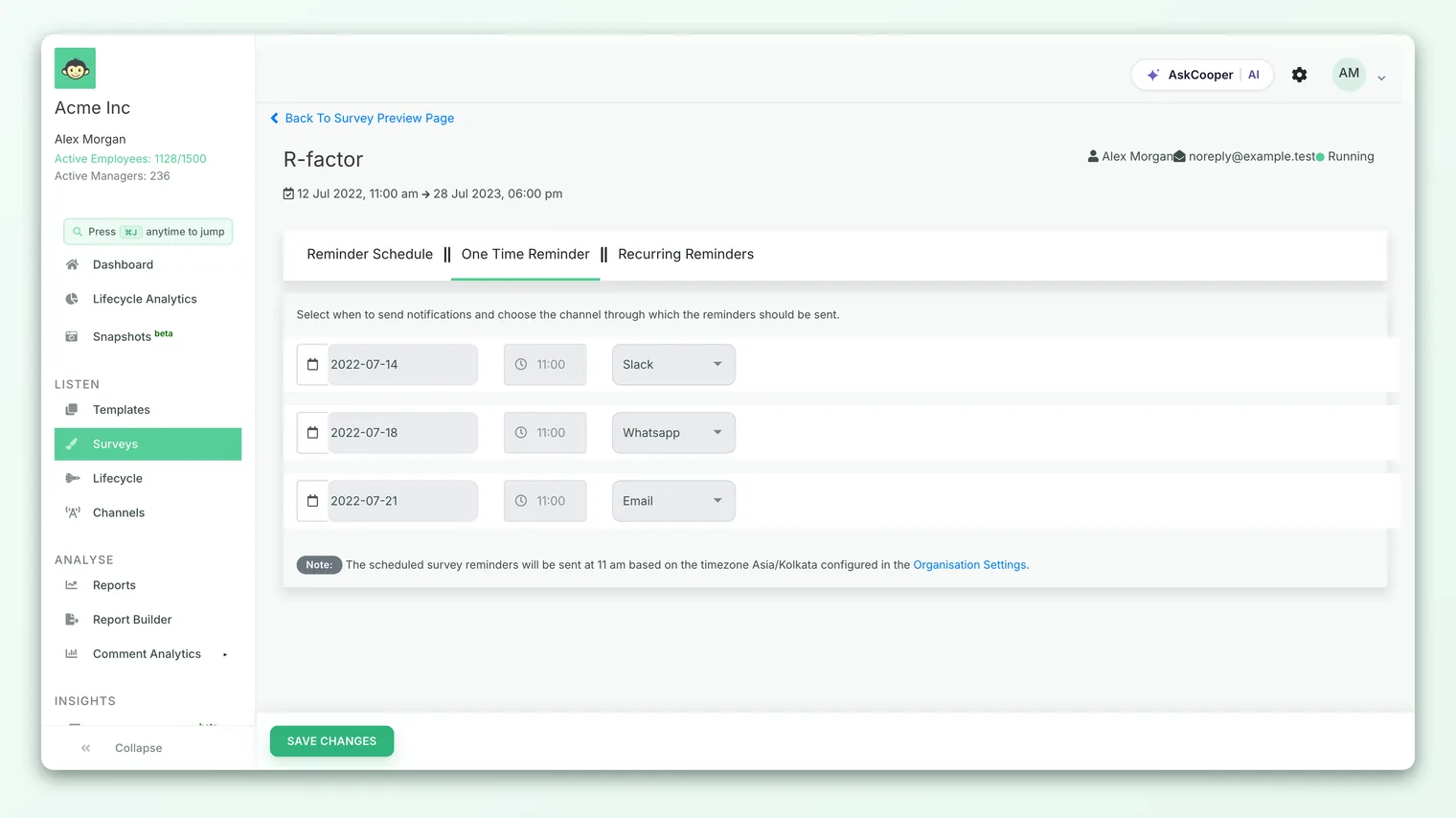
If you only need a single nudge on one specific date, you don't need a recurring rule at all - see Schedule a one-time reminder instead.
The three fields you'll set
The recurring reminder form is deliberately small. There are only three things to configure, and each maps to a field you fill in.
| Field | What it controls | Notes |
|---|---|---|
| Start date | The day recurring reminders begin | Must be on or after the survey's start date. The date picker won't let you choose earlier. Once the rule is saved, the start date is locked. |
| End date | The day recurring reminders stop | Optional. Leave it blank to run until the survey itself ends. If you set one, it must be after the start date and can't go past the survey's own end date. |
| Day + Channel | One weekday tied to one delivery channel | Added as a row. Each weekday (Sunday through Saturday) can be used only once per survey. Add as many rows as you want distinct days. |
The day plus channel pairing is the heart of the feature. One row equals one recurring rule set: a single weekday delivered through a single channel. Stack rows to build a weekly rhythm. For example, Monday - Email and Thursday - Slack gives non-responders two nudges a week through two channels, while a lone Wednesday - Email row gives one steady weekly reminder.
Step by step: setting up the rule
You configure recurring reminders from inside the survey, on its notifications area.
- 1Open the survey's notifications - go to Listen > Surveys, open the survey, and move to its notifications. You'll see tabs including One Time Reminder and Recurring Reminders.
- 2Open the Recurring Reminders tab - this is where the whole rule is built. Everything below happens here.
- 3Set the start date - pick the day recurring reminders should begin. The picker is bounded to the survey's window, so you can only choose a valid date.
- 4Set an end date (optional) - if you want reminders to stop before the survey closes, choose a date. Leave it empty to let them run for the survey's whole life.
- 5Add a day and channel - click Add Recurring Reminder to insert a row, then choose a weekday and a delivery channel. Repeat to add more days. Each weekday can be used once.
- 6Save changes - confirm the prompt ("Recurring reminders will be automatically scheduled to send on the chosen day(s)"). The platform schedules the first reminder for the next matching weekday and takes it from there.
Why a weekday can only be used once
If you try to pick the same weekday twice, the form stops you: the second selection resets and you'll see a small "already taken" notice asking you to choose another day. This is intentional. It guarantees at most one recurring reminder per weekday per survey, so nobody gets double-messaged on the same day. It also means recurrence is defined by day of the week, not calendar dates - you're saying "every Monday," not "the 1st and the 15th."
Picking the channel
Each row carries its own channel, so different days can go out different ways. The dropdown shows only the channels your account has enabled, which is why two accounts can see different lists.
Reminders sent through a channel employees already check tend to lift response rates more than another email in a crowded inbox. If your teams live in Slack or Teams, pairing a mid-week reminder with that channel often does more than a second email. Spreading days across channels (email early in the week, a chat ping later) also reaches people who tune one channel out.
What time reminders go out
The recurring reminder form asks for a day and a channel, but not a time of day. Recurring reminders send at a fixed default time rather than one you set per row, so you don't have to think about clocks while building the schedule. All the times are interpreted in your account's timezone, so a reminder lands at the same local hour for everyone on that account regardless of where the job runs.
If you need a reminder to go out at a specific, one-off time, that's what a one-time reminder is for; recurring reminders trade per-send timing for a hands-off weekly cadence.
How the schedule advances: one step ahead
This is the part worth understanding, because it explains why you only ever see one upcoming recurring reminder at a time. A recurring rule does not queue every future reminder at once. It works one step ahead:
- On save, CultureMonkey looks at your active day rows and schedules a reminder for the next matching weekday from your start date.
- When that reminder finishes sending, the same job immediately calculates the next matching weekday from your active rows and schedules that one.
- The cycle repeats. Every completed reminder triggers the scheduling of the one after it, always looking forward to the next active day.
To find "the next matching weekday," the system scans the coming seven days from the current point and picks the first one that matches an active day row. So if today is Friday and you have Monday and Thursday active, Monday is scheduled next; once Monday sends, Thursday is scheduled; once Thursday sends, the following Monday is scheduled, and so on.
Because scheduling is chained, at any moment there's just one recurring reminder waiting in the queue. That's normal. It isn't a sign that later reminders are missing - they get created the instant the current one finishes.
How it avoids double-messaging
Before it actually sends, a recurring reminder runs a few sensible checks so people aren't over-contacted:
- Same-day one-time reminder wins. If a one-time reminder is already set for the same day a recurring reminder would land, the recurring one steps aside for that day, and the schedule moves on to the next active weekday.
- Once per participant per day. A participant who has already been reminded that day is skipped, so overlapping logic can't message the same person twice in a day.
- Non-responders only. Anyone who has already submitted is never included.
Together these mean you can layer a recurring rule and the occasional one-time reminder without worrying about collisions.
How it stops at the end
A recurring rule can never outlive the survey it belongs to. Before scheduling each next reminder, the system checks two guards:
- The rule's end date, if you set one.
- The survey's own end date.
If the next matching weekday would fall after either date, that reminder isn't scheduled and the automation quietly stops. There's nothing to turn off manually. This is also why the survey's end date always wins: even if you leave the rule's end date blank (or set it generously), reminders stop the moment the survey closes.
If the survey must close on a fixed day, an explicit rule end date keeps reminders from bumping right up against it. If you don't have a specific reason to stop early, leave it blank and let the rule run to the survey's own end.
After it's running: pausing and stopping
Once saved, the rule's fields lock (the start date, the day and channel choices) so the schedule stays stable. You manage it row by row from there rather than editing days in place.
- Deactivate a day - the Deactivate control on a row switches a single weekday off. Its scheduled reminder is cancelled and future reminders skip that day, while your other days keep running. Useful when you decide, say, Thursday nudges are too much.
- Reactivate a day - Activate turns a paused weekday back on. It rejoins the rotation and the next matching occurrence gets scheduled again.
- Stop all recurring reminders - Stop All Recurring Reminders cancels every scheduled recurring reminder and moves all the day rows to an inactive state, while leaving the survey itself running.
Whenever you deactivate, reactivate, or stop, CultureMonkey re-computes what should come next: it clears the not-yet-sent recurring reminders and re-schedules from your currently active days. Reminders that have already gone out are left untouched, so your sending history stays intact.
Turning a day off and back on is reversible and keeps your sent history clean. That's usually better than tearing the whole rule down and rebuilding it.
Frequently asked questions
Can I set a specific send time for each day?
No. Recurring reminders go out at a fixed default time in your account's timezone; the form only takes a day and a channel. If you need a particular time on a particular date, use a one-time reminder instead.
Why do I only see one upcoming recurring reminder?
Because the schedule advances one step ahead. CultureMonkey queues only the next reminder and creates the one after it the moment the current one finishes sending. This is expected, not a bug.
Can two reminders go out on the same weekday?
Not within one recurring rule. Each weekday can be used only once per survey, which is why the form blocks a repeated day. You can still add a separate one-time reminder on a different date if you need an extra nudge.
What happens if my rule's end date is after the survey's end date?
The survey's end date wins. Reminders stop when the survey closes, regardless of the rule's end date. The end date on the rule only matters if it comes before the survey ends.
Will people who already responded keep getting reminders?
No. Every recurring reminder targets non-responders only. As soon as someone submits, CultureMonkey drops them from the reminder list automatically.
Can I change the days after the rule is live?
You can't edit a day in place once it's saved, but you can deactivate a day and activate a different one, or stop the whole rule and set up a new pattern. Each change re-computes the next reminder from your active days.
Where to go next
- Need a single nudge instead? Schedule a one-time reminder
- Want the concept behind the mechanics? Set up recurring survey automation rules
- Choosing between the two? Recurring vs one-time reminders
Your feedback helps us improve the Help Center.