

Schedule and send survey invitations
How to set when the first survey invitation goes out in CultureMonkey - sending immediately versus scheduling a start date and time, how timezones are handled, setting the end date, and exactly what recipients receive.
On this page
Your survey is built and reviewed. The one decision left before it reaches your people is a timing decision: does the first invitation go out the moment you publish, or at a date and time you choose? This article is about that single choice and everything that flows from it - immediate versus scheduled sending, how CultureMonkey handles timezones, what the end date does, and what actually lands in an employee's inbox.
This is deliberately narrow. The full go-live lifecycle - the pre-launch checklist, the Publish this survey button, and the draft → published → running → ended states - is covered in Launch or schedule a survey. Here we zoom in on the invitation timing itself: the two fields at the top of the Settings step and the mechanics behind them.
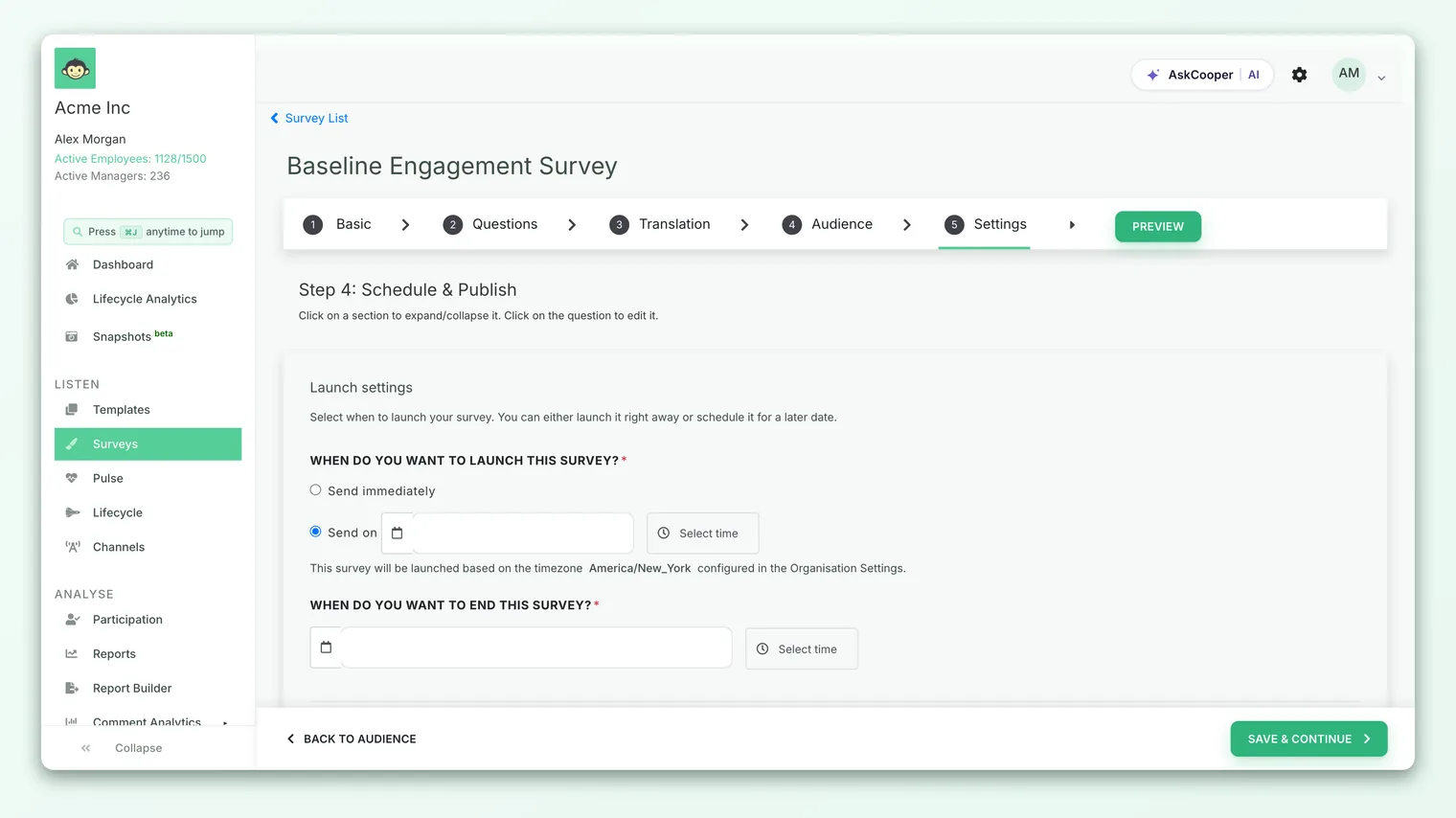
On the builder's Settings step, under "When do you want to launch this survey?", choose Send immediately or Send on a specific date and time. With immediate sends, CultureMonkey queues the first invitation and starts rolling it out in about five minutes. Scheduled sends hold until the exact moment you set, interpreted in your organization's timezone. You also set an end date for when the survey closes. Recipients get an invitation on whichever channel the survey uses, each with their own personal link.
The two ways invitations go out
At the top of the Settings step, a single pair of radio buttons controls invitation timing. The section is headed "WHEN DO YOU WANT TO LAUNCH THIS SURVEY?" and offers two mutually exclusive choices:
- Send immediately. The first invitation is queued as soon as you publish. The helper text on the screen states it plainly: "The survey will be queued, and notifications will start rolling out in 5 minutes." Choose this when the survey is ready and you want it in inboxes today.
- Send on. Pick a future date and time, and CultureMonkey holds the invitation until that exact moment, then sends. Choose this to line the launch up with a Monday morning, the start of a review cycle, or a company-wide announcement.
Both choices run through the same publish action - scheduling is not a separate button. What changes is only when the first invitation is delivered. Once you publish, the timing is committed; you are not coming back later to press "send." CultureMonkey sends at the moment you specified.
Scheduling lets you finish and publish a survey today, while it is reviewed and top of mind, but have the invitation arrive when your people are most likely to respond. There is no risk of forgetting to launch and no scramble on the morning of. A mid-week morning is a reliable default for most workforces.
Send immediately: what actually happens
When you pick Send immediately and publish, three things happen in quick succession:
- 1The start moment is set to now. You do not fill in a start date or time - CultureMonkey stamps the current date and time in your organization's timezone for you. The start fields are disabled while this option is selected.
- 2A send job is queued. The survey is handed to a background job with a short buffer. Invitations do not fire the same second you click publish; the roughly five-minute wait lets the system prepare every recipient's personal link and channel delivery.
- 3Invitations roll out. Once the buffer passes, the first invitation goes out across whatever channel or channels the survey uses. The survey moves into its running state and responses start coming in.
That five-minute buffer is expected behavior, not a delay to worry about. If a handful of people mention they have not received anything one minute after you published, that is why. Within a few minutes it will be in their inbox.
Send on: scheduling a start date and time
When you choose Send on, two fields become active: a start date (with a calendar picker) and a start time. Together they pin the exact moment the first invitation goes out.
- 1Pick the start date. Use the calendar field to choose the day. It defaults to the current date in your account's timezone, and you cannot pick a date in the past.
- 2Pick the start time. Set the time of day the invitation should send. This is a time-of-day value, so a start of 09:00 means nine in the morning on the date you chose.
- 3Publish. When you publish, CultureMonkey converts your chosen date and time into a single scheduled moment and holds the survey until then. Until that moment arrives, the survey sits in a published-but-not-yet-sent state, waiting.
The key thing to understand is that a scheduled survey is fully committed the instant you publish. It is not sitting in draft waiting for you. It is published, locked, and queued to deliver on its own at the time you set. For how that fits into the wider draft → published → running → ended flow, see Launch or schedule a survey.
How timezones are handled
This is the single most important thing to get right when you schedule, because it is the most common source of surprise.
Everything runs in your organization's configured timezone, not each employee's local time. Directly below the launch fields, the Settings step shows a line reading "This survey will be launched based on the timezone configured in the Organisation Settings," followed by your account's actual timezone. That timezone is set once for the whole account, so the value you see is the value that applies.
A few consequences worth internalizing:
- One send, one clock. If you schedule a survey for 9:00 AM and your account timezone is, say, London time, the first invitation fires once, at 9:00 AM London time. For someone in New York that is early morning; for someone in Sydney it is evening. The invitation does not re-fire at 9:00 AM in each person's own timezone.
- Under the hood, it becomes a fixed instant. When you publish, CultureMonkey converts your local date and time into UTC and queues delivery for that exact instant. That conversion is what guarantees the invitation goes out at the single organizational moment you intended, regardless of where the sending infrastructure lives.
- Send immediately uses the same clock. Even for an immediate send, the recorded start moment is stamped in your organization's timezone, so your survey list and reports read consistently.
Because the launch fires once at a single organizational time, a globally distributed workforce cannot all receive it during their working hours. Choose a start time that is reasonable for the largest share of your people, then use well-timed reminders to catch everyone the first invitation reached at an awkward hour.
Setting the end date
Every survey (other than always-on lifecycle automations) needs an end date and end time, set just below the launch fields under "WHEN DO YOU WANT TO END THIS SURVEY?" This is a required field on a standard survey. It defines when the survey stops accepting responses and closes itself out, so you never have to come back and end it by hand.
The end date is interpreted in exactly the same way as the start: your organization's timezone, converted internally to a fixed instant. When that moment passes, CultureMonkey automatically moves the survey to its ended state and records the completion time.
A defined window does more than tidy up the calendar:
- It creates healthy urgency. An open-ended survey drifts; a clear "closes Friday" nudges people to respond while it is in front of them.
- It keeps cycles clean. A fixed close makes each survey a comparable period, which matters when you track trends across cycles.
- It triggers what comes next. On accounts configured for it, the close is also when post-survey automations - like auto-generated action suggestions - can begin.
Long enough that someone out for a day or two still gets a chance, short enough to keep momentum and let you move to results. Pair the window with a couple of reminders rather than simply leaving the survey open for longer.
What recipients receive
When the first invitation fires, each participant on the audience list gets a message on the survey's channel. The exact form depends on the channel:
| Channel | What the recipient gets |
|---|---|
| An invitation email built from the survey's email template, with a button or link that opens their personal survey. | |
| SMS / WhatsApp | A short text message with a direct link to the survey. |
| Slack / Microsoft Teams | A message in the chat tool inviting them to take the survey, when those channels are enabled for your account. |
Two details are true across every channel:
- The link is personal. Each recipient's invitation carries a unique link tied to them and this survey, so their progress is saved and they land in the right place. That is part of why an immediate send takes a few minutes: those links are prepared per person before anything is delivered.
- Multiple channels send together. If a survey is set to more than one channel, the invitations go out simultaneously across all of them, not one channel after another. For a full comparison of when to use each, see Distribution channels overview.
The wording, branding, and layout of an email invitation come from the survey's email template, which you set on an earlier step. Editing that template is a separate topic, but it is worth previewing before launch so you know exactly what will land.
If a survey is set up as QR-only, publishing it sends no invitations at all, and the launch-timing choice has nothing to deliver. People reach a QR-only survey by scanning a code or following a shared link. The start and end dates still define the window during which the survey accepts responses.
What confirms the schedule
After you publish, CultureMonkey confirms the timing back to you so you can be sure it took. A success splash appears reading "SURVEY PUBLISHED SUCCESSFULLY!", followed by a line telling you the survey is scheduled to launch on your chosen date and how many participants in your organization it will reach. For an immediate send, that date is today; for a scheduled send, it is the future moment you set.
From that point on there is nothing further to press. Your survey list will show the survey as published (waiting) if you scheduled it, and it will flip to running on its own when the start moment arrives and invitations go out.
The launch-timing choice is locked in when you publish, just like the survey's content and audience. If you need to change a scheduled start after publishing, treat it as a non-trivial change and check with an administrator rather than assuming it can be edited in place.
Best practices for invitation timing
- Schedule for a mid-week morning. Response rates tend to be highest when the invitation lands as someone starts their day, not late Friday. Tuesday to Thursday mornings are a safe bet.
- Mind the one-clock rule. The invitation fires once at your organization's time. For a global team, pick a time fair to the majority and let reminders reach the rest.
- Always set an end date. A clear window plus timely reminders consistently beats an open-ended survey.
- Preview the invitation. Know exactly what your people will receive before you commit. Send a test email from the Settings step if you are using an email template.
- Give the immediate send its five minutes. If you chose Send immediately, do not panic if invitations are not instant. The short buffer is normal.
Frequently asked questions
How long does "Send immediately" actually take?
The survey is queued the moment you publish, and invitations begin rolling out in about five minutes. The brief buffer lets CultureMonkey prepare each recipient's personal link and channel delivery. It is not an error if invitations do not appear the same second you click publish.
What timezone does the scheduled time use?
Your organization's timezone, configured in Organisation Settings and shown on a line right below the launch fields. The invitation fires once at that single organizational time, not at the chosen time in each participant's own timezone. Internally the moment is converted to UTC so it delivers at exactly the instant you intended.
Can I schedule a start time but a different end than I planned?
Yes. The start and end are independent fields. You set when the first invitation goes out under "When do you want to launch this survey?" and, separately, when the survey closes under "When do you want to end this survey?" Both are interpreted in your organization's timezone.
Do recipients all get the invitation at the same time?
They are all queued to send at the same moment. Actual inbox arrival can vary slightly by recipient and by channel (email, SMS, WhatsApp, Slack, Teams), but there is a single scheduled send, not a staggered rollout per person.
Can I still send the invitation manually later?
For a scheduled survey there is no separate manual "send now" step - publishing commits the send, and CultureMonkey delivers at your chosen time. What you can do after launch is send a manual reminder to non-responders while the survey is running.
Does a QR-only survey send any invitation?
No. QR-only surveys deliver no invitations on any channel. People access them by scanning a code or following a link, so the launch-timing choice has nothing to send. The start and end dates still bound the response window.
Where to go next
- The full go-live lifecycle: Launch or schedule a survey
- Pick the right way to send: Distribution channels overview
- Lift your response rate after launch: Send reminders to non-responders
Your feedback helps us improve the Help Center.