

Send a manual reminder across channels
How to trigger an on-demand survey reminder for non-responders, where the button lives, the short processing delay, which channels you can use, and the one-per-day guard that keeps you from over-nudging.
On this page
Automated reminders do most of the heavy lifting, but sometimes you want to give a live survey a nudge right now. Maybe participation has plateaued, a leader just asked everyone to fill it in, or you've extended the deadline and want to remind the people who haven't responded yet. That's what a manual reminder is for: a single, on-demand push that you trigger yourself, on the channel you choose.
This guide covers exactly what a manual reminder does in CultureMonkey - where to find the buttons, the short delay before it goes out, who actually receives it, which channels you can pick, and the safeguard that stops you from reminding the same people twice in one day.
Open a running survey's Send reminder page, pick a channel (Email, SMS, WhatsApp, Slack, or Teams), and confirm. The reminder is queued and sent about two minutes later. Only people who were sent the survey and haven't responded yet receive it. If you've already sent a reminder today, CultureMonkey warns you before letting you send another.
What a manual reminder is
A manual reminder is a one-time, on-demand send that you fire off yourself, as opposed to the scheduled reminders that CultureMonkey sends automatically on a cadence you set up in advance.
The two work side by side and don't interfere with each other:
- Automated reminders follow a schedule (one-time or recurring) that you configure when you build or run the survey. They run without you.
- Manual reminders are triggered by a human, in the moment, from the survey's reminder page. Nothing needs to be scheduled ahead of time.
Because it's a live action, a manual reminder is the right tool when the timing matters and you don't want to wait for the next scheduled push. It targets exactly the people you'd want it to (the ones who still haven't answered) and uses your existing survey content, so there's nothing new to write.
Where to find it
Manual reminders live on a dedicated page for each survey, reachable at /surveys/<survey id>/manual_reminders. You get there from the survey itself while it's running, so the reminder always applies to a specific, live survey.
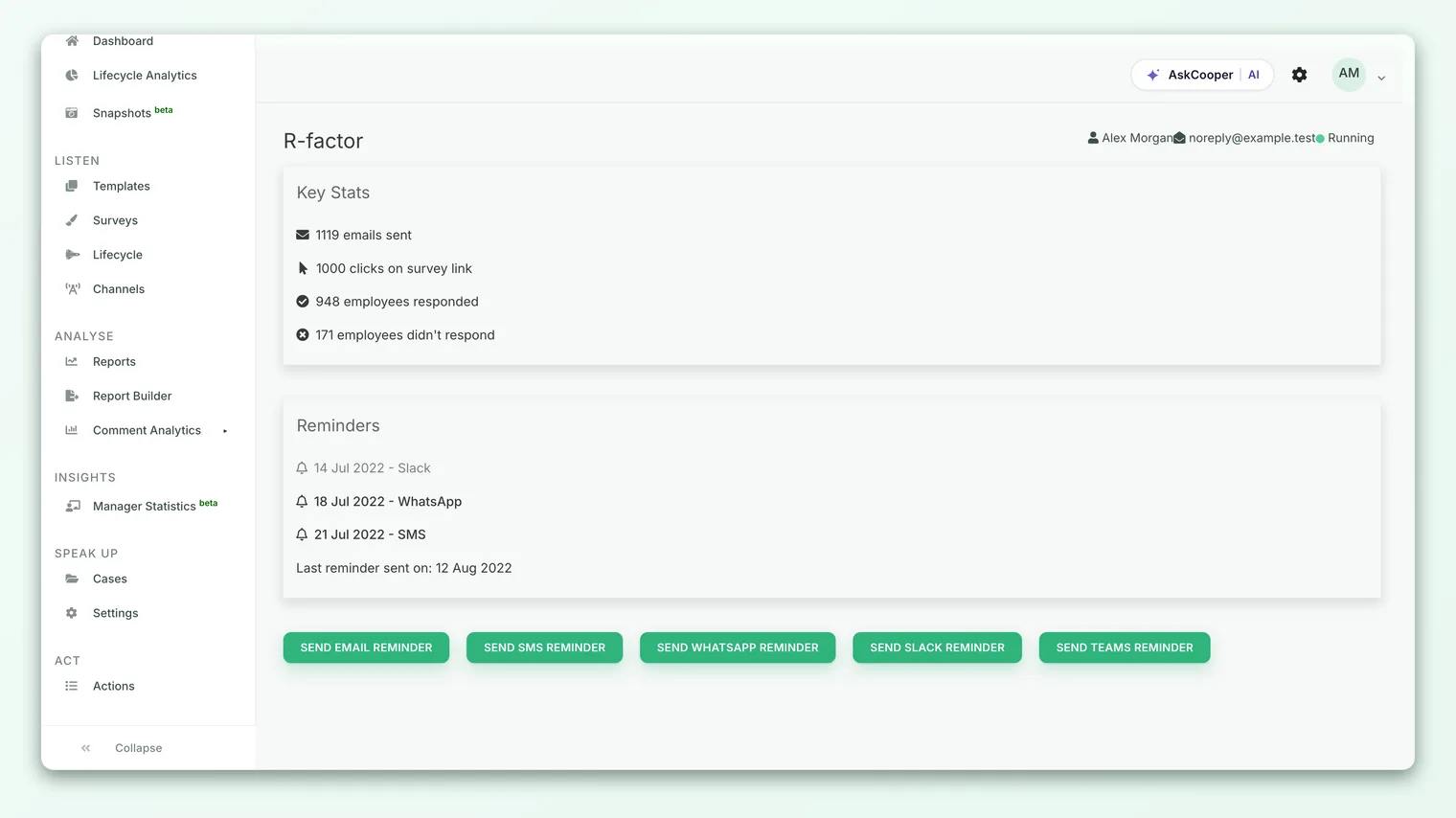
The page opens with a quick summary of the survey (its title, the admin and support email, and its current status) followed by the participation stats, so you can see how many people have responded before you decide to nudge. Below that sits a row of buttons, one for each channel you can send through.
Manual reminders only make sense for a survey that's actively collecting responses and that reaches people through a channel. If the survey is QR-only (respondents scan a code rather than receive a link), there's no one to remind individually, so CultureMonkey blocks the reminder and tells you it isn't available for QR-only surveys.
Choosing a channel
You send a manual reminder through one channel at a time, chosen with a dedicated button:
| Button | Sends through | Requires |
|---|---|---|
| Send Email Reminder | A valid work email on file | |
| Send SMS Reminder | Text message | A phone number on the employee record |
| Send Whatsapp Reminder | A phone number, plus WhatsApp enabled | |
| Send Slack Reminder | Slack | The Slack integration connected |
| Send Teams Reminder | Microsoft Teams | The Teams integration connected |
Each button does one thing: it queues a reminder on that channel for the non-responders who can be reached there. If a participant has no phone number, for example, an SMS or WhatsApp reminder simply skips them rather than failing. Pick the channel your people are most likely to notice. If your workforce lives in Slack or Teams all day, an in-chat nudge usually lands better than another email.
For a fuller picture of how each channel behaves, when to prefer one over another, and how they combine across a survey's whole reminder plan, see Reminders across multiple channels.
A reminder only works if it's seen. Frontline and deskless teams often respond far better to SMS or WhatsApp than to email, while office teams may prefer Slack or Teams. You can send a manual reminder on one channel today and another tomorrow if you want to reach the last stragglers where they are.
Sending step by step
The flow is deliberately short so you can act quickly.
- 1Open the survey's reminder page. Go to the running survey and open its Send reminder page. You'll see the participation stats and the channel buttons.
- 2Pick a channel. Click the button for the channel you want, for example Send Slack Reminder.
- 3Confirm the send. A confirmation dialog asks whether you're sure you want to send a reminder through that channel. Confirm to proceed.
- 4Wait for the queue. CultureMonkey queues the reminder and shows a success message ("Reminder sent successfully through slack!"). The actual messages go out about two minutes later.
That success message means the reminder has been accepted and queued, not that every message has already been delivered. Delivery happens in the background over the next couple of minutes.
The short processing delay
When you confirm, CultureMonkey doesn't blast the messages out on the spot. It creates the reminder and schedules the send to run about two minutes later.
That small delay is intentional and useful:
- It lets the system prepare the batch and hand it to the background worker that handles sending, so a large audience doesn't tie up your screen.
- It gives you a brief buffer. If you realize you picked the wrong channel the instant after clicking, the messages haven't left yet.
- It keeps the app responsive. You get an immediate confirmation while the heavier work happens behind the scenes.
For most audiences the whole thing feels near-instant: you confirm, and within a few minutes people start seeing the reminder. Very large audiences take a little longer to work through, and any messages that hit a temporary delivery error are automatically retried later, so a transient hiccup doesn't drop people from the batch.
"Manual" refers to who triggers the send (you), not to bypassing the queue. Every reminder, scheduled or manual, runs through the same background sending pipeline. The two-minute head start is simply how that pipeline is scheduled.
Who actually receives it
This is the part people most often ask about, and the answer is reassuringly narrow. A manual reminder goes only to non-responders, and only to people who were actually sent the survey. In practice, a participant receives your reminder only if all of these are true:
- The survey was already sent to them. People who never received the original invite are not reminded.
- They haven't submitted a response yet. As soon as someone completes the survey, they drop off the reminder list. You won't nag people who've already done what you asked.
- They're an active employee. Deactivated or removed employees are skipped.
- They can be reached on the chosen channel. An SMS or WhatsApp reminder needs a phone number; a Slack or Teams reminder needs that integration connected for the person.
Because responses are anonymous, you never see who responded, and you never need to. CultureMonkey tracks completion behind the anonymity wall and quietly excludes anyone who's finished, so a manual reminder can target "everyone who hasn't answered" without ever exposing an individual's status to you.
Targeting non-responders does not break anonymity. The platform knows whether a given participant has submitted so it can stop reminding them, but that completion status is never shown to admins and is never tied to the content of anyone's answers.
The one-per-day guard
To protect your people from reminder fatigue, CultureMonkey watches whether a reminder has already gone out today for the survey.
When you open the Send reminder page, it checks the most recent reminder date across the survey's participants against today's date (in your account's timezone). If a reminder has already been sent today, the confirmation dialog changes its tone. Instead of the usual "Are you sure you want to send a reminder through Email?", it asks:
> "You have already sent a reminder today for this survey, do you still wanna continue?"
This is a soft guard, not a hard block. It doesn't stop you (there are legitimate reasons to send twice in a day, such as reaching a different channel or responding to a leadership request) but it makes sure a second same-day reminder is a deliberate choice rather than an accident.
On the sending side, there's a matching safeguard: a participant won't receive two reminders on the same calendar day from the normal reminder flow. If someone was already reminded today, they're skipped so they don't get double-nudged, even if you trigger the send again.
More reminders is not more responses. Past a point, repeated nudges annoy people and can dent trust in the whole survey program. Treat the daily prompt as a genuine checkpoint: if you've already reminded everyone this morning, a second push a few hours later rarely helps. Space reminders out over the survey window instead.
How it fits with automated reminders
A manual reminder is a supplement to your scheduled reminders, not a replacement. Your one-time and recurring reminders keep running on their own cadence; a manual send just adds an extra, human-initiated push on top.
They're recorded a little differently, too. Manual reminders are flagged internally as manual, so they don't clutter the list of scheduled one-time reminders you set up in the survey's reminder settings. That list stays a clean record of what you planned in advance, while manual sends are the ad-hoc nudges you fired along the way. To understand the planned side, see Recurring vs one-time reminders.
Frequently asked questions
Will people who already responded get the reminder?
No. Anyone who has submitted a response is automatically excluded. The reminder only reaches non-responders who were sent the survey and are still eligible on the chosen channel.
How long until the reminder actually goes out?
About two minutes after you confirm. The success message means the reminder is queued; the messages themselves send from a background worker shortly after. Large audiences take a little longer to finish sending.
Can I send on more than one channel?
Yes, but one channel per click. Each button sends through a single channel. You can send Email now and Slack later if you want to reach people who missed the first nudge. See Reminders across multiple channels for how to think about combining them.
It says I already sent a reminder today. Can I still send another?
Yes. The daily message is a confirmation prompt, not a lock. It's there so a second same-day send is intentional. Keep in mind that individual participants who were already reminded today are skipped, so a repeat send mainly helps if you're switching to a channel you haven't used yet today.
Nothing seems to happen when I open the page for a QR survey.
Manual reminders aren't available for QR-only surveys. Since respondents reach those by scanning a code rather than receiving a personal link, there's no individual to remind, and CultureMonkey blocks the action with a message saying so.
Do I get to see who hasn't responded?
No, and you don't need to. Responses are anonymous. CultureMonkey targets non-responders internally so it can exclude anyone who's finished, but it never reveals individual completion status to admins.
Where to go next
- Compare channels and plan your mix: Reminders across multiple channels
- Understand scheduled reminders: Recurring vs one-time reminders
- Not seeing responses yet? Why can't I see results yet?
Your feedback helps us improve the Help Center.