

Single-select (single choice) questions
How single-select questions work in CultureMonkey - adding options, whether they carry scores or drivers, how the answers are reported as a distribution, and when to use single-select instead of multiple-select or rating.
On this page
- What a single-select question is
- Adding a single-select question
- Working with options
- Do single-select options carry scores or drivers?
- Is there a minimum or maximum number of choices?
- How single-select answers are reported
- Conditional follow-ups from a single-select answer
- Single-select vs multiple-select vs rating
- Best practices
- Frequently asked questions
- Where to go next
A single-select question - sometimes called a single choice question - asks the respondent to pick exactly one option from a list you define. On screen it renders as a set of radio buttons: choosing a new option clears the previous one, so a person can never land on two answers at once.
Single-select is the right tool whenever the answer is one clean category - a preferred work location, a department, a yes/no/not-sure, a single "biggest reason." This guide covers how to add and order options, what single-select can and can't carry (scores, drivers, comments), how the answers show up in your reports, and how to choose between single-select, multiple-select and rating.
Add a Single Select question in the CultureMonkey survey builder, then type in the options people choose from - you need at least one, and each is just a text label. Respondents pick one via radio buttons. Results are reported as a distribution: how many people (and what percentage) chose each option, which you can slice by team, location and other demographics. Reach for single-select when the answer is one mutually exclusive category.
What a single-select question is
In CultureMonkey's question model, Single Select is one of the core question types, alongside Rating, Multiple Select and Free Text. What sets it apart is the constraint on the answer: one option, and only one.
Because the choices are mutually exclusive, single-select is ideal for questions where picking two answers wouldn't make sense:
- "Where do you primarily work?" - Office / Hybrid / Fully remote
- "Which best describes your current role?" - Individual contributor / Team lead / Manager / Senior leader
- "Are you aware of our new benefits program?" - Yes / No / Not sure
If more than one answer could genuinely be true at the same time (for example, "which of these benefits do you use?"), that's a job for multiple-select instead. And if you're measuring how strongly someone agrees or how they feel on a scale, that's a rating question. More on choosing between them below.
Adding a single-select question
You add a single-select question on Step 2 - Questions of the survey builder, using Add custom question.
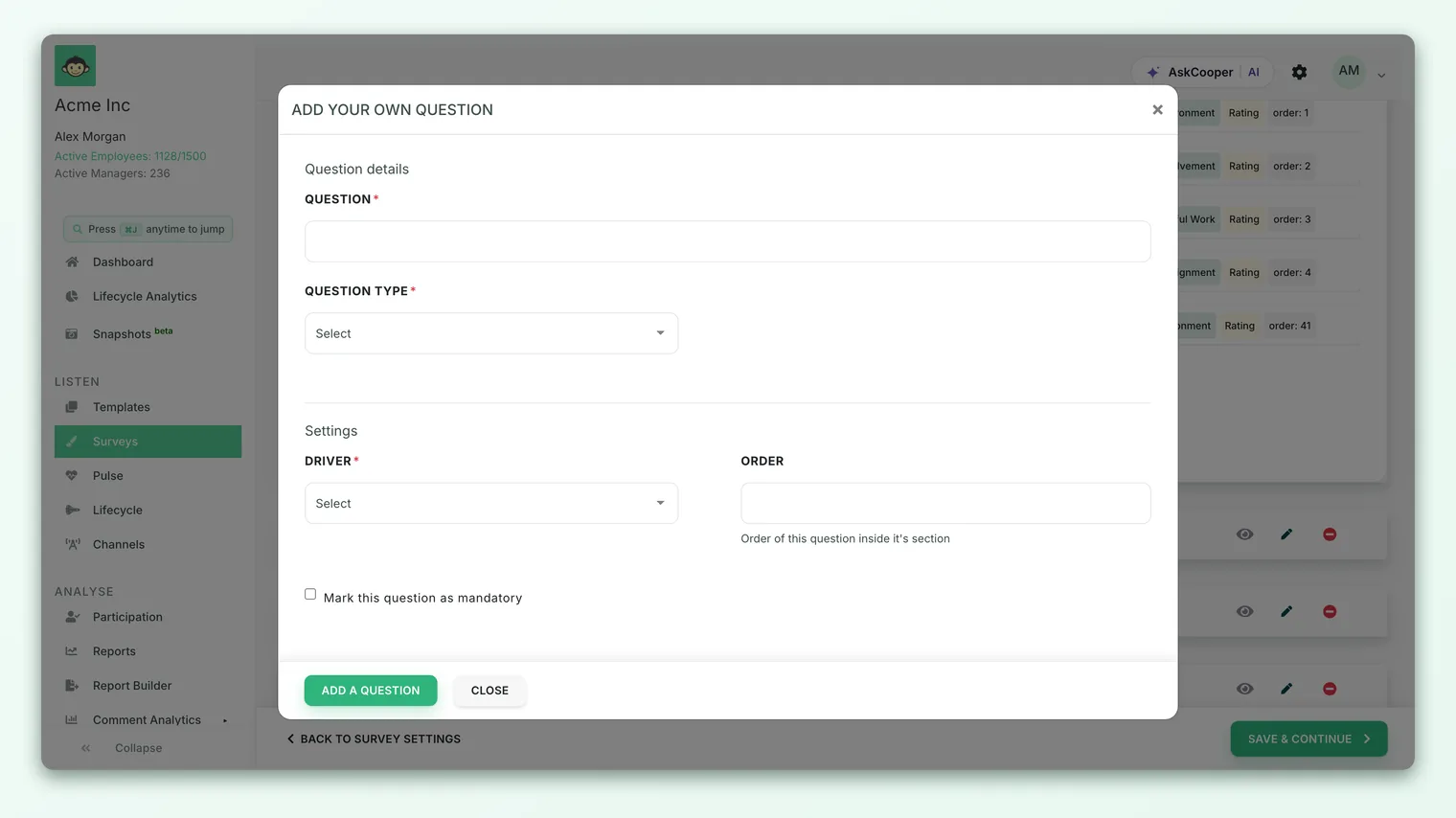
- 1Add a custom question - On the Questions step, choose Add custom question (or start from a library question and change its type).
- 2Set the type to Single Select - Pick Single Select as the question type. The options editor appears once a choice-based type is selected.
- 3Write the question title - Enter the wording respondents will read. Titles need to be at least a couple of characters long.
- 4Add your options - Type each choice people can pick from. Add as many as you need, and reorder them by dragging; the order you set is the order respondents see and the order results are reported in.
- 5Assign a driver - Map the question to an engagement driver so it rolls up into a meaningful theme in reporting (drivers are required - see below).
- 6Set the extras - Optionally mark the question required, enable comments, or turn on skip / not applicable. Save the question when you're done.
Working with options
The options are the heart of a single-select question. A few things are worth knowing about how they behave:
- Each option is a text label. An option is simply its display text. There's no hidden numeric value or secret weighting behind it - what you type is exactly what respondents see and exactly what gets recorded.
- You need at least one option. CultureMonkey won't let you save a single-select (or multiple-select) question with no options - the builder flags it until you add at least one. In practice you'll almost always want at least two or three for the choice to be meaningful.
- Order is under your control. Options carry a sort position, so you can drag them into the sequence you want. That same order flows through to the participant view and to your reports, so put them in a logical order (for example, most to least common, or a natural progression).
- Keep them clear and non-overlapping. Because a respondent can only pick one, your options should be mutually exclusive and collectively cover the likely answers. If people can't find the option that fits them, consider adding an "Other" or "None of these" choice, or enabling comments so they can explain.
Since single-select allows exactly one answer, a respondent who doesn't fit any option is stuck. If you're not confident your list is exhaustive, either add a catch-all option or turn on the skip / not applicable setting so people aren't forced into an answer that isn't true for them.
Do single-select options carry scores or drivers?
This is the most common point of confusion, so it's worth being precise:
- Options do not carry scores. Unlike a rating question - where each point on the scale has a numeric value that feeds the engagement score - a single-select option is just a label. There's no per-option weighting, and single-select answers don't roll into your overall engagement score or eNPS. They're categorical, not quantitative. If you need a scored answer, use a rating question.
- The question does carry a driver. Every question in CultureMonkey - single-select included - is mapped to an engagement driver. That's how the question is grouped and filed in your reports. So while the options aren't scored, the question still lives under a driver theme, which keeps your reporting organized.
Think of single-select as a way to segment and count responses, not to measure intensity. "60% chose Hybrid" is a distribution; it isn't a score you can average or trend the way you would a rating. Choose the type to match what you actually want to learn.
Is there a minimum or maximum number of choices?
For single-select, the answer is built into the type: the respondent chooses exactly one option. There's no "pick up to N" setting to configure - the selection limit control that governs how many boxes a person can tick belongs to multiple-select questions, not single-select. On a single-select question that limit simply doesn't apply.
What you can control is whether an answer is required. Mark the question required and respondents must choose an option before they can submit; leave it optional (and/or enable skip / not applicable) and they can move on without answering.
How single-select answers are reported
When you open the survey report for a single-select question, CultureMonkey shows an answer distribution - a count of how many people chose each option, which reads naturally as a set of percentages of the total who answered.
The report uses your option titles as the labels, in the order you set them, so a "Where do you primarily work?" question comes back as something like:
| Option | Responses | Share |
|---|---|---|
| Office | 48 | 30% |
| Hybrid | 96 | 60% |
| Fully remote | 16 | 10% |
From there you can dig deeper:
- Break it down by demographic. Slice the same distribution by team, location, manager, business group or another attribute to see how the split differs across groups - for example, which teams lean most toward fully remote.
- Respect the anonymity threshold. Like all results in CultureMonkey, a single-select breakdown is hidden for any group too small to meet the response threshold, so no individual's answer can be inferred. If a segment looks empty, it usually hasn't cleared the threshold yet.
- Read the comments, if you enabled them. When comments are turned on, respondents can add a free-text note alongside their choice - useful for understanding the why behind a popular option.
Because the answers are categorical, you're reading shares and comparisons, not averages. The story is "how the population splits across these options," and how that split changes by group and over time.
Conditional follow-ups from a single-select answer
Single-select questions are a natural trigger for conditional (branching) questions. Because each answer is a single, clean option, you can show a follow-up question only when a specific option is chosen - for example, if someone selects "Fully remote," reveal a follow-up asking what would make remote work better for them.
This keeps surveys short: each person only sees the follow-ups relevant to the choice they made. You configure this by enabling conditional questions on the single-select question and attaching a follow-up to a particular option. For the full walkthrough, see Create a survey from scratch.
Single-select vs multiple-select vs rating
All three present a question, but they answer different needs:
| Single select | Multiple select | Rating | |
|---|---|---|---|
| Answer | Exactly one option | One or more options | A point on a scale |
| Renders as | Radio buttons | Checkboxes | A rating scale (e.g. 1-5, smileys) |
| Best for | One mutually exclusive category | "Choose all that apply" | Measuring agreement, satisfaction, intensity |
| Carries a score? | No - categorical labels | No - categorical labels | Yes - feeds engagement scores |
| Reported as | Distribution / % per option | Distribution / % per option (can exceed 100%) | Average score, distribution, driver rollups |
| Selection limit? | N/A (always one) | Yes - cap the number of picks | N/A |
A quick way to decide:
- *Do you want to measure how much (agreement, satisfaction, likelihood)? Use rating* - it's scored and drives your engagement metrics.
- Can more than one answer be true at once? Use multiple-select.
- Is the answer one clean, mutually exclusive category? Use single-select.
If your options are really a scale in disguise - "Strongly agree / Agree / Neutral / Disagree / Strongly disagree" - a rating question is almost always the better choice. It's scored, it rolls into your driver and engagement metrics, and it's comparable across surveys. Save single-select for genuinely categorical answers.
Best practices
- Keep options mutually exclusive. If two options could both apply to the same person, either you mean multiple-select, or your options need rewording.
- Cover the field. Aim for a list that captures every likely answer; add an "Other" or "None of these" catch-all when you can't be exhaustive.
- Order options deliberately. The order you set is the order people see and the order results appear in - use a logical sequence, not a random one.
- Use comments for the "why." A single-select tells you what people chose; enabling comments tells you why, without turning the whole question into free text.
- Reserve scoring for rating. If a number you can average or trend matters, that's a rating question - single-select is for counting categories.
- Branch where it helps. Use a chosen option to reveal a targeted follow-up, so each respondent sees only what's relevant to them.
Frequently asked questions
Can respondents pick more than one option?
No. Single-select allows exactly one choice - CultureMonkey renders it as radio buttons, so selecting a new option deselects the previous one. If you want people to choose several, use a multiple-select question, which lets you also set a selection limit.
Do single-select answers affect my engagement score or eNPS?
No. Single-select options are categorical labels with no numeric value, so they don't feed the overall engagement score or eNPS. Those come from rating and eNPS questions. CultureMonkey reports single-select as a distribution of choices instead.
How many options can I add?
There's no small fixed cap - add as many as the question genuinely needs. You must add at least one option to save the question, and in practice you'll want at least two or three for the choice to be meaningful. Keep the list focused, since very long option lists get harder for respondents to scan.
Can I make a single-select question optional?
Yes. Leave required unchecked so respondents can skip it, and/or enable the skip / not applicable option to give them an explicit "doesn't apply to me" out rather than forcing an answer.
How do I see the results broken down by team or location?
Open the survey report for the question and apply a demographic filter - team, location, manager, business group and more. Each segment shows its own distribution, provided the group is large enough to meet the anonymity threshold.
Can I attach a follow-up question to a specific option?
Yes. Enable conditional questions on the single-select question and tie a follow-up to a particular option, so it only appears for people who chose that answer. See Create a survey from scratch.
Where to go next
- Build the whole survey: Create a survey from scratch
- Let people pick several: Multiple-select questions
- Measure intensity on a scale: Rating questions
Your feedback helps us improve the Help Center.