

Multiple-select (multi-choice) questions
How to use multiple-select questions in CultureMonkey - adding options, selection limits, how multi-select answers are reported (why the percentages add up to more than 100%), and when to reach for this type instead of single-select.
On this page
A multiple-select question - sometimes called a multi-choice or checkbox question - lets a respondent pick more than one option from a list. It's the right choice whenever the honest answer to your question isn't "one of these" but "several of these": which benefits people value, which channels they actually use, which topics they'd like more of.
This guide covers everything you need to use the type well: how to add it and its options, whether you can cap how many options a person picks, how multi-select answers show up in your reports (including the one thing that surprises everyone - the percentages add up to more than 100%), when to use it instead of a single-select question, and the traps to avoid.
A multiple-select question is a checkbox list: respondents can tick as many options as apply. In CultureMonkey reports, each option is counted independently - you get a percentage per option showing how many respondents chose it. Because one person can choose several options, those percentages sum to more than 100%. Reach for multi-select when several answers can be true at once; use single-select when exactly one should be.
What a multiple-select question is
In the survey builder, Multiple Select is one of the choice-based question types, alongside Single Select. Both show the respondent a fixed list of options you write. The difference is simple but important:
- Single select shows options as radio buttons - the respondent picks exactly one.
- Multiple select shows options as checkboxes - the respondent can tick as many as apply, including several at once.
That "several at once" behavior is the entire point of the type, and it shapes everything downstream - how you write the options, how people answer, and how the results are reported. If a respondent could reasonably want to pick two or three answers and you only let them pick one, you either force an inaccurate answer or push the rest into a free-text "Other" box. Multiple-select removes that friction.
Keep each multiple-select question about a single dimension - "Which of these benefits do you use?" - not two mixed together. A question that quietly asks about benefits and locations produces options that don't belong in the same list and results that are hard to read.
Adding a multiple-select question
You add a multiple-select question on the Questions step of the survey builder, the same place you add every other question type. If you're new to the builder as a whole, start with Create a survey from scratch; the steps below assume you're already on Step 2.
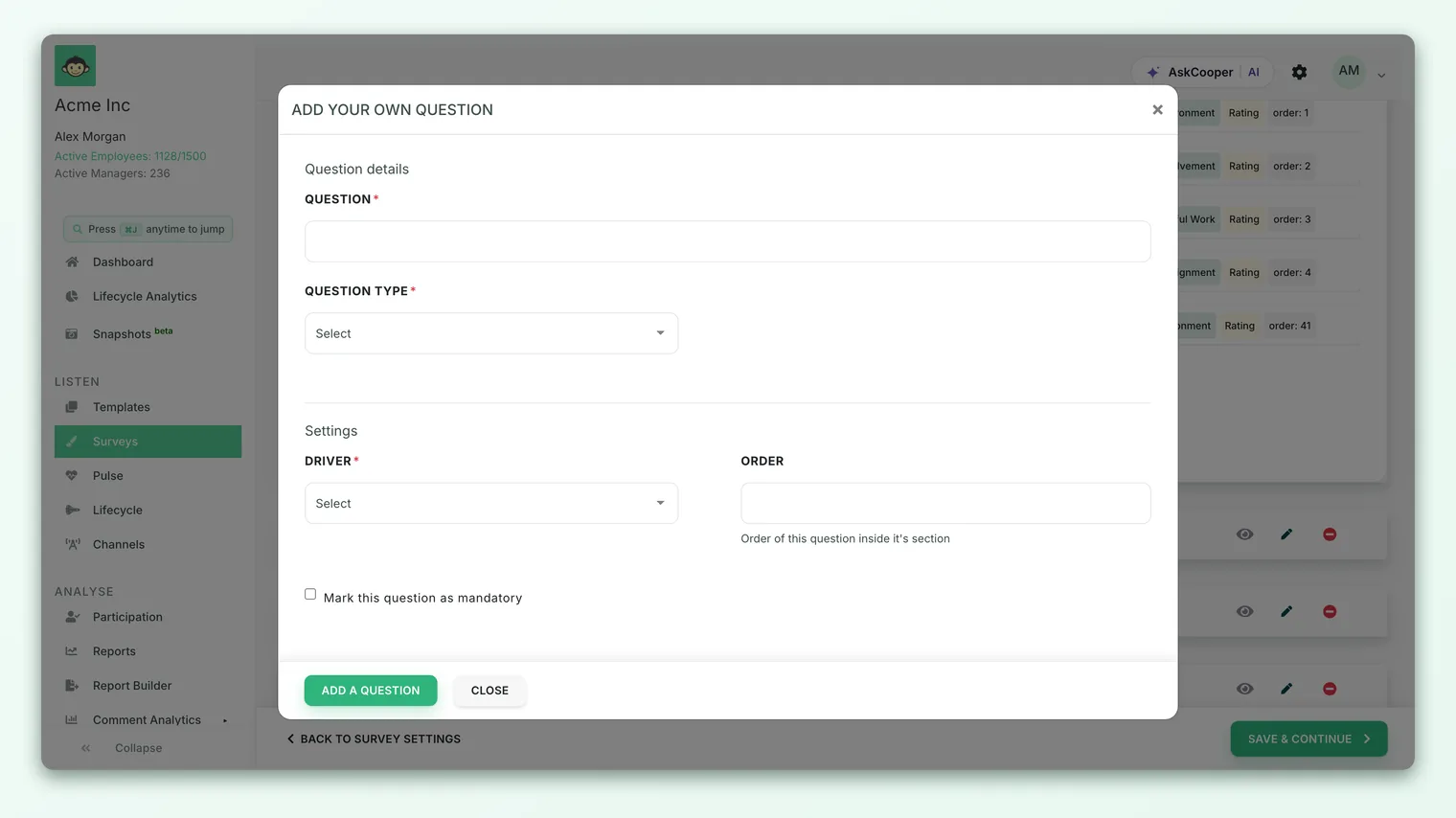
- 1Add a custom question - Click Add custom question to create a new question in your section.
- 2Choose the Multiple Select type - Set the question type to Multiple Select. The editor switches to a checkbox-style option list.
- 3Write the question text - Phrase it so it's clear that more than one answer is allowed - for example, "Select all that apply."
- 4Add your options - Use Add option to create each choice. Add as many options as the question needs; you can drag them to reorder.
- 5Map a driver (optional) - As with any question, you can associate it with an engagement driver so results roll up into themes.
- 6Save the question - Save it and continue building the rest of your survey.
Working with options
A few rules and habits are worth knowing:
- At least one option is required. CultureMonkey won't let you save a multiple-select (or single-select) question with no options - the list is the whole question.
- Options are free text you write. Each option is just a label. Write them to be mutually distinct so a respondent isn't unsure which box a given answer belongs in.
- Order matters. Drag options into a deliberate order. For non-ordinal lists (benefits, tools, topics), consider a logical grouping; long alphabetical lists can bias people toward the top few.
- Watch the length. A checkbox list of 20 options is a chore to read. If you have that many, the question is probably really two questions, or a free-text question in disguise.
An "Other" or "None of the above" option can be useful, but keep it honest. If a lot of people pick "Other," your options are missing something - treat that as a signal to refine the list next cycle rather than a place to hide answers you didn't anticipate.
Selection limits (min/max)
The most common question about this type is whether you can force a respondent to pick, say, "up to three" options. CultureMonkey's data model does carry a selection limit field for multiple-select questions, and when a question isn't multi-select that limit is cleared automatically - so the concept exists in the platform.
However, the selection-limit input is not currently surfaced in the standard survey builder - respondents can tick as many options as apply, with no enforced minimum or maximum. In practice, that means:
- There's no built-in "pick exactly N" or "pick at least one" rule on the options themselves.
- If you want people to answer at all, mark the whole question as required so it can't be skipped - that's separate from limiting how many boxes they tick.
- If you genuinely need "choose your top 3," state it in the question text ("Select up to 3") and treat it as guidance rather than a hard cap.
If your question text says "pick exactly two" but nothing stops a respondent picking five, you'll get answers that don't match your instruction - and that muddies the reporting. Word instructions as suggestions ("Select up to three") unless you've confirmed a hard limit is available for your account.
How multiple-select answers are reported
This is where multiple-select genuinely differs from every other question type, so it's worth understanding clearly.
When someone answers, CultureMonkey stores all the options they ticked together - as a small list, not a single value. In the report, that list is then broken apart: each option is tallied on its own, counting every respondent who selected it. You end up with a per-option result - a percentage (and count) for each option showing how many respondents chose it.
Because a single respondent can be counted under several options at once, the per-option percentages do not sum to 100%. They sum to more than 100% whenever people pick more than one option on average - and that's expected, not a bug.
A worked example
Suppose 100 people answer "Which of these benefits do you actively use? (select all that apply)" with four options, and the results come back as:
| Option | Respondents who chose it | % of respondents |
|---|---|---|
| Health insurance | 78 | 78% |
| Learning budget | 41 | 41% |
| Gym / wellness | 33 | 33% |
| Commuter allowance | 22 | 22% |
Add those percentages up and you get 174% - not 100%. That's correct: the average respondent ticked about 1.7 boxes. Read each row as "78% of the people who answered use health insurance," not as a slice of a single pie. The denominator for every row is the same - the number of people who answered the question - but the rows overlap because people appear in more than one.
On a single-select question, the option percentages are exclusive and add to 100% - a genuine "pie." On multiple-select they're independent rates that can total anything up to (number of options × 100%). If you ever see multi-select percentages summing to 100%, double-check you're not accidentally reading it as single-select.
Slicing and exporting
Multiple-select results behave like other choice questions in the rest of CultureMonkey:
- By demographic - you can break the per-option results down by team, manager, location and other attributes to see which groups favor which options, subject to the usual anonymity thresholds.
- In exports - select questions export into their own sheet in the report export, with each option and its counts laid out per segment, so you can pivot the raw numbers yourself.
When to use multiple-select (and when not to)
Reach for multiple-select when more than one answer can honestly be true at the same time:
- "Which of these benefits do you use?"
- "Which communication channels do you check daily?"
- "Which topics would you like more training on?"
- "Which of these blockers slowed you down last month?"
Avoid it - and use single-select instead - when the answers are mutually exclusive or you need a clean, add-to-100% split:
- "What is your primary work location?" (one answer)
- "Which shift do you usually work?" (one answer)
- Anything where you'll want to say "X% of people chose A vs. B" as shares of a whole.
And if what you really want is how strongly people feel rather than which things they picked, use a rating question - multiple-select tells you what was chosen, not how much it mattered.
Multiple-select is excellent for surfacing which things are in play across your workforce. Once you know the shortlist, a rating question is usually the better way to measure how each one is doing over time.
Multiple-select vs single-select at a glance
| Single select | Multiple select | |
|---|---|---|
| Respondent picks | Exactly one option | Any number of options |
| Control shown | Radio buttons | Checkboxes |
| Percentages | Add up to 100% (exclusive) | Add up to more than 100% (independent) |
| Read a result as | "X% chose this instead of the others" | "X% chose this among their picks" |
| Best for | Mutually exclusive answers | Answers where several can be true |
For the full detail on the one-answer variant, see Single-select questions.
Best practices
- Say "select all that apply." Make the multi-pick behavior explicit in the question text so respondents don't assume it's a one-answer question.
- Keep options distinct and short. Overlapping or wordy options produce muddy, hard-to-read results.
- Cap the list length. Aim for a scannable set of options. If you need more than a handful, reconsider whether it's one question.
- Read results per option, never as a pie. Interpret each percentage as a standalone rate, and expect the total to exceed 100%.
- Use "Other" as a signal. A high "Other" rate means your options are incomplete - refine them next cycle.
- Pick the right tool. Multi-select for "which," single-select for "which one," rating for "how much."
Frequently asked questions
Why do my multiple-select percentages add up to more than 100%?
Because each option is counted independently, and one respondent can tick several options. Every percentage is "the share of respondents who chose this option," so overlapping picks push the total above 100%. That's expected behavior, not an error.
Can I force respondents to pick a specific number of options?
CultureMonkey has a selection limit concept for multiple-select questions, but that min/max control isn't exposed in the standard builder today - respondents can tick as many as apply. To make sure the question is answered at all, mark the whole question as required, and word any "pick up to three" instruction as guidance.
What's the difference between multiple-select and single-select?
Single-select uses radio buttons and allows exactly one answer, so its percentages add to 100%. Multiple-select uses checkboxes and allows several answers, so its percentages are independent and total more than 100%. See Single-select questions.
Can I break multiple-select results down by team or location?
Yes. CultureMonkey lets you filter per-option results by demographic attributes like team, manager and location, and export them for your own analysis - subject to the anonymity threshold that protects small groups. See Set survey anonymity.
Should I add an "Other" option?
It's often helpful, but treat a high "Other" rate as feedback that your option list is missing something rather than a catch-all to lean on. Tighten the options in your next survey.
Where to go next
- The one-answer variant: Single-select questions
- Build the whole survey: Create a survey from scratch
- Protect small groups in results: Set survey anonymity
Your feedback helps us improve the Help Center.