

Restrict a sub-admin's data scope in CultureMonkey
How to limit a sub-admin's access to a subset of employees by scoping them to specific teams, sub-teams, locations, business units, business groups, or custom attributes - and why an empty scope means access to everyone.
On this page
A sub-admin is an administrator whose view of your organization is deliberately narrowed. Instead of seeing every employee and every result, a sub-admin sees only the slice of the business you assign to them - a region, a department, a set of business units, or any combination you define. That slice is called their data scope. In CultureMonkey the data scope is set per sub-admin and applies to every report they open.
Related release: View as Sub Admin (May 13, 2026). See every dated change on Product Updates.
Scoping matters because CultureMonkey is full of sensitive information: engagement scores, eNPS, open-text feedback, participation, and lifecycle data. A regional HR partner in APAC usually shouldn't be reading feedback from the EMEA sales team, and a department head shouldn't see results for teams they don't run. A data scope lets you delegate real administrative work without over-sharing.
This guide explains the dimensions you can scope on, how to set a scope on a sub-admin, the one default that trips people up most often - an *empty scope grants access to everyone*** - and how scoping flows through to reports and anonymity.
A sub-admin's data scope is built from one or more dimensions: teams, sub-teams, locations, business units, business groups, and custom attributes. CultureMonkey makes every employee who falls inside the selected values visible; everyone else is hidden. Leave every dimension blank and the sub-admin can see all employees - so always set at least one restriction.
What a data scope controls
A data scope answers a single question for every employee in your account: is this person inside this sub-admin's view, or not? If they're inside, the sub-admin can see that employee's data everywhere it appears - in reports, participation, feedback, and dashboards. If they're outside, that employee and their responses simply don't exist as far as the sub-admin is concerned.
The scope applies to the sub-admin's entire experience, not just one screen. It isn't a filter they can toggle off; it's a boundary drawn around their account. This is what makes sub-admins safe to hand to team leads, regional HR, or business-unit owners: whatever they open, they only ever see their own population.
Scope is set on the employee record that the sub-admin logs in as, from the same Access Permissions area where you choose whether someone is a super-admin, a manager, or a sub-admin. Only the sub-admin role exposes the scoping controls - super-admins see everything by design, and managers are scoped by their own reporting hierarchy rather than by the dimensions described here.
The scoping dimensions
You can build a scope from up to six dimensions. Each one is an independent list of values; you pick which values are in-scope for that sub-admin. The table below maps each dimension to the label you'll see on the form and to what it restricts.
| Dimension | Form label | What it restricts | Availability |
|---|---|---|---|
| Teams | Manage Teams | Employees whose team is in the selected list | Always available |
| Locations | Manage Locations | Employees at the selected locations | Always available |
| Business units | Manage Business Units | Employees in the selected business units | Always available |
| Business groups | Manage Business Groups | Employees in the selected business groups | When business groups are enabled |
| Sub-teams | Manage Sub Teams | Employees in the selected sub-teams | Requires sub-teams to be enabled for Sub Admin access |
| Custom attributes | Manage [attribute name] | Employees whose custom-attribute value matches | Requires custom attributes to be enabled for Sub Admin access |
The sub-team and custom-attribute dimensions are gated behind account-level feature flags. If you don't see Manage Sub Teams or a custom-attribute section on the form, those capabilities aren't switched on for your account yet - reach out to your CultureMonkey contact to enable them.
If your business doesn't map cleanly onto teams and locations - say you organize by grade, cost center, or employment type - add those as custom attributes and you can scope sub-admins on them directly, using the value list you've defined.
The empty-scope default (read this first)
Here is the single most important thing to understand about sub-admin scoping:
If you make someone a sub-admin but leave every dimension blank - no teams, no locations, no business units, nothing - they do not get an empty view. They get access to all employees in the account, exactly like a broad admin. A blank scope is treated as "no restriction," not "no access."
This catches people out because it's the opposite of what you might expect. It's easy to assume that an unset scope means "nothing selected, so nothing visible." In CultureMonkey it means the reverse: a dimension you leave untouched is not used to narrow the view, so if you leave all of them untouched, nothing narrows the view at all.
The form itself calls this out. On the sub-admin section you'll see the note:
> If no business group, team, location, or business unit is selected, the sub-admin will have access to all employees.
So the rule is simple: if you intend to restrict a sub-admin, you must select at least one value in at least one dimension. If you only want them scoped by region, set locations and leave the rest blank - that's fine, because the location restriction alone is enough to narrow the population. What you must avoid is saving a sub-admin with nothing selected anywhere, unless you genuinely want them to see the whole organization.
Set a data scope on a sub-admin
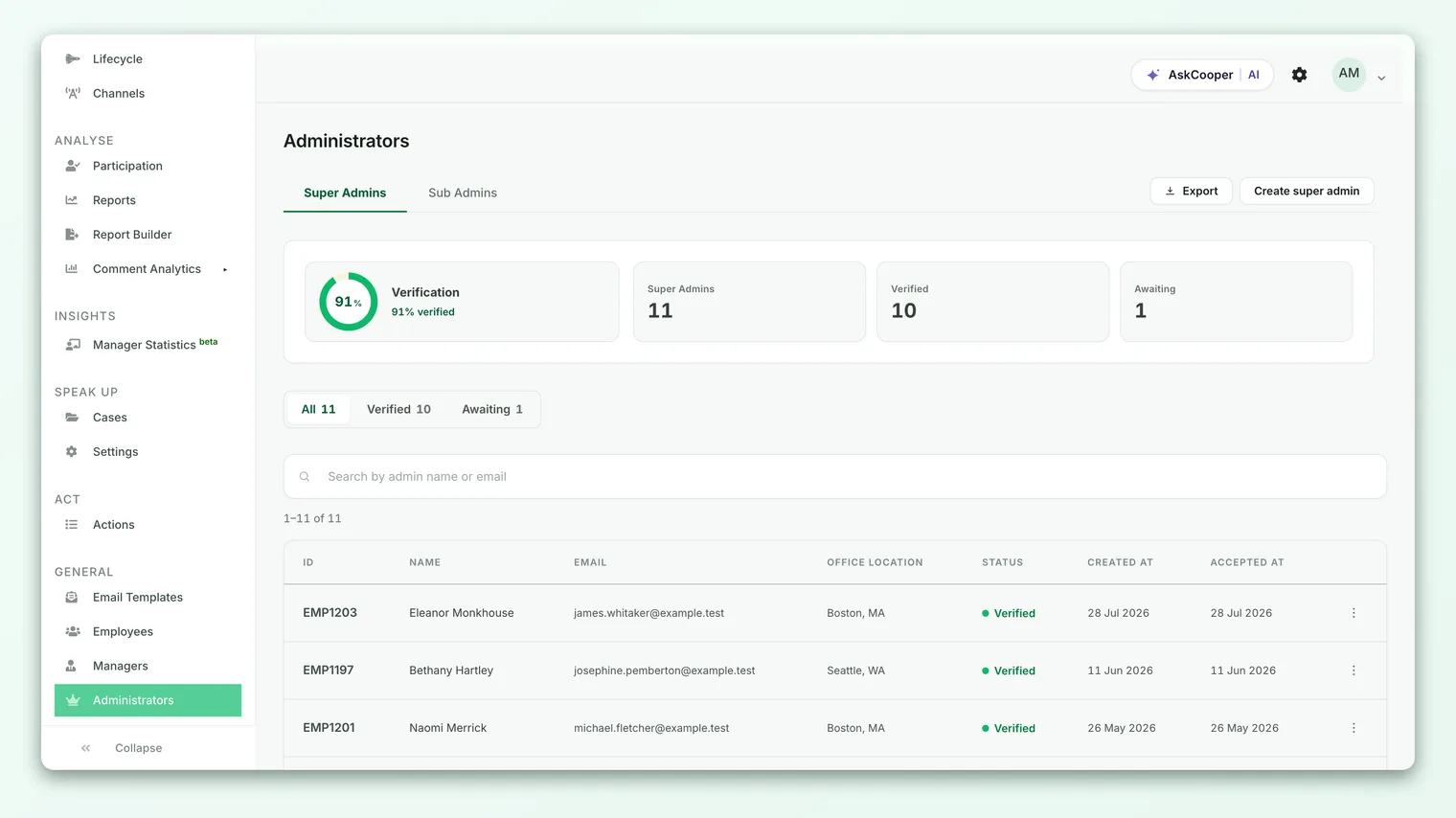
You set scope while inviting or editing the administrator. The flow lives under General → Administrators.
- 1Open Administrators. Go to General → Administrators to see your list of admins and their roles.
- 2Invite or edit the person. Click Invite admin to add someone new, or open an existing person to edit them. (See Invite admins for the full invite flow.)
- 3Choose the Sub-admin role. In the Access Permissions section, select Sub-admin. The scoping controls appear only once this role is chosen.
- 4Select your dimensions. Use Manage Teams, Manage Locations, Manage Business Units, and - if enabled - Manage Business Groups, Manage Sub Teams, and your custom-attribute selectors to choose the in-scope values. Select at least one value somewhere.
- 5Save. Save the record. The sub-admin's view updates to match the scope you defined.
After you save, it's worth logging the change in your own records - who was scoped to what, and why. Scopes tend to drift as reorganizations happen, and a short note now saves confusion later.
Combining dimensions
When you set values in more than one dimension, they combine as an AND - the sub-admin sees only employees who satisfy every dimension you've restricted. A dimension you leave blank is simply not part of the test.
That distinction is easy to picture with an example.
Example - a regional department lead. Suppose you scope a sub-admin to:
- Locations: Bangalore, Chennai
- Teams: Engineering, Product
- Business units: (left blank)
This sub-admin sees employees who are in Bangalore or Chennai and on the Engineering or Product team. Someone in Bangalore on the Sales team is out of scope (wrong team). Someone in Engineering but based in Berlin is out of scope (wrong location). Because business units were left blank, that dimension doesn't filter anything - an in-scope person is included regardless of their business unit.
So within a single dimension the selected values are an OR (Bangalore or Chennai), while across dimensions the restrictions stack as an AND (matching location and matching team). Add a third restricted dimension and the population narrows further; leave a dimension blank and it drops out of the calculation entirely.
If you're unsure how narrow a scope should be, start with the widest dimension that's genuinely correct - often location or business unit - and add a second dimension only if you truly need to. Over-narrow scopes are a common cause of "why can't my sub-admin see anything?" support tickets.
How scope interacts with reports
A sub-admin's scope isn't a cosmetic filter on the dashboard - it's applied at the data layer, so it flows through everywhere their population appears. When a sub-admin opens Analyse → Reports, participation, eNPS, driver scores, and feedback are all computed from their in-scope employees only. The numbers a sub-admin sees can therefore differ from the account-wide numbers a super-admin sees, because they're built from a different set of people.
This has two practical consequences:
- Segment filters operate inside the scope. If a sub-admin filters a report by team or location, they can only choose from values that exist within their scope. They can't filter their way out of it.
- Totals reflect the scope, not the company. A sub-admin's "overall" participation or eNPS is the overall figure for their population. It's not the company number, and it shouldn't be read as one.
Because scope is enforced at the data layer, it applies consistently across dashboards, survey reports, feedback, and lifecycle views - there's no screen where a sub-admin can step around their boundary.
Scope and anonymity
Every result in CultureMonkey is protected by an anonymity threshold - a minimum number of responses required before a group's results are shown, so no individual's answer can be inferred. Scoping and anonymity interact in a way that's worth planning for.
Because a sub-admin's population is a subset of the whole company, their segments are smaller. A team that comfortably clears the anonymity threshold when viewed by a super-admin (who sees the whole team) might fall below it for a sub-admin whose scope only includes part of that team. When that happens, results are hidden from the sub-admin - not because of a permissions error, but because the responding group is too small to protect identities.
The narrower you scope a sub-admin, the more likely some of their segments will sit under the anonymity floor and appear empty. This is expected, protective behavior. If a sub-admin reports missing results, check whether their scoped population is simply too small to meet the threshold before assuming something is misconfigured.
The anonymity threshold itself is an account-wide setting; scoping doesn't change the number, it just changes how often you bump into it.
Best practices
- Always set at least one restriction on a sub-admin unless you deliberately want them to see everyone. Treat a blank scope as a red flag during review.
- Scope by the most stable dimension available. Locations and business units change less often than ad-hoc team assignments, so scopes built on them need less maintenance.
- Prefer one or two dimensions over five. Every extra restricted dimension is another thing to keep in sync as people move. Narrow enough to be safe, no narrower.
- Re-check scopes after reorganizations. New teams, renamed locations, or a business-unit reshuffle can silently widen or shrink what a sub-admin sees.
- Combine data scope with survey access. Data scope controls which employees a sub-admin sees; survey access controls which surveys they can manage. Set both for a complete permission model.
Frequently asked questions
If I select nothing, does the sub-admin see nothing?
No - it's the opposite. A completely blank scope grants the sub-admin access to all employees. To restrict them, you must select at least one value in at least one dimension. This is the most common scoping mistake, so double-check any sub-admin that has no selections.
Do the dimensions combine as AND or OR?
Both, at different levels. Within a dimension, the values you pick are an OR (any selected location counts). Across dimensions, the restrictions combine as an AND (an employee must match every dimension you've restricted). A dimension you leave blank doesn't filter at all.
Why can't my sub-admin see any results for a small team?
Most likely the anonymity threshold. A sub-admin's scoped population is smaller than the whole company, so its segments hit the anonymity floor sooner. If a scoped group has too few responses, its results are hidden to protect respondents - that's expected behavior, not a bug.
I don't see the Sub Teams or custom-attribute options. Why?
Those dimensions are gated by account-level settings. If they're not visible on the form, they aren't enabled for your account - contact your CultureMonkey representative to turn them on.
Can a sub-admin change their own scope?
No. Only a full admin can set or edit a sub-admin's data scope, from General → Administrators. Sub-admins can't widen their own boundary or filter their way outside it.
Does changing a scope affect historical data?
Changing a scope changes what the sub-admin can see going forward, including historical results for their newly in-scope (or out-of-scope) population. It doesn't alter the underlying responses - it only changes visibility.
Where to go next
- Add someone as an admin: Invite admins
- Control which surveys a sub-admin manages: Manage sub-admin access to surveys
- Scope on your own dimensions: Add custom employee attributes
Your feedback helps us improve the Help Center.