

Control which CultureMonkey surveys a sub-admin can access
How to decide which surveys a sub-admin can see and manage in CultureMonkey - the account-level Survey Access options (All, Lifecycle only, Custom only), how to grant access to specific surveys, how survey access works alongside data scoping, and the setups that fit common team structures.
On this page
A CultureMonkey Sub Admin is a scoped administrator - someone who can create surveys and read reports, but only for the slice of the organization you assign them. Two things define that slice: which people's data they can see, and which surveys they can work with. This article is about the second one.
Getting survey access right matters. A sub-admin who runs onboarding surveys for one business unit probably shouldn't be reading the confidential leadership pulse. A regional HR partner might need every survey for their region but nothing outside it. CultureMonkey gives you a couple of complementary controls to draw those lines cleanly, so each sub-admin sees exactly the surveys that are theirs to run - and no more.
Every CultureMonkey sub-admin has a Survey Access setting that decides which kinds of survey they can see: All Surveys, Lifecycle Surveys Only, or Custom Surveys Only. On top of that, your account can enable survey-level access, which lets you assign a sub-admin to specific individual surveys - so they only ever see the exact surveys you pick. Survey access is separate from data scoping (which employees they can see); the two combine.
Two ways to think about survey access
Before the settings themselves, it helps to hold the two mechanisms apart, because they answer different questions.
- Survey Access (by type) - a per-admin setting that filters surveys by category: all surveys, only your automated lifecycle surveys, or only your custom (manually built) surveys. It's a broad brush.
- Survey-level access (by specific survey) - an optional, account-wide mode that restricts sub-admins to the named surveys you assign them, one survey at a time. It's a fine brush.
You can use them together. A common pattern is to set a sub-admin to Custom Surveys Only so they never see lifecycle programs, and also - if survey-level access is enabled - assign them to just the two or three custom surveys their team runs.
Survey access controls which surveys appear. Data scoping controls which employees' responses a sub-admin can see within those surveys - by team, location, business unit and other attributes. They're independent filters that stack. See Restrict sub-admin data.
The account-level Survey Access options
Every sub-admin (and every manager and super admin, where relevant) can carry a Survey Access value. It's a single dropdown with three choices. Here's what each one does and when to reach for it.
| Survey Access option | What the sub-admin sees | Best for |
|---|---|---|
| All Surveys | Every survey in the account - both automated lifecycle surveys and custom surveys you build by hand. | A trusted regional or business-unit admin who legitimately needs the full survey picture for their people. |
| Lifecycle Surveys Only | Only lifecycle surveys - the automated, always-on programs like onboarding, milestone and exit journeys. Custom one-off surveys are hidden. | Someone who owns the employee-lifecycle program but shouldn't touch ad-hoc engagement or pulse surveys. |
| Custom Surveys Only | Only custom surveys - the engagement, pulse and one-off surveys you create manually. Automated lifecycle journeys are hidden. | A team lead or HR partner who runs their own surveys but has no role in the automated lifecycle programs. |
The distinction between "lifecycle" and "custom" mirrors how the survey was created: lifecycle surveys are the automated journeys that run themselves on a schedule, while custom surveys are the ones you build and send on your own terms. If you're unsure which bucket a given survey falls into, Understanding roles in CultureMonkey and your survey list both make the type clear.
The Survey Access dropdown only shows up if survey-access controls are switched on for your account. If you don't see it on the administrator form, it isn't enabled yet - reach out to your CultureMonkey contact to turn it on. Until then, sub-admins can see surveys according to their data scope alone.
Setting Survey Access on an administrator
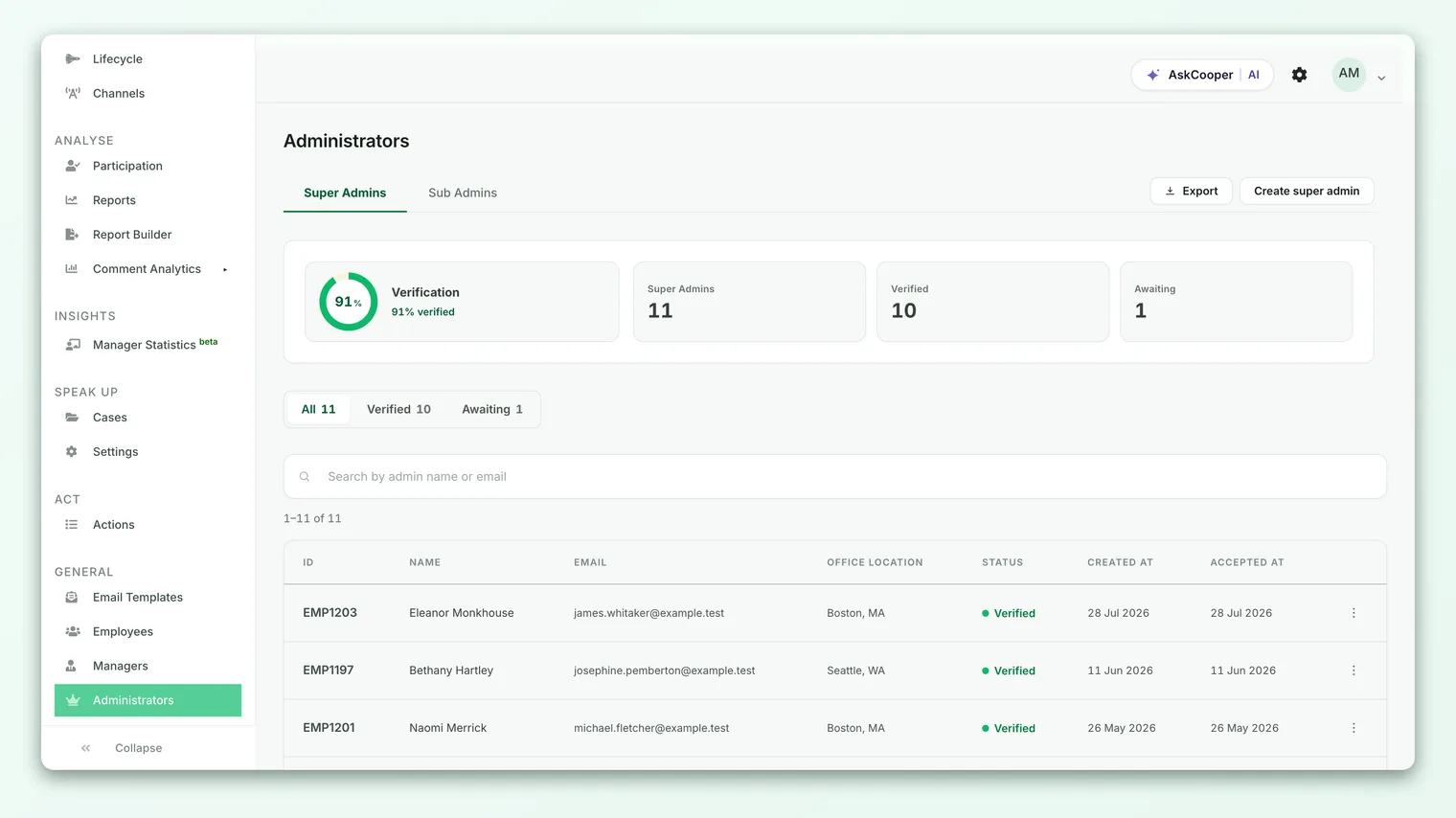
You set Survey Access from the administrator's profile, in the same place you manage their role and data scope.
- 1Open Administrators - from the main navigation, go to the Administrators area under General to see your list of admins, split into super admins and sub-admins.
- 2Open the sub-admin - click the person whose access you want to change to open their profile form.
- 3Find Survey Access - scroll to the Survey Access section. This is where the which surveys decision lives, separate from the which people (data scope) settings.
- 4Choose the option - pick All Surveys, Lifecycle Surveys Only, or Custom Surveys Only from the dropdown.
- 5Save - save the profile. The change takes effect on the sub-admin's next login and reports load, filtering their survey list accordingly.
Enabling survey-level access for specific surveys
The three type-based options are a good default, but sometimes "all custom surveys" is still too broad. If a sub-admin should only ever see two named surveys - say, the two your team is running this quarter - you want survey-level access.
When survey-level access is enabled for your account, the rule changes: a sub-admin can only open a survey if they have been explicitly assigned to it. Crucially, the default flips to deny - if no sub-admins are assigned to a survey, then no sub-admin can see it. Only super admins retain full visibility. This makes survey-level access the strictest, most deliberate way to control who sees what.
Once survey-level access is on, an unassigned survey is invisible to every sub-admin - even one set to All Surveys. That's by design: it forces an explicit choice per survey. Plan to assign sub-admins as you create surveys, or existing sub-admins may suddenly find surveys missing from their view.
Here's how the two layers interact once survey-level access is enabled:
- 1Turn on survey-level access - this is an account-wide setting enabled for your account. When it's on, per-survey assignment becomes the gate for sub-admins.
- 2Assign sub-admins to a survey - for each survey, choose the specific sub-admins who should be able to access it. Only those people will see the survey's reports and data.
- 3Layer with data scope - the assigned sub-admins still only see their slice of the responses, according to their team, location and attribute scope. Assignment grants the survey; scope limits the people within it.
- 4Leave a survey unassigned to hide it - a survey with no assigned sub-admins is visible to super admins only. This is the clean way to keep a sensitive survey (like a leadership or exit survey) away from all sub-admins.
Survey-level access for sub-admins is available on request and is configured through your account's verified admin contact. Talk to your CultureMonkey contact if you want sub-admins restricted to individual named surveys.
How survey access and data scoping combine
Survey access and data scoping are two independent filters, and a sub-admin only ever sees the intersection of the two. It's worth walking through because the combination is what actually determines what lands on their screen.
- Survey access answers: which surveys are even visible to this person? (by type, or by explicit assignment).
- Data scoping answers: within a visible survey, whose responses can this person see? (by team, location, business unit, business group and custom attributes).
Both apply at once. Consider a sub-admin set to Custom Surveys Only and scoped to the Bangalore location:
- They see your custom engagement and pulse surveys - but not lifecycle journeys (survey access filters those out entirely).
- Within each custom survey they can see, they only see responses from Bangalore employees (data scope filters the people).
- If survey-level access is also on, they additionally only see the specific custom surveys they've been assigned to.
Every visible number - participation, eNPS, driver scores, comments - respects both filters, and everything stays subject to CultureMonkey's anonymity thresholds so small groups never expose individuals. To set the people side of this equation, see Restrict sub-admin data.
A sub-admin's view is the cross-section of the surveys they can access and the employees they're scoped to. Widening one doesn't widen the other. If a sub-admin is missing data they should have, check both filters - survey access and data scope.
Typical setups
A few patterns cover most real-world needs. Use these as starting points and adjust to your structure.
| Who they are | Survey Access | Survey-level access | Data scope |
|---|---|---|---|
| Regional HR partner | All Surveys | Off (or assign all regional surveys) | Their region's locations and teams |
| Business-unit lead | Custom Surveys Only | Assign the unit's engagement surveys | The business unit |
| Lifecycle program owner | Lifecycle Surveys Only | Off | Whole org, or the segments they own |
| Project / pulse owner | Custom Surveys Only | Assign the specific pulse surveys | The pulse's audience |
| Read-only stakeholder | Custom Surveys Only | Assign only the surveys they should review | A narrow, defined scope |
The guiding principle is least privilege: give each sub-admin exactly the surveys and people they need to do their job, and nothing extra. It keeps sensitive results contained, keeps each admin focused on what's theirs, and protects the anonymity that makes people answer honestly.
Best practices
- Start narrow, widen later. It's easier to grant more access than to explain why someone saw a survey they shouldn't have. Begin with the tightest sensible setting.
- Match survey access to responsibility, not seniority. Access should follow what a person needs to do, not their title. A senior leader who doesn't run surveys may need less survey access than a hands-on program owner.
- Use survey-level access for genuinely sensitive surveys. Leadership feedback, restructure pulses and exit surveys are good candidates for explicit, survey-by-survey assignment.
- Revisit access when roles change. When someone moves teams or leaves, review their survey access and data scope. Stale access is the most common way sensitive results leak.
- Document your intent. Keep a simple record of why each sub-admin has the access they do, so the next person managing admins understands the reasoning.
Frequently asked questions
What's the difference between "Lifecycle" and "Custom" surveys?
Lifecycle surveys are the automated, always-on journeys - onboarding, milestone, exit and similar programs that run themselves on a schedule. Custom surveys are the ones you build and send yourself, like engagement or pulse surveys. The Survey Access option lets you show a sub-admin one kind, the other, or both.
If I set a sub-admin to "All Surveys," can they see everyone's responses?
No. All Surveys only means every survey is visible to them. Whose responses they see inside those surveys is still governed by their data scope - their assigned teams, locations and attributes - and by anonymity thresholds. The two controls are independent. See Restrict sub-admin data.
Does survey access apply to super admins?
No. In CultureMonkey, super admins have full visibility of every survey by design - Survey Access and survey-level assignment are ways to limit sub-admins (and other scoped roles). A super admin always sees everything.
What happens to an unassigned survey when survey-level access is on?
CultureMonkey shows it to super admins only. No sub-admin can see a survey they haven't been explicitly assigned to - this is the intended way to keep a sensitive survey away from all sub-admins.
Can a sub-admin create surveys they can't then see?
Survey access filters what a sub-admin can view and manage. If a sub-admin is limited to certain survey types or specific assigned surveys, plan their permissions so the surveys they need to run fall within the access you've granted. When in doubt, set them to the survey type that covers their work.
Where to go next
- Add a new administrator: Invite admins
- Limit which people a sub-admin sees: Restrict sub-admin data
- Understand every role and how access is scoped: Understanding roles in CultureMonkey
- Learn how small groups stay protected: Anonymity overview
Your feedback helps us improve the Help Center.