

Thematic Analysis See the themes in your survey comments and how many people raised each one
Thematic Analysis groups the written comments in a survey into themes and shows how many people raised each one.
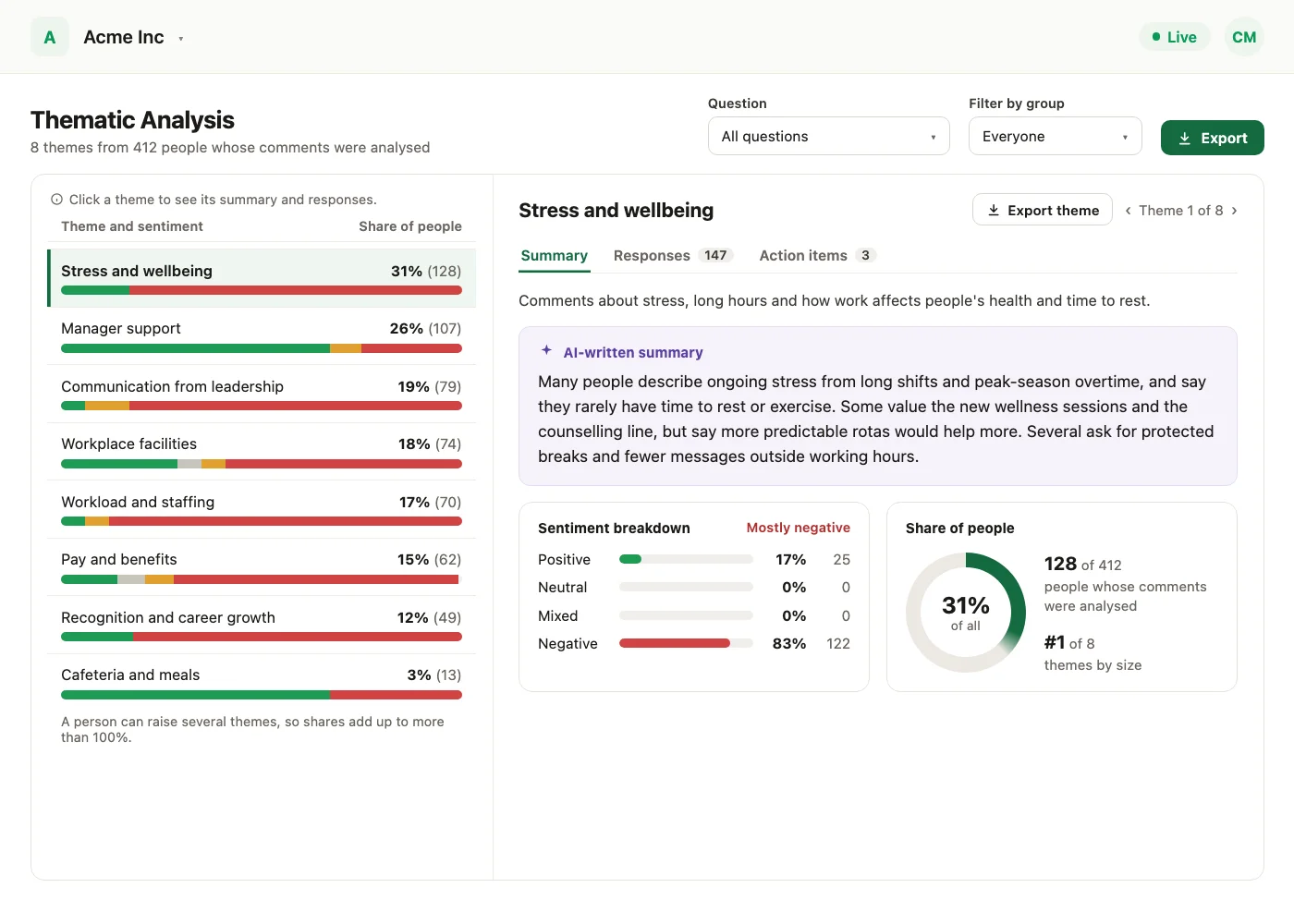
The themes in your survey comments, sized by the people who raised them. Thematic Analysis reads the written comments of an ended survey and groups them into themes. Each theme shows its share of people, its sentiment, an AI-written summary, the comments behind it and suggested action items.
Where to find it
Open an ended survey's report and choose the Thematic tab. The tab is for Super Admins.
What it reads
Themes are found in written comments: comments on questions, answers to open-text questions and open feedback.
How it works
- 1The analysis runs. CultureMonkey starts the analysis on your survey. A progress card shows each step: Waiting to start, Preparing comments, Analysing comments and Saving results. It usually takes under an hour, and you can leave the page while it runs.
- 2CultureMonkey reviews the themes. While the analysis is In review, the tab says: "Being reviewed by CultureMonkey. You will see the themes here once they are released."
- 3The themes are released. Once released, the themes show on the Thematic tab for your Super Admins and for anyone with the report's share link.
The theme list
The list shows each theme with its sentiment and its Share of people: how many of the people whose comments were analysed raised it. Each theme leans Mostly positive, Mostly negative or No clear lean. A person can raise several themes, so shares add up to more than 100%.
Two filters narrow the list:
- Question: All questions, driver questions, follow-up questions, eNPS follow-ups, a question set, or open feedback, as a group or one question at a time.
- Filter by group: Team, Business Unit, Location, Sub team, Manager or Tenure.
Use both filters together to narrow the themes further, for example one question for one team. The theme list, each theme's Summary and Responses, and the export all follow both filters. Clear removes them. If the combination covers too few people, no figures are shown, to protect anonymity.
Inside a theme
Click a theme to open it. It has three tabs:
- Summary: an AI-written summary, the theme's share of people, its rank by size and a sentiment breakdown (Positive, Neutral, Mixed, Negative).
- Responses: the comments in the theme, with the part that belongs to the theme highlighted. Filter them by sentiment.
- Action items: actions suggested by AI. Create action turns one into an action, which shows Thematic analysis as its source.
Thematic sentiment is worked out from each idea in a comment, so a comment can be Mixed. Text Responses gives each comment one overall sentiment.
Exporting
Export downloads an Excel file of what the screen shows, with the filters you have on. Export theme does the same for one theme. The file has four sheets: Summary, Charts, Responses and Action items. A large export is prepared in the background and emailed to you.
Anonymity
Every figure follows the survey's anonymity threshold. A theme raised by fewer people than the threshold is hidden to protect anonymity. Its name, numbers, comments and action items appear nowhere, on screen or in the export. A filter combination below the threshold shows no figures.
On the report's share link
Anyone with the report's share link sees the released themes, read only. The share link has no Export, no group filter and no Create action, and its comments show no team, manager, business unit, sub team or location.
See what a warmer engagement platform looks like
Book a walkthrough and we will show you the features on this page, live in your workspace.