

New in CultureMonkey
Employee Timezone Launch Send a survey at the same clock time in every employee's own time zone
Instead of one launch time for the whole organisation, Super Admins and Sub Admins can now send a scheduled survey at the same clock time on every employee's own clock, sent in one group per time zone.
2 optionsorganisation time zone or each employee's time zone
Per time zoneone send group for each time zone
1 actionto cancel a launch in progress
Every accountavailable on every CultureMonkey account
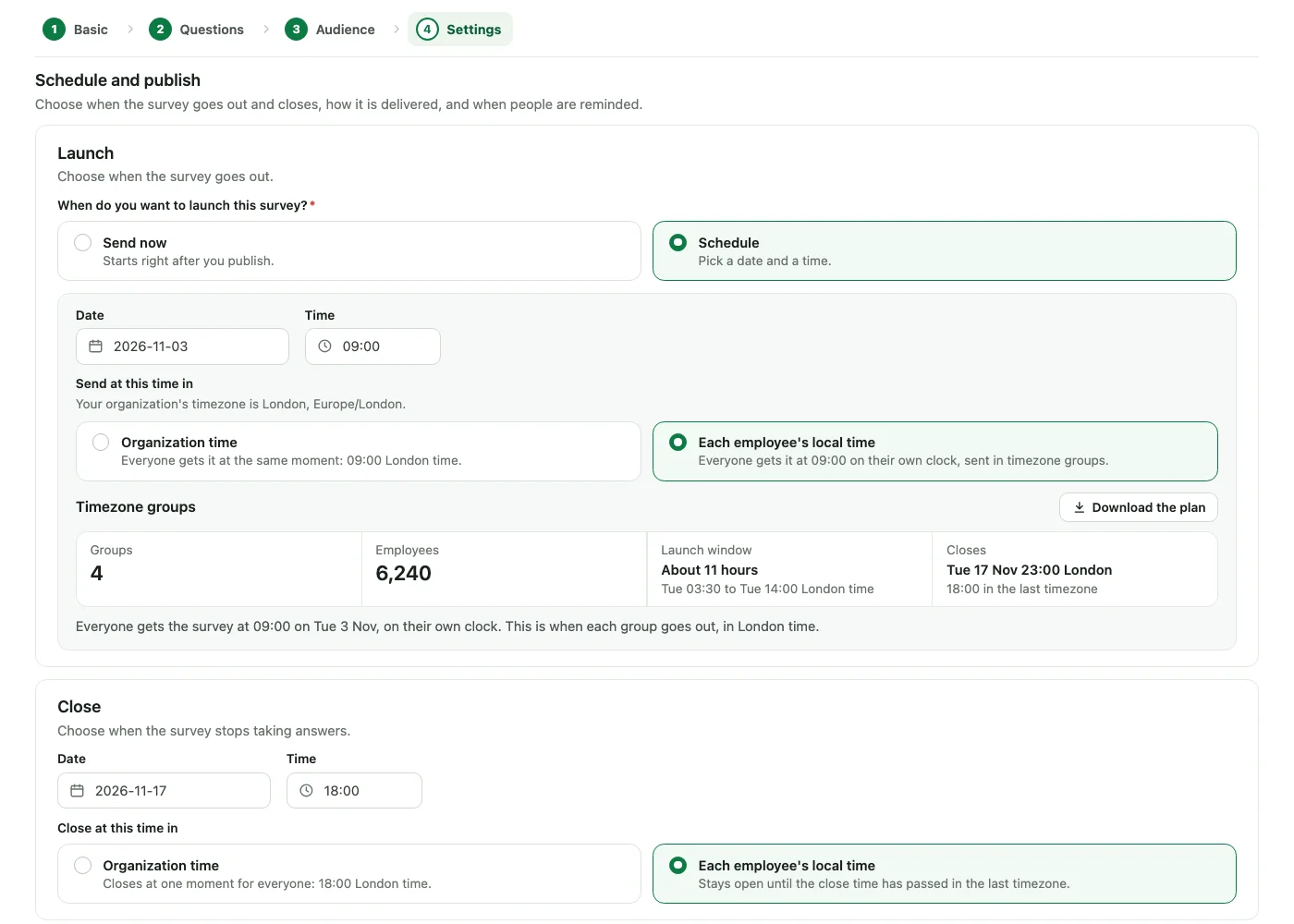
9:00 now means 9:00 wherever your people are. When you schedule a survey, you can choose to send the launch at the same clock time in each employee's own time zone, instead of one time for the whole organisation. You make the choice per survey, on the launch settings step.
Choosing employee timezone for a launch
- 1On the survey's launch settings step, schedule the launch.
On the settings step, choose Schedule and pick a date and time. - 2Choose Organization time or Each employee's local time.
With Schedule selected, Send at this time in offers Organization time (everyone at the same moment) or Each employee's local time (the chosen time on each person's own clock, sent in time zone groups).
How it works
- One send group per time zone: the survey goes out in groups, one for each time zone, so everyone receives it at the chosen time on their own clock.
- The close has its own choice: when the survey stops taking answers has its own time zone setting. With each employee's local time, it stays open until the close time has passed in the last time zone, separate from the launch.
- One-time reminders follow the same rule as the launch. Reminders sent in time zone groups report one total across all the groups, and are marked complete only once the last group has gone out.
- Cancel in one action: a launch in progress can be cancelled with a single action, and resumed later with Send to everyone remaining now. People added after that are sent their survey too.
- People added after publish are sent the survey in their own time zone.
Where each employee's time zone comes from
- Employee import: Timezone is a new optional column in the employee import.
- Employee form: a new No timezone (use the organization's) option.
- Fallback: employees without a usable time zone receive the survey at the organisation's time.
Good to know
- Reminder time zone on the Notifications page: under the Scheduled Reminders table, one line now names the time zone reminders go out in, for example: Reminders go out at these times in Asia/Kolkata (UTC+05:30), the time zone set under Account settings. If no time zone is set, the line says so and points you to Account settings.
- A days-left placeholder for survey emails: survey emails can now use
{{days_left}}to say how many days remain before the survey closes. For surveys launched in each employee's time zone, it counts to the survey's actual close. - Where it is not available: employee timezone launch is not available for candidate, lifecycle, segment, automated, QR-only or Lite surveys, or when a survey is set to Send now.
Who can do this
- Super Admins and Sub Admins can choose employee timezone launch for a survey.
- Managers cannot choose it. If an admin has already chosen it on a draft, a Manager sees it kept as it is.
Built with our customers
See what a warmer engagement platform looks like
Book a walkthrough and we will show you the features on this page, live in your workspace.