

Lifecycle Stages Page A redesigned page with each stage's details, messages and scores in one place
The redesigned Lifecycle page puts everything about a stage on one screen: pick a stage from the list and its survey, schedule and participation appear beside it.
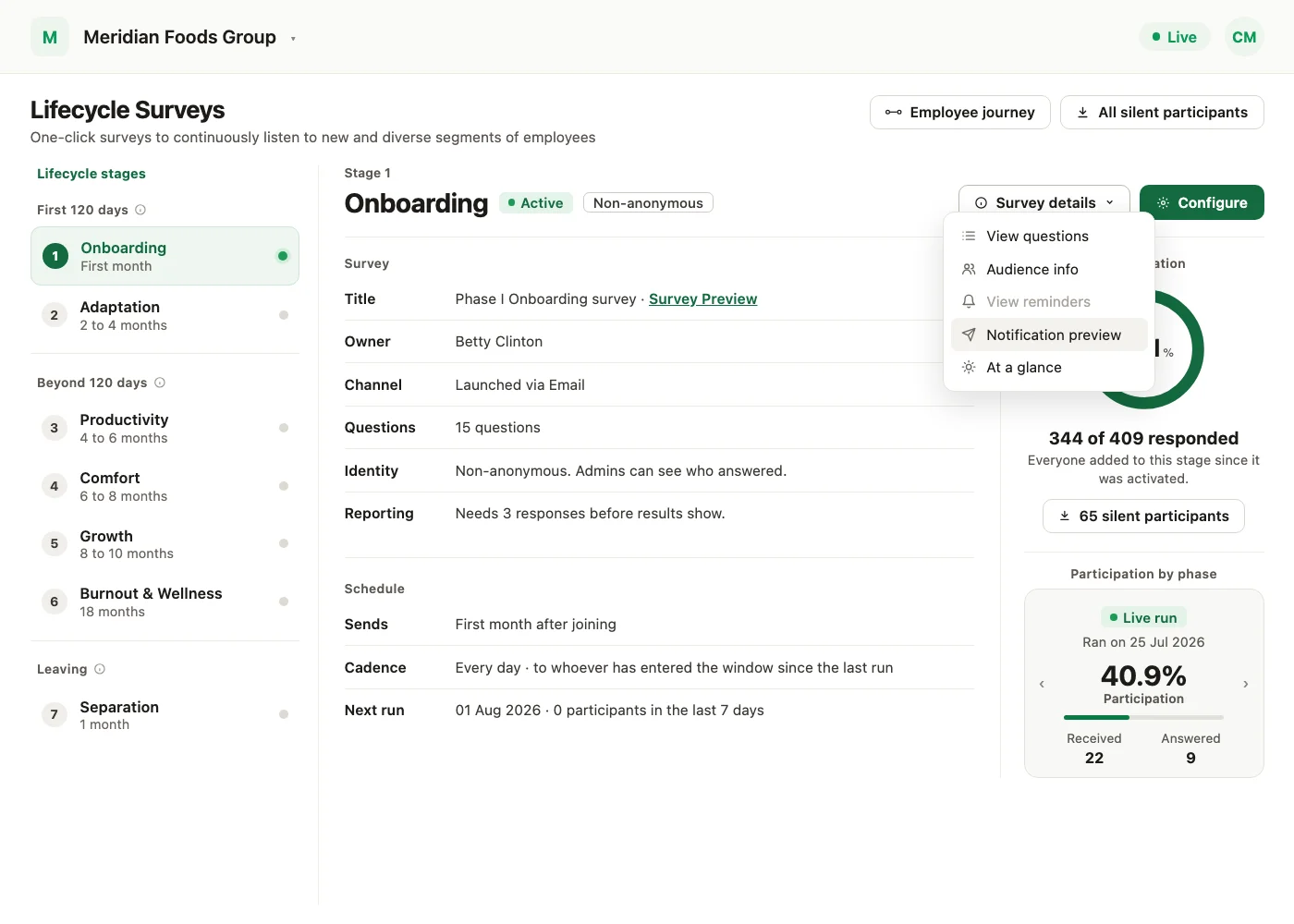
Each stage's details, in one place. The Lifecycle page has a new layout. Your stages are listed by phase on the left. Pick one, and its survey, schedule and participation show on the right. How lifecycle surveys are scheduled and sent has not changed.
What moved where
| Before | Now |
|---|---|
| A row of stage pictures across the top of the page | A numbered list of stages on the left, grouped by phase. The row of stage pictures is still there, under Employee journey |
| Total participation as a line of text | A Participation ring with how many of everyone added to the stage have responded |
| Next survey date and its participant count | Next run, in the stage's Schedule |
| A silent participants count that opened a list | A silent participants button that downloads the list |
| Previous, live and next run figures inside the Configure pop-up | Participation by phase, on the page |
| Questions, audience and reminders, only inside Stage Manager | The Survey details menu, read-only |
| A Configure pop-up | On accounts with Lifecycle Stage Manager, Configure opens Stage Manager directly |
| Launch and reminder email template pickers on the Lifecycle page | The Notifications step in Stage Manager |
| Download questions on the Stage Manager review page | View questions, in the Survey details menu |
Where to find it
Open Lifecycle in the sidebar. The page is now called Lifecycle Surveys. Employee journey sits at the top right, with All silent participants beside it when any stage uses a non-anonymous survey.
How the page works
The page has three parts, numbered in the screenshot below.
1. The stage list
- Stages are numbered in journey order and grouped by phase: the first days after joining, the days after that, Lifecycle moments and Leaving. A stage with no window yet sits under Not scheduled yet.
- The first group holds every stage that starts within the first 90 days after joining. Its label shows the last day those stages cover. With the default stages, Adaptation starts at 2 months and runs to 4 months, so the groups read First 120 days and Beyond 120 days.
- The info icon on each group says what its windows count from.
- Each stage shows its window, such as First month or 2 to 4 months, and a dot that is green when the stage is active.
2. Survey and Schedule
The Survey section shows the stage survey's Title with a Survey Preview link, its Owner, the Channel it launches on, how many Questions it has, its Identity (anonymous or non-anonymous) and Reporting, the number of responses needed before results show.
- Sends: the stage's window, for example "First month after joining".
- Cadence: Every day, to whoever has entered the window since the last run.
- Next run: the date of the next run, and how many participants were sent the survey in the last 7 days, with a link to the list when there are any.
3. Participation
- Participation: how many of everyone added to the stage since it was activated have responded.
- Silent participants: for a non-anonymous survey with a run scheduled, a button downloads the people who were sent the survey and have not responded.
- Participation by phase: the Previous run and Live run, each with its participation and how many received and answered, and when the Next run is scheduled. The live run shows first; use the arrows to move between them.
New: the Survey details menu
Survey details, next to Configure, opens read-only views of the chosen stage. Nothing in them changes the stage.
View questions
Every question in the stage survey, grouped by section, with its driver and question type. Download questions saves the list.
Audience info
Who the stage reaches: its timing, when it sends, and roughly how many employees fit the audience today, and how many are skipped because a date the stage needs, such as their joining date, is missing. If CultureMonkey set up a custom audience rule for the stage, it says so instead.
View reminders
Each reminder set for the stage, when it is sent and on which channels. It appears on accounts that use lifecycle stage reminders, and is greyed out for a stage with no reminders.
Notification preview
- Shows the message each channel sends for the stage: Email, Text message, Slack, Teams and WhatsApp.
- Two tabs: Launch notification for the first message and Reminder notification for reminders.
- Each channel is marked Enabled or Not enabled for your account. Hover the dot next to a channel to see whether it is active for this stage.
- Messages use sample values, such as a sample name. Nothing is sent.
At a glance
- Since activation: the stage's overall score, participation rate and respondents.
- Period: pick a period, from This week to All time. It opens on This month.
- For that period: how many were added, responded and have not yet responded, the participation rate, the change on the period before, and driver scores.
- Scores stay hidden until the survey's minimum number of responses is reached.
Employee journey
Employee journey opens the row of stage pictures that used to sit at the top of the page. Pick a stage to see its total participation, next survey, how many were sent the survey in the last 7 days, and silent participants.
Changing a stage
Configure opens the stage in Lifecycle Stage Manager, on its Audience step, in a new tab. If you don't see Configure, contact your Success Manager to turn on Stage Manager.
Stage Manager has a new look, and these changes:
- Enable this stage and Pause this stage sit at the top of the setup steps. On the review page, the same actions are in the footer, as Enable the stage and Pause the stage. Each asks you to confirm first.
- Back to Lifecycle, at the top of Stage Manager, returns you to the Lifecycle page with the same stage selected.
- Notifications is a new last step, with a Launch notification and a Reminder notification tab and each channel down the left. Choose the email that goes out at launch and the one for reminders, from your templates in Settings > Email templates. Slack, Teams and WhatsApp show the message they send. It is set at the account level, so it can't be changed for one survey.
- New: on accounts that send text messages, you can now set the survey's own text message wording in the Notifications step. Until now, CultureMonkey set it for you.
- If CultureMonkey set up a custom audience rule for a stage, its Audience step is read-only and says to contact CultureMonkey to change it.
Who can do this
The Lifecycle page is for Super Admins whose Survey Access covers all surveys or lifecycle surveys.
See what a warmer engagement platform looks like
Book a walkthrough and we will show you the features on this page, live in your workspace.