

Access the CultureMonkey Speak Up portal
A step-by-step guide for employees on how to reach the confidential Speak Up reporting portal, fill in the intake form, and submit a concern securely.
On this page
Speak Up is your organization's confidential reporting portal. It gives you a safe, private way to raise a concern - about conduct, safety, ethics, or anything that doesn't feel right - and to follow up on it afterwards, without needing an account and without revealing who you are unless you choose to.
This guide walks you through the whole journey from an employee's point of view: where to find the portal link, what the intake form asks, how to fill it in step by step, and what happens the moment you hit submit. If you just want the fastest possible path, jump to the step-by-step walkthrough below.
Open the CultureMonkey Speak Up link your organization shared (it looks like speak-up/r/...). On the portal page, click Start new report, then work through a short guided form: choose whether to report anonymously or share your name, pick a category, describe what happened, optionally attach files, and (if you'd like to follow up later) set a password. Submit, and you'll get a report number to track your case.
What the Speak Up portal is
The Speak Up portal is a self-contained, employee-facing website that sits alongside CultureMonkey. It is deliberately separate from the main survey product: you don't log in with your work account, your name isn't attached to anything automatically, and case handlers only ever see what you decide to share.
When your organization turns Speak Up on, the portal presents a simple landing page - a Confidential reporting portal - with a short trust message and two clear actions: start a new report, or track an existing one. Everything is designed around one promise, shown right on the page: "Share your concern securely. Only authorized case handlers can access your report."
If your organization runs the portal in fully anonymous mode, you'll also see a line confirming that "This is an anonymous reporting portal. Your identity is not shared with case handlers." To understand exactly how that protection works, see How Speak Up protects your anonymity.
Where to find the portal link
Because Speak Up is a private portal, there's no public "Speak Up" button in your everyday CultureMonkey dashboard. Instead, your organization is given a unique portal link to share with employees, and that link is how you get in.
The link looks something like this:
> https://yourcompany.culturemonkey.io/speak-up/r/a1b2c3d4
That trailing code is a private intake slug that's unique to your organization. Your admins typically share this link through the channels employees already trust, so look for it in places like:
- Your intranet or internal wiki, often under HR, Compliance, or "Raising concerns."
- A company handbook, code of conduct, or onboarding pack.
- Posters or QR codes in shared spaces (break rooms, notice boards).
- An email or chat announcement from HR or your leadership team.
You might see the link written as /speak-up, /speak-up/r/..., or even the older /speak_up. They all lead to the same place - the portal quietly redirects you to the correct, canonical address, so you don't need to worry about the exact form.
If you can't find the link anywhere, ask your HR or People team. Some organizations keep the portal address deliberately low-key so it's shared person to person. If you open a Speak Up link and see a "not available" message, the portal may not be switched on yet at your organization, or the link may be mistyped.
Opening the portal
Click the link (or scan the QR code) and the portal opens in your browser. You don't need to install anything, sign in, or create an account.
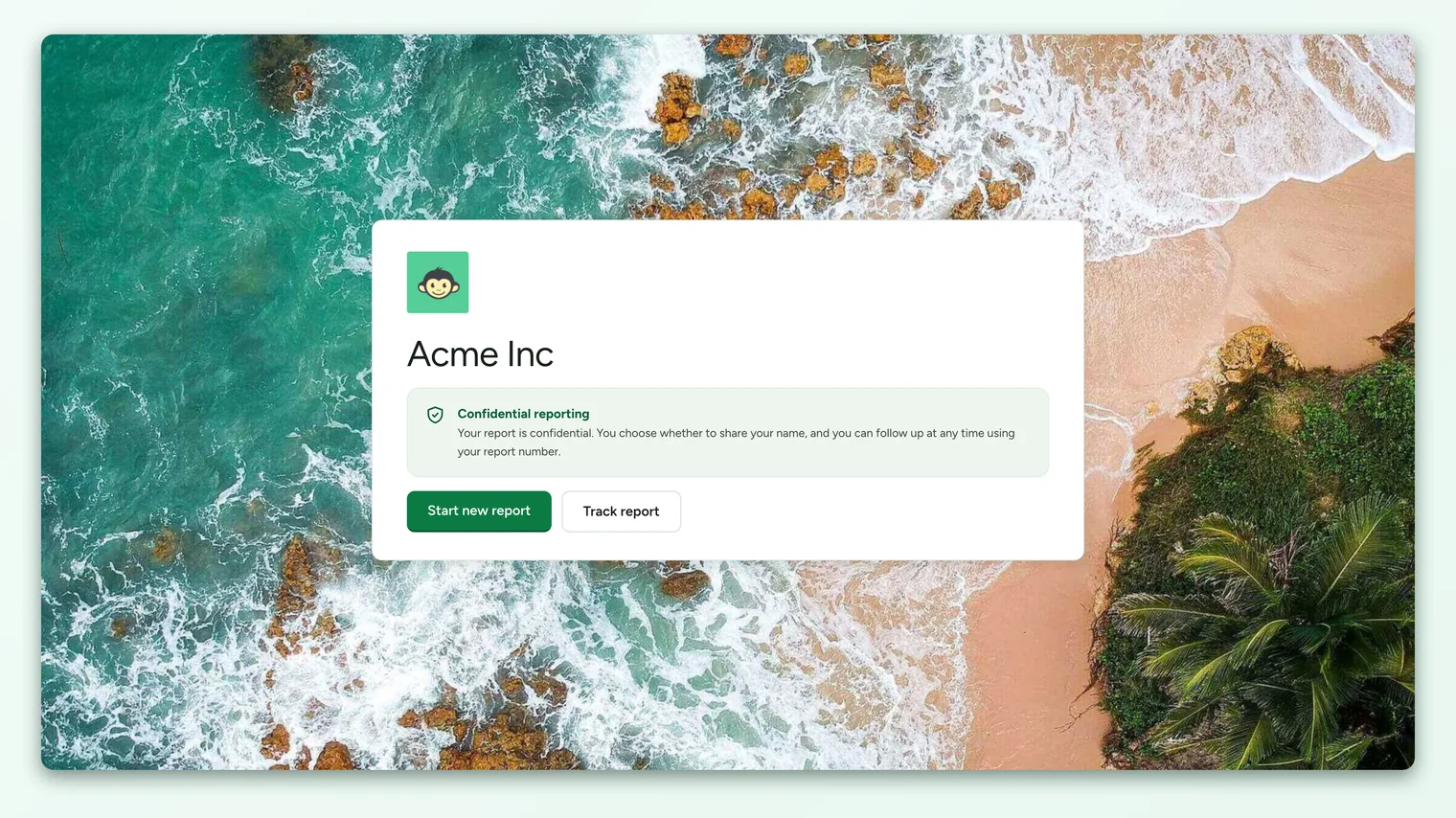
On this landing page you'll see:
- Your organization's name and logo at the top, so you know you're in the right place.
- A Confidential reporting promise explaining that only authorized case handlers can access reports.
- A language selector, if your organization has enabled more than one language. Pick your preferred language here and the entire form, including category names and guided questions, switches to it.
- Start new report - the main button, which opens the intake form.
- Track report - a secondary button that takes you to a login screen where you can check on a report you've already submitted, using your report number and password.
To raise a new concern, click Start new report.
For your privacy, the portal remembers that you arrived through your organization's specific link for the duration of your visit. If you close the tab and come straight back to the intake form by its address alone, it may ask you to open the portal link again first. This is expected and keeps the portal tied to the right organization.
Fill in and submit the intake form
The intake form is a short, guided sequence. A progress tracker across the top shows where you are, and you can move back and forth between steps at any time before submitting. Every field is optional unless the step explicitly asks for something, so share as much or as little as you feel comfortable with.
- 1Choose how to report. If your organization allows named reports, the first step asks "How would you like to report?" Pick Report anonymously (your identity stays hidden, and you get a report number and passphrase to follow up) or Share my identity (your name and email go only to the assigned case team). Anonymous is selected by default, and you can change it any time before submitting. If your organization runs anonymous-only, this step is skipped and you begin at the category.
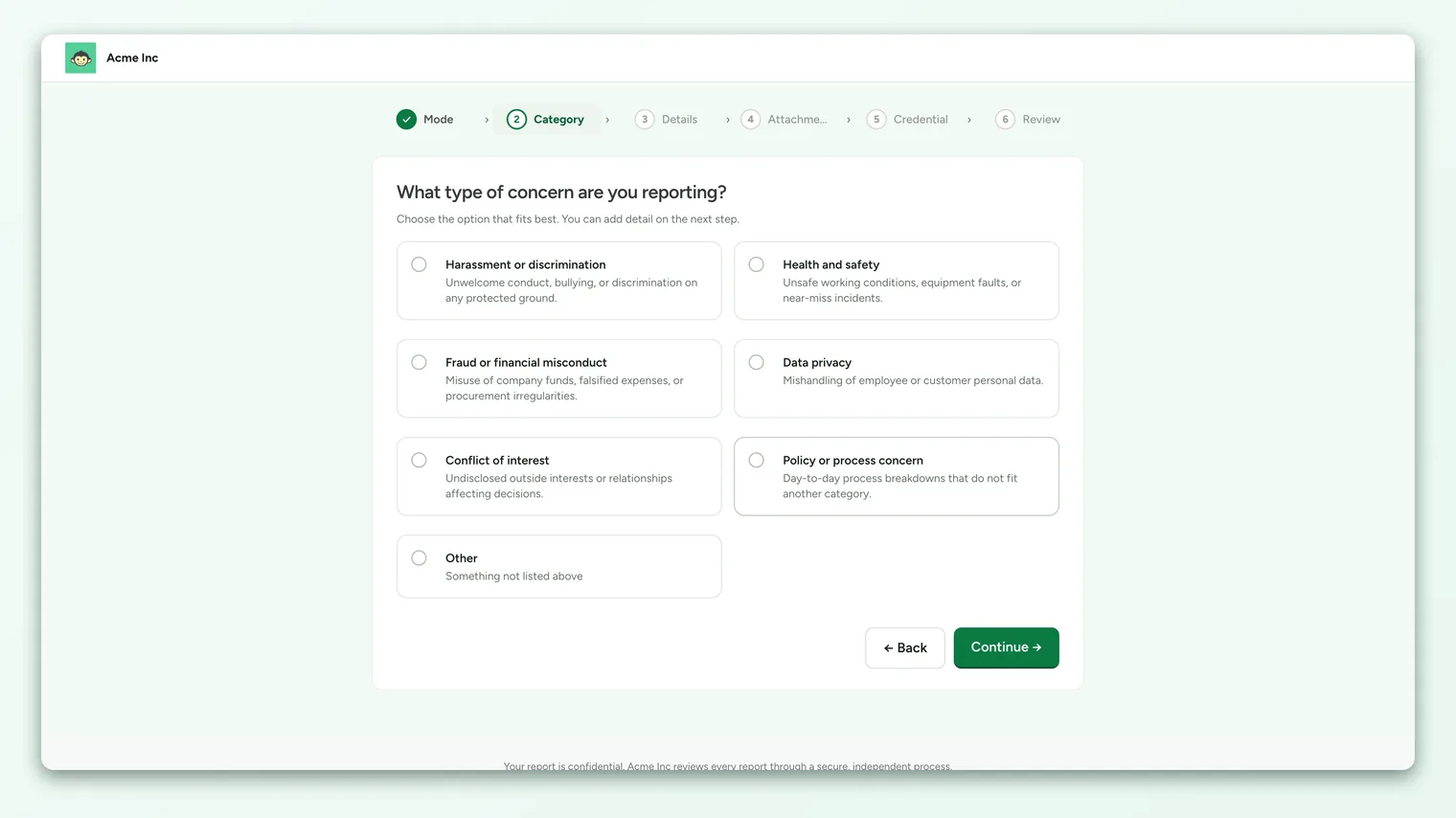
- 2Pick a category. Choose the type of concern that fits best - for example harassment, safety, or a financial issue - from the options your organization has set up. If nothing fits, choose Other. The category helps route your report to the right handler, and some categories add a few tailored follow-up questions on the next step.
- 3Describe what happened. Write the incident or concern in your own words. If your category has guided questions, answer the ones you can (only those marked required must be filled in). You can also add an optional Location (for example, "Building 3, Floor 2"). There's no right way to write this - share what you feel comfortable sharing.
- 4Add supporting files (optional). Drag and drop, or browse to attach, documents, screenshots, photos, or recordings that help explain your concern. Accepted types include JPG, PNG, PDF, DOCX, XLSX, MP4, and MOV, within the size and count limits shown on the step. This step is skipped if your organization has disabled attachments.
- 5Set up follow-up access (optional). If you're reporting anonymously, tick Track report and set a password so you can log back in later with your report number to see replies and updates. If you're reporting with your identity, this step collects your name and email instead (and may ask you to verify your email with a one-time code). Prefer to stay hands-off? You can Skip this step.
- 6Review and submit. The final step summarizes everything - your reporting mode, category, description, guided answers, and attachments - so you can check it before it goes anywhere. When you're ready, click Submit report.
For a deeper look at each field and the decisions behind them, see Raise a case in Speak Up.
Anonymous vs. sharing your identity
The choice you make on the first step shapes everything that follows, so it's worth understanding the difference:
| Report anonymously | Share my identity | |
|---|---|---|
| Your name and email | Never collected | Shared only with the assigned case team |
| How you follow up | With a report number and (optional) password | Through the same case, plus email updates |
| Who can see who you are | No one, including case handlers | Only the assigned handlers, never more widely |
| Best when | You want maximum privacy | You're comfortable being contacted directly |
Both routes are confidential. The difference is simply whether the case team can put a name to the report. If you're unsure, anonymous is a safe default - and you can still receive updates. See How Speak Up protects your anonymity for the full picture.
Save your report number
The moment you submit, the portal creates a unique report number for your case - it starts with SU- (for example, SU-2026-0042) - and shows you a confirmation screen.
This report number is important. Together with the password you set (if you chose to track your report), it is the only way back into your case. Your organization cannot look it up or recover it for you, precisely because the system is built to keep your report separate from your identity. So:
- Write the report number down or take a screenshot before you leave the page.
- If you set a password, store it somewhere safe too.
- On the confirmation screen you can also download a PDF of your submission for your own records.
If you lose your report number, there's no way to retrieve it, by design. Save it as soon as you see it. If you're reporting anonymously and want to be notified of replies, add a notification email on the confirmation screen (more on that below) so you're not relying on the number alone.
What happens after you submit
Submitting isn't the end of the conversation. Here's what to expect.
The case team is notified. Your report is routed to authorized case handlers based on the category you chose. Depending on your organization's setup, it may be automatically assigned to a specific handler. They review reports through a secure, independent process.
You'll get an acknowledgment. The confirmation screen tells you the timeframe your organization aims to acknowledge receipt within (often about a week). This is a target the organization sets, so the exact wording you see reflects your own workplace's commitment.
You can stay updated without revealing yourself. If you reported anonymously, the confirmation screen offers to save a notification email. This address is stored completely separately from your case and is never visible to HR, Compliance, or any case handler - the system alone uses it to email you when there's a reply or a status change. It's optional but recommended.
You can follow up any time. If you set a password, use the Track report button on the portal to log back in with your report number and password. There you can read messages from the case team, reply to them, and see your case status move through stages like Received, Under review, Awaiting your response, and Resolved.
Frequently asked questions
Do I need a CultureMonkey login to use Speak Up?
No. The Speak Up portal is completely separate from the main CultureMonkey app. You reach it through the link your organization shares, and you never sign in with your work account. That separation is part of what keeps your report private.
Can my employer see that it was me who submitted a report?
If you choose Report anonymously, your identity is never collected or shown to anyone, including case handlers. If you choose Share my identity, your name and email are visible only to the assigned case team and never more widely. Even a notification email you add for updates stays hidden from the organization. See How Speak Up protects your anonymity.
What if I don't have all the details, or I'm not sure it's worth reporting?
That's fine. Every field is optional except the basics (a category and a short description), and there's no threshold for what counts. Share what you know. The case team can ask follow-up questions through the secure conversation if they need more.
I lost my report number. How do I get back into my case?
Unfortunately, a lost report number can't be recovered - the system is intentionally built so that no one can look it up for you. Your best option is to submit a fresh report and, this time, save the number and password (and add a notification email) right away.
The portal link shows an error or says it's unavailable. What now?
The portal may not be switched on at your organization yet, or the link may be mistyped or out of date. Double-check the address, then contact your HR or People team for the current link. Organizations can also refresh their portal link periodically for security, so an old bookmark may stop working.
Can I use Speak Up in my own language?
If your organization has enabled multiple languages, use the language selector on the landing page. Your choice applies to the whole form, including category names and guided questions, so you can report in the language you're most comfortable with.
Where to go next
- Ready to file a report? Raise a case in Speak Up
- Worried about privacy? How Speak Up protects your anonymity
- Want to follow up on a report you've submitted? Use the Track report button on the portal with your report number and password.
- What reporters experience: Anonymous reporting system for employees
Your feedback helps us improve the Help Center.