

Attach files to a case
How evidence and documents get attached to a Speak Up case - who can upload, the file types and limits, how files are scanned and served, and how attachments respect reporter anonymity.
On this page
A report is often only as strong as the evidence behind it. A screenshot of a message, a photo of an unsafe area, a policy document, or a short screen recording can turn a vague concern into something your case team can actually act on. In CultureMonkey's Speak Up whistleblowing channel, those supporting files ride along with the case as attachments.
This article explains how attachments work end to end: who can add them, which file types and size limits apply, what happens to a file after it's uploaded, and - most importantly for a confidential channel - how attachments are handled so they don't quietly undermine a reporter's anonymity.
Files are attached by the reporter when they submit a report, up to 5 files per case. Everyday documents and images are capped at 25 MB each; video (MP4, MOV) has a separate, admin-configurable cap that defaults to 50 MB. CultureMonkey scans each file before anyone can open it and serves it only through short-lived, access-controlled links. As an admin or investigator, you view and download these files from the case; you don't upload new ones from the case screen.
Who can attach files
This is the single most common point of confusion, so it's worth being precise.
In the current build, attachments are added by the reporter at intake - that is, at the moment they submit their report through the Speak Up portal. The report form includes a dedicated "Add supporting files" step where the reporter can drag in or browse for documents, screenshots, photos, or recordings. Everything they attach is bound to the case they're creating.
As a member of the case team (an investigator, or an Account Admin with Speak Up access), your relationship to attachments is read-only from inside the case:
- You can preview images, videos, and PDFs directly in the browser.
- You can download any file that has finished scanning.
- You do not upload new files from the case detail screen, and there is no file picker on the message composer today.
The case detail view lists and serves the reporter's attachments, but it has no upload control. If your investigation needs to capture new evidence (interview notes, an HR document, a signed statement), record it in the case using case notes and messaging rather than expecting to attach a file. If richer investigator-side file uploads matter to your process, raise it with your CultureMonkey contact.
Can a reporter add files after submitting?
When a reporter returns to their case to reply to the team, the follow-up message form accepts text only - there's no attachment control on the reporter's reply composer. So in practice, the reporter's window to attach evidence is the initial submission. If more evidence surfaces later, the most reliable path today is for them to describe it in a reply, and for the case team to arrange a secure hand-off outside the tool if needed.
File types and limits
Speak Up accepts a deliberately narrow set of file types - common evidence formats, and nothing exotic that would be hard to scan or preview safely.
| Category | Accepted extensions | Size limit each |
|---|---|---|
| Images | JPG, JPEG, PNG, GIF | 25 MB |
| Documents | PDF, DOCX, XLSX | 25 MB |
| Video | MP4, MOV | 50 MB (default, configurable) |
A few rules apply across all of them:
- Maximum of 5 files per case. If a reporter selects more, only the first five are kept.
- Non-video files are capped at 25 MB each. This covers every image and document type above.
- Video has its own, larger cap. MP4 and MOV files are allowed up to a size that an Account Admin can set (see below). Out of the box that's 50 MB.
- Anything outside the allowlist is rejected. The upload control only accepts the extensions in the table, and the server enforces the same list, so an unsupported file simply won't attach.
A tighter allowlist is a security feature, not a limitation. Restricting uploads to well-understood image, document, and video formats keeps the surface area for malicious files small and lets Speak Up preview evidence in the browser without extra tooling. If a reporter has evidence in another format, ask them to export it to PDF or an image first.
Setting the video size limit
The video cap is the one attachment limit you control. It lives in your account configuration as the Speak Up video maximum upload size (in megabytes) and applies to MP4 and MOV files across Speak Up intake. If it isn't set, Speak Up falls back to the 50 MB default. Raising it lets reporters submit longer clips; lowering it keeps storage and scan times down. Non-video files stay at 25 MB regardless of this setting.
What happens after a file is uploaded
Uploading isn't instant availability. Every attachment goes through a short pipeline before it can be opened, and understanding it explains a couple of states you'll see in the case.
- 1Stored privately - the file is written to protected cloud storage under the case, never to a public URL. It's keyed to the case ID, so it can't be guessed or browsed to.
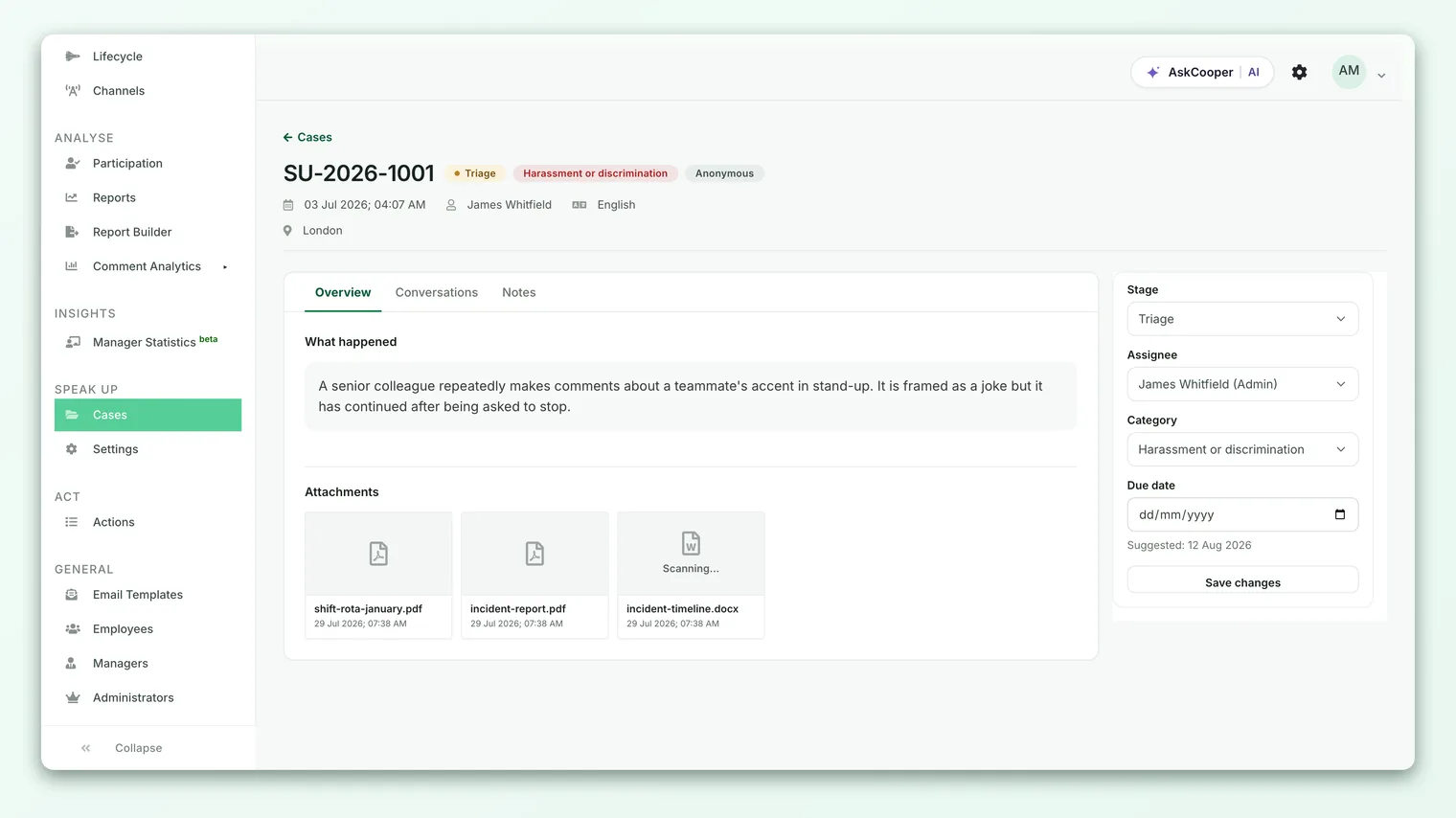
- 2Scanned - each attachment is checked for malware before it becomes downloadable. Until that check passes, the file's status is pending and it shows as "Scanning…" on the case.
- 3Marked clean or quarantined - a file that passes is marked clean and becomes viewable and downloadable. A file that fails is quarantined and shows as "Unavailable"; it can't be previewed or downloaded by anyone.
- 4Served on demand - when you open or download a clean file, Speak Up generates a short-lived, signed link (valid for a few minutes) to the stored object. The link expires quickly, so it can't be shared or leaked in a durable way.
A file marked "Scanning…" hasn't finished its safety check yet - refresh in a moment. A file marked "Unavailable" was quarantined and won't open. Neither is an error on your part.
Because the scan is a gate, a brand-new report may briefly show its attachments as still scanning. That's expected. Only files with a clean status are ever handed to the browser for preview or download.
Previewing and downloading evidence
On the case detail screen, attachments appear as a grid of cards, each showing the file name, an icon or thumbnail for the type, and the time it was added. What you can do with a card depends on the file:
- Images and videos show a thumbnail and open in an in-page viewer when you click them.
- PDFs open inline in the browser.
- DOCX and XLSX files can't be previewed in the browser, so they offer a download action instead.
- Any clean file can be downloaded to your device with the download control on the card.
Reporters see their own attachments too, from their case view in the portal, with a download link for each clean file. This shared visibility matters: both sides are looking at the same evidence, which keeps the conversation grounded.
How attachments respect anonymity
Speak Up exists so people can raise concerns without fear, and attachments are one of the easier ways for anonymity to spring a leak. Here's how the design protects the reporter, and where you still need to use judgment.
Access is locked to the case team. Every preview and download runs through an authorization check. Only someone who can view that case - a case manager, an assigned investigator, or an admin with the right Speak Up permission - can open its files. The signed links that actually serve the file expire within minutes, so a copied URL is useless shortly after.
Nothing about the file exposes who uploaded it. Attachments are stored against the case, not against a named person. For anonymous reports, there is no reporter identity attached to the file in the first place, so downloading or previewing it reveals nothing about who sent it.
Reporters are coached to self-redact. The intake experience reminds reporters to avoid sharing more personal information than the case team needs, and the supporting-files step is explicitly optional. That guidance is the first and most effective line of defense against a reporter accidentally identifying themselves.
Anonymity protects the channel, not the contents. A photo can carry embedded metadata (for example, the GPS location or device details some cameras write into an image), and a DOCX or PDF can carry author names, tracked changes, or comments. Speak Up does not currently rewrite or strip that embedded metadata for you, so treat every attachment as potentially identifying. If you're guiding reporters, advise them to remove metadata before uploading (take a screenshot of a photo rather than sharing the original, and clear document properties). As an investigator, handle files as if they could reveal a source.
Quarantine is part of the safety story too. Because a malicious file could be an attempt to compromise an investigator's machine (and, indirectly, the confidentiality of the case), the scan-and-quarantine gate protects the people handling sensitive reports, not just the storage.
Best practices for handling case evidence
- Preview before you download. For images, video, and PDFs, the in-browser viewer lets you assess evidence without pulling copies onto local machines.
- Keep downloads on the case. If you must download a file, keep it inside your secure investigation workflow. Every copy that leaves the platform is a copy CultureMonkey can no longer protect.
- Record investigation artifacts as notes. Since you can't upload new files from the case, capture your own findings, summaries, and document references using case notes and messaging, keeping internal notes marked internal.
- Treat "Unavailable" seriously. A quarantined file failed a safety check. Don't try to route around it; note it and, if the evidence matters, ask the reporter to re-share it in a safe format.
- Coach reporters on redaction. When your Speak Up trust copy or onboarding lets you set expectations, remind people to strip identifying details and metadata from anything they attach.
Frequently asked questions
How many files can be attached to one case?
Up to 5 files total per case. If a reporter selects more than five during submission, only the first five are saved.
What's the largest file a reporter can upload?
25 MB for any image or document (JPG, PNG, GIF, PDF, DOCX, XLSX). Video (MP4, MOV) has a separate cap that an Account Admin can configure, defaulting to 50 MB.
Why does an attachment say "Scanning…" or "Unavailable"?
"Scanning…" means CultureMonkey is still checking the file for malware and it isn't downloadable yet - give it a moment. "Unavailable" means it was quarantined because it failed that check, and it can't be opened.
Can I, as an investigator, upload a document to the case?
Not from the case screen in the current build. Attachments come from the reporter at intake. To record investigator-side material, use case notes and messaging.
Does CultureMonkey strip metadata from uploaded files?
CultureMonkey Speak Up does not automatically remove embedded metadata (such as photo GPS data or document author names). Treat attachments as potentially identifying and coach reporters to redact files before uploading.
Can the reporter see the files they attached?
Yes. Reporters can view and download their own clean attachments from their case view in the Speak Up portal, so both sides reference the same evidence.
Where to go next
- Work the conversation and internal notes: Case notes and messaging
- Move a case through its stages: Manage a Speak Up case
- Understand the anonymity guarantees: Speak Up and anonymity
- Evidence and the investigation around it: Workplace investigation software
Your feedback helps us improve the Help Center.