

Batch-export demographic-wise PDFs
How to generate one PDF report per segment (team, manager, location, or any demographic) in a single action, track each report as it processes, and download the whole set as a ZIP or receive the links by email.
On this page
Exporting one PDF for a whole survey is the common case, and it's covered in Export a survey report as a PDF. But leaders often need something different: a separate report for each team, each manager, or each location, so every stakeholder gets a clean document scoped to their part of the organization. Producing those one at a time is slow and error-prone.
Related release: Demographic-Wise PDF Reports (May 20, 2026). See every dated change on Product Updates.
Batch-exporting demographic-wise PDFs solves this. From a single screen you pick the segments you care about (say, every Business Unit, or every Manager), and CultureMonkey generates one PDF per segment for you. When the reports are ready you can download the whole set as a single ZIP archive, and you also receive an email with a link to each report.
Open Export to PDF on a survey report, tick the segments you want (Overall plus any demographic values like Team or Location), and export. CultureMonkey builds one PDF per selected segment in the background. Once they finish, use Download all to get them as a ZIP (one PDF per segment) and an email arrives with the individual links.
Who this is for and what you need
Batch demographic-wise export is aimed at account admins who own reporting for the whole organization and need to distribute per-segment reports to leaders.
Two conditions have to be met for the batch options to appear:
- The demographic report feature is turned on for your account. This is an account-level setting that also defines which demographics are available as export dimensions (for example Business Unit, Team, Location, Manager, and any custom attributes). If it isn't enabled, the Export to PDF screen shows the simple single-PDF version instead.
- You are viewing as a full account admin. The batch demographic view is available to super admins of the account. Sub-admins and managers get the standard single-PDF export scoped to their own access.
If you meet both, the Export to PDF screen gains the segment picker described below. If you don't, you'll still be able to export a single overall PDF the normal way.
Where to find it
The entry point is the same button you use for any PDF export. Open the survey report you want to export, then open Export to PDF from the report's header actions.
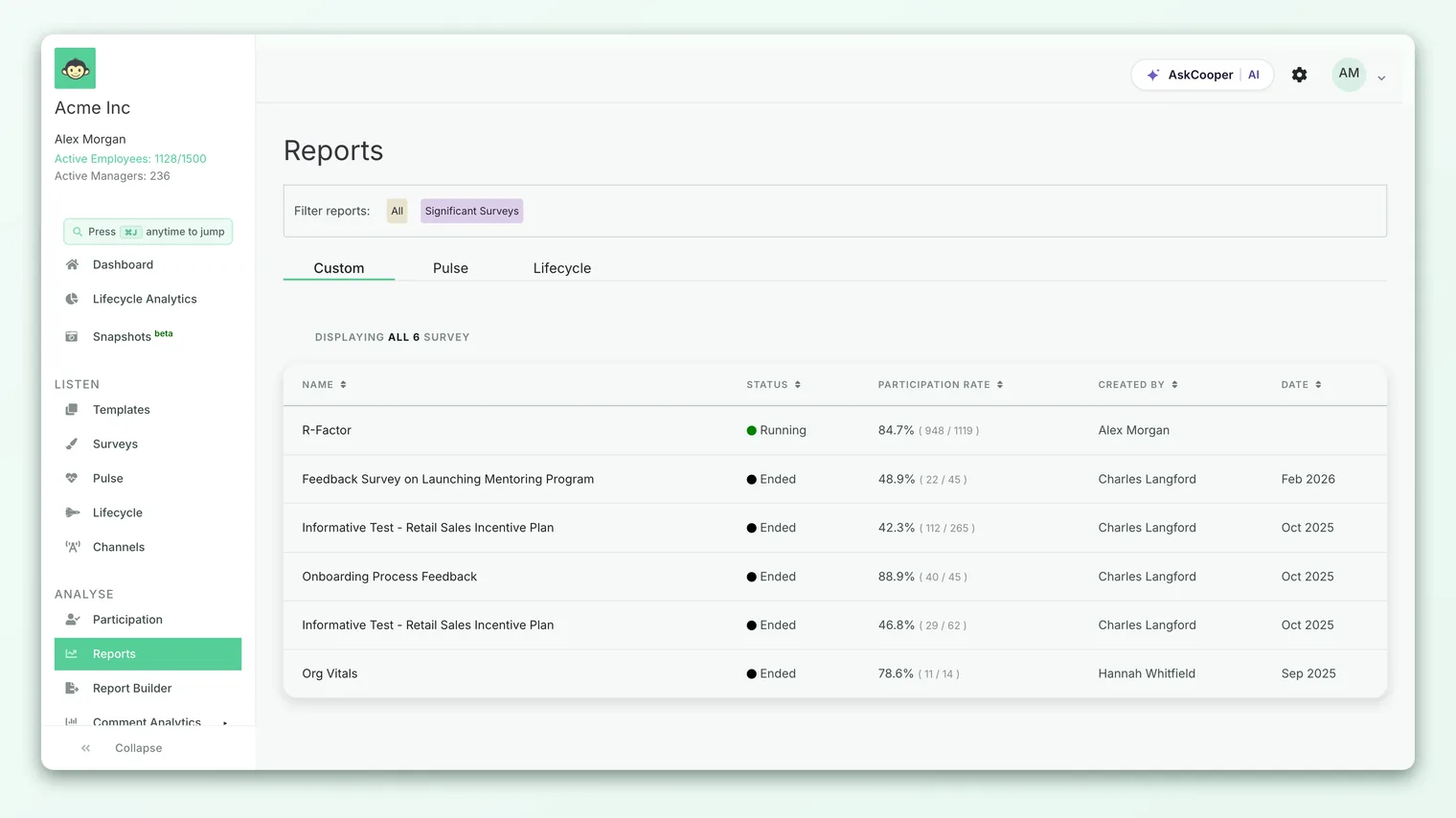
When the demographic report feature is on and you're an account admin, the modal opens in one of two modes:
- Generate mode - a picker where you choose which segments to build. This is what you see the first time, before any reports exist for this survey.
- Status mode - a list of the reports you've already requested for this survey, with their progress and download links. The modal opens here automatically if you have reports in flight or already finished.
You can switch between them at any time using the Generate new reports and Go to downloads links inside the modal.
Choosing the segments to export
In Generate mode, the picker has two parts.
At the top sits the Overall report, ticked by default. This is the same whole-survey PDF you'd get from a standard export. Leave it on to include a company-wide document in the batch, or untick it if you only want the per-segment reports.
Below that, each available demographic appears as its own section (Business Unit, Team, Location, Designation, Tenure, Manager, Sub Team, and any others enabled for your account, including custom attributes). Expand a section and you'll see the individual values within it - each specific team, each manager, each location - as its own checkbox. Ticking a value queues one PDF for that segment.
- 1Open Export to PDF on the survey report you want to export.
- 2Decide on the Overall report - keep it ticked to include a company-wide PDF, or clear it to skip it.
- 3Pick your dimension - expand the demographic you want to break the report down by, such as Team or Manager.
- 4Select the values - tick each specific segment you want a report for. You can mix dimensions and select values from more than one.
- 5Optionally include insights - if your account has report insights enabled, tick Include Insights to add driver highlights, eNPS insights, and demographic breakdowns to every PDF in the batch.
- 6Export - submit to start generating. The modal switches to the status view so you can watch progress.
Choose the demographic that maps to who will read the reports. Exporting by Manager gives each people-leader a report on their own reportees; exporting by Location suits regional or site leads; exporting by Business Unit suits functional heads. You don't have to export every value in a dimension - select only the segments you'll actually send.
Why some segments are missing
You may notice that not every team or manager appears in the picker. That's expected. The list of selectable values is filtered by the anonymity threshold: a segment only shows up if it has enough responses to report on safely. Segments below the minimum response count are left out entirely, because a PDF for a two-person team could expose individual answers.
This is the same protection you see elsewhere in reporting. For a fuller explanation of the threshold and why small groups are hidden, see Group question scores by demographic and Why can't I see results yet?.
How processing works
When you submit, CultureMonkey doesn't build the PDFs inside your browser session. Each selected segment becomes its own background job, and all the jobs in one submission share a single batch so the system can track them as a group.
This design has a few practical consequences:
- You don't have to wait on the page. You can close the modal, keep working, or even leave the report. The jobs continue in the background.
- Larger batches take longer. A single overall report finishes quickly; a batch of forty manager reports naturally takes more time. Each PDF is rendered independently.
- Individual reports appear as they finish. You don't have to wait for the whole batch before the first reports become available to download.
In the status view, each requested report shows a live badge:
| Badge | What it means |
|---|---|
| Generating | The PDF is still being rendered. It will flip to Ready when done. |
| Ready | The PDF is finished and a Download link is available. |
| Error | This particular report failed to generate. The rest of the batch is unaffected. |
| Expired | The report finished earlier but its download link has since expired. Re-generate to get a fresh copy. |
Because each segment is its own job, one failure doesn't sink the batch. If a single report shows Error, the others still complete, and you can re-run just the segments you need.
Getting your reports: ZIP and email
There are two ways to collect the finished PDFs, and you can use either or both.
Download all as a ZIP
Once at least one report is Ready, the Download all button in the status view becomes active. It gathers every completed report in the batch, packages them into a single ZIP archive, and downloads it to your computer. Inside the ZIP you get one PDF per segment, each file named after its segment (for example the Overall report plus one file per team or manager) so they're easy to sort and hand out.
The ZIP is assembled on demand when you click, and the download filename is based on the survey title. If you click before every report has finished, the ZIP contains the ones that are ready so far; come back and download again once the rest complete to get the full set.
The ZIP is a bundle of separate PDFs, not one merged document. Each segment stays a standalone report, which is exactly what you want when the plan is to send each leader only their own file.
The email notification
When the batch finishes, CultureMonkey also emails you a notification that your PDF reports are ready. The email lists each report by its segment label (Overall, then each demographic value) with a link to open or download that individual PDF. This is handy when you want to grab a single report without downloading the whole ZIP, or when you'd rather forward specific links on.
The email is sent once, when the final job in the batch completes, so you get a single tidy summary rather than one message per report.
Re-generating and refreshing
If your data changes, or a report expired, or you simply want a different mix of segments, use Generate new reports in the status view to return to the picker and submit a fresh batch. The new batch is tracked separately, and its reports appear alongside any that are still valid.
Generated PDFs are stored temporarily and their links expire after a set retention window. If a report shows Expired, its content is no longer available at the old link - just re-generate that batch to produce a current copy. Download and distribute reports reasonably soon after they're ready.
Best practices
- Match the dimension to the recipient. Export by Manager for people-leaders, by Location for site leads, by Business Unit for functional heads. One dimension per audience keeps distribution clean.
- Only select what you'll send. Ticking every value in a large dimension creates a long-running batch and a big ZIP. Pick the segments that actually have an owner waiting for a report.
- Keep the Overall report in the batch. Including the company-wide PDF gives every recipient the context of how their segment compares to the whole, without a second export.
- Decide on insights up front. The Include Insights choice applies to every PDF in the batch, so set it before you submit rather than re-running later.
- Download promptly. Because links expire, collect the ZIP or use the email links soon after the batch completes.
Limitations and things to know
- It's a batch of separate PDFs. The output is one file per segment, bundled in a ZIP - not a single merged report. That's by design.
- Small segments won't appear. Any value below the anonymity threshold is excluded from the picker, so you can't force a report for a group that's too small to report on safely.
- Availability depends on your account. Both the feature and the set of exportable demographics are configured at the account level. If you don't see the segment picker, the feature isn't enabled for your account or your role.
- Reports reflect the moment they were generated. A PDF is a snapshot. If responses arrive after you export, re-generate to capture them.
Frequently asked questions
Do I get one PDF or one big merged file?
One PDF per segment. The Download all button bundles them into a ZIP archive, and the email lists a separate link for each. There's no single combined document.
Can I export just a few teams instead of all of them?
Yes. Expand the demographic and tick only the specific values you want. You can also mix values from different dimensions in one batch, and include or exclude the Overall report independently.
Why isn't a particular team or manager in the list?
Most likely that segment doesn't have enough responses to clear the anonymity threshold, so CultureMonkey hides it to protect individual answers. See Why can't I see results yet?.
One report shows an error but the others are fine. What happened?
Each segment generates independently, so a single job can fail without affecting the rest. Use Generate new reports to re-run the batch, or just the segments you still need.
Does the batch export happen instantly?
No. CultureMonkey generates reports in the background. Small batches finish quickly; large ones take longer. You can leave the page and come back - reports appear as they complete, and you'll get an email when the whole batch is done.
Can managers or sub-admins run a batch export?
The demographic batch view is intended for account admins. Managers and sub-admins get the standard single-PDF export scoped to their own access.
Where to go next
- Just need one report? Export a survey report as a PDF
- Explore a breakdown before exporting: Group question scores by demographic
- A segment is missing? Why can't I see results yet?
Your feedback helps us improve the Help Center.