

Browse all feedback across your surveys
A guide to the Feedback module in CultureMonkey - one place to read every open comment from every survey, pulse, and proactive channel, with sentiment tags, driver tags, source badges, and full anonymity.
On this page
Most of your survey reports show you feedback for one survey at a time. But sometimes you want the opposite view: every open comment your people have left, across every survey, pulse, and channel, gathered in one place so you can read the room. That's what the Feedback module is for.
This guide covers the standalone Feedback area under Analyse - what it collects, how a single response is laid out, what the sentiment and driver tags mean, how the source badges tell you where a comment came from, and how anonymity protects the people behind the words. If you want to read comments inside a single survey's report instead, that lives on the Text Responses tab of the report - see Read free-text responses in a report. This article is about the bigger, cross-survey view.
The CultureMonkey Feedback module (Analyse > Feedback) pools open comments from all your surveys, pulses, and proactive email feedback into one browsable list. Each response shows a sentiment face (Happy, Neutral, or Sad), a sentiment score, one or more driver tags, and a source badge telling you where it came in from. Everything stays Anonymous, and small groups are hidden by the anonymity threshold. Tabs across the top split comments into Open Comments, Question Comments, Word Cloud, and more.
What the Feedback module is
CultureMonkey collects open text from several places. People answer the default open question at the end of a survey. They add comments alongside rating questions. They reply to pulse surveys. Some even send proactive feedback by email, outside any survey at all. Each of those streams shows up in its own survey report, but the Feedback module is where they come together.
Think of it as your organization's running feed of employee voice. Instead of opening report after report, you open one screen and read across all of them, filtered down to the slice you care about. It's the natural home for a weekly "what are people saying?" habit, and the fastest way to spot a theme that shows up in more than one survey.
You'll find it under Analyse > Feedback in the main navigation, alongside Participation, Reports, and Report Builder.
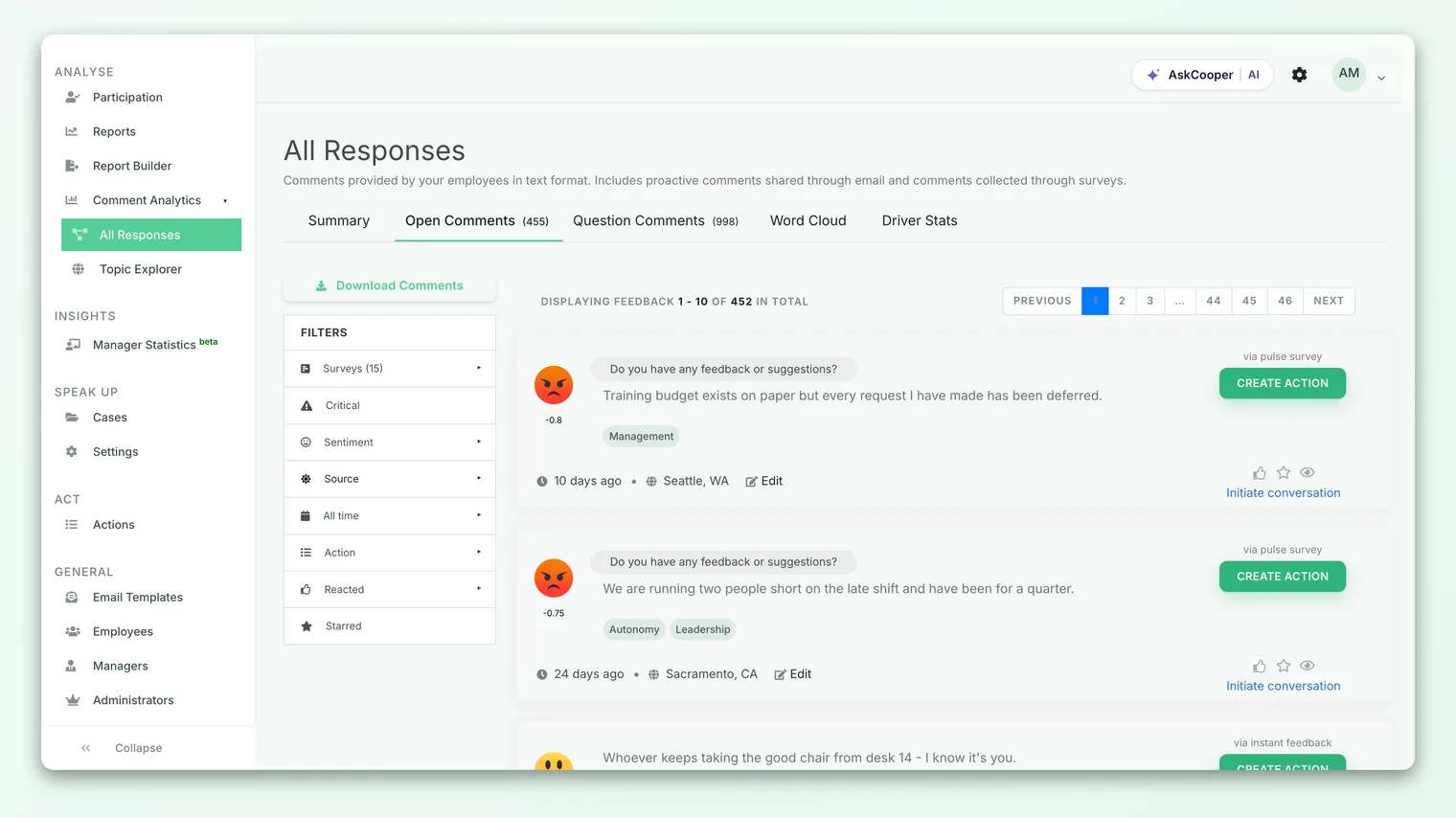
The tabs across the top
The Feedback module is organized into tabs. Which ones you see depends on your role and account settings, but the common set is:
| Tab | What it shows |
|---|---|
| Summary | High-level stats: total feedback count, average sentiment, a breakdown by source (instant, pulse, survey), and top teams, locations, and drivers. |
| Open Comments | The main feed - answers to the default open question in your surveys, plus proactive email feedback and pulse comments. |
| Question Comments | The remarks people add alongside a rating, single-select, or multiple-select question when comments are enabled on it. |
| Word Cloud | The most frequent words and phrases across all your open text, so you can see themes before you read. |
| Driver Stats | Average sentiment broken down by engagement driver (shown when your account enables it). |
Open Comments is where you'll spend most of your time, and it's the tab this guide focuses on. Keeping Open Comments and Question Comments separate matters: a standalone open question ("anything else you'd like to share?") is asking something very different from a note attached to a scored question, and mixing them would blur the story.
The categories here mirror the ones on a report's Text Responses tab, but scoped differently. In a report, you're reading one survey's open text. Here, you're reading across all of them. The layout of a single comment is nearly identical in both places, so what you learn in one carries over to the other.
Anatomy of a single response
Every comment is shown as a card. Reading one from left to right, top to bottom, here's what it carries.
- A sentiment face. On the left of each card sits a small face - a grin for Happy, a neutral face for Neutral, or a frown for Sad - showing how CultureMonkey read the tone of the comment. Below it, a small sentiment score (a number roughly between −1 and +1) shows the underlying value the face is based on.
- The question (for Question Comments), so you can see exactly what was asked above the answer. Open Comments that came in by email don't carry a question, since they weren't asked one.
- The comment text itself. Long comments are truncated with a read more link, and if your account has feedback translation switched on, a View translation link appears so you can read comments left in another language.
- Driver tags. One or more engagement drivers (for example Recognition or Work-Life Balance) that the comment was matched to, shown as pills. Hover over a driver tag to see the keywords that triggered the match. These tags are what let you filter the whole feed down to a single theme.
- An Employee Responded or Resolved tag, when a comment has become a two-way conversation and been followed up on.
- A source badge on the right (covered in its own section below), plus a Create action button so you can turn a comment straight into a follow-up.
Below the card sits a meta row - a relative timestamp ("3 days ago"), and, depending on your account settings, the team, location, manager, business unit, or sub-team the comment came from. None of these ever name the individual. There's also a reaction control so you can acknowledge a comment, which quietly signals to the wider system that the feedback was seen.
Sentiment tags, and how to read them
CultureMonkey scores the tone of each open comment automatically and shows the result as the face on the card. The mapping is simple:
| Face | Roughly means |
|---|---|
| Happy (grin) | Positive tone |
| Neutral | Balanced, factual, mixed, or too short to read a clear tone |
| Sad (frown) | Negative tone |
Genuinely mixed comments - a message that both praises and complains - tend to land under Neutral, because they're hard to score in one direction. That's expected, not a bug.
Automatic scoring is a helpful first pass, not a verdict. Sarcasm, mixed messages, and very short answers ("fine", "ok") are exactly where it struggles. If your account has sentiment editing enabled, an admin can correct a card's sentiment by hand, and adjust its driver tags at the same time. Corrected sentiment is respected in filters afterward, so fixing an obvious miss improves everything downstream.
To sort the whole feed by tone instead of reading card by card, use the sentiment filter in the sidebar. That, and the deeper mechanics of sentiment, are covered in Filter feedback by sentiment.
Sentiment tags are best used to sort and prioritize - to surface the negative comments quickly, for instance - not as a metric to report on. The value of open text is the specifics inside it. Skim by sentiment, then actually read.
Source badges: where a comment came from
Because the Feedback module pools comments from several streams, each card carries a source badge so you always know where a comment originated. There are three you'll see most:
| Badge | Meaning |
|---|---|
| via [survey name] | The comment came in through a survey submission - the survey's title is shown, so you know which one. |
| via pulse survey | The comment came from a pulse survey. |
| via instant feedback | The comment was sent proactively by email, outside any survey, to your account's feedback address. |
Occasionally a comment whose origin can't be determined shows Unknown source instead. That's rare and usually reflects an older or imported record.
Source is more than a label - it's a filter. Using the Source control in the sidebar, you can narrow the feed to just Pulse comments or just Proactive (email) comments. That's useful when you want to separate the steady drip of proactive feedback from the burst that arrives with each survey cycle, because they often carry a different tone and urgency.
The "via instant feedback" comments arrive by email: your account has a dedicated feedback address, and anything an employee sends or forwards to it lands here as a proactive comment. It's a low-friction way for people to raise something the moment it's on their mind, rather than waiting for the next survey. Those comments flow into the same anonymous, sentiment-tagged feed as everything else.
Filtering and narrowing the feed
The full list can be large, so the left sidebar gives you a stack of filters to cut it down. You can combine them, and a clear link resets everything.
- Surveys - limit the feed to one or more specific surveys, or leave it on ALL.
- Critical - surface only the comments flagged as critical, so the most urgent voices rise to the top.
- Sentiment - jump straight to Happy, Neutral, or Sad comments. See Filter feedback by sentiment.
- Source - narrow to Pulse or Proactive comments.
- Time - restrict to a window such as today, this week, last 7 days, last 30 days, this month, or last month.
- Action - show comments with actions already created, or those without actions still waiting for follow-up.
- Reacted - show comments you've reacted to, or those you haven't.
- Starred - show only the comments you've flagged to come back to.
Set the filters you want, then click Apply. The list refreshes to match, and pagination at the bottom lets you page through the results (the feed shows a handful at a time). Starring and searching feedback have their own detailed walkthrough in Search and star feedback.
- 1Open the module. Go to Analyse > Feedback and land on the Open Comments tab.
- 2Pick a scope. In the sidebar, choose a survey (or leave it on ALL) and a time window.
- 3Narrow by signal. Add a Sentiment, Source, or Critical filter to focus on the comments that matter right now.
- 4Apply and read. Click Apply, then work through the list. Star the responses worth revisiting.
- 5Act. Use Create action on a card to turn a strong comment into a tracked follow-up.
Anonymity in the Feedback module
Open text is where anonymity matters most, because a comment can carry a person's voice in a way a rating never can. The Feedback module protects that in the same layers as the rest of CultureMonkey.
First, no comment is ever attributed to a name. The author is always Anonymous. Your account settings decide whether a team, location, manager, or other demographic appears on the meta row to help you route feedback, but those only ever identify a group, never a person.
Second, the module is held back entirely when there aren't enough responses to be safe. When you open Feedback, CultureMonkey checks the number of people behind the comments against your account's anonymity threshold (5 by default). If a manager's scope, or a filtered slice, falls under that threshold, the comments are hidden rather than shown, so no single answer can be traced back by process of elimination.
Third, small teams can be suppressed from the meta row separately. If your account hides low-count teams, a comment from a tiny team simply won't show its team name, even when larger teams do.
That's why, if you filter down to a very small group, you may see nothing even though you know people replied. It isn't an error - it's the threshold doing its job. Widen the filter, or wait for more responses, and the comments reappear.
The urge to work out "who said that" is natural, especially about a harsh comment. Resist it. The moment employees suspect comments can be traced, the honesty that makes open text valuable disappears. Read comments as themes and signals, not as things to attribute.
Who can see the Feedback module
Access is role- and setting-dependent. Account admins and survey admins typically see the full module. Managers and sub-admins see feedback within their scope, and an account admin can restrict them further:
- The whole Feedback module can be disabled for managers or disabled for sub-admins by an account setting.
- Individual tabs - Summary, Word Cloud, Driver Stats, Starred - can be shown or hidden per role.
- Managers only see comments from the people and surveys they're authorized for, and only when their scope clears the anonymity threshold.
So if a colleague sees a different set of tabs or a smaller feed than you, that's almost always a deliberate permissions choice by an account admin, not a bug.
Frequently asked questions
How is the Feedback module different from a report's Text Responses tab?
Scope. A report's Text Responses tab shows open comments for that one survey. The Feedback module pools open comments from every survey, pulse, and proactive channel into one cross-survey feed. The layout of a single comment is nearly identical in both; the difference is how much you're looking at. See Read free-text responses in a report for the per-report view.
What does "via instant feedback" mean on a card?
It means the comment arrived proactively by email, outside any survey. Your CultureMonkey account has a dedicated feedback address, and anything an employee sends there lands in the feed as a proactive comment, tagged and anonymized like everything else.
Can I trust the sentiment face?
Treat it as a fast first read, not a final judgement. It's reliable in bulk and great for sorting, but it can misread sarcasm, mixed messages, and one-word answers. If your account allows it, an admin can correct any tag by hand, and the correction is honored in filters afterward. More in Filter feedback by sentiment.
I filtered to one team and got nothing. Where are the comments?
Almost always the anonymity threshold. If a slice has fewer respondents than the threshold (5 by default), CultureMonkey hides its comments so no one can be identified. Broaden the filter or wait for more responses.
Can managers browse all feedback?
Within their scope, and subject to your account's settings. An account admin can disable the module for managers entirely, hide specific tabs, or leave managers with only the feedback and surveys they're authorized for.
Where to go next
- Sort the feed by tone: Filter feedback by sentiment
- Flag and find the comments that matter: Search and star feedback
- Read comments inside one survey: Read free-text responses in a report
Your feedback helps us improve the Help Center.