

Filter feedback by sentiment
How to quickly surface positive, neutral, or negative comments using the sentiment filter, and how to combine it with team, manager, and driver filters using Match All or Match Any.
On this page
When you have hundreds of open comments, reading them top to bottom isn't practical. Most of the time you want a specific slice: the unhappy comments that need a response, the glowing ones worth celebrating, or the neutral middle that's easy to overlook. The sentiment filter lets you pull exactly that slice in a click.
This guide covers where the sentiment filter lives, what each option means, how to stack it with team, manager, and driver filters, and how the Match All and Match Any logic changes what you get back.
CultureMonkey tags every comment as Happy, Neutral, or Sad based on its sentiment score. Filter to one of those to narrow the feed, then layer on team, manager, location, or driver filters to zoom in. When you combine filters, Match All returns comments that satisfy every rule; Match Any returns comments that satisfy at least one.
What the sentiment filter does
Every open comment in CultureMonkey is scored for sentiment automatically as it comes in. That score is bucketed into three readable labels:
| Label | What it means | Typical use |
|---|---|---|
| Happy | Positive comments (praise, enthusiasm, appreciation) | Find wins to celebrate and share back |
| Neutral | Balanced or matter-of-fact comments with no strong charge | Catch suggestions and observations that are easy to miss |
| Sad | Negative comments (frustration, concern, criticism) | Prioritize what needs a response or an action |
The sentiment filter simply restricts the feedback feed to one of these buckets. It doesn't change the comments or their scores; it just decides which ones you see. Nothing is deleted or hidden permanently, and clearing the filter brings the full feed back.
If you want the full picture of how a comment earns its label, see How sentiment scores work. For a tour of the feed itself, see Browse all feedback.
Sentiment analysis is very good at sorting a large volume of comments quickly, but no automated read is perfect. Treat the buckets as a fast way to prioritize, then read the actual words. A short, blunt comment can be scored neutral even when the intent is critical.
Filtering feedback on the Feedback page
On the main Feedback page (under Analyse), the filters live in the panel on the left. Each group collapses and expands, so you can open just the ones you need.
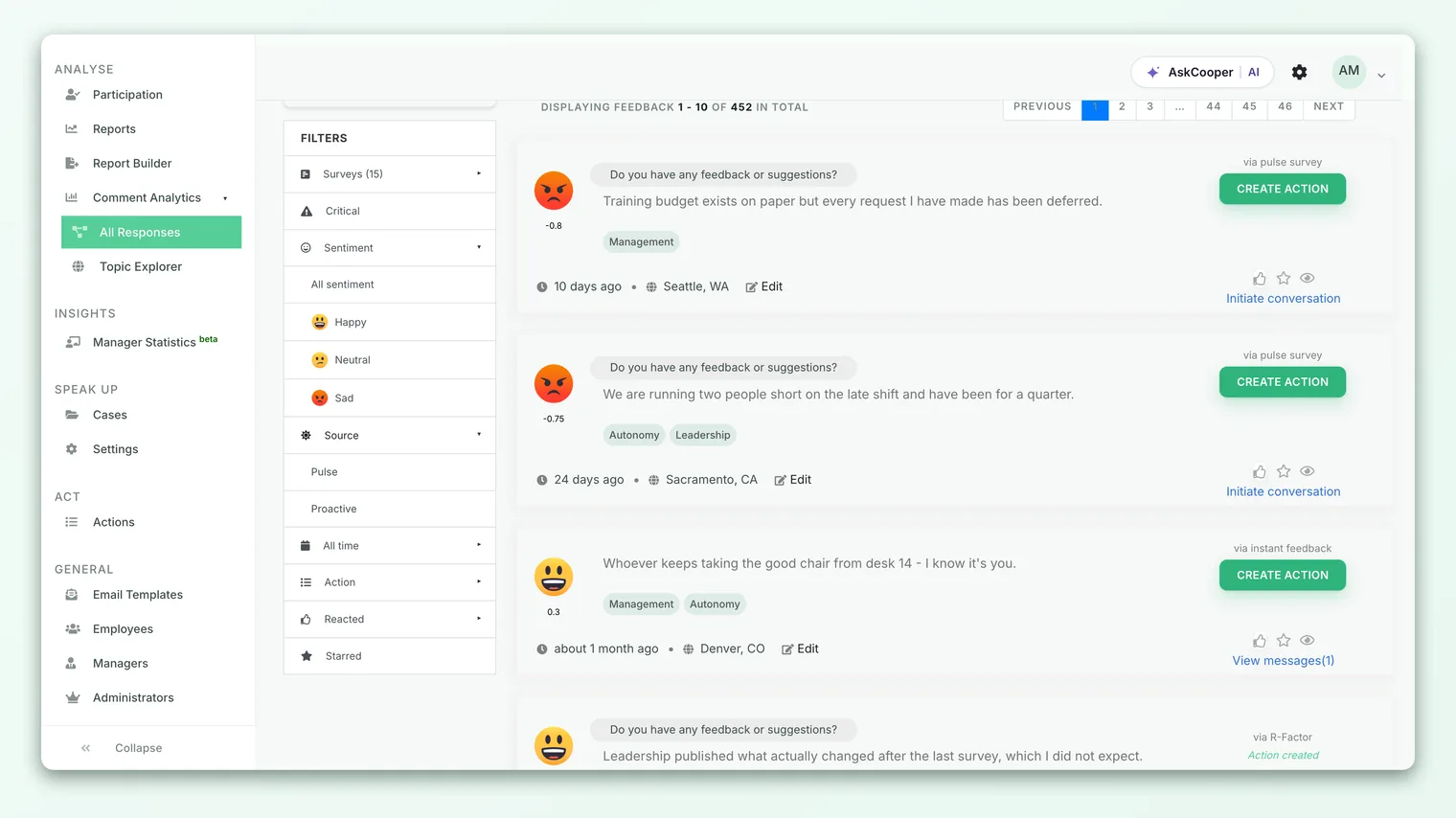
To filter by sentiment:
- 1Open the Sentiment group. In the left panel, click Sentiment to expand it. You'll see All sentiment, Happy, Neutral, and Sad.
- 2Pick one option. Choose the bucket you want. The selected option is highlighted so you always know what's active. All sentiment is the default and applies no restriction.
- 3Click Apply. The feed refreshes to show only comments in that bucket. The filter also carries through to exports, so a report you download reflects the same slice.
- 4Clear when you're done. Use the clear link at the top of the filter panel to reset every filter, or reopen the Sentiment group and switch back to All sentiment.
Sentiment is a single-select filter here: you view one bucket at a time (Happy, Neutral, or Sad), not two at once. If you want everything that isn't neutral, the fastest path is to look at Happy and Sad in turn, or use the advanced filters described below where "Is not" conditions are available.
Combining sentiment with other filters
Sentiment on its own answers "how do people feel?" The interesting questions usually add a second dimension: which people, about what, and when. That's where combining filters earns its keep.
On the Feedback page, the same left panel carries several other filter groups you can apply alongside sentiment:
- Surveys - narrow to one or more specific surveys or pulse cycles.
- Critical - show only comments flagged as critical (for example, ones that may need urgent attention).
- Source - separate Pulse feedback from Proactive (instant) feedback.
- Time - restrict to a window such as today, this week, last 30 days, or this month.
- Action - show comments With Actions or Without Actions already attached.
- Reacted - show comments you've reacted to or not yet reacted to.
- Starred - show only comments you've bookmarked. See Search and star feedback.
Set the groups you care about, then click Apply once. Every selection is combined, so "Sad" plus a specific survey plus "last 30 days" returns only the negative comments from that survey in that window. This is the everyday move for turning a wall of text into a short, focused list you can actually act on.
Filtering never overrides anonymity. If a filter narrows a group below the minimum response threshold, results are hidden so no individual can be identified. An empty result after a tight filter combination usually means the slice is too small to show, not that there's nothing there. Widen the filter and it reappears.
Advanced filters: Match All and Match Any
Inside a survey's report, the open-comment view offers a richer Advanced Filters builder. Instead of fixed groups, you build one or more filter rules, and you choose how those rules combine.
Each rule has three parts:
| Part | Options | Example |
|---|---|---|
| Filter item | Sentiment, Team, Business Unit, Manager, Location, Tenure, Starred Responses | Sentiment |
| Condition | Is, Is not | Is |
| Value | Depends on the item (for sentiment: Happy, Sad, Neutral) | Sad |
So a single rule reads like a sentence: "Sentiment is Sad," or "Manager is not Priya Rao." You can add more rules with the Add button and remove any of them, and each active rule shows up as a pill you can clear individually.
The switch that changes everything is at the top of the card:
- Match All returns comments that satisfy every rule. This narrows results. "Sentiment is Sad" and "Team is Support" gives you only the negative comments from the Support team.
- Match Any returns comments that satisfy at least one rule. This widens results. The same two rules under Match Any would return every Sad comment plus every Support comment, whether or not they overlap.
A simple way to remember it: Match All is an intersection, Match Any is a union. Reach for Match All when you're drilling into a precise cohort; reach for Match Any when you're casting a wide net across several groups at once.
Worked example: negative feedback from two teams
Say you want every unhappy comment from either the Support team or the Engineering team, so you can prep for two upcoming team meetings. Build three rules:
- Sentiment is Sad
- Team is Support
- Team is Engineering
Under Match All, this returns nothing useful, because no single comment can belong to both Support and Engineering at once. Under Match Any, it returns every Sad comment, every Support comment, and every Engineering comment combined, which is broader than you wanted.
The precise way to express "Sad, from Support or Engineering" is to filter to one team at a time under Match All (Sentiment is Sad and Team is Support), read that list, then swap the team rule to Engineering. Match Any is the right tool when the groups genuinely don't overlap, for example "Location is Berlin or Location is Munich," where each comment has exactly one location.
If you're not sure how many comments a combination will return, start with Match All and a couple of rules. If the list is too thin (or hidden by anonymity), remove a rule or switch to Match Any to widen it. It's easier to loosen a tight filter than to hunt through a broad one.
Filtering by driver alongside sentiment
Sentiment tells you the tone of a comment; a driver tells you the topic (recognition, workload, manager relationship, and so on). Reading the two together is where the real insight lives, because "Sad about Workload" and "Sad about Recognition" call for very different responses.
In the report view, comments are tagged with their drivers. A common workflow is to filter to Sad sentiment first, then scan for the driver that keeps recurring, or narrow to a single team and see which drivers dominate their negative comments. Pairing sentiment with drivers turns "people are unhappy" into "people on this team are unhappy about workload," which is something you can build an action around.
Best practices
- Lead with the extremes. Start with Sad to triage what needs a response, then look at Happy to find wins worth sharing back. The neutral middle is usually a lower priority.
- Always add a time window. Sentiment across all history blends old and new signal. Restricting to the current cycle or the last 30 days keeps you focused on what's live.
- Read before you conclude. Use the filter to shortlist, then read the actual comments. A count of "40 Sad comments" means far less than the three recurring themes inside them.
- Combine to localize. Sentiment plus team, manager, or location tells you where a problem sits, which is the difference between a company-wide worry and a fixable local issue.
- Close the loop. Once a filtered slice reveals a theme, attach an action so the insight doesn't evaporate. Then use the Action filter later to track what's already being handled.
Frequently asked questions
Why is a clearly critical comment marked Neutral?
CultureMonkey scores sentiment from the words in the comment, and short or understated comments can land in the neutral band even when the intent is pointed. If a label looks wrong, you can adjust it on the comment itself so future reads and reports reflect the correct tone. See How sentiment scores work.
Can I filter to more than one sentiment at once?
On the main Feedback page, sentiment is single-select: you view one bucket at a time. In a report's Advanced Filters, you can use an Is not condition (for example, "Sentiment is not Neutral") or combine rules to shape a broader slice.
What happened to a "Mixed" option?
Some comments carry both positive and negative signal. For now, CultureMonkey groups these with Neutral rather than showing them as a separate selectable bucket, so the choices you filter by are Happy, Neutral, and Sad.
My filter returned nothing. Did something break?
Almost always this is anonymity protection, not an error. A tight combination (a small team, a narrow time window, and a single sentiment) can fall below the minimum response threshold, so results are hidden to protect individuals. Remove a rule or widen the window and the comments reappear.
Does the sentiment filter affect my exports?
Yes. When you export feedback with a sentiment filter applied, the exported file reflects the same slice you're viewing, so a "Sad only" export contains only the negative comments.
Where to go next
- See the full feed first: Browse all feedback
- Understand the labels: How sentiment scores work
- Bookmark the important ones: Search and star feedback
Your feedback helps us improve the Help Center.