

Read free-text responses in a report
How to find, browse, and filter open-ended answers inside a survey report - where the Text Responses tab lives, the three response categories, sentiment tags, per-question grouping, and why comments stay anonymous.
On this page
Numbers tell you what is happening in your organization. The comments people leave tell you why. Inside every CultureMonkey survey report there's a dedicated place to read those open-ended answers, tag their sentiment, filter them, and turn the strongest ones into action.
This guide is about reading open-text responses in a report - where the tab is, how comments are grouped, how to browse and filter them, what the sentiment tags mean, and why some comments stay hidden. If you want to know how to ask an open-ended question in the first place, see Add a free-text question; this article picks up after the responses are in.
Open a survey report and go to the Text Responses tab. CultureMonkey splits comments into three categories in the left sidebar - Open Feedback, Free Text Responses, and Question Comments. Each response shows the answer, an author line that stays Anonymous, a sentiment tag, and any driver tags. Use Advanced Filters to narrow by team, location, manager, sentiment, and more. Small groups are hidden by the anonymity threshold so no individual can be identified.
Where to find open-text responses
Every survey report has its own set of tabs across the top: Summary, Report, Questions, Word Cloud, and the one you want here, Text Responses. Open any report from Analyse > Reports, then click the Text Responses tab.
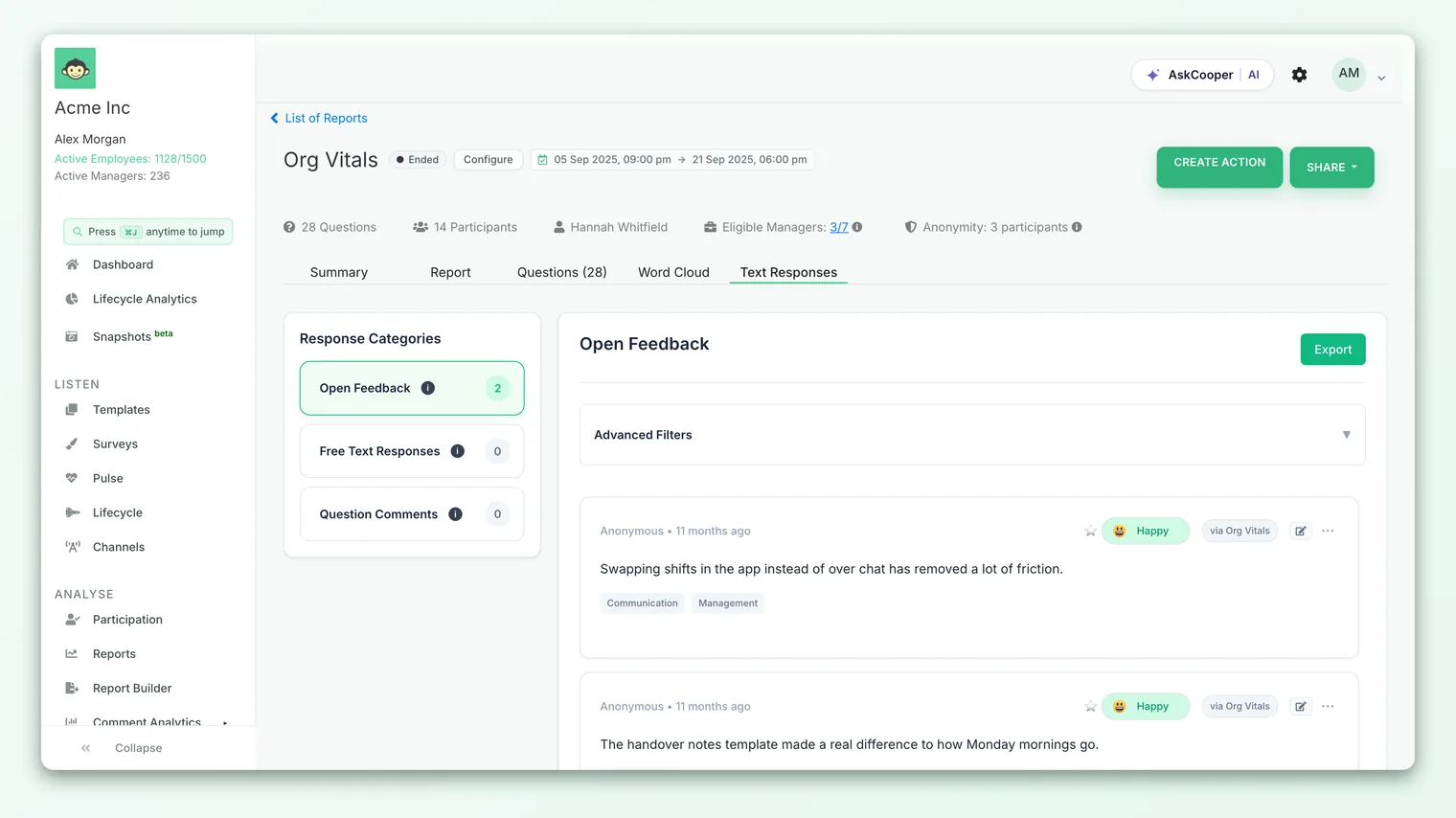
Depending on your account, this tab is labelled either Text Responses (the current experience, described throughout this article) or the older Feedback. The older view shows the same open-ended answers with lighter filtering. If your tab says Feedback and looks different from the screenshots here, the concepts still apply - your comments live in the same place.
The three response categories
Open text can reach a report from more than one place, so CultureMonkey sorts it into three categories. You'll find them as cards down the left sidebar, each showing a live count of how many responses it holds.
| Category | What it contains |
|---|---|
| Open Feedback | Answers to the standard default open question in the survey (the "anything else you'd like to share?" style prompt), plus any instant or pulse feedback tied to the report. |
| Free Text Responses | Answers to the free-text questions you added to the survey - the open questions you wrote yourself. |
| Question Comments | The optional comments people add alongside a rating, single-select, or multiple-select question when you allow comments on it. |
Click a card to switch the main panel to that category. Open Feedback is selected by default when you land on the tab. Keeping these separate matters: a comment left on a rating question is answering something very different from a standalone open question, and mixing them would blur the story.
On some manager and sub-admin roles the Free Text and Question Comments categories can be hidden by an account setting, leaving only Open Feedback. If two of the three cards are missing for you, that's a permissions choice, not a bug - an account admin controls it.
Reading a single response
Each comment is shown as a card. From top to bottom, a card carries:
- The author line. It always begins with Anonymous. Your account settings decide whether a team name and a relative timestamp ("3 days ago") appear next to it. Even when a team shows, it never identifies the individual.
- The sentiment tag. A small pill - Happy, Sad, or Neutral - showing how CultureMonkey read the tone of the comment. More on this below.
- A star. Click it to flag a response you want to come back to. Starred responses can be filtered to on their own.
- The source. A badge such as "via [survey name]", "via pulse survey", or "via instant feedback", telling you where the comment came in from.
- The question (for Free Text Responses and Question Comments), so you can see exactly what was asked above the answer.
- The comment text itself, with a translation option if your account has feedback translation switched on.
- Driver tags. One or two engagement drivers (for example Recognition or Work-Life Balance) that the comment was matched to, so you can see which theme it speaks to.
Some cards also show a green Resolved tag or an Employee Responded tag when a comment has become a two-way conversation. From the "⋯" menu on a card you can Create Action or Initiate conversation to follow up, subject to your role's permissions.
Sentiment tags, and how to trust them
CultureMonkey scores the tone of each open comment automatically and shows the result as a tag. The mapping is straightforward:
| Tag | Roughly means |
|---|---|
| Happy | Positive tone |
| Sad | Negative tone |
| Neutral | Balanced, factual, or too short to read a clear tone |
You'll sometimes see genuinely mixed comments land under Neutral as well - a message that is both praising and complaining is hard to score in one direction, so it's grouped there rather than forced into Happy or Sad.
Automatic scoring is a helpful first pass, not a verdict. Sarcasm, mixed messages, and very short answers ("fine", "ok") are exactly where it struggles. If your account has sentiment editing enabled, an admin can open a card's edit control and correct the tag by hand, and can adjust the driver tags at the same time. Corrected sentiment is respected in filters afterward, so fixing an obvious miss improves everything downstream.
Sentiment tags are best used to sort and prioritise - to surface the negative comments quickly, for instance - not as a metric to report on. The value of open text is the specifics inside it. Skim by sentiment, then actually read.
Filtering and browsing
By default the panel lists responses newest first, ten at a time, with pagination at the bottom. That's fine for a quick scan, but to find signal in a large survey you'll want the filters.
Click Advanced Filters above the list to expand the filter builder. You can add one or more rules, choosing a field, an Is / Is not condition, and a value:
- Starred Responses - only the ones you flagged.
- Team, Business Unit, Manager, Location - narrow to a slice of the organization.
- Sentiment - jump straight to the Happy, Sad, or Neutral comments.
- Tenure - filter by how long people have been with you (for example, under a year).
When you add more than one rule, a Match All / Match Any toggle appears. Match All returns only responses that satisfy every rule (for example, Location is London and Sentiment is Sad); Match Any returns responses that satisfy at least one. Active rules appear as chips you can remove individually, and Clear All resets them.
- 1Pick a category. Click Open Feedback, Free Text Responses, or Question Comments in the sidebar so you're reading one clean set of answers.
- 2Open Advanced Filters. Expand the filter card at the top of the list.
- 3Add a rule. Choose a field (say, Sentiment), a condition (Is), and a value (Sad), then click Add.
- 4Combine if needed. Add more rules and set Match All or Match Any to control how they combine.
- 5Read and act. Work through the filtered list, star the responses that matter, and use the card menu to create an action or start a conversation.
Reading per question
For Free Text Responses and Question Comments, every card shows the question its answer belongs to, so you always have the context of what was asked. When a survey has several open questions, the response list runs across all of them within the category; the question title above each answer keeps them straight, and you can scan for the question you care about as you page through.
This per-question grouping is what makes open text usable at scale. A single free-text prompt asked of a thousand people is a thousand paragraphs; seeing each answer under its question, filtered to one team, turns that wall of text into something you can actually read and summarise.
To get a fast sense of the themes before you dive in, open the Word Cloud tab first. It surfaces the most frequent words and phrases across your open text, so you know which threads to pull on when you come back to read the full comments. See Read the word cloud.
Anonymity and hidden comments
Open text is where anonymity matters most, because a comment can carry a person's voice in a way a rating never does. CultureMonkey protects that in a few layers.
First, comments are never attributed to a name in the report - the author line stays Anonymous by design. Second, whole reports and breakdowns are held back until enough people have responded. Each survey has a minimum-responses setting, and the account has an anonymity threshold (5 by default). If a survey, a team slice, or a narrow filter falls under that threshold, its responses are hidden rather than shown, so no single answer can be traced back to one person by process of elimination.
That's why, if you filter down to a very small team, you may see nothing even though you know people replied. It isn't an error - it's the threshold doing its job. Widen the filter, or wait for more responses, and the comments reappear. Small teams can also be suppressed from team-name display separately, so a team you'd expect to see may simply not be labelled.
For the full picture of how these rules work across reports, see How anonymity works.
The temptation to figure out "who said that" is natural, especially about a harsh comment. Resist it. The moment employees suspect comments can be traced, the honesty that makes open text valuable disappears. Read comments as themes and signals, not as things to attribute.
Exporting for deeper analysis
Reading in the app is ideal for a focused pass, but for a full analysis - coding themes in a spreadsheet, sharing raw comments with a working group, or archiving a cycle - you'll want the responses in a file. The Export button at the top of the response panel sends the open comments to you, respecting the same anonymity rules and any filters that apply. See Export comments from a report for what's included and how the file is delivered.
Frequently asked questions
What's the difference between Free Text Responses and Question Comments?
Free Text Responses are answers to open questions you added - the whole point of the question was to collect prose. Question Comments are the extra remarks people leave alongside a rating or choice question when you enable comments on it. Same open text, different intent: one is the main answer, the other is a note attached to a scored question.
Why does a comment say "Anonymous" but still show a team?
The author is never named, but your CultureMonkey account may be set to show which team a comment came from to help you route feedback. That's a per-account choice, and it only ever shows the team, never the individual. Small teams can be hidden from this entirely to keep the group unidentifiable.
Can I trust the automatic sentiment tag?
Treat it as a fast first read, not a final judgement. It's reliable in bulk and great for sorting, but it can misread sarcasm, mixed messages, and one-word answers. If your account allows it, an admin can correct any tag by hand, and the correction is honoured in filters afterward.
I filtered to one small team and got nothing. Where are the comments?
Almost always the anonymity threshold. If a slice has fewer respondents than the threshold (5 by default), CultureMonkey hides its comments so no one can be identified. Broaden the filter or wait for more responses. See How anonymity works.
Can managers and sub-admins read open-text responses?
Yes, within their scope, and subject to your account's settings. Some accounts hide the Free Text and Question Comments categories from certain roles, or restrict the feedback module entirely, so a manager may see only Open Feedback or a reduced view.
Where to go next
- Ask better open questions: Add a free-text question
- See the themes at a glance: Read the word cloud
- Pull comments into a file: Export comments from a report
- Understand what's hidden and why: How anonymity works
Your feedback helps us improve the Help Center.