

Search and star feedback
How to find a specific comment by keyword using global search, star the feedback that matters most, filter the Feedback module down to only your starred items, and use stars as a lightweight follow-up list.
On this page
Once you have more than a handful of open comments, two questions come up again and again: "Where was that one comment about the new shift roster?" and "How do I keep track of the feedback I still need to act on?" CultureMonkey answers both with two small but powerful tools - search, for finding a specific comment by keyword, and stars, for bookmarking the comments you want to come back to.
This guide covers how search works, how to star and unstar a comment, how to filter the Feedback view down to only your starred items, and how to use stars as a simple, shared follow-up list.
Use the search box at the top of CultureMonkey to find any comment by the words inside it. Click the star icon on a comment to bookmark it, then use the Starred filter in the Feedback side panel to see every starred comment in one place. Stars are shared across your admin team, so a star is a signal to everyone, not just to you.
Finding feedback by keyword
Reading every comment one page at a time is fine when you have a few dozen. When you have hundreds, you need to jump straight to the ones that mention a particular topic - a project name, a benefit, a tool, a manager, a phrase like "return to office." That is what search is for.
CultureMonkey's search runs across your whole account from the search box in the top navigation. It doesn't only look at survey titles or people; it also looks inside the text of open feedback. When you type a query, it matches the words in your query against the content of every comment you're allowed to see and returns the ones that contain them.
So a search for parking will surface comments where someone wrote about parking, and a search for a manager's name will surface comments that mention that name in the text. This is a content search, not a filter, so it's the fastest way to answer "did anyone mention X?"
- 1Open search - click the search box in the top bar (or press the keyboard shortcut shown next to it) from anywhere in CultureMonkey.
- 2Type your keyword - enter the word or phrase you're looking for. Shorter, distinctive words work better than long sentences.
- 3Open the results - the results page groups matches by type. Look under the feedback section to see every comment whose text contains your keyword, along with the team, location, and reporting manager where those are visible to you.
Because search reads the actual words employees wrote, it works best for concrete, specific terms. A distinctive noun (a product name, a policy, a location) will pull up a tight, relevant set. Very common words will match a lot of comments and are less useful on their own.
Search and filtering solve different problems. Search finds comments that contain a specific word. Filters (sentiment, source, time, team) narrow the Feedback list down to a category of comments regardless of their wording. Reach for search when you know roughly what was said; reach for filters when you want, say, "all negative comments from last month." See Filter feedback by sentiment for the filtering side.
What search can and can't see
Search respects the same permissions and anonymity rules as the rest of the platform. You will only ever find comments you're already allowed to read, and a match never reveals who wrote it beyond the demographic detail your account already shows on feedback. Managers see results only from within their own scope, and small groups protected by the anonymity threshold stay protected in search too.
Search matches the words as employees wrote them, so it looks at the comment text rather than at the sentiment tag or driver tag the platform adds afterwards. If you want to slice by those tags instead of by wording, use the filters in the Feedback side panel.
Starring the feedback that matters
Finding a comment is half the job. The other half is holding onto the ones that matter so they don't scroll away. That's what stars are for. A star is a bookmark you attach to an individual comment, and it stays attached until someone removes it.
You'll see a star icon on every comment in the Feedback module, sitting alongside the reaction and read/unread controls beneath the comment.
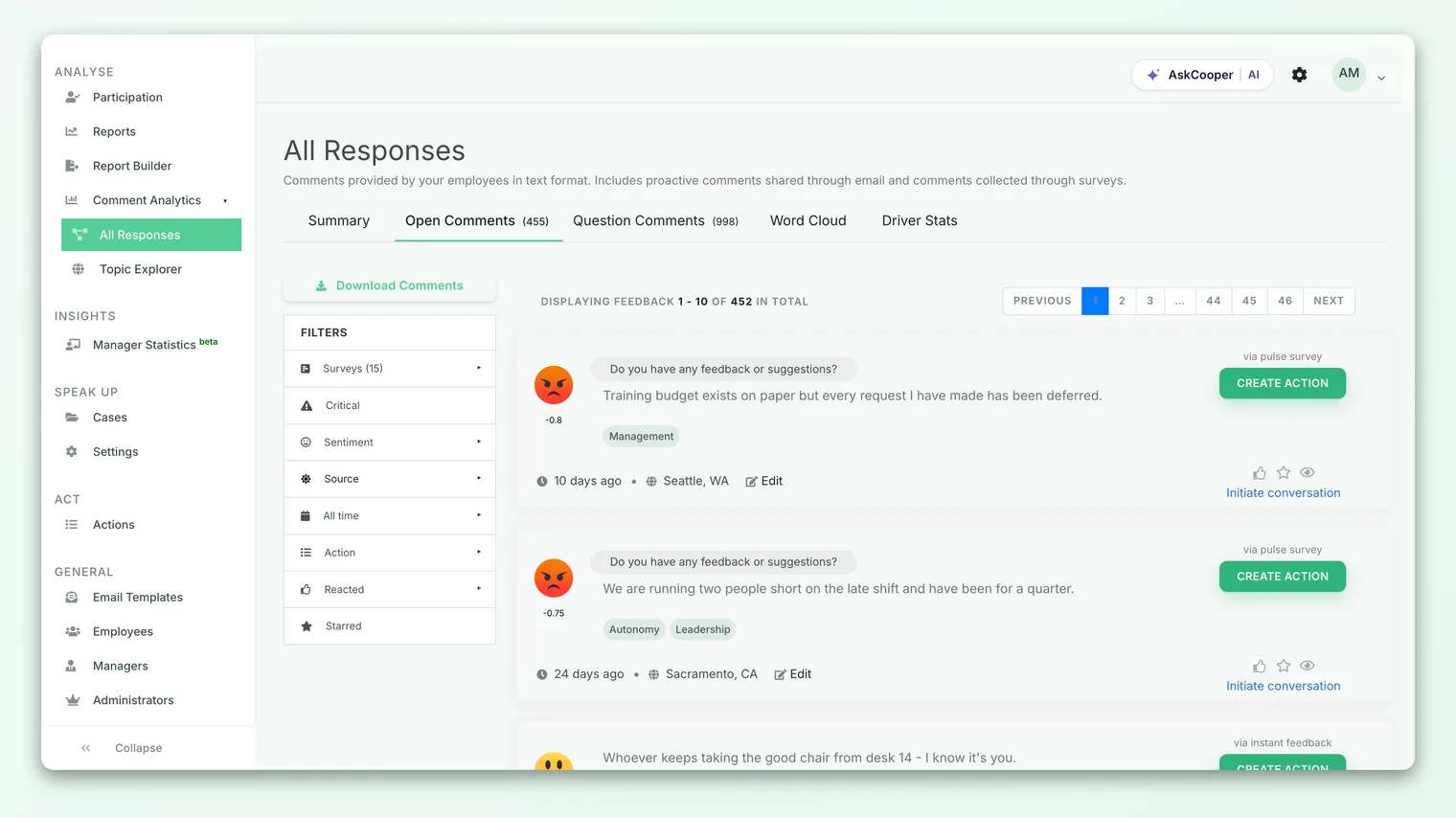
To star a comment, click the star icon. It fills in to show the comment is now bookmarked. To remove the bookmark, click the same star again and it returns to its empty outline. There's no separate save step and no limit on how many comments you can star - the toggle takes effect immediately.
- 1Find the comment - browse or search your way to the comment you want to keep.
- 2Click the star - the outline star fills in to confirm the comment is bookmarked.
- 3Unstar when done - click the filled star again to remove the bookmark once you've dealt with the comment.
A star lives on the comment itself, so every admin who can view that feedback sees the same star. If a colleague stars a comment, you'll see it starred too, and if you unstar it, it's unstarred for everyone. Treat stars as a team signal ("this one needs attention"), not as a private bookmark only you can see.
Viewing only your starred feedback
Starring comments one by one is only useful if you can pull them all back up together. The Starred filter does exactly that. It's an option in the filter panel on the left of the Feedback module, marked with a star icon.
When you select Starred, the list collapses to show only the comments that currently carry a star, newest first. Everything else is hidden until you clear the filter. This turns a scattered set of bookmarks into a single, focused worklist.
- 1Open the Feedback module - go to Analyse and open Feedback.
- 2Select the Starred filter - in the filter panel on the left, click Starred. The list narrows to starred comments only.
- 3Work through the list - read, react to, or create actions from each starred comment.
- 4Clear the filter - deselect Starred to return to the full feedback list.
Because the Starred filter is just another filter, it combines with the others. You can, for example, look at starred comments from a single survey, or starred comments tagged negative, by turning on the Starred filter together with a survey or sentiment filter. That makes it easy to answer questions like "which of the comments we flagged are the negative ones?"
If the Starred filter shows "No starred feedback yet," it simply means no comment in your current scope has been starred. Star a few comments and they'll appear here. An empty list is expected, not an error.
Using stars for follow-up
Stars are deliberately simple, and that simplicity is what makes them a good lightweight follow-up tool. Here are the patterns admin teams tend to settle into.
A shared "to-do" list. Because stars are visible to everyone on the admin team, one person can read through fresh feedback and star the comments that need a response, and the rest of the team can pick up that list from the Starred filter. No spreadsheet, no forwarding, just a star on the comment.
A shortlist for action plans. When you're deciding what to act on after a survey, star the comments that best illustrate the issues you're seeing. Later, filter to Starred and turn those comments into action plans - the starred set becomes your evidence and your agenda in one place.
A "reviewed" marker paired with read/unread. Stars and the read/unread control are separate signals, so you can use them together. Some teams mark a comment read once anyone has seen it, and reserve the star for comments that still need follow-up. When the follow-up is done, they unstar it, so the Starred filter always shows only open items.
A theme collector. Searching for a keyword and starring the strong examples as you go builds a curated set of quotes on one theme - handy when you're preparing a leadership readout and want the best few comments on, say, workload or recognition.
Stars are intentionally lightweight - one shared on/off flag per comment. They don't carry owners, due dates, or a history of who starred what. When a piece of feedback needs real ownership and a deadline, promote it into an action plan rather than leaning on the star. Think of stars as the shortlist that feeds your action plans, not as a replacement for them.
Search and stars together
Search and stars are most powerful as a pair. A common workflow: search for a topic you care about, read the matching comments, and star the ones worth keeping. Then switch to the Feedback module, turn on the Starred filter, and you have a clean, curated list of exactly the comments that topic surfaced - ready to react to, discuss, or turn into actions.
Search gets you to the right comments fast; stars let you keep them without losing your place. Used together they turn a large, noisy feedback stream into a short, deliberate follow-up list.
Frequently asked questions
Does search look inside the comment text, or only at titles?
It looks inside the text. CultureMonkey feedback search matches your query against the content of each comment, so you can find a comment by any distinctive word or phrase an employee actually wrote.
If I star a comment, can other admins see the star?
Yes. CultureMonkey attaches stars to the comment, not to your personal account, so every admin who can view that feedback sees the same star. Starring and unstarring affects what everyone sees.
Is there a limit to how many comments I can star?
No. You can star as many comments as you like. Starring and unstarring take effect immediately with a single click.
Why don't I see the star icon or the Starred filter?
Access to starred feedback depends on your role. Some roles, including managers viewing team feedback, don't have the starred feedback view enabled. If you expect to see it and don't, check with your account admin about your permissions.
Does starring a comment change its sentiment or affect any scores?
No. A star is purely a bookmark. It doesn't change the comment's sentiment tag, its driver tags, or any survey score. It only controls whether the comment appears under the Starred filter.
Where to go next
- See the whole feedback stream: Browse all feedback across your surveys
- Narrow by mood instead of keyword: Filter feedback by sentiment
- Read comments in survey context: Read free-text responses in a report
- Turn a starred comment into a plan: Create an action
Your feedback helps us improve the Help Center.