

Configure case categories in CultureMonkey Speak Up
Set up the categories reporters choose from when filing a Speak Up report - harassment, fraud, safety, and more - and learn how those categories drive risk levels, intake questions, and automatic routing to the right investigator.
On this page
When someone opens your Speak Up portal to report a concern, the very first thing they do is pick a category: is this about harassment, a safety hazard, suspected fraud, or a policy breach? That single choice does a lot of quiet work behind the scenes. It sets the case's risk level, decides which follow-up questions the reporter sees, and determines which investigator the case lands with.
This guide covers how to configure those categories: the five that ship by default, how to add and edit your own, how to map each one to the right investigators, and how the whole thing drives routing so that a serious report reaches a qualified handler without anyone having to triage it by hand.
Categories are the topics a reporter chooses from at intake. Each one carries a risk level and its own follow-up questions, and you map each category to one or more investigators. When auto-assignment is on, a new report is routed round-robin to the investigators mapped to its category. CultureMonkey starts you with five sensible defaults and can add, rename, reorder, or retire categories at any time.
What a case category is
A case category is a labeled topic - "Workplace Harassment," "Fraud / Misappropriation," and so on - that a reporter selects when they submit a concern through the intake form. Categories are the backbone of Speak Up because they connect three separate jobs:
- They frame the report for the reporter. A clear category, with a plain-language description, helps someone who may be anxious or unsure understand that they're in the right place.
- They shape the intake. Each category carries its own set of follow-up questions that appear after the reporter picks it, so a harassment report and a fraud report ask for the details that actually matter for each.
- They drive routing. Each category is mapped to one or more investigators, and a category also carries a risk level that flags how urgent the case is. Together these decide who the case goes to and how prominently it surfaces.
Because categories touch the reporter experience and your internal handling at the same time, they're worth setting up thoughtfully rather than accepting the defaults on autopilot.
The five default categories
The first time you open Speak Up settings, CultureMonkey seeds a starter set of five categories so your portal is usable out of the box. Seeding is idempotent, which is a technical way of saying it only ever happens once: if any category already exists, nothing is added or overwritten, so your edits are always safe.
| Category | Risk level | What it covers |
|---|---|---|
| Workplace Harassment | High | Unwanted verbal, physical, or digital behavior that creates a hostile or offensive work environment. |
| Safety Violation | Critical | Unsafe conditions, equipment failures, or breaches of health and safety rules. |
| Discrimination | High | Unfair treatment based on gender, age, race, disability, religion, or other protected characteristics. |
| Fraud / Misappropriation | Critical | Theft, fraud, bribery, or misuse of company funds, assets, or resources. |
| Policy Violation | Medium | Breaches of company policies, code of conduct, or regulatory requirements. |
Each default also arrives with four thoughtful follow-up questions. Harassment, for example, asks whether the incident is isolated or recurring and what the reporter's relationship is to the person involved. These are starting points: you're free to reword them, remove them, or add your own.
Treat the defaults as a template, not a mandate. Most organizations keep all five and add a couple of their own (a "Conflict of Interest" or "Data Privacy" category, say) to reflect their industry and code of conduct.
Where to configure categories
Categories live inside Speak Up settings, on their own tab. This area is reserved for the Speak Up Admin role, since categories shape how sensitive reports are handled across the whole organization. If you don't see the settings option, you likely have the Member or Viewer role rather than Admin. See Assign investigators to cases for how the roles differ.
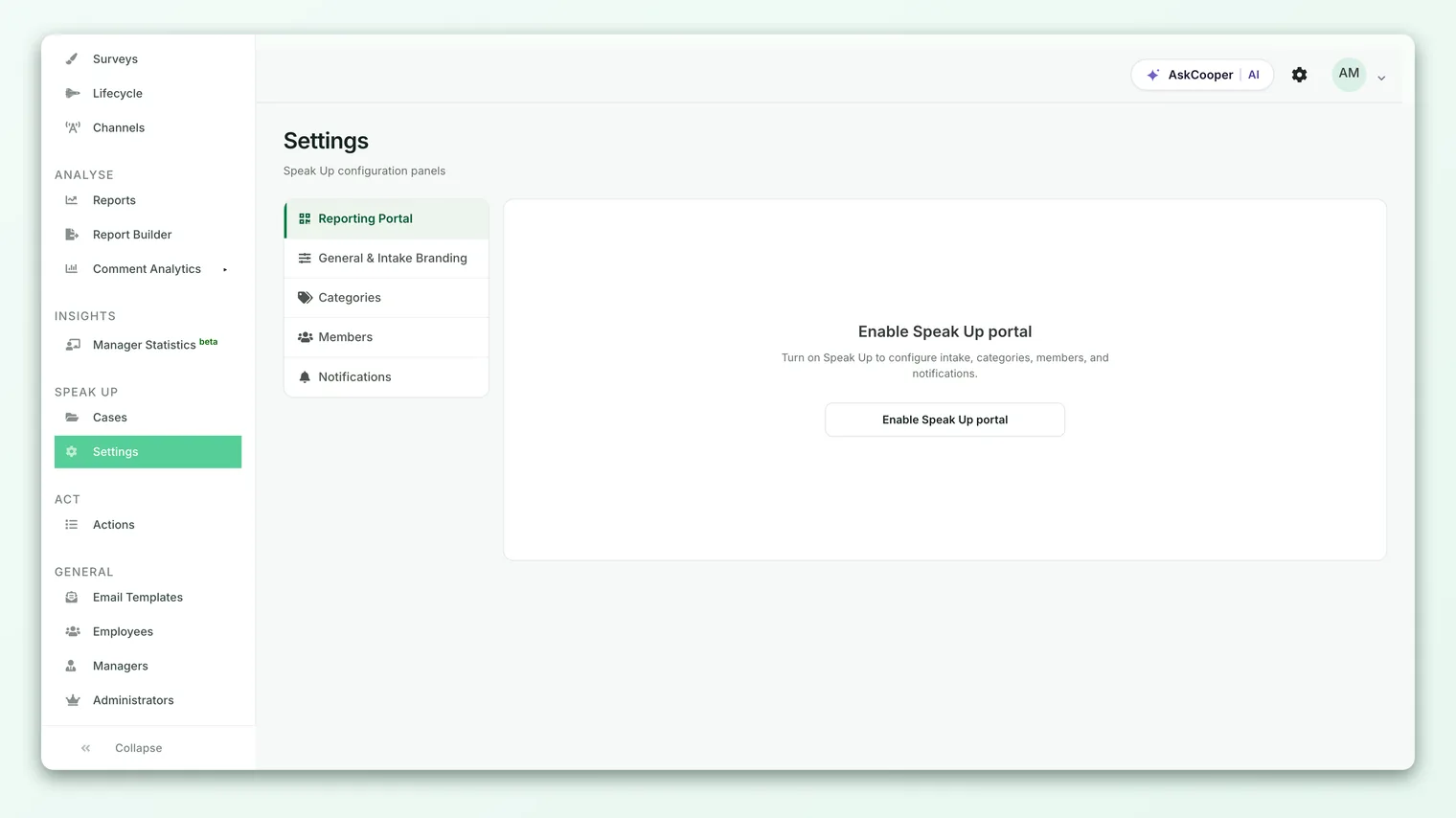
- 1Open Speak Up. From the main navigation, go to Speak Up, then open Settings.
- 2Switch to the Categories tab. You'll see every category listed in the order reporters will see them.
- 3Add, edit, reorder, or retire categories from here. Changes take effect on the intake form immediately.
If the module isn't switched on yet, start with Enable the Speak Up portal first, then come back to configure categories.
Anatomy of a category
When you add or edit a category, you're setting a handful of fields. Each one has a specific job.
| Field | What it does |
|---|---|
| Name | The label the reporter sees in the intake dropdown (for example, "Fraud / Misappropriation"). Required. |
| Description | A short, plain-language explanation of what belongs in this category. This reassures reporters they've chosen correctly. |
| Risk level | One of Critical, High, Medium, or Low. This is copied onto every case created under the category and signals urgency to your team. |
| Follow-up questions | A list of structured questions shown to the reporter after they pick this category. Each is free text and optional by default. |
| Active | A toggle. Active categories appear on the intake form; inactive ones are hidden from reporters but keep their historical cases intact. |
| Order | The position of the category in the reporter's list, set by dragging rows. |
About risk levels
The risk level is more than a label. When a report is submitted, its category's risk level is stamped onto the case, so a Safety Violation report is born as Critical and a Policy Violation as Medium. This lets your investigators sort and prioritize their queue by severity without reading every case first. Pick the level that reflects the worst plausible version of a report in that category, since you can always de-escalate an individual case later.
About follow-up questions
Follow-up questions turn a category from a label into a mini-intake form. Because a reporter has already told you the topic, you can ask sharp, relevant questions instead of one generic "describe your concern" box. Keep them open-ended and non-leading, and remember they're optional by default: a reporter in distress should never be blocked by a required field. If you support multiple languages, questions can be translated per category so the intake form reads naturally in each reporter's language.
Mapping categories to investigators
This is where categories become routing. Every Speak Up investigator you add is mapped to one or more categories, which defines the set of cases they're eligible to receive. You set this mapping when you add or edit a member on the Members tab, not on the category itself, so the flow reads "this person handles these categories."
- 1Open the Members tab in Speak Up settings.
- 2Add or edit an investigator. Search for the employee, choose their role (Admin, Member, or Viewer), and generate their portal credentials.
- 3Select the categories they cover. Tick the categories this person should receive. You must assign at least one, or the member can't be saved.
- 4Decide whether they're in the auto-assignment pool. A per-member toggle controls whether new cases can be routed to them automatically.
- 5Save. The mapping takes effect on the next report submitted.
A category can map to several investigators, and an investigator can cover several categories. That many-to-many flexibility is what lets you build a rota: two people share the harassment queue, one specialist owns fraud, and everyone backs up policy violations. Full detail on roles and manual assignment lives in Assign investigators to cases.
How routing actually works
When auto-assignment is enabled (it's on by default), a freshly submitted report is routed the moment it lands. Here's the exact logic:
- The reporter picks a category and submits.
- CultureMonkey looks up every active investigator who is mapped to that category and has the auto-assignment toggle on.
- It assigns the case using round-robin: it finds who received the last case in this category and hands the new one to the next person in line, cycling back to the start of the list at the end.
- The case is stamped with the category's risk level and the assigned investigator, and that investigator is notified.
If no eligible investigator is mapped to the category, or if auto-assignment is off, the case is created unassigned and waits in the queue for someone to pick it up manually. Nothing is ever lost - it simply doesn't get an owner automatically.
Because assignment cycles through the mapped investigators in order, no single person quietly absorbs every case in a busy category. If you want a category handled by one dedicated specialist, just map that single person to it - round-robin with a list of one always lands on the same handler.
If a category is live on the intake form but has no active, auto-assignable investigator mapped to it, its reports will pile up unassigned. When you retire an investigator or change their coverage, re-check that every active category still has someone behind it.
Editing, reordering, and retiring categories
You can reshape your category list at any time, and changes reach the reporter's intake form right away.
- Rename or re-describe a category to sharpen its wording. Existing cases keep the name they were filed under, so history stays intact.
- Reorder categories by dragging them. The order here is the order reporters see, so put your most common or most serious topics near the top.
- Change the risk level to re-tune urgency. This affects new cases going forward; it doesn't rewrite the risk level on cases already filed.
- Deactivate a category to hide it from new reporters while preserving every case ever filed under it. This is the safe way to retire a topic.
- Delete a category to remove it entirely.
Deleting removes a category and its investigator mappings outright. If reports have ever been filed under it, deactivating is almost always the better choice: reporters stop seeing it, but your audit trail and past cases remain untouched. Reserve deletion for categories created by mistake that were never used.
Best practices
- Keep the list short and unambiguous. Five to ten clear categories beat twenty overlapping ones. If a reporter can't tell which category fits, they'll pick wrong and the case may route to the wrong team.
- Write descriptions for an anxious reader. Plain, reassuring language helps someone under stress feel confident they're in the right place.
- Match risk levels to your escalation reality. If your safety team must respond within hours, "Critical" on the Safety category should mean exactly that internally.
- Map every active category before you go live. Run through the list and confirm each one has at least one active, auto-assignable investigator.
- Review coverage after any staffing change. When an investigator leaves or shifts roles, re-check that their categories still have someone behind them.
- Localize if you serve multiple languages. Translate category names, descriptions, and follow-up questions so the intake form reads naturally everywhere you operate.
Frequently asked questions
Can I change a category's risk level after cases already exist?
Yes. The new risk level applies to cases filed after the change. Cases already submitted keep the risk level they were stamped with at intake, so you don't accidentally rewrite the history of an open investigation.
What happens to open cases if I deactivate or delete a category?
Deactivating hides the category from new reporters but leaves every existing case fully intact and workable. Deleting removes the category and its investigator mappings; because that also clears the mappings, deactivating is the safer choice whenever a category has real history.
Who is allowed to configure categories?
Only the Speak Up Admin role. Members and Viewers can work cases but can't add, edit, or reorder categories. See Assign investigators to cases for the full role breakdown.
What if two investigators are mapped to the same category?
CultureMonkey alternates cases in that category between them in round-robin order, which balances the workload. Add more investigators to the mapping to spread a heavy queue across a larger rota.
A report came in unassigned. Why?
Either auto-assignment is turned off, or no active, auto-assignable investigator is mapped to that report's category. Check the category's coverage on the Members tab, then assign the case manually in the meantime.
Can reporters see the risk level or follow-up routing?
No. In the CultureMonkey Speak Up portal, reporters only see the category name and description, plus the follow-up questions for the category they choose. Risk levels, investigator mappings, and routing are all internal.
Where to go next
- Map investigators and understand the roles: Assign investigators to cases
- Turn the portal on in the first place: Enable the Speak Up portal
- How a harassment category is set up: Anonymous harassment reporting
Your feedback helps us improve the Help Center.