

Clone (duplicate) a survey
How to copy an existing survey in CultureMonkey to reuse it next cycle - where the Clone action lives, exactly what carries over (questions, sections, settings) versus what resets (dates, responses, audience), and when to clone instead of using a template.
On this page
When it's time to run a survey you've run before - the next quarter's engagement check, a repeat onboarding pulse, another manager-effectiveness round - you don't have to rebuild it question by question. CultureMonkey's Clone Survey action makes a fresh draft copy of an existing survey in one click, bringing its questions, sections and setup along so you can tweak the details and relaunch.
This guide covers where the Clone action lives, exactly what carries over into the copy and what deliberately resets, how the duplication works under the hood, and - importantly - when cloning is the right choice versus turning the survey into a reusable custom template.
In CultureMonkey, Clone Survey duplicates one specific survey into a new draft. It copies the whole design - sections, questions, answer options, driver mapping, conditional logic, translations - plus the survey's own configuration (its title and settings). It does not copy the audience, the schedule dates, any responses, or send-progress counts: those reset so the clone is a clean draft you launch fresh. Find it in the ⋯ actions menu next to a survey on Listen › Surveys.
What cloning is (and isn't)
Cloning makes a one-off, independent copy of a single survey. The moment the copy is created it's a separate survey with its own ID - editing it, launching it, or deleting it has no effect whatsoever on the original. The original keeps its responses, its status and its reports exactly as they were.
The clone always lands in draft status, no matter what state the original was in. So you can clone a survey that's currently live, or one that closed months ago, and in both cases you get a fresh draft to work with - nothing is sent, and no one is notified, until you deliberately launch the clone yourself.
Think of cloning as "make me another one of this, so I can adjust it and send it again." It's the fastest way to repeat a specific survey. It is not a way to build a reusable, shareable blueprint for your whole team - that's what a custom template is for, and we compare the two in detail below.
Where the Clone action lives
Cloning is triggered from the survey list, not from inside the survey editor.
- 1Open your survey list - Go to Listen › Surveys. This lists every survey on your account, across all statuses.
- 2Find the survey you want to reuse - Locate the row for the survey whose design you'd like to copy.
- 3Open its actions menu - Click the ⋯ (more actions) control at the end of that survey's row to open its dropdown.
- 4Choose "Clone Survey" - It sits in the same menu as export and other survey actions.
- 5Confirm - CultureMonkey asks "Are you sure you want to clone this survey?" Click Proceed to create the copy (or Cancel to back out).
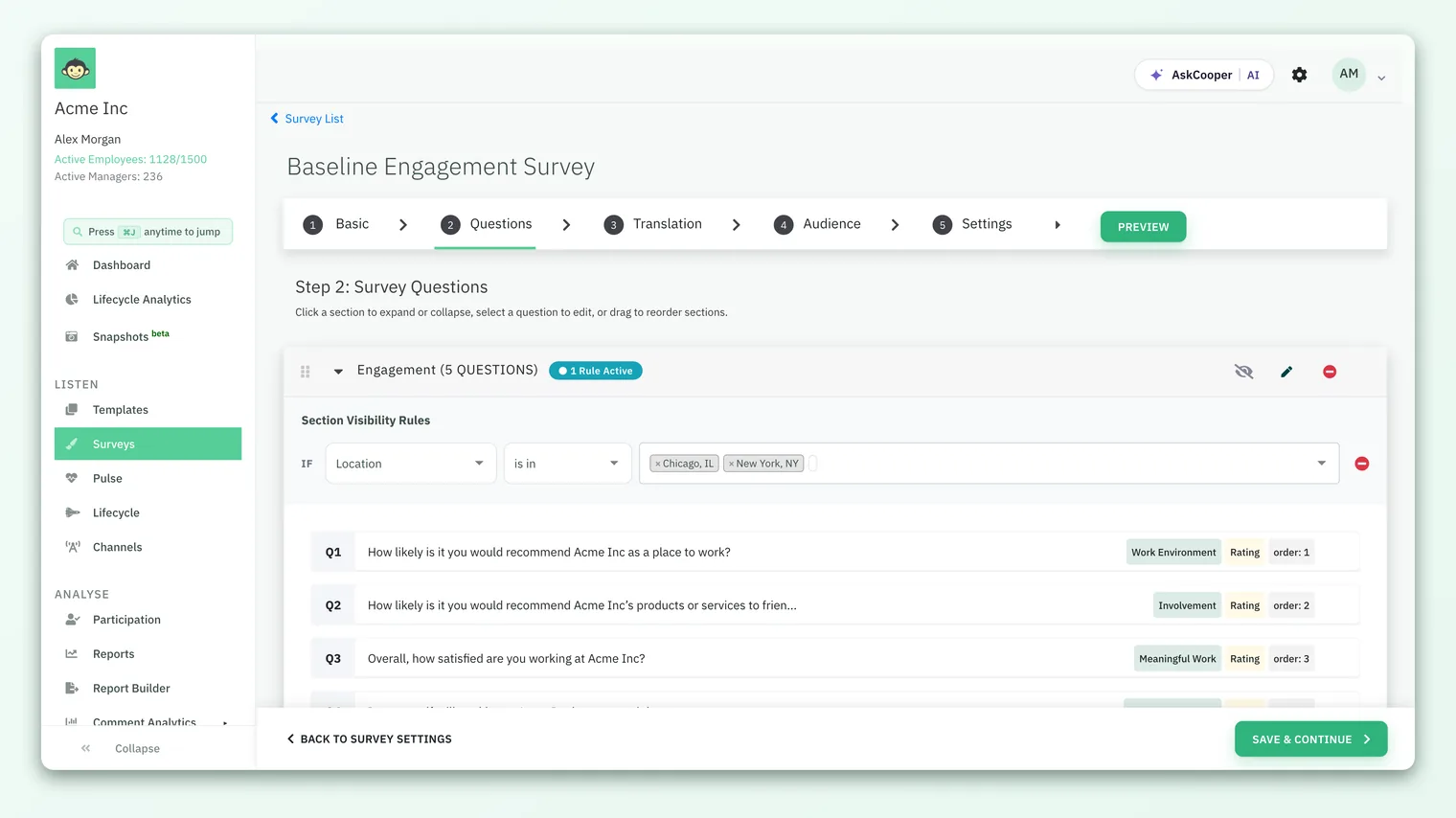
Once you confirm, CultureMonkey shows a success message - "[Survey title] survey cloned successfully" - and the new draft appears in your survey list. From there you open it like any draft, adjust whatever needs to change, set its dates and audience, and launch.
A clone is created in draft, so nothing goes out automatically - that's your safety net. But because so much carries over (see below), always open the clone and review it end to end before launching, rather than assuming it's ready. A stale question or an old completion message is easy to miss.
What carries over into a clone
A clone is a genuine duplicate of the survey, so it brings across both the design (everything you'd build in the survey builder) and the survey's own configuration. Under the hood, CultureMonkey duplicates the survey record and then re-creates all of its content section by section, keeping the internal links between questions and their branching intact.
Here's what travels into the copy:
| Element | Carried into the clone? | Notes |
|---|---|---|
| Title | Yes | The clone keeps the original's exact title - rename it so you can tell them apart. |
| Sections | Yes | Every section, in order, is recreated. |
| Questions | Yes | All questions - their type and wording - are copied. |
| Answer options | Yes | Options for single-select, multiple-select and image questions, in order. |
| Grid / question sets | Yes | Grid blocks (several items sharing one scale) are copied intact. |
| Driver mapping | Yes | Each question keeps the driver it's mapped to. |
| Conditional / branching logic | Yes | Follow-up questions that appear based on a rating or option are re-linked correctly in the copy. |
| Multilingual translations | Yes | If the survey is multilingual, its languages and all section, question and option translations are copied too. |
| Custom eNPS questions | Yes | Any custom eNPS relationship on the survey is duplicated. |
| Business group mapping | Yes | If business-group access is enabled on your account, the survey's business-group links are copied. |
| Survey settings | Yes | Because the clone starts as a duplicate of the survey record, its own configuration values (such as anonymity mode and other survey-level settings) come across too - review them before launch. |
In short, everything you'd think of as the survey's design and configuration comes with the clone. That's the whole appeal: you get the well-built question set, driver mapping and branching back without rebuilding any of it.
Because each question keeps the driver it was mapped to, a clone reports against the same drivers as the original. That's exactly what you want for a repeated survey - it keeps your results comparable from one cycle to the next.
What resets - and why
Just as important is what a clone doesn't carry. A repeated survey should be a fresh run, not a stale echo of the last one, so anything tied to a specific launch is deliberately left out and reset. When CultureMonkey duplicates the survey it only copies the survey and its content - it does not copy the separate records that hold participants, the schedule, or responses. On top of that, a handful of fields are explicitly cleared.
- Responses. A clone contains no answer data at all. It's a blank survey - the original's responses stay with the original.
- Participants / audience. The participant list is never copied. The clone opens with an empty audience, and you choose who receives it on the Audience step.
- Schedule (dates and times). Start date, end date, launch and close times, and reminders don't carry over - the clone has no schedule until you set one. This is what stops you from accidentally shipping a copy with last quarter's dates baked in.
- Status. However the original stood - live, scheduled or closed - the clone is always created in draft.
- Publish timestamp. The clone is treated as never-published; its "published at" is cleared so it behaves like a brand-new draft.
- Ownership and creation details. The clone is stamped with you as its creator and its support admin, and with the current date and time - not the original's.
- Send-progress counts. Email, SMS, WhatsApp, Slack and Teams delivery counts are all reset to zero, since nothing has been sent from the clone yet.
- Custom SMS / WhatsApp content. Any custom SMS or WhatsApp message text (and the toggles that enable it) is cleared, so you re-confirm messaging for the new run.
- Generated reports and export links. The original's PDF, executive-summary and other report exports don't carry into the clone - it has no results yet to report on.
Because the clone opens with no participants and no schedule, it can't go anywhere until you add them. That's by design - but it also means a clone is never "ready to send" the instant it's created. Walk it through the Audience and schedule steps every time.
A worked example
Say you ran "Q2 2026 Engagement Survey" - 4 sections, 22 questions, a couple of conditional follow-ups, mapped to your standard engagement drivers, and it closed with 480 responses. Now it's time for Q3.
- On Listen › Surveys, you find the Q2 survey, open its ⋯ menu, choose Clone Survey, and click Proceed.
- A new draft appears titled "Q2 2026 Engagement Survey" (same title as the original). All 4 sections, 22 questions, the answer options, the driver mapping and both conditional follow-ups are already there. The 480 responses are not - the clone is empty.
- You open the draft, rename it to "Q3 2026 Engagement Survey", tweak two questions that felt off last time, and add one new one.
- You set the audience (this quarter's headcount), the schedule (launch and close dates), and confirm anonymity and channel.
- You launch. Two independent surveys now exist - Q2 with its closed results untouched, and Q3 collecting fresh responses against the same drivers, so the two cycles compare cleanly.
That's the entire value of cloning: step 2 saved you from rebuilding 22 questions, and steps 3-4 are the only things that genuinely change from one run to the next.
Clone vs. custom template - which to use
Cloning and saving a custom template both solve "I don't want to rebuild this," but they solve it differently.
| Clone a survey | Custom template | |
|---|---|---|
| What you get | A one-off draft copy of one specific survey | A reusable blueprint on the Templates page |
| Where it lives | Your survey list, as a new draft | Listen › Templates › Custom tab |
| Who reuses it | Just this copy, this once | Anyone on your account, again and again |
| Copies settings? | Yes - it duplicates the survey's own configuration | No - a template stores only design; you set audience, schedule and anonymity each launch |
| Best for | Repeating this survey next cycle with small edits | A standard survey your team launches repeatedly |
The rule of thumb: clone when you want to repeat one specific survey once more, and reach for a custom template when you want a lasting pattern that you - or your colleagues - will launch on a cycle. Cloning is a shortcut for the next run; a template is an asset for every future run. If you find yourself cloning the same survey quarter after quarter, that's a strong sign it deserves to be a template instead. See Save a survey as a custom template for how to create one.
Best practices
- Rename the clone immediately. It inherits the original's exact title, so two identically-named surveys will sit in your list until you rename it. Give the clone a name that identifies the new run (e.g. add the quarter or date).
- Review every question before launch. The clone brings everything across, including wording you may have meant to fix. Read it through as if it were new.
- Re-check settings, not just questions. Because survey-level configuration carries over, confirm anonymity, the response threshold and channel still fit this run. See Set survey anonymity.
- Set audience and dates deliberately. These are blank in the clone by design - treat that as a checklist, not an inconvenience.
- Clone from a good original. A clone is only as clean as its source. If the original had issues, fix them in the clone (or fix the original first) rather than propagating them.
- Prefer a template for anything recurring. If this is the third time you've cloned the same survey, save it as a custom template and launch from that instead.
Frequently asked questions
Does cloning affect the original survey?
No. A clone is a fully independent copy with its own ID. Editing, launching or deleting the clone has no effect on the original, and the original keeps all of its responses, status and reports.
Will the clone include the original's responses?
No. A clone never contains response data - it's an empty survey. The original's responses stay entirely with the original.
Does the clone keep the original's participants and dates?
No. The audience (participant list) and the schedule (start/end dates and times) are not copied. The clone opens with no participants and no schedule, so you set both fresh before launching.
What status is a cloned survey in?
Always draft, regardless of whether the original was live, scheduled or closed. Nothing is sent from the clone until you launch it yourself.
Do the driver mappings carry over?
Yes. Every question keeps the driver it was mapped to, so CultureMonkey reports the clone against the same drivers as the original - which is what keeps results comparable across cycles.
Can I clone a survey that's still running?
Yes. You can clone a survey in any status. Because CultureMonkey creates the clone as a separate draft, cloning a live survey doesn't disturb it or its in-progress responses.
What's the difference between cloning and saving a template?
Cloning makes a one-off draft copy of a single survey, including its settings. Saving a template creates a reusable blueprint on the Custom tab that anyone on your account can launch repeatedly, and which stores only the design. Clone for a quick repeat; template for an ongoing pattern.
Where to go next
- Make a reusable blueprint instead: Save a survey as a custom template
- Build a survey from a blank canvas: Create a survey from scratch
- Confirm identity and threshold on the new run: Set survey anonymity
Your feedback helps us improve the Help Center.