

Save a survey as a custom template
How to turn a survey you've already built into a reusable custom template for your account - what carries over, how to name it, where custom templates appear, and when reusing one is the right call.
On this page
- What a custom template is (and isn't)
- Two ways to create a custom template
- Save an existing survey as a template
- Build a new custom template from scratch
- What carries over into a template
- What does not carry over
- Naming your custom template
- Where your custom templates appear
- When to save a custom template
- Best practices
- Frequently asked questions
- Where to go next
If you've built a survey you'll want to run again - a quarterly engagement check, an onboarding pulse, a manager-effectiveness round - you don't have to rebuild it from scratch every time. CultureMonkey lets you keep that structure as a custom template: a reusable, account-specific blueprint that lives alongside CultureMonkey's built-in library and gives your whole team a consistent starting point.
This guide covers both ways to create a custom template, exactly what carries over into one (and what doesn't), how to name it, where your custom templates appear afterward, and when reusing a template is the right call versus starting fresh.
A custom template is a saved survey blueprint for your CultureMonkey account. Create one either by building a new template from Listen › Templates › Custom › Create New Template, or by saving an existing survey as a template. Either way, the template captures your sections, questions, options, drivers and conditional logic - but not audience, schedule, channel or anonymity, which you set fresh each time you use it. Your saved templates then show up under the Custom tab on the Templates page, ready to launch again and again.
What a custom template is (and isn't)
A custom template stores the content and structure of a survey - its sections, its questions, the answer options, the driver mapping, and any conditional (branching) logic - so you can spin up a new survey from it in one click. It's the same kind of object as the research-backed templates in CultureMonkey's built-in library; the only difference is that a custom template is created by your account and appears only to your account.
A template is deliberately not a copy of a live survey. It doesn't carry any responses, any participant list, any schedule, or any send settings. Think of it as the recipe, not the finished dish: it defines what to ask, and you decide who to ask, when, and how each time you cook from it.
If you just want to run the same survey again with only small tweaks, Clone Survey (from the survey list) makes a fresh draft copy of one specific survey. A custom template is the better choice when you want a reusable starting point that you - or your colleagues - will launch repeatedly over time. Cloning is a one-off; a template is a pattern.
Two ways to create a custom template
There are two routes to a custom template, and they produce the same kind of object:
- Build a new template from scratch. Open Listen › Templates, switch to the Custom tab, and click Create New Template. You then add sections and questions exactly as you would in the survey builder. Choose this when you're designing a reusable blueprint deliberately.
- Save an existing survey as a template. Turn a survey you've already built into a template so its structure is preserved for reuse. Choose this when a survey you created turned out well and you know you'll want to run it again.
The rest of this guide walks through both, starting with saving from an existing survey - the reason most people land here.
Save an existing survey as a template
When a survey you've built is worth keeping, you can lift its structure straight into a custom template rather than reconstructing it by hand.
- 1Open your survey list - Go to Listen › Surveys and find the survey whose structure you want to reuse.
- 2Open its actions menu - Use the survey's dropdown (the same menu that holds Clone Survey and export options).
- 3Choose "Add to templates" - Confirm when prompted ("Are you sure you want to create a new template from this survey?"). CultureMonkey copies the survey's structure into a new custom template.
- 4Review and name it - You'll land in the template editor on the Basic step, where you can rename the template and adjust its description before it's finished.
Behind the scenes, this reads the survey's sections and questions and rebuilds them as template content - so the original survey is untouched and keeps running or reporting exactly as before. You're making a copy of the blueprint, not moving anything.
The "save an existing survey as a template" action isn't exposed in every account's survey menu. If you don't see Add to templates in the survey dropdown, use the Create New Template route below instead, or ask your CultureMonkey contact whether it can be enabled for you.
Build a new custom template from scratch
If you'd rather design a reusable template directly - or the save-from-survey route isn't available to you - build one in the template editor:
- 1Go to the Templates page - Open Listen › Templates.
- 2Switch to the Custom tab - The Templates page has two tabs: Library (CultureMonkey's built-in templates) and Custom (yours). Select Custom.
- 3Click Create New Template - On the Basic step, give the template a Template Name and an optional description, then Save & Continue.
- 4Add sections and questions - On the Questions step, build the template just like a survey: add sections, add custom or library questions, map them to drivers, and set up any conditional logic. See Create a survey from scratch for how each of these controls works.
- 5Finish - Save when you're done. The template appears under the Custom tab, ready to use.
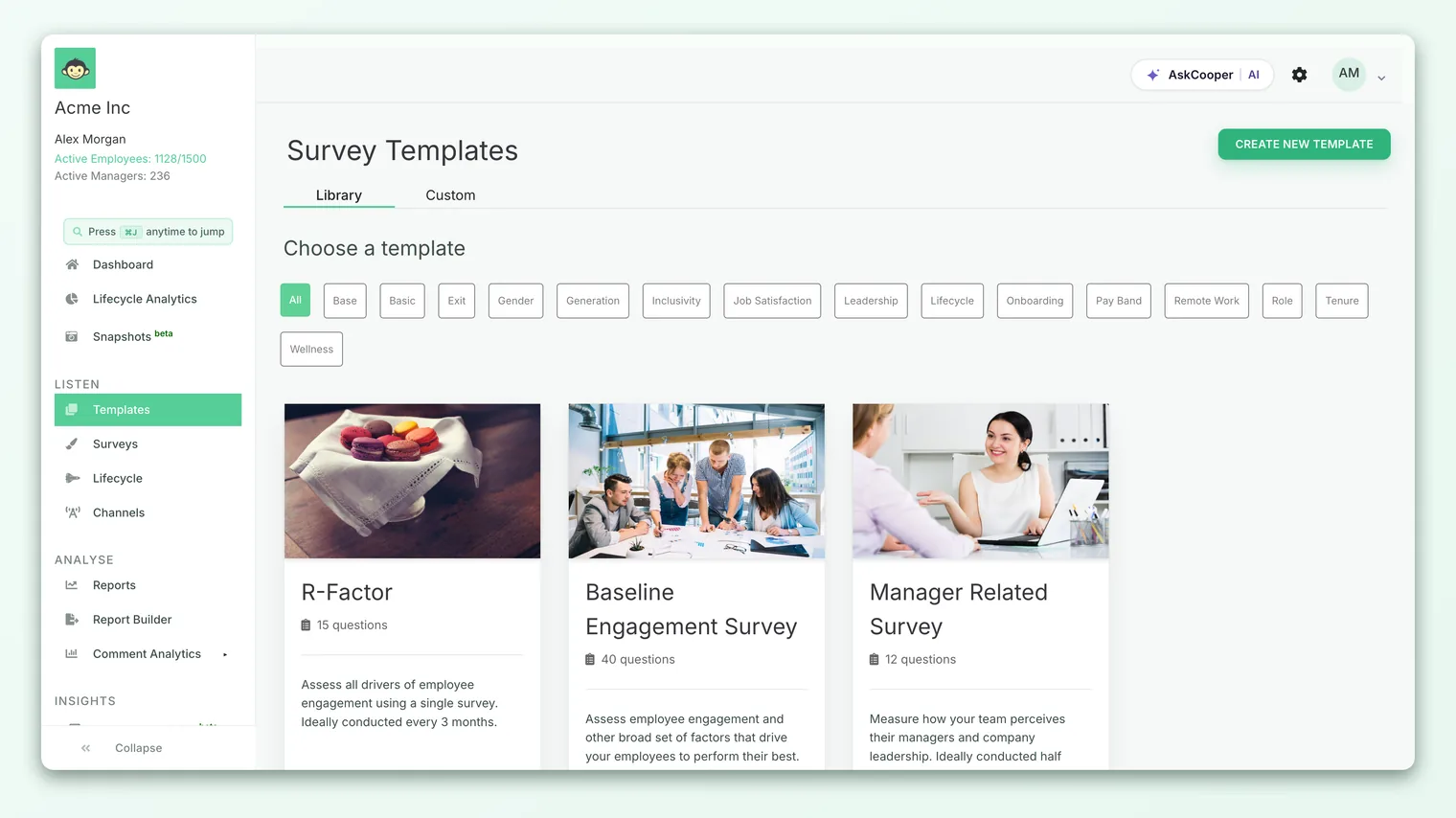
The very first time you open the Custom tab, it'll be empty and offer a single Create New Template button to get you started. After that, every template you save lists here.
What carries over into a template
Whether you save from an existing survey or build fresh, a custom template captures the structure and content of the survey - the things that make it a reusable blueprint:
| Element | Carried into the template? | Notes |
|---|---|---|
| Sections | Yes | Section groupings and their order are preserved. |
| Questions | Yes | Every question, with its type and wording. |
| Answer options | Yes | Options for single/multiple-select and image questions, in order. |
| Grid / question sets | Yes | Grid blocks (several items on one shared scale) are copied intact. |
| Driver mapping | Yes | Each question keeps the driver it's mapped to, and whether the template uses default or custom drivers. |
| Conditional / branching logic | Yes | Follow-up questions that appear based on a rating or option are re-linked in the template. |
| Title & description | Yes | Copied in as the template's starting name and description - edit them before you finish. |
In short: everything you'd think of as "the survey design" travels with the template. That's the whole point - you can run the same well-built set of questions and driver mapping again without rebuilding it.
What does not carry over
Just as important is what a template doesn't store. These are decisions you make afresh every time you launch a survey from the template, because they're specific to a particular run rather than to the design:
- Audience. The participant list is never part of a template - you choose who receives each new survey on the Audience step.
- Schedule. Launch date, end date and reminders are set per survey, not stored in the template.
- Distribution channel. Email, Slack, Teams, SMS or WhatsApp is chosen at send time.
- Anonymity & response threshold. Identity mode and the reporting threshold are survey-level settings you confirm each launch. See Set survey anonymity.
- Branding, background and completion message. Logo, background image and the thank-you message are applied when you build the actual survey.
- eNPS toggle. Whether a run includes the eNPS question, and where it sits, is decided on the survey itself.
- Responses and results. A template never contains any answer data - it's a blank blueprint.
Keeping audience, schedule and anonymity out of the template is deliberate. A blueprint you reuse quarterly shouldn't ship with last quarter's participant list or a stale end date baked in. Separating "what to ask" from "who, when and how" is what makes a template safe to reuse.
Naming your custom template
The template's name is how you and your colleagues will recognize it later, so make it descriptive and self-explaining rather than tied to one moment in time.
- Good: "Quarterly Engagement - Standard", "New Hire 30-Day Pulse", "Manager Effectiveness Review".
- Avoid: "Q3 2026 Survey (final)" or "Copy of Engagement" - dates and version tags belong on the survey you launch, not on the reusable blueprint.
When you save from an existing survey, the template inherits that survey's title as a starting point, so it's worth renaming it on the Basic step to something reusable before you finish. When you build from scratch, the name field pre-fills with a generic placeholder you should replace.
Where your custom templates appear
Once saved, your templates live under the Custom tab on the Listen › Templates page - separate from CultureMonkey's built-in Library tab. Anyone on your account with access to the Templates page sees the same set, which is exactly what makes custom templates a team asset: build the "right" engagement survey once, and everyone launches from the same, consistent starting point.
To use one, open it from the Custom tab and create a survey from it - the template's sections and questions become a fresh survey draft, which you then take through Audience and Settings and launch like any other. Because it opens as a normal draft, you can still add, remove or reword anything before you send; the template just saves you the setup.
When to save a custom template
Reusing a template is the right move in a few clear situations:
- Recurring surveys. Anything you run on a cycle - quarterly engagement, monthly pulses, onboarding at 30/60/90 days - benefits from a fixed blueprint so results stay comparable over time.
- Standardizing across teams. If several teams or regions should ask the same questions, a shared custom template guarantees consistency and keeps your reporting comparable.
- A survey that came out well. If you've carefully crafted a set of questions and driver mappings, capture that effort so it isn't lost after one run.
- Onboarding new admins. A well-named set of custom templates gives newer survey admins a vetted starting point instead of a blank canvas.
If a survey is genuinely one-off, there's little value in templating it - just run it. And if you only need to repeat one specific survey with minor edits, Clone Survey is quicker than making a template.
Best practices
- Template the design, not the moment. Strip run-specific details (dates, audience notes) out of the name and description before you save.
- Lean on library questions inside your template. Questions pulled from CultureMonkey's library come pre-mapped to drivers, which keeps reporting consistent across every survey you launch from the template. Reserve custom questions for what the library can't cover.
- Keep the set lean. A shorter template gets higher completion when it's launched. Only include what you'll act on.
- Review before each launch. A template opens as an editable draft - take a moment each cycle to check wording and remove anything that's gone stale.
- Name for the reader. Assume a colleague who didn't build it has to pick the right template from a list. Make the name do that work.
Frequently asked questions
Does saving a survey as a template affect the original survey?
No. Saving a survey as a template copies its structure into a new, separate template object. The original survey - its responses, its status, its reports - is completely untouched and continues exactly as before.
Will my template include the survey's responses or participants?
No. A template stores only the survey's design (sections, questions, options, drivers and branching). It never contains response data, and it never contains an audience - you choose participants fresh each time you launch a survey from it.
Who can see my custom templates?
Custom templates are account-wide: they appear on the Custom tab of the Templates page for people on your account who can access it. They aren't visible to other CultureMonkey customers, and they don't mix into the built-in Library tab.
Can I edit a custom template after saving it?
Yes. Open it from the Custom tab and edit its sections and questions in the template editor. Editing the template changes the blueprint for future surveys; surveys you already launched from it are unaffected.
I don't see an "Add to templates" option on my survey - why?
The save-from-an-existing-survey action isn't exposed in every account's survey menu. If it's missing, build a template directly with Create New Template on the Custom tab instead, or ask your CultureMonkey contact whether the survey-to-template option can be turned on for you.
What's the difference between cloning a survey and saving a template?
Cloning makes a one-off draft copy of a single survey. Saving a template creates a reusable blueprint that lives on the Custom tab for anyone on your account to launch repeatedly. Clone for a quick repeat; template for an ongoing pattern.
Where to go next
- Build the survey you'll template: Create a survey from scratch
- Start from CultureMonkey's built-in templates: Browse and use survey templates
- Get identity and threshold right at launch: Set survey anonymity
Your feedback helps us improve the Help Center.