

Compare question scores across surveys
How to line up the same questions across two survey cycles in CultureMonkey, read the score difference for each one, and export the full comparison as a CSV.
On this page
A single survey tells you where you stand today. What it can't tell you, on its own, is whether you're moving in the right direction. Did "I feel recognized for my work" climb after you rolled out a new recognition program? Did "I have the tools I need" slip since the last cycle? To answer questions like that, you need to put two surveys side by side and read the change, question by question.
CultureMonkey has a purpose-built tool for exactly this on the Questions view of any report: pick a survey to compare against, and download a spreadsheet that lists every question with both scores and the difference between them. This guide covers how the matching works, how to read the delta, the caveats worth knowing, and how to get the file.
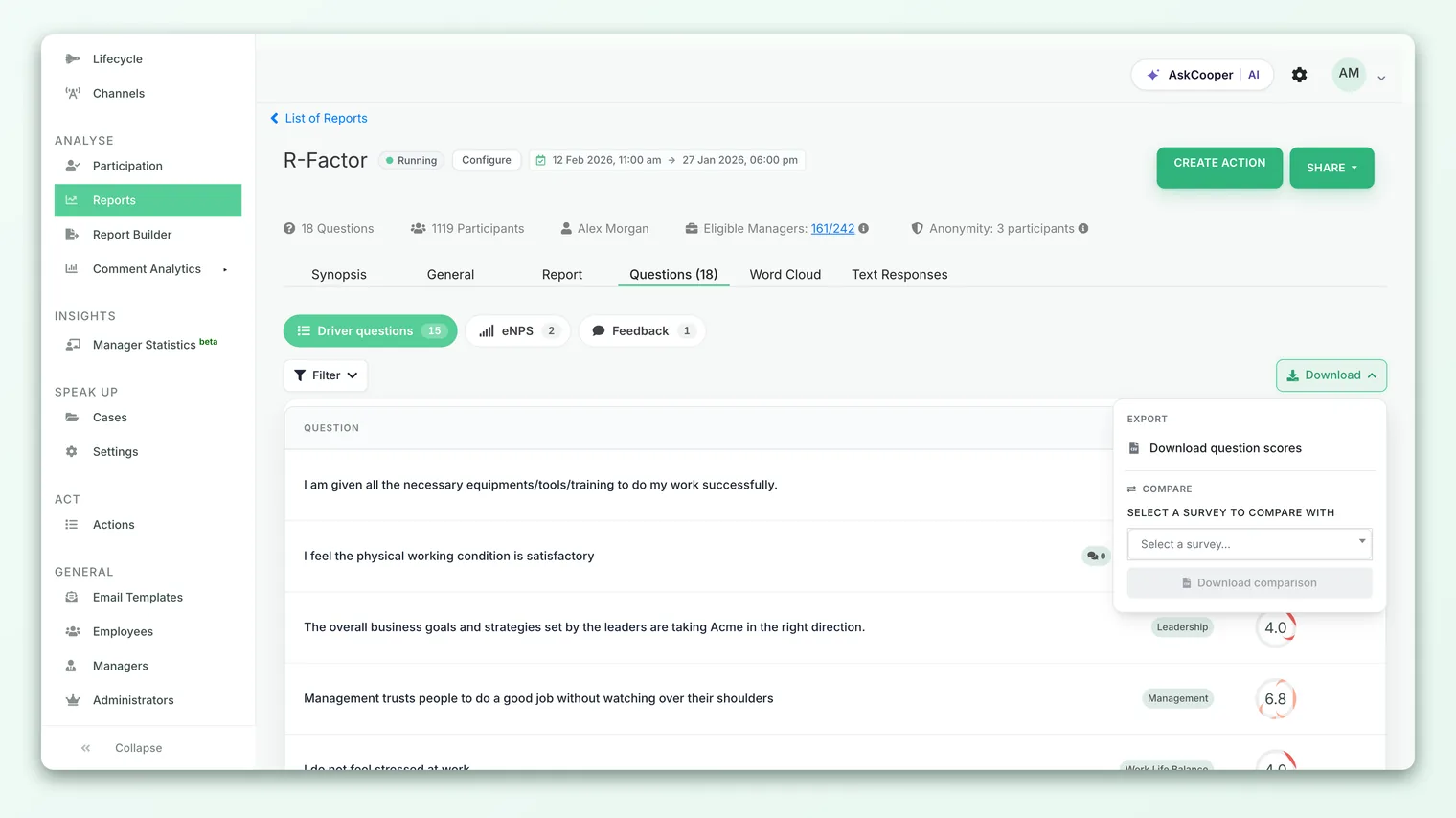
On a survey's Questions report, the Compare button lets you choose another completed survey and download a CSV. The file lines up questions by their wording, shows each question's score in both surveys side by side, and calculates the score difference (this survey minus the comparison one). This is an export-only feature: CultureMonkey produces the comparison as a downloadable spreadsheet, not shown on screen.
What this comparison does
Every rating question in a survey carries an average score - the mean of all the ratings people gave, on your account's scale. (For a full walkthrough of how that number is built, see How to read question scores in a report.) The comparison tool takes that score for each question in two different surveys and puts them on the same row so you can see the movement.
The result is a spreadsheet with one row per question and six columns:
| Column | What it holds |
|---|---|
| Question | The full question text |
| Question Type | The question's type (for example, rating or eNPS) |
| Driver | The engagement driver the question rolls up into |
| This survey's title | The question's average score in the survey you're viewing |
| Comparison survey's title | The same question's average score in the survey you picked |
| Score Difference | This survey's score minus the comparison survey's score |
The two middle columns are named after the actual surveys, so once the file is open you never have to remember which one was which.
Question comparison works at the level of individual questions. If you'd rather compare whole surveys at the driver level and see the change laid out visually, use the heatmap instead. See Compare two heatmap periods. The two are complementary: the heatmap is the at-a-glance driver view, the question comparison is the detailed, question-by-question export.
How the same questions line up across surveys
This is worth understanding before you trust the numbers, because CultureMonkey matches questions by their wording, not by a fixed ID.
For each question in the survey you're viewing, the tool looks through the comparison survey for a question whose text matches. The match is deliberately forgiving: before comparing, it collapses extra spaces, strips out commas, periods, exclamation marks and question marks, trims the ends, and ignores capitalization. So "I feel recognized for my work." and "I feel recognized for my work" line up cleanly, and so would "I Feel Recognized For My Work" with its stray double space.
What this means in practice:
- Questions you reused verbatim will match. If you kept your core engagement questions identical from one cycle to the next (which is the whole point of tracking them), they line up automatically.
- Questions you reworded will not match. Change "I feel recognized for my work" to "I feel appreciated for my contributions" and the tool treats them as two different questions. The row for the current wording will show a blank comparison score.
- New or retired questions won't have a pair. A question that exists in only one of the two surveys has nothing to line up against, so its difference shows a dash.
The single most useful habit for cross-survey comparison is to leave your recurring questions worded exactly the same, cycle after cycle. Even a small edit for style breaks the match and leaves a gap in the comparison. If you must reword a question, expect that cycle's comparison to show it as unmatched, and plan to re-baseline from there.
Reading the score difference
The Score Difference column is the heart of the export. It's calculated as:
> Score Difference = this survey's score − comparison survey's score
A positive number means the question scored higher in the survey you're viewing than in the one you compared against. A negative number means it scored lower. To make the direction unmistakable, positive differences are written with a leading plus sign (for example, +0.4), and the value is rounded to one decimal place.
A worked example
Say you're viewing your Q3 engagement survey and comparing it against Q1:
| Question | Q3 score | Q1 score | Difference |
|---|---|---|---|
| I feel recognized for my work | 7.9 | 7.5 | +0.4 |
| I have the tools I need to do my job well | 8.1 | 8.3 | −0.2 |
| I can see a path to grow here | 6.4 | 6.4 | 0 |
| My manager gives me useful feedback | 7.2 | (blank) | - |
Reading down that column tells a quick story: recognition is up four tenths of a point, the tooling question dipped slightly, growth held steady, and the feedback question can't be compared because it either didn't exist in Q1 or was worded differently there.
"This survey" is always the one whose report you opened to run the comparison. Whichever direction you want to read the change, open the report for the survey you want as your baseline reference point, since it's the one the difference is calculated from.
When a difference shows a dash
If either survey is missing a score for a question - because the question didn't exist there, was worded differently, or didn't gather enough responses to produce a score - the tool can't do the subtraction, so the Score Difference shows a dash (-) rather than a misleading zero. A dash means "no valid comparison," which is different from a 0, which means "no change." It's worth reading the two side columns whenever you see a dash to understand which survey was missing the number.
How to export the comparison
The comparison lives on the Questions view of a survey report, and it produces a file you download.
- 1Open a report - go to Analyse > Reports, pick the survey you want as your reference point, and open the Questions tab. This survey is the one the difference will be calculated from.
- 2Click Compare - next to the Download button on the questions toolbar, click Compare. This opens the "Compare survey question scores" window.
- 3Choose a survey to compare against - pick another completed survey from the dropdown. Each option shows the survey's title and its published date, so you can tell similarly named cycles apart.
- 4Download - click Download. CultureMonkey builds the spreadsheet and saves it as
compare_questions_report.csv.
Open the downloaded file in Excel, Google Sheets, or any spreadsheet tool. From there you can sort by the Score Difference column to surface the biggest movers, filter by Driver to focus on one theme, or drop the numbers into a leadership deck.
Who can use this, and when it appears
The Compare button isn't shown to everyone or on every survey. Two conditions have to be met:
- The feature has to be turned on for your account. Comparison is controlled by an account setting (enable question-score comparison on reports). If you don't see a Compare button next to Download, the setting is likely off for your account. An account admin can enable it, or you can reach out to your CultureMonkey contact.
- There has to be another survey to compare against. The dropdown only lists other surveys that are report-ready. If the survey you're viewing is your first (or only) completed survey, there's nothing to compare it to, and the Compare button won't appear at all.
When the setting is on, the feature is available to all signed-in roles that can reach the report, with guest users excluded. In practice this is a Survey Admin's tool, but managers who can open the Questions report will see it too. Everything in the export still respects the report's anonymity threshold and any section-visibility rules on your account, so scores hidden on screen for being below the threshold stay hidden in the file.
Limitations to keep in mind
The comparison is a focused tool, and knowing its edges keeps you from over-reading it:
- It's export-only. There's no on-screen, side-by-side comparison table for questions. The output is always a downloaded CSV.
- It compares exactly two surveys at a time. You pick one comparison survey per export. To look across three or more cycles, run the comparison for each pair and stitch the files together in a spreadsheet, or use the trend views for a longer arc.
- Matching is by wording. As covered above, reworded questions won't line up. This is the most common reason a comparison looks emptier than expected.
- It compares overall scores, not filtered slices. The export gives you the whole-survey score for each question in each survey. It isn't a demographic-filtered comparison, so it won't, for instance, compare the Sales team's scores across two cycles on its own.
- Scores follow your account's scale. The numbers in the file are on the same scale as the Questions report itself, so read a difference of "+0.4" in the context of whether your scale runs out of 5, out of 10, or as a percentage.
Frequently asked questions
Why is the comparison column blank for some questions?
Because CultureMonkey couldn't find a matching question in the other survey. Either that question didn't exist in the comparison survey, or its wording differed enough that the text match failed. Check whether the question was reworded between cycles.
Can I compare more than two surveys at once?
Not in a single export. Each comparison is between the survey you're viewing and one other survey you choose. To span several cycles, export each pair and combine them yourself, or lean on the over-time trend views for the longer picture.
Does a difference of 0 mean the same thing as a dash?
No. A 0 means the question scored the same in both surveys (no change). A dash means there was no valid pair to compare, so no difference could be calculated. Always read the two score columns when you see a dash.
Why don't I see a Compare button?
Two reasons are most likely: the comparison setting isn't enabled for your account, or there's no other report-ready survey to compare against. Both will hide the button. If you expect it and it's missing, check with an account admin.
Is the comparison affected by anonymity thresholds?
Yes. Any question or slice hidden on the report for being below the anonymity threshold stays hidden in the export too. A question suppressed for low responses will show no score, and therefore a dash in the difference column.
Where to go next
- Understand the number being compared: How to read question scores in a report
- Compare whole surveys visually at the driver level: Compare two heatmap periods
- Look beneath a single question's score: See the full answer distribution
- Comparing against past Workday Peakon scores? Keeping your Peakon scores comparable
Your feedback helps us improve the Help Center.