

Connect BambooHR to CultureMonkey
How to sync employees from BambooHR into CultureMonkey - what you need to connect, the step-by-step connection flow, what data syncs, how often it refreshes, and how to troubleshoot a sync that stalls.
On this page
Connecting BambooHR to CultureMonkey lets you keep your employee list in sync automatically. Instead of exporting a spreadsheet every time someone joins, changes teams, or leaves, you connect once and let CultureMonkey pull the latest people data from BambooHR on a schedule. New joiners appear, reporting lines update, and departures are marked inactive without anyone touching a CSV.
This guide walks through what you need before you start, exactly how the connection works, what data comes across, how often it refreshes, and what to check if a sync doesn't behave as expected. It's written for Account Admins, since connecting an HRIS is an account-level action.
BambooHR syncs into CultureMonkey through a secure sync service. You provide your BambooHR subdomain in the Integrations screen, and the connection uses an API key to read your directory. On connect, a first sync runs immediately; after that, CultureMonkey refreshes your directory on a recurring schedule. What comes across (names, emails, teams, managers, and more) is controlled by your field mappings.
Before you begin
A few things need to be in place before the connection will work:
- You're an Account Admin. Connecting an HRIS changes your whole employee directory, so it's restricted to Account Admins under Integrations.
- The BambooHR tile is enabled for your account. BambooHR is provisioned per account rather than being self-serve for everyone. If you don't see a Connect button on the BambooHR tile (you see Contact Us instead), the integration hasn't been switched on for your account yet. Reach out to your Customer Success contact or support to have it enabled.
- A BambooHR API key is available. The connection authenticates to BambooHR with an API key, which is configured securely during setup rather than entered in the form.
- You know your BambooHR subdomain. This is the only value you enter yourself. More on finding it below.
If you're unsure whether BambooHR is enabled or where the API key came from, don't guess - ask your Customer Success contact. Getting the account-level setup right once saves a lot of back-and-forth later.
Find your BambooHR subdomain
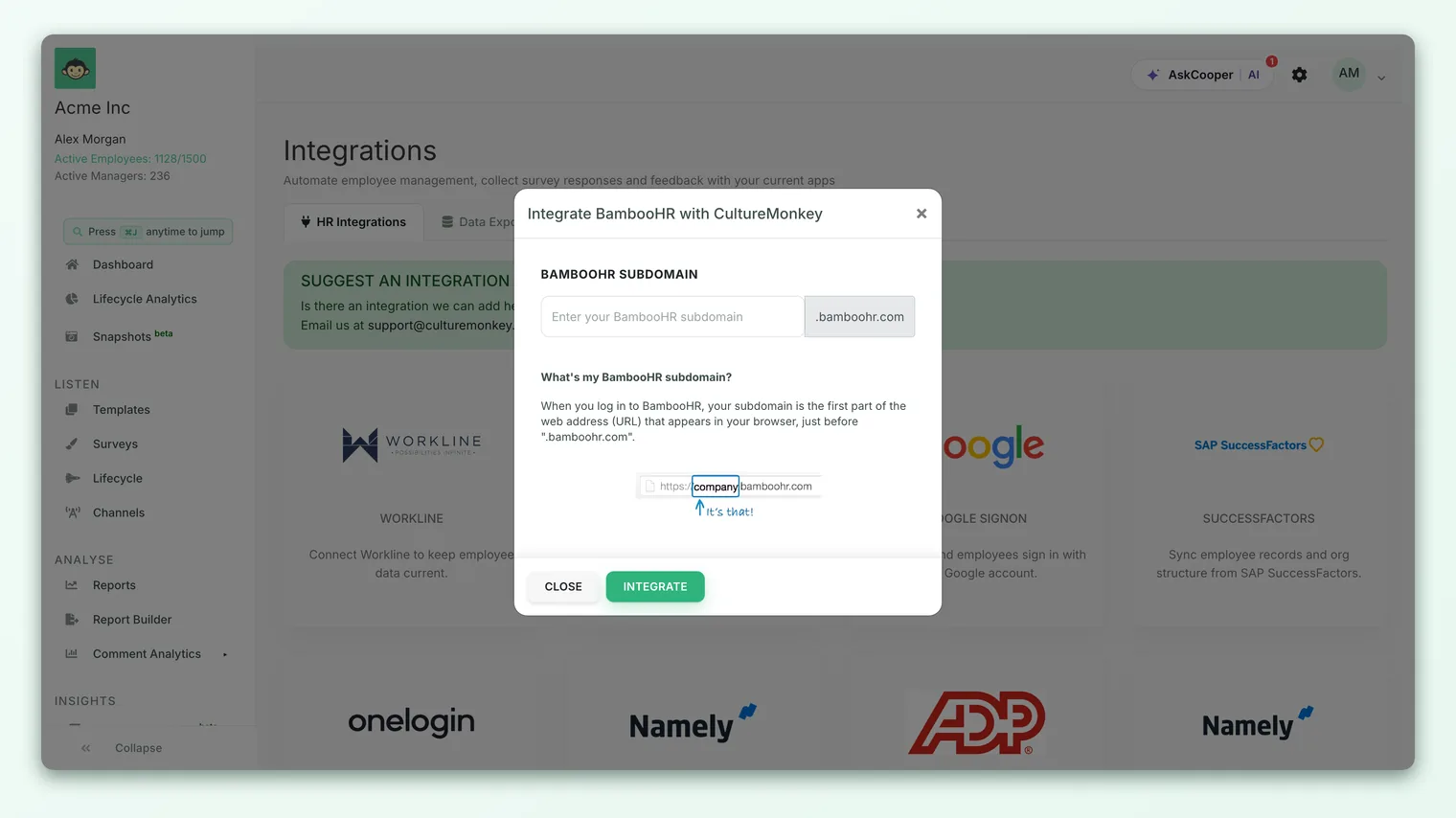
Your subdomain is the unique part of your BambooHR web address. When you're logged in to BambooHR, look at the URL in your browser: it takes the form yourcompany.bamboohr.com. The part before .bamboohr.com (here, yourcompany) is your subdomain.
That's the only piece you need to enter into CultureMonkey. Enter just the subdomain itself, not the full address. CultureMonkey adds the .bamboohr.com part for you.
Connect BambooHR step by step
Once BambooHR is enabled for your account, the connection itself is quick.
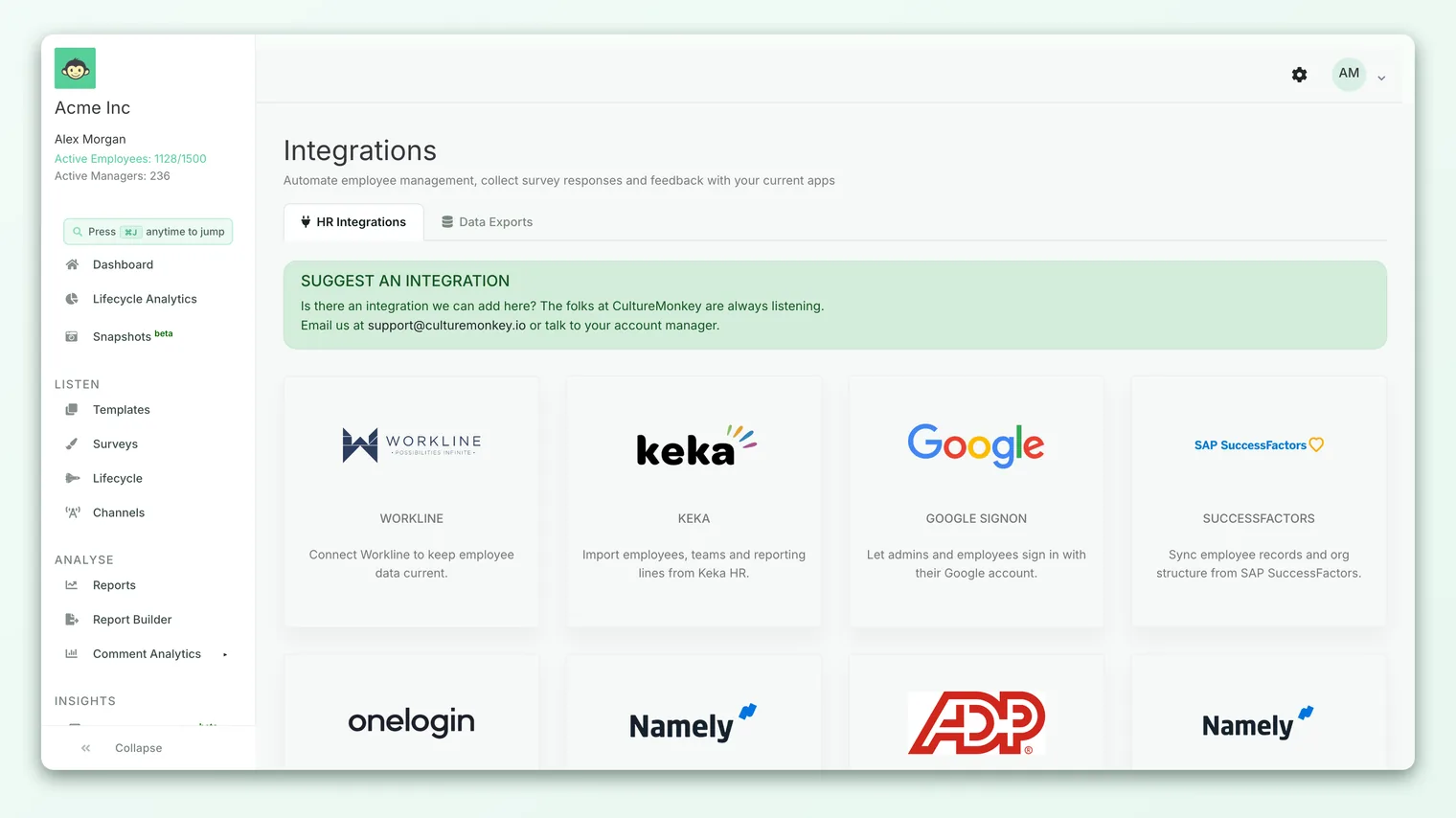
- 1Open Integrations. From the main navigation, go to Integrations. You'll see the catalogue of available integrations as tiles.
- 2Find the BambooHR tile. Locate BambooHR in the list. If it's ready to connect, the tile shows a Connect button. (If it shows Contact Us, the integration isn't enabled for your account yet - see Before you begin.)
- 3Click Connect. A small dialog titled "Integrate BambooHR with CultureMonkey" opens.
- 4Enter your subdomain. Type your BambooHR subdomain into the field. The
.bamboohr.comsuffix is shown next to the box so you can confirm the full address looks right. - 5Click Integrate. CultureMonkey saves your subdomain and hands off to the secure sync service to authenticate the connection.
After you click Integrate, CultureMonkey authenticates the connection and kicks off the first sync. When the integration comes back connected, you'll see a success message along the lines of "BambooHR was successfully integrated. Sync ongoing" and the BambooHR tile switches to a Connected state.
If CultureMonkey can't reach BambooHR (for example, if the subdomain is mistyped or the API key isn't valid), you'll see a notice asking you to contact support rather than a success message. Double-check the subdomain first, then reach out to your Customer Success contact if it persists.
What the first sync does
The moment the connection is established, CultureMonkey runs a first sync. This is a full read of your BambooHR directory, not just recent changes. It builds out your CultureMonkey people data from scratch:
- Teams, locations, and business units come across first. These have to exist before employees can be attached to them, so they're imported ahead of people.
- Employees are created next. Each BambooHR record becomes (or updates) a CultureMonkey employee.
- Reporting lines are resolved last. After everyone exists, CultureMonkey links each employee to their manager so your org hierarchy is intact.
Depending on how many employees you have, the first sync can take a little while to fully land. After it finishes, your directory reflects BambooHR, and future syncs only need to carry across what has changed.
A large directory doesn't appear instantly. If you connect and don't immediately see everyone under Employees, wait a few minutes and refresh before assuming something is wrong.
What data syncs from BambooHR
CultureMonkey reads employee records from BambooHR and maps each BambooHR field onto a CultureMonkey employee attribute. The exact set of fields depends on your field mappings, but the standard CultureMonkey attributes that can be populated from an HRIS include:
| CultureMonkey attribute | Typical BambooHR source |
|---|---|
| First name, last name | Name fields |
| Work email | Work email |
| Employee ID | Employee number / ID |
| Team, sub-team | Department / division |
| Location | Office / location |
| Business unit | Division or a custom field |
| Manager | Reporting-to / supervisor |
| Job title | Job title |
| Date of joining, date of birth | Hire date, date of birth |
| Employment status (active / inactive) | Employment status |
A few of these are mandatory for a record to import at all: first name, work email, team, and location. If a BambooHR record is missing one of these, that individual record is skipped and logged, while the rest of the sync continues. Fields you haven't mapped simply aren't pulled across.
You can also bring custom BambooHR fields into CultureMonkey as custom employee attributes. How each column lines up is defined in your field mappings, which you can review and adjust. For the full picture of how mapping works, including handling extra columns and splitting a single field into two, see Map your import fields to CultureMonkey attributes.
The same field-mapping rules that drive your BambooHR sync also govern other HRIS imports on your account. If you change a mapping, you're changing how data lands from every connected source, not just BambooHR.
How often BambooHR re-syncs
After the initial full sync, CultureMonkey keeps your directory current with incremental syncs that carry across changes rather than re-reading everything.
- On connect: a full first sync runs right away.
- On a recurring schedule: by default, connected HRIS providers (including BambooHR) are refreshed on a twice-weekly cadence.
- Daily option: accounts that need fresher data can be moved to a daily sync instead of the twice-weekly cadence. This is a per-account setting, so ask your Customer Success contact if you want BambooHR refreshed every day.
You don't need to trigger these syncs manually. Once connected, the schedule takes care of ongoing updates. If you make a large change in BambooHR and want it reflected sooner than the next scheduled run, contact support rather than waiting.
How joiners, movers, and leavers are handled
Because BambooHR is the source of truth, ordinary people changes flow through automatically:
- New joiners appear as new CultureMonkey employees on the next sync after they're added in BambooHR.
- Changes (a new manager, a team move, a title change, an email update) update the existing record. CultureMonkey matches an incoming record to an existing employee first by their unique ID and then, if needed, by email address, so an update lands on the right person rather than creating a duplicate.
- Leavers are marked inactive rather than deleted. When BambooHR reports an employee as no longer active, CultureMonkey deactivates them and removes any admin access they had. Their historical survey data is preserved; they simply stop being invited to new surveys.
Two things to keep in mind. First, a change in BambooHR shows up in CultureMonkey on the next scheduled sync, not the same second. Second, an employee simply disappearing from a data pull does not deactivate them - BambooHR needs to actively report them as inactive. If someone should be deactivated, make sure their status reflects that in BambooHR.
Troubleshooting
The BambooHR tile shows "Contact Us," not "Connect." The integration isn't enabled for your account yet. BambooHR is provisioned per account, so contact your Customer Success representative or support to have it switched on.
I clicked Integrate but got a "please contact support" notice. CultureMonkey couldn't establish the connection. The most common cause is a mistyped subdomain, so confirm you entered only the subdomain (not the full .bamboohr.com address). If it's correct and still failing, the API key may need attention, which is handled on our side.
Some employees didn't come across. Records missing a mandatory field (first name, work email, team, or location) are skipped during import. Check those employees in BambooHR and fill in the missing details, then wait for the next sync.
Everyone's manager is blank. Manager links are resolved after all employees are imported, using each person's reporting-to value in BambooHR. If a manager isn't in the synced set (for example, they're inactive), the link can't be made. Confirm the manager exists and is active in BambooHR.
Frequently asked questions
Do I need to enter my BambooHR API key in CultureMonkey?
No. The connect screen only asks for your BambooHR subdomain. The API key that authenticates the connection is set up on the CultureMonkey side when BambooHR is enabled for your account, typically with help from your Customer Success contact.
Can I connect BambooHR myself, or does support have to do it?
You can run the connection step yourself once the integration is enabled for your account. Enabling BambooHR in the first place (and putting the API key in place) is done with our team, which is why you may see a Contact Us button until it's provisioned.
Will connecting BambooHR overwrite employees I added manually?
Incoming records match to existing employees by their unique ID and then by email, so a manually added person with the same email is updated rather than duplicated. Once BambooHR is your source of truth, it's best to make people changes there so they aren't overwritten on the next sync.
How do I control which fields come across?
Through your field mappings, which decide how each BambooHR field maps to a CultureMonkey attribute. Unmapped fields aren't imported. See Map your import fields to CultureMonkey attributes.
Can I sync more than once a day?
The standard cadence is twice weekly, with a daily option available on request. More frequent than daily isn't part of the standard schedule; if you have a specific need, talk to your Customer Success contact.
Where to go next
- Understand the bigger picture: HRIS import overview
- Fine-tune what comes across: Map your import fields to CultureMonkey attributes
- Prefer a one-off import? Import employees from a CSV
Your feedback helps us improve the Help Center.