

Connect Darwinbox to CultureMonkey
How to sync your employee directory from Darwinbox into CultureMonkey - the credentials and keys required, who sets them up, what data flows across (employees, teams, hierarchy), and how often it refreshes.
On this page
Keeping your employee list current is the quiet foundation of every good survey. If people are missing, sitting in the wrong team, or reporting to the wrong manager, your participation numbers and your segment-level insights both suffer. The Darwinbox integration solves this by syncing your employee directory from Darwinbox into CultureMonkey on a regular schedule, so your people, their profile attributes, their teams, and your reporting hierarchy stay in step with your HRIS without manual uploads.
This guide walks through what the integration does, the credentials and keys it needs, who provisions them, the connection steps, exactly what syncs across, and how often it refreshes.
Darwinbox syncs employees and their profile attributes (including teams and reporting hierarchy) into CultureMonkey. It authenticates with a set of Darwinbox API credentials - an API key, a dataset key, and a username/password pair - which your CultureMonkey Customer Success contact provisions for you. Once it's live, employee data refreshes automatically twice a week, or daily if daily sync is enabled for your account.
What the Darwinbox integration does
The integration is a one-way sync: data flows from Darwinbox into CultureMonkey, never the other way around. Darwinbox stays your source of truth for the employee record; CultureMonkey mirrors the parts of it that matter for surveying and reporting.
On each run, CultureMonkey pulls your active (and, optionally, inactive) employee records from Darwinbox and updates its own employee directory to match. New joiners are added, leavers can be deactivated, and changes to profile fields - a promotion, a team move, a new manager - are carried over. That keeps your survey audiences accurate and your reports sliceable by the attributes you care about.
Because it's built on Darwinbox's own data APIs, the integration reads from the same directory your HR team maintains day to day. There's nothing for employees to install and nothing for them to notice.
If you're deciding between Darwinbox, another HRIS, or manual imports, start with Connect your HRIS - an overview. It explains how CultureMonkey treats every HRIS connection the same way once data lands, so the concepts here apply broadly.
What syncs across
Darwinbox sends CultureMonkey a set of employee records, and each record is translated into CultureMonkey's fields through field mapping. What comes across is:
- Employees. The core of the sync. Each person's identity fields - name, work email, employee ID - are used to create or match their CultureMonkey profile. Work email is the key that ties a Darwinbox record to a CultureMonkey employee.
- Profile attributes. Any Darwinbox field you've mapped - department, designation, location, business unit, gender, date of joining, and custom attributes - flows into the matching CultureMonkey attribute so you can filter and segment reports by it.
- Teams. Departmental and team structure comes across as mapped attributes. Darwinbox can express nested structure (for example a
departments_hierarchyvalue), and field mapping can split that into the right CultureMonkey team and sub-team fields. - Reporting hierarchy. Manager relationships come across through the mapped manager field, so CultureMonkey can build the org tree that powers manager dashboards and rolled-up reporting.
- Active and inactive employees. The sync can carry both active and inactive populations when a second set of credentials is provided for the inactive dataset, which helps keep leavers cleanly separated from your active audience.
How each Darwinbox field lands in CultureMonkey is entirely governed by your field mapping. For the full picture of how mappings work, including transformations like splitting a combined field or picking one side of a hierarchy string, see Map HRIS fields to CultureMonkey.
CultureMonkey matches Darwinbox records to existing employees on work email. If an employee's email changes in Darwinbox, the sync may treat them as a new person rather than an update, so keep email addresses stable and consistent across both systems.
Credentials and keys you'll need
Darwinbox authenticates API access with a combination of keys and a login. To connect the integration, CultureMonkey needs the following values from your Darwinbox environment:
| Credential | What it is | Where it comes from |
|---|---|---|
| Darwinbox domain / sub-domain | The identifier for your Darwinbox tenant | Your Darwinbox account URL |
| Auth type | The authentication scheme (typically Basic Auth) | Your Darwinbox API configuration |
| Username | The integration user for Basic Auth | Created in Darwinbox for the integration |
| Password | The password for that integration user | Created in Darwinbox for the integration |
| API key | Grants API access to your employee dataset | Darwinbox API settings |
| Dataset key | Identifies the specific dataset to read | Darwinbox API settings |
| Inactive API key (optional) | API key for the inactive-employee dataset | Darwinbox API settings |
| Inactive dataset key (optional) | Dataset key for the inactive population | Darwinbox API settings |
The API key and dataset key are the two values Darwinbox uses to scope exactly which employee dataset an API caller can read. The username and password (Basic Auth) sit on top of that as the transport-level credential. The optional inactive pair lets the sync pull your leavers as a separate dataset so active and inactive people stay cleanly distinguished.
You generate these values inside Darwinbox (usually via your Darwinbox admin or your Darwinbox account team). CultureMonkey then stores them securely against your account so the scheduled sync can use them.
The API key, dataset key, and Basic Auth password grant read access to your employee directory. Share them only through a secure channel when handing them to CultureMonkey, and rotate them in Darwinbox if you suspect they've been exposed.
Who sets it up
The Darwinbox connection is provisioned by CultureMonkey's Customer Success team, not self-served from the Integrations page. There is no admin-facing form in the app for typing in your Darwinbox API key, dataset key, and login - those values are stored against your account by CultureMonkey once you've supplied them.
In practice, that means the setup is a short, collaborative handshake:
- 1Gather your Darwinbox credentials. Collect the domain, Basic Auth username and password, API key, and dataset key from your Darwinbox environment (and the inactive pair if you want leavers synced too).
- 2Submit them securely. Your CultureMonkey contact will provide a secure link for these values, and the connection is configured on your account. CultureMonkey will never ask for credentials over email or chat.
- 3Confirm your field mapping. Work with your CSM to map Darwinbox fields to CultureMonkey attributes, so teams, hierarchy, and custom fields land where you expect. See Map HRIS fields to CultureMonkey.
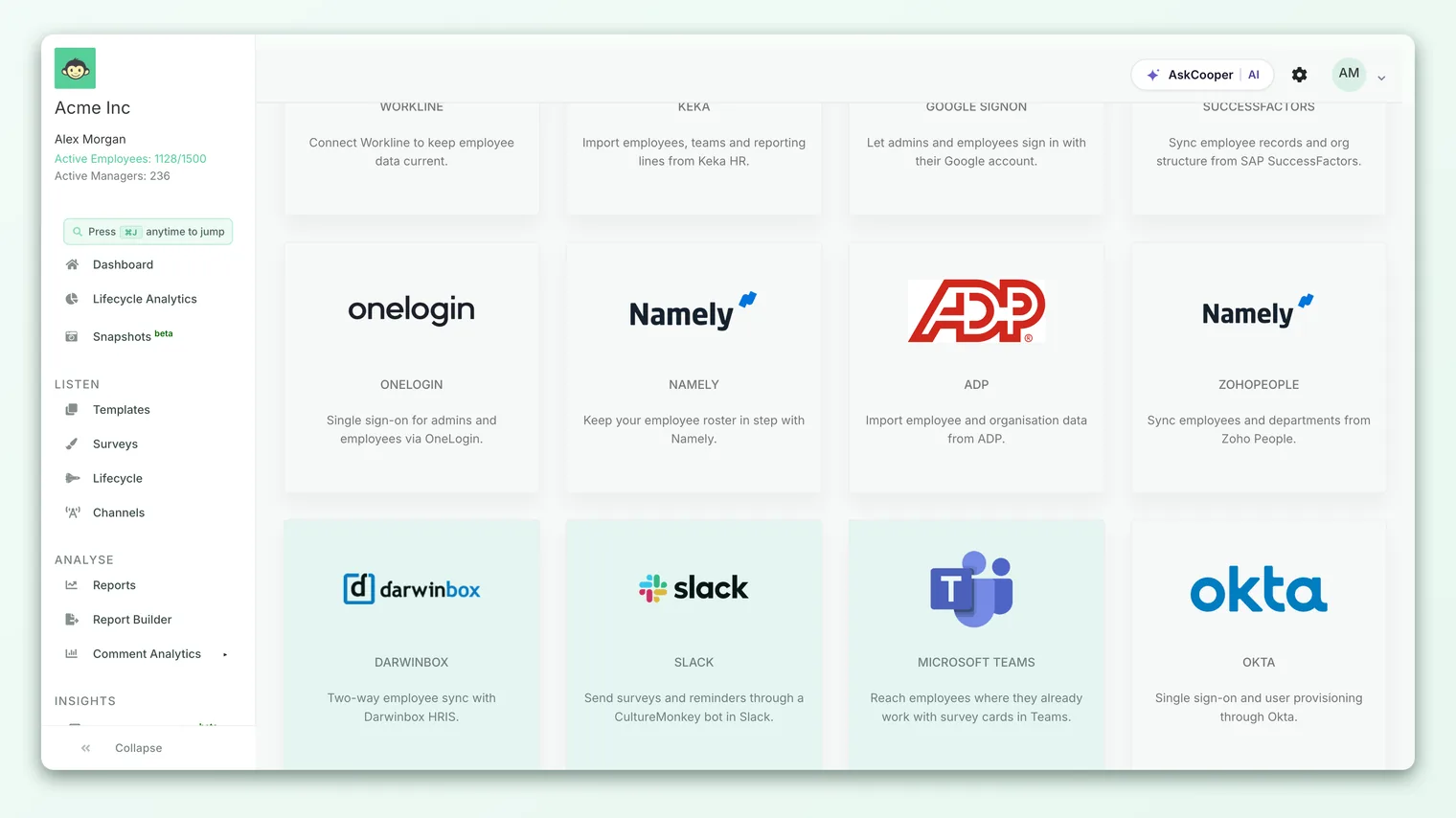
Once those values are in place, the Darwinbox tile on the Integrations page becomes actionable for the first sync.
Running the first sync
With credentials provisioned, the first sync is what actually populates CultureMonkey with your Darwinbox directory. It runs as a dedicated first-time pass that pulls the full employee dataset, rather than just the recent changes a routine refresh would look for.
- 1Open Integrations. From the left navigation, go to Integrations and find the Darwinbox tile.
- 2Start the connection. Use the connect action on the Darwinbox tile. CultureMonkey marks the integration as connected and queues the first sync to begin shortly after.
- 3Let the first sync run. The full pull runs in the background. On a large directory this can take a little while, so give it time before checking your employee list.
- 4Verify your people and attributes. Once it completes, open your employee list and spot-check a few records - confirm names, teams, managers, and key attributes look right.
If something looks off after the first sync - people in the wrong team, a manager not resolving, an attribute blank - the cause is almost always a field-mapping detail rather than the connection itself. Revisit your mappings with your CSM before assuming the sync failed.
How often it syncs
After the first sync, CultureMonkey keeps your directory current automatically. You don't need to trigger anything.
By default, the routine employee sync runs twice a week - on Tuesday and Friday early morning. Each run performs an incremental sync, picking up new joiners, leavers, and changes to mapped attributes since the last pass.
If your account has daily sync enabled, Darwinbox is synced once every day instead, which is useful for fast-moving organizations where the directory changes often. Whether daily sync is turned on for your account (and for which providers) is an account-level setting your CSM can configure.
| Sync mode | Cadence | What it does |
|---|---|---|
| First sync | One time, on connect | Pulls the full Darwinbox dataset to populate CultureMonkey |
| Standard sync | Twice weekly (Tue and Fri) | Incremental refresh of joiners, leavers, and attribute changes |
| Daily sync (if enabled) | Once daily | Same incremental refresh, run every day |
Because the directory refreshes on a schedule rather than instantly, plan a little lead time between a big org change in Darwinbox and launching a survey that depends on it. If you need an urgent refresh ahead of the next scheduled run, ask your CSM whether a manual sync can be triggered.
Limitations and things to watch
Darwinbox syncing is reliable, but a few realities are worth keeping in mind:
- It's one-way. Edits you make to employees directly in CultureMonkey can be overwritten on the next sync, because Darwinbox is the source of truth. Make lasting changes in Darwinbox.
- Mapping drives everything. Almost every "wrong data" issue traces back to a field mapping, not the connection. When a team, manager, or attribute looks wrong, check the mapping first.
- Email changes break matching. Because records match on work email, changing an employee's email in Darwinbox can create a duplicate rather than update the existing person.
- It's not instant. Changes appear on the next scheduled run, not the moment they happen in Darwinbox.
- Setup is assisted. Because credentials are provisioned during onboarding, connecting or reconfiguring Darwinbox goes through your CultureMonkey contact rather than being fully self-served.
Frequently asked questions
Can I set up Darwinbox myself from the Integrations page?
Not the credentials part. The Darwinbox connection needs API keys and a login that CultureMonkey's Customer Success team provisions on your account. Once that's done, starting the first sync from the Integrations page is something you can do yourself.
What exactly comes across from Darwinbox?
Your employees and their mapped profile attributes, which includes teams, your reporting hierarchy (through the manager field), and any custom attributes you've mapped. Active employees always sync; inactive employees sync too if the inactive dataset credentials are provided.
How often does the data refresh?
By default, twice a week (Tuesday and Friday). If daily sync is enabled for your account, it refreshes once a day instead.
Why is an employee in the wrong team or under the wrong manager?
This is almost always a field-mapping issue. The raw Darwinbox value is likely correct, but the mapping that translates it into CultureMonkey's team or manager field needs adjusting. See Map HRIS fields to CultureMonkey.
Do I need the inactive API key and dataset key?
Only if you want leavers (inactive employees) to sync as well. Provide the inactive pair when you want active and inactive populations kept distinct; otherwise the active dataset is enough.
Can I still edit employees manually in CultureMonkey?
You can, but remember the sync may overwrite manual edits since Darwinbox is the source of truth. For changes you want to stick, make them in Darwinbox.
Where to go next
- See the bigger picture: Connect your HRIS - an overview
- Get your data landing correctly: Map HRIS fields to CultureMonkey
- Check the results: Add and manage employees
Your feedback helps us improve the Help Center.