

Connect Workday to CultureMonkey
How to import employees and your reporting hierarchy from Workday into CultureMonkey - what you need to provide, how the connection is set up, what syncs, and how often.
On this page
Connecting Workday to CultureMonkey lets you keep your employee list and reporting hierarchy in sync automatically, so you never have to hand-maintain a spreadsheet of who's in the company and who reports to whom. Once it's set up, new joiners flow in, leavers are marked inactive, and manager relationships stay accurate on their own.
This guide explains what the Workday connection does, what you need to provide to get it running, how the setup works, exactly what data syncs, and how often. If you're new to HRIS integrations in general, start with the HRIS integrations overview and come back here for the Workday specifics.
The Workday connector pulls your employees and hierarchy into CultureMonkey through a secure sync service. It uses Basic Auth (a username and password) plus a Workday report URL as its source. Because Workday needs a report configured and credentials verified on the Workday side, the connection is provisioned with help from your CultureMonkey Customer Success or support team rather than fully self-service. After the first sync, CultureMonkey re-syncs on a regular schedule to stay current.
Is the Workday connector available?
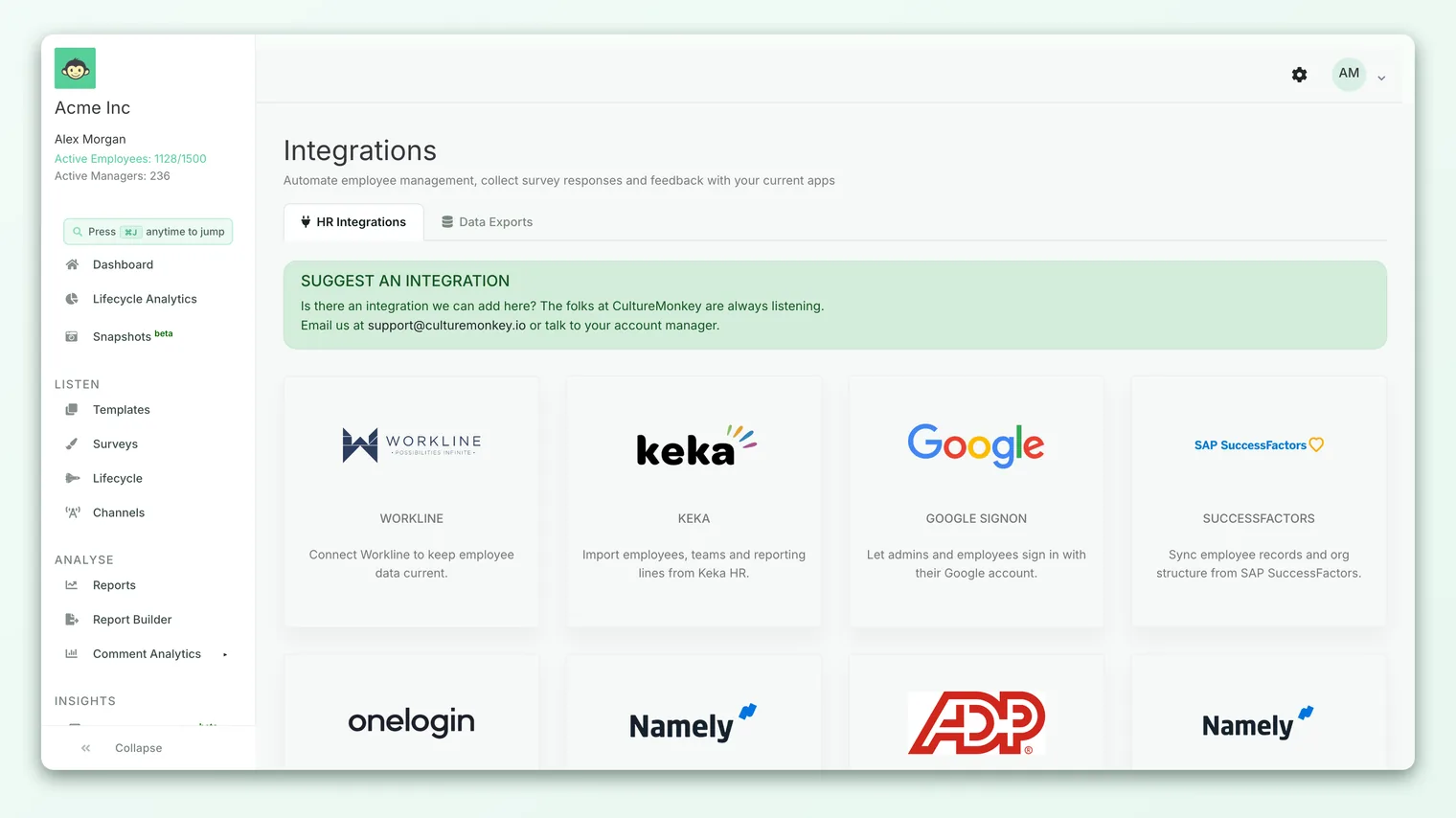
Yes. Workday is a supported HRIS provider in CultureMonkey, alongside BambooHR, Darwinbox, Zoho People, Workline, Freshservice, and Keka. You'll find it in the Integrations hub with the other HRIS tiles.
There's an important nuance to be aware of. In the Integrations catalogue, the Workday tile is presented as a guided ("coming soon" style) connection rather than a fully self-serve one, and the credentials it relies on (your Workday username, password, and report URL) are configured behind the scenes rather than through a form you fill in yourself.
In practice this means: you provide the connection details, and your CultureMonkey contact provisions them. Once provisioned, initiating the first sync is a single action, and every sync after that is automatic. The rest of this article walks through both sides of that.
What you'll need before you start
The Workday connection authenticates as a service account and reads employee data from a report you expose from Workday. Gather these three things first:
- A Workday username - the login for a dedicated integration service account. We strongly recommend a service account rather than a named person's login, so the connection doesn't break when someone changes roles or leaves.
- A Workday password - the password for that service account. This is stored securely and used only to authenticate the sync.
- A Workday report URL - the web-service (RaaS, "Report as a Service") URL of a custom report that returns the employee fields you want to sync. This is the single most important piece: it defines which employees and which attributes CultureMonkey can see.
Point the connection at a Workday integration service account with read access to your worker data, not an individual's credentials. It's more stable, easier to audit, and follows the principle of least privilege. Give it only the access the report needs.
About the Workday report
Workday exposes data to external systems through custom reports published as web services. You (or your Workday administrator) build a report that lists your workers and the fields CultureMonkey should import, then enable it as a web service to get its URL. That URL is what you hand to your CultureMonkey contact.
The report should include the seven fields CultureMonkey requires you to map, its mandatory fields: first name, last name, email address, employee ID, external ID, team (department), and location. External ID should be a permanent identifier, because the sync matches on it. Including a manager identifier is what makes your reporting hierarchy come across correctly. More on the full field list below.
CultureMonkey only ever sees what your Workday report returns. If a department, location, or group of employees is missing from the report, it won't appear in CultureMonkey. When something looks incomplete after a sync, the report is the first place to check.
How the connection is set up
Setup has two parts: provisioning the credentials, then triggering the first sync.
- 1Share your details - your CultureMonkey contact will provide a secure link for you to submit the Workday service-account details and report URL. CultureMonkey will never ask for credentials over email or chat.
- 2Credentials are provisioned - the details you submit are stored securely against your account so the sync service can authenticate to Workday on your behalf.
- 3Map your fields - confirm how Workday's field names map to CultureMonkey's fields. Sensible defaults are applied, and you can review or adjust them. See Map HRIS fields to CultureMonkey.
- 4Start the first sync - from the Integrations hub, connecting Workday kicks off the initial import. CultureMonkey confirms that the first sync has been initiated.
- 5Review the results - once the sync completes, check your Employees list to confirm people, teams, locations, and manager relationships came across as expected.
Under the hood, when the first sync is initiated, CultureMonkey doesn't call Workday directly from the app. It sends the request to a dedicated sync service, which authenticates to your Workday report using the stored credentials, reads the data, applies your field mappings, and hands the transformed records back to CultureMonkey to import. You don't need to manage any of that plumbing - it's mentioned here so you understand where the data flows.
The connection authenticates to Workday using Basic Auth (username and password). There's no OAuth redirect or app installation to approve, which is why the report URL and service-account credentials are all that's needed.
What syncs from Workday
The Workday connector imports your people and the structure they sit in. Concretely, each sync brings across:
- Employees - each worker returned by your report, created if new or updated if they already exist in CultureMonkey.
- Reporting hierarchy - manager relationships. CultureMonkey reads each employee's manager identifier and, after all employees are imported, resolves those references into actual manager links so your org structure is intact.
- Organizational attributes - the team (department), location, sub-team, and business unit each employee belongs to. These are imported before employees so that people can be attached to them correctly.
- Profile attributes - the standard fields you've mapped, plus any custom attributes you've configured.
Here are the standard employee fields CultureMonkey can populate from Workday, subject to what your report exposes and how you map it:
| Category | Fields |
|---|---|
| Identity | First name, last name, email address, employee ID, external ID |
| Organization | Team, sub-team, location, business unit, designation |
| Reporting | Manager email (used to resolve the hierarchy) |
| Employment | Date of joining, date of separation, employee type, role type, job status, active flag |
| Personal | Date of birth, gender, phone number, timezone, survey language |
All seven mandatory fields must be mapped, and an import skips any record missing a value for first_name, email_address, team_name, or location_name. Make sure your Workday report always returns these for every active worker.
For Workday (as well as Zoho, Darwinbox, and BambooHR), map your provider's date_of_separation field to both is_active and job_status in CultureMonkey. This ensures leavers are correctly marked inactive when their separation date passes, so they drop out of surveys automatically.
How new, changed, and departed employees are handled
CultureMonkey matches incoming Workday records to existing employees in a sensible order:
- Existing employee (matched by external ID, then email) - all mapped fields are updated.
- New employee - a new record is created.
- Departed employee - when Workday reports a worker as inactive (
is_active = false), CultureMonkey marks them inactive and removes any linked admin access. Employees are never deleted, only deactivated, so historical data and past responses are preserved.
One thing worth calling out: an employee who simply stops appearing in a later sync is not automatically deactivated. For someone to be marked inactive, your Workday report needs to actively send them with an inactive status (which is why mapping the separation date matters).
How often it syncs
There are two kinds of sync:
- First sync - a one-time initial import, triggered when you connect Workday. This is what populates CultureMonkey the first time.
- Ongoing sync - after that, CultureMonkey re-syncs Workday on a regular schedule, twice a week (currently Tuesday and Friday), so your employee list and hierarchy stay current without any manual effort.
Each scheduled run repeats the same pipeline as the first sync: authenticate, read the report, apply mappings, upsert employees, and resolve managers. Because the report is the source of truth, whatever your report shows at sync time is what CultureMonkey reflects.
If you've made a change in Workday (a reorg, a batch of new hires) and don't want to wait for the next scheduled sync, contact your CultureMonkey Customer Success or support team. They can trigger a sync on demand.
Verifying and troubleshooting the sync
After a sync, a quick review confirms everything landed correctly. Open your Employees list and spot-check a few things:
- Headcount looks right versus what you expect from the report.
- Managers are populated and the reporting lines look correct.
- Teams and locations are present and employees are attached to the right ones.
If something's off, these are the usual causes:
| Symptom | Likely cause |
|---|---|
| Some employees missing | They aren't included in the Workday report, or they're missing a mandatory field (first name, email, team, or location) |
| Managers blank | The report isn't returning a manager identifier, or the manager field isn't mapped |
| A team or location missing | No employee in the report references it, so it wasn't created |
| Leavers still active | The separation date isn't mapped to is_active / job_status, or the report still marks them active |
| Nothing synced at all | Credentials or the report URL need re-checking with your CultureMonkey contact |
Because each record is imported independently, one bad row doesn't stop the rest - problem records are simply skipped and logged, and the good records still come through. If you can't resolve an issue from the report or field mapping, your Customer Success or support team can look at the sync logs for the exact records that failed and why.
Frequently asked questions
Can I set up the Workday connection entirely by myself?
Not end to end. You submit the service-account details and the report URL through the secure link provided, and CultureMonkey provisions them. Triggering the first sync and reviewing results happens in your account, but the credential setup is a guided, assisted step.
What authentication does Workday use?
Basic Auth - a username and password for a Workday service account - together with the web-service URL of your Workday report. There's no OAuth flow or app to install.
Does Workday sync teams and locations, or only people?
Both. Teams (departments), sub-teams, locations, and business units come across as part of the sync, and they're imported before employees so people attach to them correctly. Manager relationships are resolved after employees are imported.
How do I control which fields come in?
Through field mappings, which connect each Workday field name to a CultureMonkey field. You can review and adjust these. See Map HRIS fields to CultureMonkey. Remember that a field also has to be present in your Workday report to be mappable.
Will connecting Workday delete or overwrite my existing employees?
It won't delete anyone. Matching employees are updated, new ones are created, and departed employees are marked inactive rather than removed. Existing history and responses are preserved.
How current is the data?
As current as the last sync. The first sync loads everyone; after that, scheduled syncs (twice a week) keep things fresh. If you need an immediate refresh, ask your CultureMonkey contact to trigger one.
Where to go next
- New to HRIS integrations? HRIS integrations overview
- Fine-tune what comes across: Map HRIS fields to CultureMonkey
- Check the results: Managing your employee list
- Moving off Workday Peakon? Leaving Peakon while staying on Workday
Your feedback helps us improve the Help Center.