

Customize the emails CultureMonkey sends around feedback
What emails CultureMonkey sends when someone reacts to or replies in a feedback conversation, how to turn on custom feedback email templates, which notifications you can customize, and how to configure them.
On this page
- The feedback emails CultureMonkey sends
- Which feedback emails you can customize
- How custom feedback email templates work
- Before you begin: enabling the feature
- Configuring your feedback email templates
- What you can (and can't) change
- When it's worth customizing (and when it isn't)
- Frequently asked questions
- Where to go next
When an employee shares feedback in CultureMonkey - anonymously or otherwise - the conversation doesn't have to end there. Your HR team can react to that feedback, and can reply to open a two-way conversation. Each time that happens, CultureMonkey emails the person who left the feedback so they know they've been heard.
Those two emails have sensible defaults out of the box. But if you'd like them to sound like your organization - your tone, your branding, your own wording - you can point them at custom email templates instead. This article explains which feedback emails CultureMonkey sends, how the custom-template feature works, how to configure it, and when it's worth the effort.
CultureMonkey sends two feedback-related emails to the employee who gave feedback: one when your team reacts to it, and one when your team replies in a conversation. With custom feedback email templates enabled, you can swap the default wording for your own email templates - choosing a template for reactions and one for conversations. It's an optional, branding-and-tone refinement, not a required setup step.
The feedback emails CultureMonkey sends
Feedback in CultureMonkey is a loop: an employee shares something, your team acknowledges it, and - where useful - a conversation begins. Two moments in that loop trigger an automatic email back to the employee.
The first is a reaction. When someone on your HR team reacts to a piece of feedback (for example, marking it as liked or appreciated), CultureMonkey lets the author know their feedback landed and is being taken seriously. This is a lightweight signal - no reply required - that says "we saw this."
The second is a conversation reply. When your team starts a conversation from feedback or responds to the employee, CultureMonkey emails the author to tell them there's a response waiting, with a link back into the (still anonymous) conversation thread.
Both emails go to the employee who left the feedback - not to an admin or manager. That's the whole point: they close the loop with the person whose voice you're responding to. Because CultureMonkey preserves anonymity, these emails are written to reach the author without ever exposing their identity to your team.
Which feedback emails you can customize
Not every feedback-related email is customizable. The custom-template feature covers exactly the two loop-closing emails described above - the ones your team's actions trigger and that go back to the employee.
| Email type | What triggers it | Who receives it | Customizable? |
|---|---|---|---|
| Feedback reaction | A member of your HR team reacts to a piece of feedback | The employee who gave the feedback | Yes - via a chosen email template |
| Feedback conversation | Your team replies to feedback / starts a conversation | The employee who gave the feedback | Yes - via a chosen email template |
| Internal feedback alerts (e.g. notifying admins about sensitive feedback) | System detects certain feedback | Admins / reviewers | No - fixed wording |
The two customizable emails are the ones worth branding, because they're the ones your employees actually see. The internal alerts that notify your own team keep their standard wording.
A reaction is a quick acknowledgement - "we've seen this." A conversation is a genuine back-and-forth reply. Because they mean different things to the employee, CultureMonkey lets you choose a separate template for each, so the tone can match the moment.
How custom feedback email templates work
Under the hood, this feature simply lets you substitute your own template for CultureMonkey's built-in default. When custom feedback templates are switched on, you get two settings:
- A feedback reaction template - used for the "your feedback got a reaction" email.
- A feedback conversation template - used for the "your feedback has a reply" email.
Each setting points to one of the email templates already defined in your account. When CultureMonkey needs to send a feedback reaction email, it looks up the reaction template you selected and uses that; likewise for conversations. If you haven't selected a template for a given type, CultureMonkey falls back to its default wording - so nothing ever breaks, and the emails keep sending regardless.
That fallback is important: turning the feature on doesn't require you to configure both templates immediately. Any type you leave unset simply uses the default, so you can customize the reaction email today and the conversation email later.
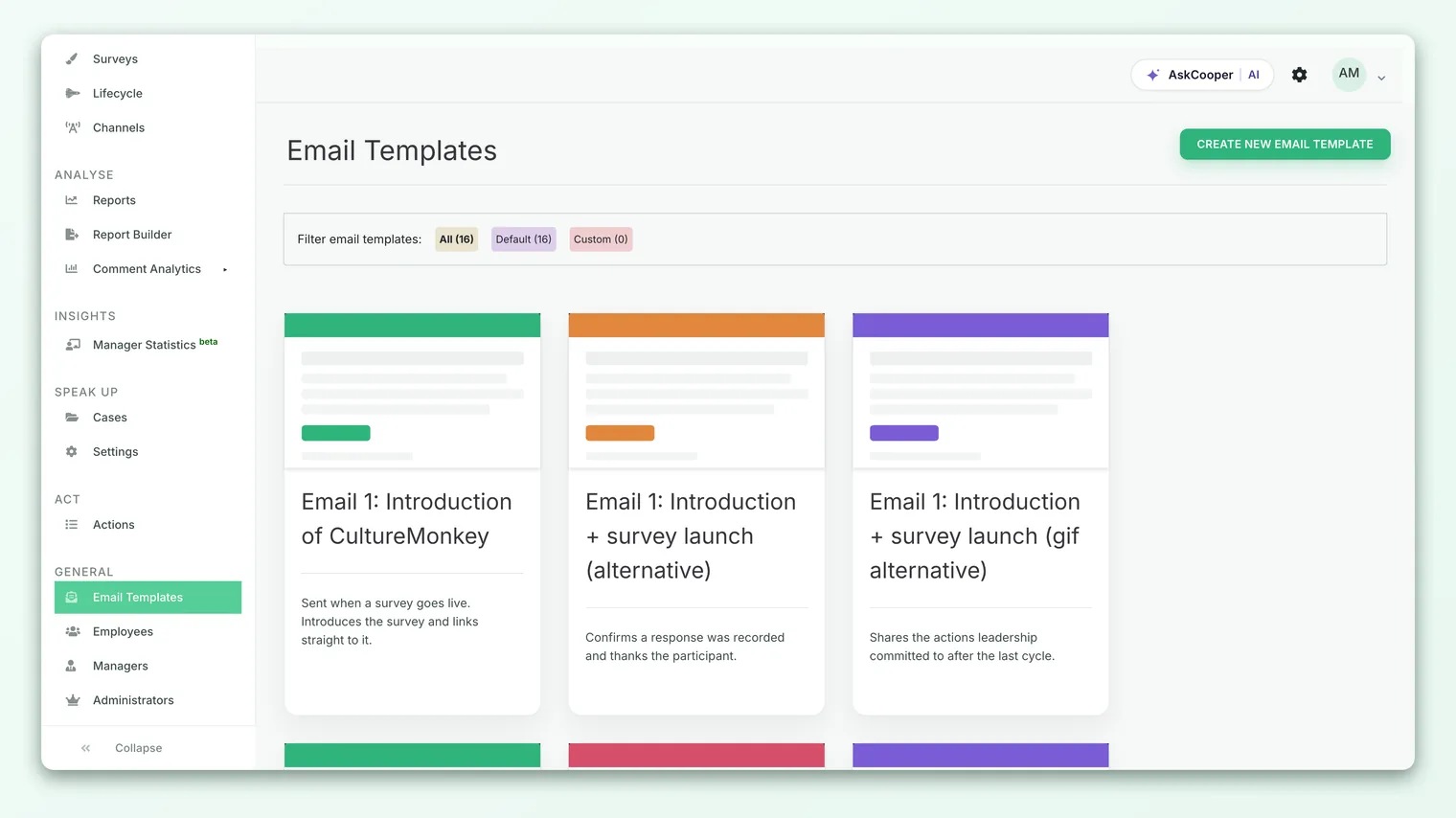
Custom feedback emails don't introduce a separate editor. They draw from the same email-template library you use elsewhere. So the first step is usually to build (or reuse) a template in your email-templates area, then point the feedback setting at it. See Customize survey invitation & reminder emails for how templates are created and edited.
Before you begin: enabling the feature
Custom feedback email templates are an advanced, opt-in capability rather than a default one. A couple of things need to be in place before the settings appear:
- Email templates must be enabled for your account. Custom feedback emails build on your account's email-template capability, so that has to be active first.
- The custom-feedback-template option must be switched on for your account. This is an account-level toggle that surfaces the feedback template settings.
Because these are account-level switches, enabling them is typically handled with your CultureMonkey point of contact rather than from a self-serve toggle in your settings. If you don't see the feedback email template settings described below, that usually means one of these switches isn't on yet.
If the Feedback option under email-template settings isn't visible for you, the feature likely hasn't been enabled for your account, or your role doesn't have access to it. Reach out to your CultureMonkey contact to have it turned on.
Configuring your feedback email templates
Once the feature is enabled, configuring it is quick. You'll be choosing which existing template each feedback email should use.
- 1Create your templates first. In your email templates area, build (or identify) the template you want for reactions and the one for conversations. Get the wording, branding, and any merge fields right here.
- 2Open the feedback email template settings. Go to your email-template settings and open the Feedback section. This is where the two feedback email types are listed.
- 3Choose a reaction template. Select the email template CultureMonkey should use when your team reacts to feedback. Use the preview/"view template" option to confirm it reads the way you intend.
- 4Choose a conversation template. Select the template for the email sent when your team replies to feedback and opens a conversation.
- 5Save. Your selections take effect for future feedback emails. Leave either one unset to keep CultureMonkey's default wording for that type.
If you later want to revert to the standard emails, clear the selected template for that type and CultureMonkey returns to its built-in default.
What you can (and can't) change
A custom template controls the content and presentation of the email - its subject line, body copy, tone, and branding. This is where you make the email sound like you rather than like a generic notification.
What a template shouldn't change is the intent and the anonymity guarantees baked into these emails. They still go to the feedback author, they still preserve anonymity, and the conversation email still needs to lead the employee back to the right thread. When you build templates, keep the core message intact - that a reaction happened, or that a reply is waiting - and lean on any available merge fields (such as your organization's name or a link into the conversation) to keep the email useful.
Because these emails are the ones employees actually read, preview each template before saving, and - if you can - send yourself a test. A broken link or the wrong tone in a feedback reply undermines the very trust you're trying to build.
When it's worth customizing (and when it isn't)
The default feedback emails are perfectly serviceable. Reach for custom templates when:
- Branding consistency matters. You want every employee-facing email - surveys, reminders, and feedback responses alike - to share one look and voice.
- Tone is part of your feedback culture. A warmer, more personal reaction or reply email reinforces that feedback is genuinely welcomed.
- You have localized or role-specific wording you'd rather use than the defaults.
It's probably not worth the effort if you're just getting started with feedback, or if the default emails already read fine for your audience. This is a polish step - valuable, but not a prerequisite for running feedback well. Get the feedback loop itself working first: browse all feedback, react to it, and start conversations. Then refine the emails.
Frequently asked questions
Who receives the feedback reaction and conversation emails?
The employee who left the feedback - not an admin or manager. These emails exist to close the loop with the person whose feedback you're responding to, and they're designed to reach that person while preserving their anonymity.
What happens if I don't select a custom template?
Nothing breaks. CultureMonkey uses its built-in default wording for any feedback email type you haven't assigned a template to. You can enable the feature and customize just one email type, leaving the other on the default.
Can I use different templates for reactions and conversations?
Yes. They're two separate settings, so you can (and often should) use a lighter, acknowledgement-style template for reactions and a fuller, reply-style template for conversations.
Why don't I see the feedback email template settings?
Most likely the feature hasn't been enabled for your account yet, or your role doesn't have access. Custom feedback templates are an opt-in, account-level capability - contact your CultureMonkey point of contact to have it switched on.
Do custom templates change who the email goes to or break anonymity?
No. A template only changes the content and appearance of the email. The recipient (the feedback author) and CultureMonkey's anonymity protections are unaffected by which template you choose.
Where to go next
- See the feedback these emails respond to: Browse all feedback
- Start the conversations that trigger the reply email: Start a conversation from feedback
- Learn how templates are built and edited: Customize survey invitation & reminder emails
Your feedback helps us improve the Help Center.