

Close, delete, or archive a survey
What actually happens when you end a live survey, delete a draft, or hide a completed survey from your dashboard - which actions are permitted, which are permanent, and what each one does to your data.
On this page
- The four states a survey moves through
- Deleting a draft
- Why you can't delete a survey with responses
- Closing a live survey
- What happens to your data when a survey ends
- Archiving: hiding a survey from your dashboard
- Close, delete, or archive - which do you want?
- Best practices
- Frequently asked questions
- Where to go next
Every survey reaches the end of its life eventually. A draft you started and abandoned, a test run you fired off to check the flow, a live survey that's collected enough responses, or an old cycle that's cluttering your dashboard - each of these needs a different kind of "ending," and CultureMonkey treats them very differently.
This guide explains the three things people usually mean by "getting rid of" a survey - closing a live survey, deleting it outright, and archiving (hiding) it from your dashboard - what each one actually does, which are reversible, and which are permanent. The most important thing to understand up front is this: once a survey has collected real responses, CultureMonkey deliberately makes it hard to destroy that data. That's a feature, not a limitation.
You can delete a survey only while it's a draft (or a test survey that has ended). Once a survey is published or running, the Delete option is disabled - a survey with real responses cannot be deleted from CultureMonkey. To end a live survey, let it reach its scheduled end date (or shorten that date). To get an old survey out of your rolled-up numbers without destroying it, exclude it from the dashboard.
The four states a survey moves through
Everything about closing and deleting depends on which state a survey is in. CultureMonkey tracks four:
| State | What it means | Can you delete it? |
|---|---|---|
| Draft | Being built; not yet sent to anyone | Yes - deletes everything permanently |
| Published | Scheduled to start but not yet live | No - Delete is disabled |
| Running | Live and collecting responses | No - Delete is disabled |
| Ended | Reached its end date; results are final | No (except test surveys) |
A survey's state is shown on the Surveys list under Listen, next to a colored status dot. You'll want to check it before you try anything below, because it decides what's possible.
While a survey is a draft, nothing has been sent and no employee has answered - so deleting it costs you nothing but the setup work. Once you publish or start it, you cross a line: from that point on the data belongs to your employees, and CultureMonkey protects it.
Deleting a draft
If you started building a survey and decided against it, deleting the draft is clean and complete.
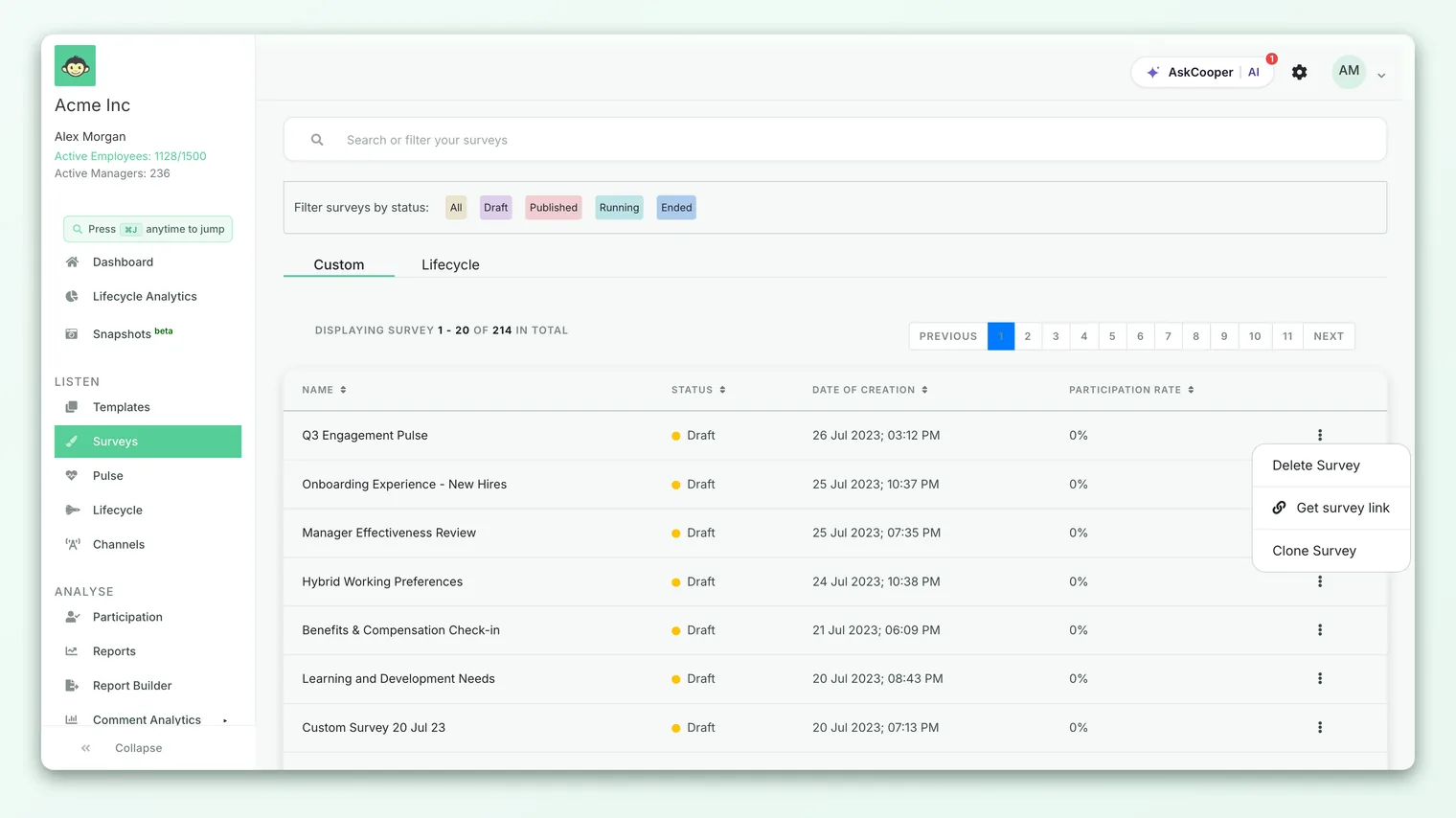
- 1Open the Surveys list - go to Listen → Surveys. Find the draft you want to remove; it will show a Draft status.
- 2Open the actions menu - click the three-dot (⋮) menu on the right of that survey's row.
- 3Choose Delete Survey - because the survey is a draft, this option is active. You'll be asked "Are you sure you want to delete this survey?"
- 4Confirm - the draft and everything attached to it is removed, and the list refreshes.
Deleting a draft is permanent and thorough. It doesn't just hide the survey - it removes the survey record along with its sections, questions, answer options, any participants you'd added, scheduled reminders, translations, and business-group targeting. There's no trash or undo, so only delete a draft you're genuinely finished with. If there's any chance you'll want the structure again, consider saving it as a template first (Add to templates in the same menu) before you delete.
Why you can't delete a survey with responses
Try to delete a published, running, or ended survey and you'll find the Delete option greyed out, with a tooltip that reads "Cannot delete published surveys." This is intentional.
The moment a survey goes live, employees start entrusting it with honest, often sensitive feedback. That data feeds your eNPS trend, your driver scores, your heatmaps, your manager reports, and your historical comparisons. Allowing anyone to permanently erase a live or completed survey - with a single menu click - would put all of that at risk, and would break the trend lines that make engagement data valuable in the first place.
So CultureMonkey enforces a simple rule: if a survey has left the draft stage, its Delete action is disabled in the product. There's no override in the standard interface. This protects you from accidental loss and protects your employees' feedback from being quietly deleted.
Because deletion of a survey with responses isn't exposed in the app, you can't wipe a live or ended survey's data yourself. If you have a genuine, exceptional reason to remove a survey that has collected responses - for example, a survey created in error and sent to the wrong audience - contact CultureMonkey support. Removals like this are handled deliberately and are irreversible once done.
The one exception: test surveys
There's a narrow carve-out. A test survey that has already ended can be deleted, even though it holds responses - because those responses are your own test data, not real employee feedback. This keeps trial runs from permanently cluttering your account.
Closing a live survey
"Closing" a survey means moving it from Running to Ended so it stops accepting responses and its results are finalized. In CultureMonkey this is driven by the schedule, not by a manual "stop now" button.
Every survey you launch has a start date/time and an end date/time that you set when building it. A background process checks running surveys against their scheduled end time and, once that moment passes, automatically marks the survey Ended: it stamps a completion time, stops collecting new responses, and kicks off the end-of-survey processing (finalizing reports, refreshing heatmap data, generating any auto-created actions, and so on).
So in normal use, you don't close a survey manually - you scheduled its close when you built it. To close a live survey earlier than planned, you bring that end date forward.
There isn't a one-click "end this survey now" control in the standard interface. To finish a running survey ahead of schedule, you adjust its scheduled end date to the nearest allowed point. The survey then ends automatically once that time is reached.
Editing the end date
Changing a running survey's end date is available through the Modify the survey End Date screen. A few rules apply, and they're worth knowing before you rely on it:
- The new end date must be a future date - you can't set it to today or the past through this screen.
- Once a survey has reached its scheduled end date, the date can no longer be changed. The window closes with the survey.
- This screen is used both to extend a survey (push the end date out to gather more responses) and, in principle, to shorten it.
Because the current end-date screen only accepts future dates and its primary purpose is extension, treat "closing early" as pulling the end date in to the soonest permitted point rather than an instant stop.
If you're closing a survey because you feel you've "got enough," it's often worth one last nudge first. From the running survey's actions menu, Remind Unanswered pings the people who haven't responded yet - a small push that can meaningfully lift your participation rate before the survey locks. See Create a survey from scratch for how scheduling and reminders fit together.
What happens to your data when a survey ends
Ending a survey is the opposite of destructive - it's when your survey's data becomes your reporting. When a survey moves to Ended:
- Responses are finalized. No new answers can come in, so the numbers stop moving. Your final participation rate, eNPS, and driver scores are locked in for that cycle.
- Reports stay fully available. The survey's own report - scores, breakdowns, comments, heatmaps - remains open indefinitely. Ending a survey never hides or deletes its report.
- It feeds your trends. The ended survey becomes a point on your over-time charts, so your next cycle can be compared against it.
- Post-processing runs. Depending on your account's settings, ending a survey can trigger AI-generated action suggestions, a feedback synopsis, and refreshes of your heatmap and hierarchy data.
In other words, an Ended survey is a completed, permanent record - not something to be cleared away. The only reason to touch it afterward is presentation: keeping it from skewing your rolled-up dashboard numbers.
Archiving: hiding a survey from your dashboard
Sometimes you don't want to delete a survey - you couldn't, and you wouldn't want to lose the data - but you also don't want it distorting your headline figures. The classic example is a test run or a tiny one-off pulse that would drag your organization-wide averages around if it were counted.
CultureMonkey's answer is excluding a survey from the dashboard, which is the closest thing to "archiving." It's a visibility toggle, not a deletion:
- The survey is removed from the rolled-up numbers on your admin dashboard, so it no longer influences your overall score, eNPS, or participation aggregates.
- The survey's own report stays completely intact. You can still open it and see every response - nothing about the underlying data changes.
- It's fully reversible. Toggle the survey back on and it re-enters your dashboard aggregates immediately.
You manage the excluded set from Advanced settings, where every survey is listed with a visibility switch. Flip on the surveys you want hidden from the dashboard and save.
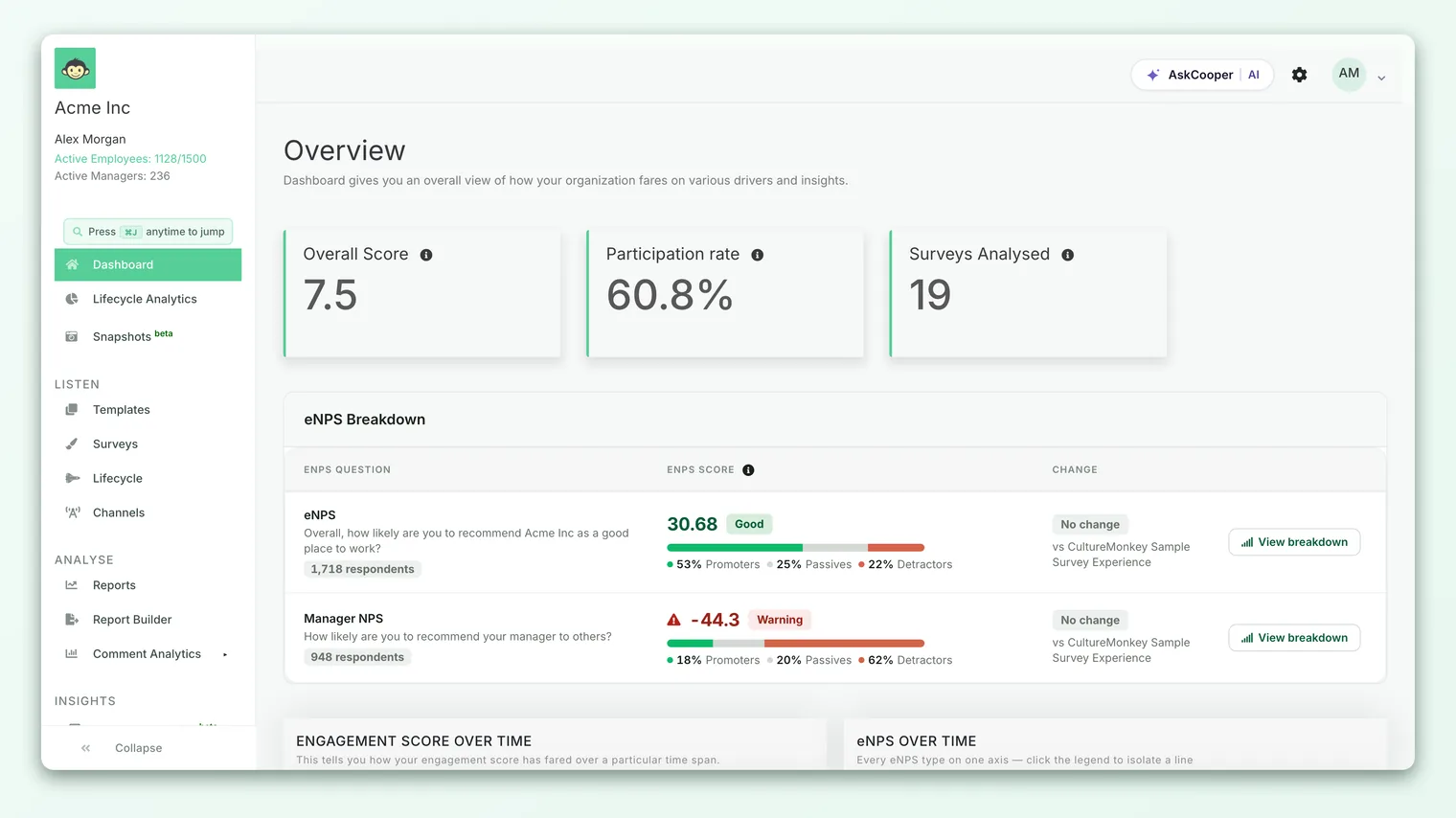
Because this is a nuanced feature with its own uses and trade-offs, it has a dedicated guide: Exclude specific surveys from your Dashboard. Note that configuring exclusions may be restricted to certain account roles.
Close, delete, or archive - which do you want?
When you're unsure which action you actually need, match your goal to the right one:
| Your goal | The right action | Reversible? | Data impact |
|---|---|---|---|
| Ditch a survey you're still building | Delete the draft | No | Everything is erased permanently |
| Stop a live survey collecting responses | Close it (reach/shorten the end date) | No | Responses finalized; report kept |
| Retire a completed survey but keep its data | Exclude from dashboard | Yes | Data untouched; hidden from aggregates |
| Keep the design to reuse later | Add to templates, then delete | n/a | Saves the structure, not the responses |
| Remove a live/ended survey's real responses | Contact support | No | Deliberate, permanent removal |
Best practices
- Save before you delete. If a draft has a question set or structure you might want again, use Add to templates before deleting - templates are cheap to keep and save real rework.
- Prefer excluding over deleting. For test runs and stray pulses, hiding from the dashboard gets you a clean headline number and keeps the data, with none of the risk of deletion.
- Set the end date thoughtfully at launch. Because closing is schedule-driven, the cleanest way to control when a survey ends is to pick a sensible end date when you build it - rather than scrambling to change it mid-flight.
- Reminder, then close. A Remind Unanswered nudge before the end date usually buys you more responses than an early close costs you.
- Treat "delete responses" as exceptional. Removing a survey that holds real feedback should be a rare, considered step handled through support - not a routine cleanup habit.
Frequently asked questions
Why is "Delete Survey" greyed out for my survey?
Because the survey isn't a draft. Delete is only available for drafts (and for ended test surveys). Once a survey is published, running, or ended with real responses, the option is disabled with the tooltip "Cannot delete published surveys" - this protects the feedback it has collected.
Can I stop a running survey right now, instantly?
There's no one-click "end now" button in the standard interface. A survey ends automatically when it reaches its scheduled end date/time. To finish early, shorten that end date to the soonest permitted point; the survey then closes automatically when that time arrives.
If I exclude a survey from the dashboard, do I lose its results?
No. Exclusion is purely a visibility setting for your rolled-up dashboard numbers. The survey's own report - every score and comment - stays fully intact, and you can re-include the survey at any time.
I deleted a draft by mistake. Can I get it back?
No. Deleting a draft is permanent and removes its questions, sections, and settings with no undo. If you'd saved it as a template beforehand, you can spin up a fresh survey from that template. Otherwise you'll need to rebuild it.
How do I remove a survey that was sent to the wrong people?
Because a survey with responses can't be deleted in-app, reach out to CultureMonkey support with the details. Removals of surveys that hold real feedback are handled carefully and are irreversible once completed.
Does ending a survey delete anything?
No - ending is the opposite of deleting. It finalizes the survey, keeps its report available permanently, and feeds the results into your trends. Nothing is removed.
Where to go next
- Set an end date correctly from the start: Create a survey from scratch
- Keep test runs out of your headline numbers: Exclude specific surveys from your Dashboard
- Report looks empty after closing? Why can't I see results yet?
Your feedback helps us improve the Help Center.