

Add the eNPS question to a CultureMonkey survey
How to include CultureMonkey's built-in eNPS question in a survey - the 0-10 scale, the standard wording you can customize, automatic promoter/passive/detractor classification, the open-text follow-up, and the one-per-survey rule.
On this page
Almost every engagement survey benefits from a single, comparable pulse of advocacy: would your people recommend you as a place to work? In CultureMonkey, that's the eNPS question, and it isn't something you build option-by-option like a rating or single-select question. It's a purpose-built question type you switch on for a survey, and CultureMonkey handles the scale, the scoring, and the promoter/passive/detractor math for you.
This article covers how to add the eNPS question to a survey, what the respondent sees, how answers are classified automatically, the optional open-text follow-up, and the rule that a survey carries a single eNPS question.
The eNPS question is a built-in question type. In the survey builder, tick "Add eNPS to this survey" under Question Settings. Respondents answer one standard 0-10 recommendation question; CultureMonkey automatically sorts each answer into Promoter (9-10), Passive (7-8) or Detractor (0-6) and computes the eNPS score. A survey has exactly one eNPS question.
If you're new to the metric itself - how the score is calculated, what a "good" number looks like, and how to improve it - read What is eNPS and how is it calculated? first. This article is purely about putting the question into a survey.
Why eNPS is a built-in question type
Rating, single-select, multiple-select and free-text questions are all authored by you: you write the text, set the scale, and add the options. The eNPS question is different by design. Because eNPS is only meaningful when everyone measures it the same way - the same 0-10 scale, the same three groups, the same subtraction - CultureMonkey ships it as a fixed, standardized question rather than something you assemble from scratch.
That standardization is the whole point. It's what lets you:
- Compare across surveys - this cycle versus last quarter, on the same scale.
- Trend it on the Dashboard - eNPS gets its own tile and over-time view.
- Benchmark externally - against industry ranges that assume the standard method.
So instead of adding an eNPS question in the question list, you enable it once for the survey, and CultureMonkey inserts it as a standardized block.
Add the eNPS question
You add eNPS from the survey builder, in the same Question Settings area where you control feedback and question placement.
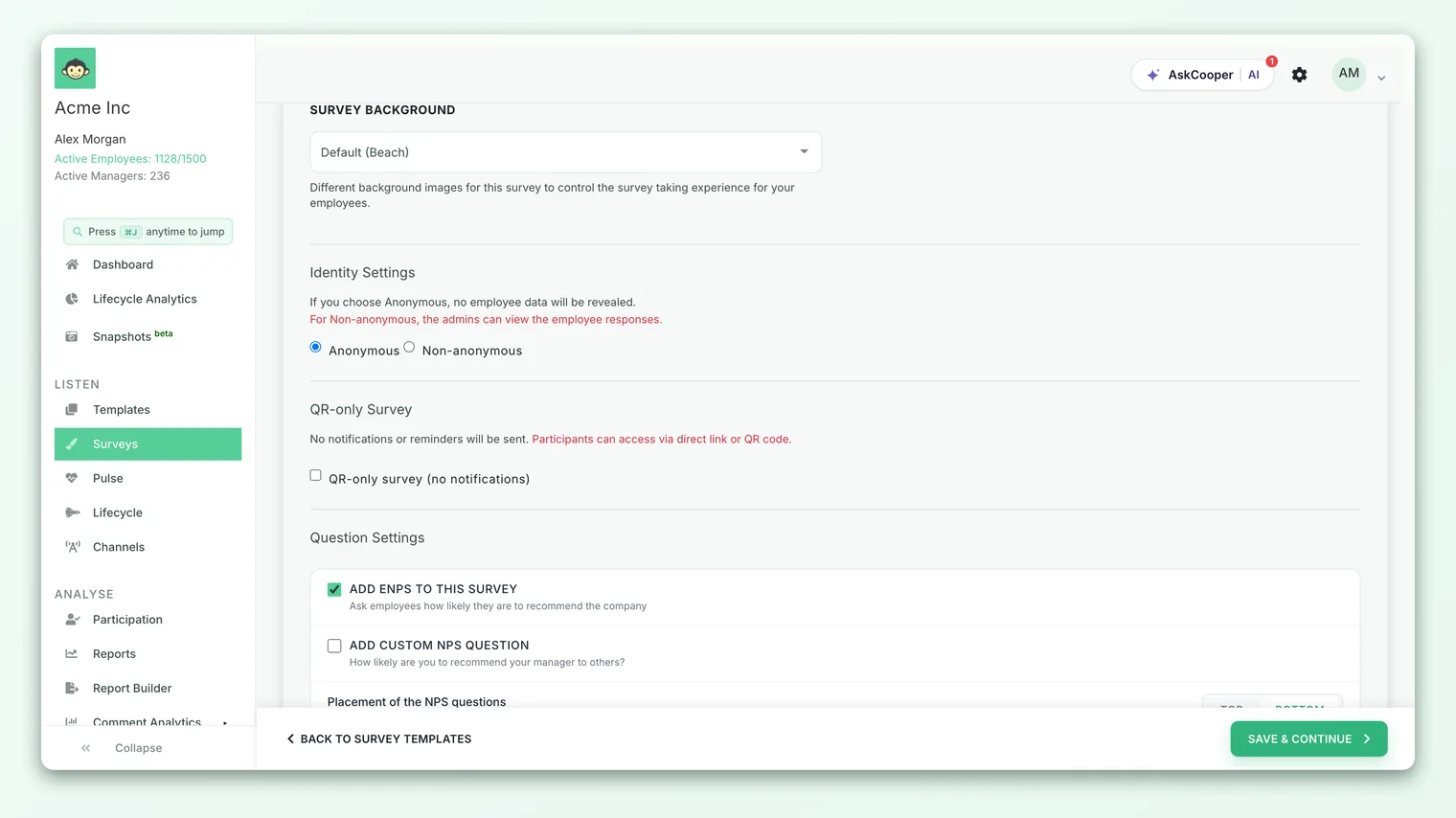
- 1Open your survey in the builder - create a new survey or edit a draft. See Create a survey from scratch if you're starting fresh.
- 2Find Question Settings - scroll to the Question Settings section beneath your basic details and driver questions.
- 3Tick "Add eNPS to this survey" - this is the switch that includes the standard eNPS question. Leave it on; clear it only if this particular survey shouldn't carry eNPS.
- 4Choose where it appears - under Placement of the NPS questions, pick Top or Bottom to decide whether respondents see eNPS first or last.
- 5Save the survey - your changes are stored on the survey. The eNPS block is now part of the form.
New surveys are created with eNPS enabled. If you never touch the setting, the survey will include the eNPS question. You only need to visit this setting to turn eNPS off for a survey, or to change its placement.
There's nothing else to configure to get a working eNPS question - no scale to set, no options to add. The wording, the 0-10 buttons and the scoring are all built in.
What respondents see
When the survey opens, employees see one recommendation question presented on an 11-point scale from 0 to 10. The default wording is:
> "Overall, how likely are you to recommend [your company] as a good place to work?"
CultureMonkey fills in your organization's name automatically. The respondent taps a single number from 0 (not at all likely) to 10 (extremely likely).
The Placement option you chose controls where this appears relative to your driver questions - Top puts eNPS at the start of the form, Bottom puts it at the end. Many teams place it at the top so it's answered while attention is freshest, but either is fine as long as you're consistent across cycles.
Customizing the wording
The standard text is a sensible default, and keeping it means your results stay comparable and benchmarkable. If your organization has a specific phrasing it prefers, the eNPS question title can be set at the account level (for example, to reference a brand name or a particular audience). Two things should never change, though: the 0-10 scale and the intent of recommending your organization as an employer. Altering either breaks comparability with your own history and with external benchmarks.
Some accounts can add an organization-specific eNPS variant - a second recommendation-style question tailored to their context - via the custom eNPS feature. That's distinct from the standard built-in eNPS covered here. If you see custom eNPS options in your builder, see the dedicated article on custom eNPS questions.
How answers are classified
This is the part CultureMonkey does for you and the reason eNPS is worth using. Every 0-10 answer is automatically sorted into one of three groups - you never tag responses by hand:
| Group | Rating | What it signals |
|---|---|---|
| Promoters | 9-10 | Loyal advocates who'd recommend you as an employer |
| Passives | 7-8 | Satisfied but unenthusiastic; easily tempted away |
| Detractors | 0-6 | Unhappy or disengaged; a flight and reputation risk |
These bands are fixed and standard - a 6 is a detractor, a 7 is a passive, a 9 is a promoter, in CultureMonkey exactly as in the wider eNPS convention. From these groups the platform computes your eNPS as % Promoters − % Detractors, landing between −100 and +100. Passives count toward the total (and so affect the percentages) but don't add to or subtract from the score directly.
You don't see this classification while building the survey - it happens as responses come in and shows up in your reports and on the Dashboard. For a full walkthrough of the math, a worked example, and how to read the number, see What is eNPS and how is it calculated?.
The open-text follow-up
An eNPS number tells you how people feel, not why. That's where the survey's feedback question comes in - an optional open-text prompt (by default, "Do you have any feedback or suggestions?") that lets respondents explain their score in their own words.
Feedback is controlled by its own toggle in Question Settings, right below the eNPS and placement options. It's enabled by default; you'd only turn it off for a survey where free-text comments aren't wanted. Pairing eNPS with the open-text follow-up is what turns a single number into something you can act on - read the comments alongside the score to understand the reasons behind it.
The comment doesn't change the eNPS number - the score is computed purely from the 0-10 ratings - but it's usually the most valuable part of the response. It's where a detractor tells you what's wrong and a promoter tells you what's working.
One eNPS question per survey
The eNPS question is a single, survey-level question, not something you can add multiple times. Because it's a checkbox that includes the standard recommendation question, a survey either has eNPS or it doesn't - there's no way to insert two eNPS questions, and no need to. This keeps the score unambiguous: one recommendation question means one clean eNPS per survey.
That also means eNPS lives alongside - not inside - your driver questions. It doesn't count as one of your rating questions, it isn't tied to a driver or factor, and it's reported separately from your driver scores. Think of it as a standalone pulse that rides along with the survey.
Best practices
- Leave eNPS on for engagement surveys. It's the fastest, most comparable read on advocacy and costs the respondent one tap. Turn it off only when it genuinely doesn't fit the survey's purpose.
- Keep the standard wording where you can. Comparability with your own history and external benchmarks depends on the 0-10 scale and the "recommend as an employer" intent.
- Be consistent with placement. Pick Top or Bottom and stick with it across cycles so nothing about the framing changes between measurements.
- Always pair it with the feedback follow-up. The score tells you the temperature; the comments tell you the cause.
- Don't measure so often you cause fatigue. eNPS is designed to be tracked over time - enough to see a trend, not so often that people tune out.
Frequently asked questions
Where do I add the eNPS question?
In the survey builder, under Question Settings, tick "Add eNPS to this survey." It's a checkbox, not a row in the question list - you enable the built-in question rather than authoring one.
Do I have to write the eNPS question myself?
No. The wording, the 0-10 scale and the scoring are all built in. The default is "Overall, how likely are you to recommend [your company] as a good place to work?" with your organization's name filled in automatically.
Can I add more than one eNPS question to a survey?
No. A survey carries a single, standard eNPS question. That's deliberate - one recommendation question keeps the eNPS score unambiguous and comparable.
Does the eNPS question count as one of my rating questions?
No. eNPS is reported separately and isn't tied to a driver or factor. It rides alongside your driver questions as a standalone advocacy pulse.
How are promoters, passives and detractors decided?
Automatically, from the rating: 9-10 are Promoters, 7-8 are Passives, and 0-6 are Detractors. You never classify responses manually - CultureMonkey does it as answers arrive.
Can I turn eNPS off for a specific survey?
Yes. Clear the "Add eNPS to this survey" checkbox in that survey's Question Settings before you launch. eNPS is on by default, so this is the only way it gets excluded.
Where to go next
- Understand the metric: What is eNPS and how is it calculated?
- Build the rest of the survey: Create a survey from scratch
- Set the survey's basics first: Set survey basic details
Your feedback helps us improve the Help Center.