

Export comments and free-text responses from CultureMonkey
How to download the text feedback from a survey - which export buttons exist, the file format and columns you get, whether sentiment is included, and how anonymity is protected in the file.
On this page
Numbers tell you what is happening; comments tell you why. Once a survey has gathered a good amount of written feedback, you'll often want to pull that text out of CultureMonkey so you can read it in bulk, share it with a leader, tag it in a spreadsheet, or feed it into your own analysis.
This guide covers the two ways to export text feedback: the report-level exports (Export Comments and Export Free Text Responses) that live on a survey's report, and the Download Comments button inside the Feedback section. It explains what file you get, which columns and metadata are included (including sentiment), and - importantly - how anonymity is preserved in the exported file so a download never becomes a back door around your privacy rules.
A CultureMonkey survey collects two kinds of text: open comments (feedback attached to a rating question or a general feedback prompt) and free-text responses (answers to standalone open-ended questions). You can export each as a file. Report-level exports are generated in the background and emailed to you as a CSV; the file includes the response text, its driver, its sentiment, the date, and whatever demographic columns your account allows. Small groups are masked so no individual can be identified.
The two kinds of text feedback
Before exporting, it helps to know which bucket your text sits in, because they export separately.
- Open comments are the free-text notes employees leave alongside a rating. When someone scores a question and then adds "my manager is great but we're understaffed," that note is an open comment. General feedback left through the Speak Up or feedback flow lands here too.
- Free-text responses are answers to standalone open-ended questions - a question whose only job is to collect words, with no rating attached (for example, "What one thing would make this a better place to work?").
- Question comments are a third, related variant: the optional "Do you have any comments about this question?" note that can appear under a rating question. In the Feedback section these are handled together with free-text answers.
The distinction matters because CultureMonkey gives you a separate export button for each, and the columns differ slightly. To learn how to read this feedback inside the product first, see Read free-text responses.
Where the export buttons live
There are two places to start an export.
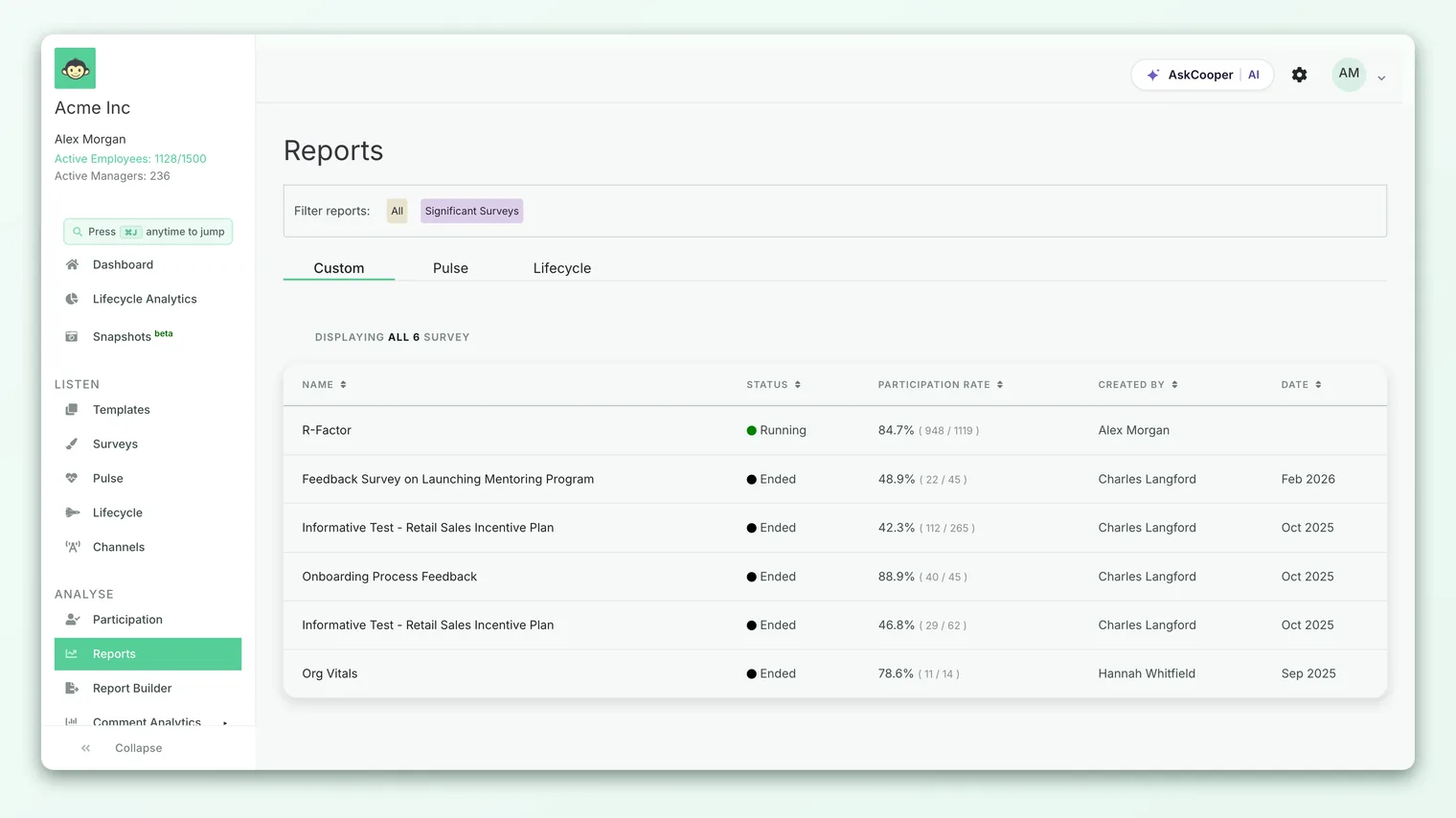
On a survey report. Open a survey's report, then open the share and export menu in the top-right. Near the export options you'll find two entries, each marked beta:
- Export Comments - downloads the open comments collected in that survey.
- Export Free Text Responses - downloads the answers to that survey's standalone open-ended questions.
Both buttons appear only when the survey has ended (they're hidden while a survey is still live) and they're not shown for autopilot pulse reports. If you don't see them at all, they may not be switched on for your account; see Enable report exports.
In the Feedback section. Under Analyse, the Feedback area lists every comment across surveys. At the top of the list is a Download Comments button. Whichever view you're in (open comments, or the question-comments and free-text view) determines what the button exports: it downloads all the comments currently in that view, respecting any filters you've applied.
The report-level exports produce a CSV file, emailed to you. The Feedback-section Download Comments button produces an Excel (.xls) workbook. The columns overlap heavily, but if you specifically need CSV, start from the report; if you want everything across surveys in one spreadsheet with separate tabs, use the Feedback section.
How an export is delivered
Text exports can be large, so CultureMonkey builds them in the background rather than making you wait on the page.
- 1Click the export button - Export Comments, Export Free Text Responses, or Download Comments.
- 2See the confirmation - a message tells you the report is being generated and will be emailed to you shortly.
- 3Wait for the email - the finished file arrives by email, usually within a few minutes. If it hasn't arrived in about 30 minutes, check your spam folder.
- 4Only one at a time - while a given export is still processing, its button is disabled and shows an "In Processing" state so you don't queue duplicates.
Because the file is emailed to the person who requested it, treat that inbox as sensitive: the export can contain employee feedback and demographic context.
What's in the file: columns and metadata
Every text export is a table with one row per comment or response. The exact columns depend on which export you ran and on your account's settings, but the core is consistent.
For the Export Free Text Responses CSV, each row includes:
| Column | What it holds |
|---|---|
| Free Text Response | The text the employee wrote |
| Translated Response | An English translation, if translation is enabled and a translation exists |
| Driver | The engagement driver the response maps to |
| Question | The question that was asked |
| Sentiment | Positive, Neutral, or Negative (see below) |
| Created On | When the response was submitted |
| Demographic columns | Team, Manager, Manager ID, Location, Business Unit, and any custom attributes your account includes |
The Export Comments CSV is very similar, with an Open Feedback column in place of the free-text one and no separate Question column.
The Feedback-section Download Comments workbook is richer. The open-comments tab carries a Feedback ID, the comment, the survey name, the Driver, Sentiment, Created On, and the demographic columns your account exposes (Team, Manager, Manager ID, Location, Business Unit, Business Group, Sub Team, Gender). When you download from the question-comments and free-text view, you also get the Question, the Question Driver, and the Comment Driver so you can see both what was asked and how the note itself was categorized.
The standard attributes that appear (Team, Manager, Location, Business Unit, and so on) and any custom attributes are controlled at the account level by which fields are marked for inclusion in text-feedback downloads. If a column you expect is missing, an admin can adjust which attributes are included. See Enable report exports.
Is sentiment included?
Yes. Every text export carries a Sentiment column, so you don't have to re-run any analysis of your own to sort feedback by tone.
CultureMonkey scores each comment automatically and buckets it into one of three labels:
| Label | Meaning |
|---|---|
| Positive | The comment reads as favorable |
| Neutral | Mixed, factual, or without clear tone |
| Negative | The comment reads as critical or unhappy |
This is the same sentiment you see on the feedback cards inside the product, exported as plain text so you can filter or pivot on it in a spreadsheet. A comment that couldn't be scored (for example, very short or ambiguous text) is treated as Neutral.
Sentiment is a helpful first pass, not a verdict. Automated scoring occasionally misreads sarcasm, mixed messages, or domain-specific language, so use the label to triage a large export and always read the actual words before drawing conclusions.
How anonymity is protected in the export
An export must never let someone identify an individual from a comment plus its demographics. CultureMonkey applies the same anonymity rules to a download that it applies on screen.
Small groups are masked. For each demographic dimension, if the number of respondents in a group falls below your survey's minimum-answers threshold, that group's value is replaced with a tilde (~) in the file. So a comment from a two-person team won't show that team's name; it shows ~ instead. This means a row can be fully anonymized on some columns while still showing the comment and its sentiment.
Combinational anonymity (optional). Some accounts enable a stricter mode for free-text and open-comment exports. Instead of checking each attribute on its own, it looks at the combination of the demographic columns you've chosen to include, and drops any row whose combination is shared by fewer people than the threshold. This closes the gap where several individually-safe attributes could, together, single someone out. When this mode is on, a response with no safe demographic grouping is left out of the file entirely rather than partially masked.
Downloading does not "unlock" hidden data. The masking and minimum-group rules are applied while the file is built, so an export can never reveal something the on-screen report would hide. If a comment's demographics look blank or show ~, that's the threshold protecting a small group, not a bug.
Access still applies. The export respects who you are. A manager or restricted admin only exports the feedback they're allowed to see, filtered by their scope, rather than the whole organization's comments.
For more on why results (and rows) can be withheld, see Why can't I see results yet?.
A worked example
Say you've just closed an engagement survey and want to hand your leadership team the raw voice-of-employee.
- Open the survey's report and, from the export menu, click Export Free Text Responses for the open-ended questions and Export Comments for the rating-question notes.
- You get the confirmation message and, a few minutes later, two CSV files by email.
- Open the free-text CSV. You sort by the Sentiment column to read the Negative rows first, then group by Driver to see which themes (say, Recognition or Workload) attract the most comments.
- You notice several rows where Team shows
~. Those came from teams too small to name safely; the comment and its sentiment are still there, just without the identifying label. - You share the file with a leader, reminding them it's confidential and that the masked rows must stay masked.
That loop - export, sort by sentiment, group by driver, respect the masking - is the fastest way to turn a wall of comments into a short list of themes to act on.
Best practices
- Export after the survey ends. The report-level buttons appear only for ended surveys, and a closed dataset is cleaner to analyze than a moving one.
- Lead with sentiment, then read the words. Use the Sentiment column to triage, but never let the label replace reading the comment.
- Group by driver. The Driver column turns a flat list into themes, which is far more actionable than raw text.
- Mind the masked rows. Treat
~and dropped rows as a feature. Never try to re-identify a masked respondent from other columns. - Handle the file like the sensitive document it is. It contains employee feedback and demographics. Store it securely, share it narrowly, and delete copies you no longer need.
Frequently asked questions
What's the difference between Export Comments and Export Free Text Responses?
Export Comments downloads open comments - the notes attached to rating questions and general feedback. Export Free Text Responses downloads answers to standalone open-ended questions. They're separate buttons because the data sits in different places and the columns differ slightly (free-text responses carry a Question column).
Will the export show me who wrote each comment?
No. CultureMonkey exports never include names for anonymous feedback. Demographic columns are included only where the group is large enough to stay anonymous; smaller groups are masked with ~, and stricter accounts drop rows that can't be safely grouped.
Does the file include a sentiment score?
It includes a sentiment label - Positive, Neutral, or Negative - for every row, matching what you see on the feedback cards in the app. Anything that couldn't be scored is labeled Neutral.
Why did I get an email instead of an instant download?
CultureMonkey builds text exports in the background so large surveys don't time out. The finished file is emailed to you, usually within a few minutes. If it's been longer than 30 minutes, check your spam folder.
I don't see the export buttons on my report. Why?
The buttons appear only when the survey has ended and isn't an autopilot pulse, and they can be turned off at the account level. If they're missing, an admin may need to enable them; see Enable report exports.
Can I choose which demographic columns appear?
Not per-export, but the set of standard and custom attributes included in text downloads is configurable at the account level. Ask an admin to adjust which attributes are included if a column is missing or one you'd rather exclude keeps appearing.
Where to go next
- Read feedback inside the app first: Read free-text responses
- Turn the buttons on (or adjust columns): Enable report exports
- A comment or column is hidden? Why can't I see results yet?
Your feedback helps us improve the Help Center.