

Export from the Insights tab
Every export on the Insights tab: Export all as an Excel workbook, CSV files, a summary CSV or an image of the page, plus each card's own export, which filters carry into the file, and what Sub Admins can download.
On this page
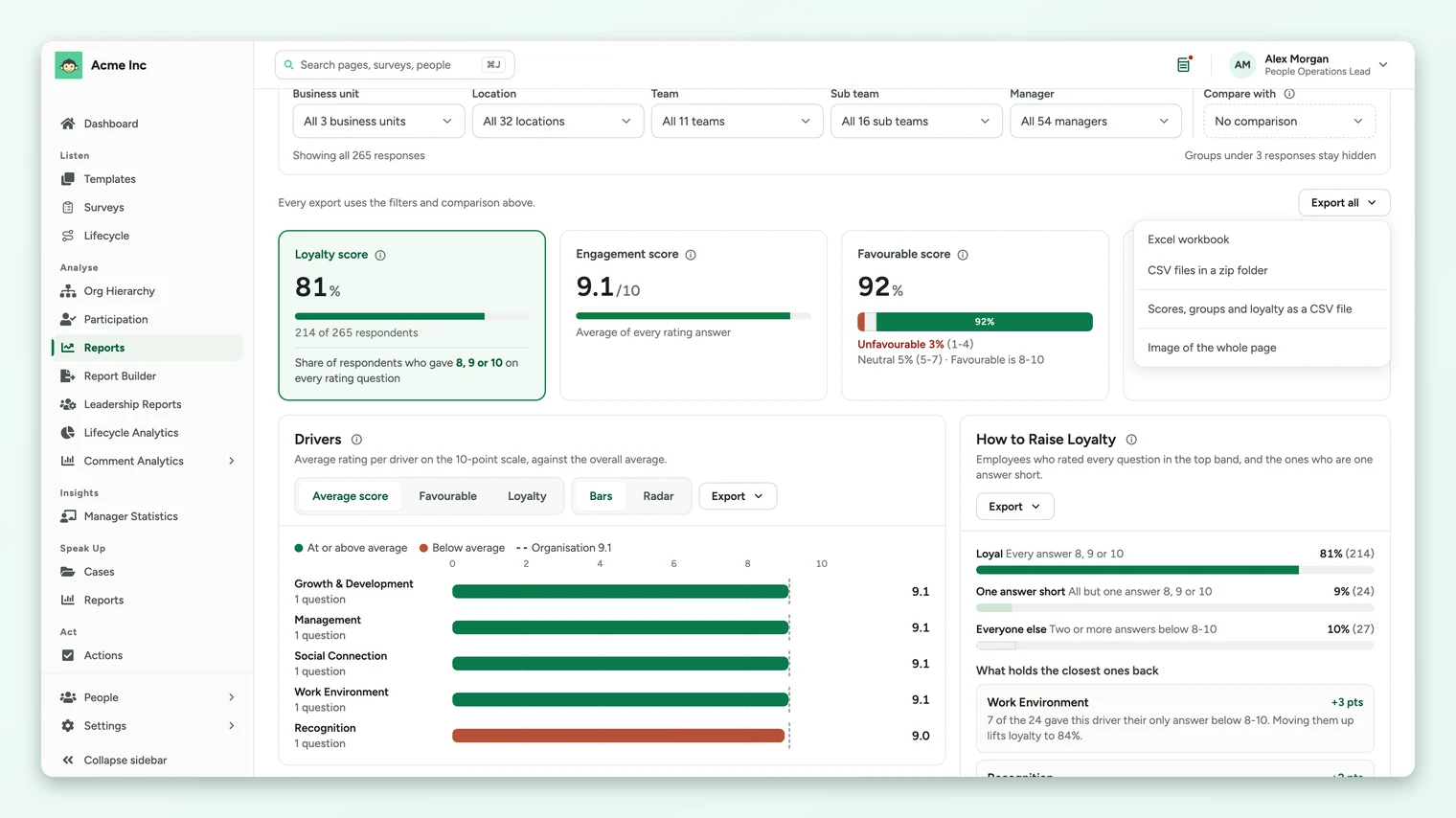
Everything on the Insights tab can be downloaded: the whole page at once from Export all, or one card at a time from that card's Export menu. Every export uses the filters and comparison you've set, as the line above the cards reminds you: Every export uses the filters and comparison above.
Set your filters and comparison first, then use Export all for the whole page or a card's Export for one part. Super Admins get Excel workbooks, CSV files and images. Sub Admins get images and the summary and group table CSV files. Groups below the anonymity minimum are left out of every file.
Export the whole page
Select Export all above the headline cards.
| Option | What you get |
|---|---|
| Excel workbook | One workbook with the drivers and the answer distribution by section, question and driver. |
| CSV files in a zip folder | The same tables as separate CSV files, zipped. |
| Scores and groups as a CSV file | The headline numbers and every group table in one CSV file. Called Scores, groups and loyalty when the loyalty score is on, and then includes loyalty. |
| Image of the whole page | A PNG of everything on the page as you see it. |
Export one card
| Card | Export options |
|---|---|
| Drivers | Excel workbook, CSV file, Image of this chart. |
| Answer Distribution | Excel workbook or CSV file for the view you're on (by section, question or driver), Image of this chart. |
| How to Raise Loyalty | Loyalty detail as a CSV file, Image of this card. |
| Scores by Group | The current tab's table as a CSV file, Every group table as a CSV file, Image of this table. |
What carries into the file
- Filters: every group you've picked in the filter bar. The file covers exactly what the page shows.
- Comparison: the survey picked under Compare with, where the export includes comparison figures.
- Anonymity: groups below the survey's minimum are left out, as they are on the page.
- File names start with insights_survey_, the survey's number and the part exported, so files from different surveys don't overwrite each other.
Set up the exact view you want leadership to see, such as one business unit compared with the last wave, then use Image of the whole page. It drops straight into a slide.
What Sub Admins can export
Sub Admins with access to the Insights tab can download images of the page and of each card, and the CSV files of the summary and group tables. The Excel workbook and the chart CSV files are for Super Admins. Everything a Sub Admin exports covers only the people in their access.
If an export doesn't work
- Image couldn't be created: try again. If it keeps failing, use the Excel or CSV export instead.
- The menu has no Excel option: you're signed in as a Sub Admin. Ask a Super Admin for the workbook.
- The file has fewer groups than you expected: groups below the anonymity minimum are left out, and so are groups outside your filters.
Your feedback helps us improve the Help Center.