

Generate an executive summary
How to produce a leadership-ready executive summary of a survey in CultureMonkey - where the option lives, what the report includes (scores, drivers, eNPS, bright spots and priorities), the PDF and DOCX formats, and how the report is generated and delivered.
On this page
The executive summary is a single, leadership-ready document that distills an entire survey into the handful of things a busy leader actually needs: how many people responded, the overall engagement score, the eNPS, the strongest and weakest engagement drivers, the teams and managers to celebrate, and the specific areas to focus on next. Instead of sending your leadership team into the full report to piece the story together, you generate one clean summary and share it.
This guide covers where to find the option, exactly what the summary includes, the two formats it comes in (PDF and DOCX), and how generation and delivery work behind the scenes so you know what to expect after you click.
Open a finished survey's report, use the export menu, and choose Export Executive Summary. CultureMonkey builds a consolidated summary of participation, scores, drivers, eNPS, bright spots and priorities, then emails you a link when it's ready. It's available as a PDF or a DOCX, and today it's a super-admin, beta feature.
What the executive summary is for
Your full survey report is deep by design. It has driver breakdowns, demographic slices, question-level scores, feedback, and trends. That depth is exactly what you want when you're diagnosing an issue, but it's more than a leadership team needs in a board pack or a quarterly review.
The executive summary solves that. It answers a leader's core questions in one pass:
- Did people show up? Participation rate, response count, and where drop-off happened.
- How are we doing overall? The headline engagement score and the eNPS.
- What's working and what isn't? The best and worst engagement drivers.
- Who should we learn from, and who needs support? The highest-performing teams and managers, and the ones to prioritize.
Because it's generated straight from the same data as your report, the numbers match your report exactly. It's a summary of the truth, not a separate re-interpretation of it.
Before you start
A few conditions have to be met before the option appears:
- The survey must have ended. The executive summary is built on final results, so the option only shows once the survey has closed. If your survey is still collecting responses, you'll need to wait until it ends (or extend and then close it) before generating the summary.
- The feature must be enabled for your account. The executive summary is controlled by an account setting. If you don't see the option on a finished survey, it may not be turned on for your workspace yet. It's currently a beta feature, so it isn't on by default everywhere.
- You need super-admin access. Generating the executive summary is a super-admin action today. Managers and sub-admins won't see the option, even on a closed survey.
The executive summary carries a beta label in the product. It's fully usable, but the design and contents are still evolving, so exact layout may change between releases. The underlying numbers (scores, participation, eNPS) are the same trusted figures you see elsewhere in the report.
Where to find it
The executive summary lives in the export menu of a survey report, alongside your other exports.
- 1Open the survey report - go to Analyse > Reports, then open the report for the finished survey you want to summarize. If you're not sure how, see View the report summary.
- 2Open the export menu - use the export or share control at the top right of the report to open the list of export options.
- 3Choose Export Executive Summary - pick the PDF option, or the DOCX option if your account has the editable format enabled. Both sit in the same menu.
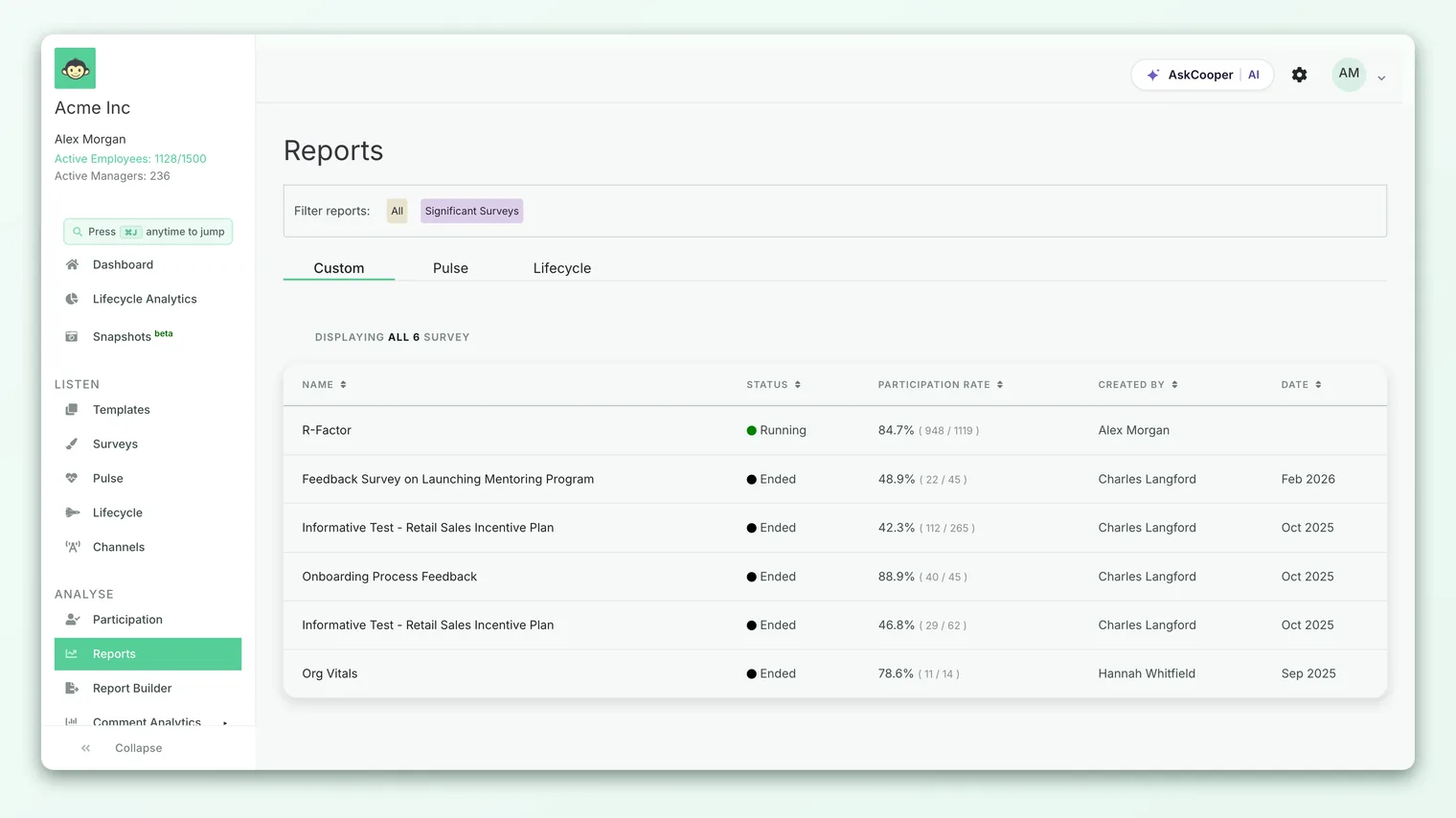
If the survey has ended and the feature is on but you still don't see the option, check that you're signed in with a super-admin account, and that the survey isn't an autopilot (recurring lifecycle) survey, since the option is scoped to standard closed surveys.
What's inside the summary
The executive summary is assembled from the survey's final data and is organized around the questions leaders ask. The contents draw from the same engine that powers your report, so everything is anonymity-safe (more on that below). At a high level, the summary covers:
| Section | What it tells you |
|---|---|
| Participation | Response count, participation rate, the number added to the survey, and how many clicked the link but didn't finish |
| Overall engagement | The headline engagement score for the survey, plus the distribution of ratings behind it |
| eNPS | Your Employee Net Promoter Score with the promoter, passive and detractor split (only when eNPS was part of the survey) |
| Drivers | Every engagement driver ranked by score, so the strongest and weakest stand out |
| Questions | The highest-rated and lowest-rated questions in the survey |
| Bright spots | The genuinely high-performing teams and managers worth learning from |
| Priorities | The lowest-scoring drivers, each paired with the specific teams and managers to start with |
A few things are worth calling out.
Bright spots are genuinely strong, not just "least bad." A team is only listed as a bright spot if its score clears a healthy threshold. A team that merely survived the anonymity filter but scored poorly won't be celebrated. This keeps the "learn from these" list honest.
Priorities are actionable, not abstract. Rather than only telling you "this driver is low," the summary pairs each of the lowest-scoring drivers with the teams and managers scoring lowest on it. That turns a headline problem into a concrete "start here" list.
eNPS appears only when it was asked. If the survey didn't include the eNPS question, the eNPS section is simply left out rather than shown as empty. To understand how the number itself is derived, see What is eNPS and how is it calculated?.
The summary is deliberately ordered as a narrative: how many people responded, how they feel overall, what's driving that, who's doing well, and where to focus. Read it in order and you have the whole survey story in a couple of minutes.
PDF or DOCX
The executive summary comes in two formats, and which ones you see depends on what's enabled for your account:
| DOCX | ||
|---|---|---|
| Best for | Sharing and presenting as-is | Editing, adding commentary, pasting into a deck |
| Editable | No, it's a fixed document | Yes, it opens in Word or Google Docs |
| Typical use | Board packs, leadership readouts, archiving | Building a narrative, tailoring wording for your audience |
The PDF is the polished, ready-to-share version. The DOCX gives you the same content in an editable document so you can add context, trim sections, or fold it into a larger write-up before sharing. If both are enabled, you'll see two entries in the export menu, one for each format. If only one is enabled, you'll see just that one.
Both are generated from the same underlying data, so the figures are identical. The choice is purely about whether you want a finished document (PDF) or an editable one (DOCX).
How generation and delivery work
Producing the executive summary is not instant, and that's by design. Pulling every driver, demographic split, eNPS breakdown and priority list together is real work, so CultureMonkey does it in the background rather than making you wait on the page.
Here's the flow after you click:
- 1You trigger the export - selecting Export Executive Summary kicks off a background job and returns you to the report summary page.
- 2You see a confirmation - a message confirms the summary is being generated and will be emailed to you shortly. While it's running, the menu option shows an In Processing state so you don't accidentally trigger it twice.
- 3CultureMonkey builds the document - the summary is rendered in the chosen format. The PDF is produced through the reporting service; the DOCX is generated and stored for reuse.
- 4You get an email with a link - when it's ready, CultureMonkey emails the download link to the account that triggered it. The email goes to you, the person who requested it.
- 5The link is saved on the survey - once generated, the download link is retained, so returning to the export menu later gives you a direct link instead of regenerating from scratch.
Generation usually completes within a few minutes. If you don't receive the email within 30 minutes, check your spam or junk folder first. If it still hasn't arrived, reach out to support@culturemonkey.io and mention the survey name.
Because the finished file's link is stored on the survey, the second time you open the export menu for that survey you'll typically get an immediate download rather than a fresh build. If you need a truly fresh version after data has changed, contact support so the cached version can be cleared.
Anonymity and small groups
The executive summary respects the same anonymity thresholds as the rest of CultureMonkey. Teams and managers only appear in the bright spots and priorities if their group is large enough to report on safely. Groups below the threshold are filtered out before the summary is assembled, so no individual's answers can be inferred from a small team's score.
This has a practical implication: in a small survey, or one spread thinly across many teams, the bright-spots and priorities sections may be short or, in an extreme case, empty. That's expected, not a fault. It means there weren't enough responses in any single group to report on without risking anonymity. The overall score, participation and eNPS will still be present as long as the survey as a whole cleared the threshold. For more on why results can be hidden, the same rules described in your report summary apply.
Best practices
- Generate it once the survey has fully closed. Since the summary is built on final data, waiting until the survey ends means the numbers won't shift underneath you.
- Pair it with a short verbal readout. The summary gives leaders the "what." Use your two minutes with them to add the "so what" and the "now what," pointing to the priorities section.
- Use DOCX when you need to add narrative. If you're building a leadership deck or a board memo, start from the DOCX so you can weave the numbers into your own words rather than screenshotting the PDF.
- Act on the priorities, then re-measure. The priorities section is a ready-made action list. Turn the lowest drivers into owned action plans, then compare the next survey's summary to see whether the picture improved.
- Keep the PDF for the record. Archiving the PDF alongside your survey gives you a clean point-in-time snapshot you can look back on cycle over cycle.
Frequently asked questions
Why can't I see the Export Executive Summary option?
Three things gate it. The survey must have ended, the feature must be enabled for your account, and you must be signed in as a super admin. If all three are true and you still don't see it, the survey may be an autopilot/lifecycle survey, which is out of scope for this export. An account admin can review your export settings.
Is the executive summary different from the report summary?
Yes. The report summary is the on-screen overview you read inside the app. The executive summary is a generated, shareable document (PDF or DOCX) built for leadership, with bright spots and priorities called out. They draw on the same data.
Will the numbers match my full report?
Yes. CultureMonkey generates the summary from the same survey data and the same scoring engine as your report, so participation, engagement score, eNPS and driver scores are identical to what you see elsewhere. It's a distillation, not a re-calculation.
Can I edit the summary before sharing it?
Use the DOCX format if it's enabled for your account. It opens in Word or Google Docs, so you can add commentary, trim sections, or paste it into a larger document. The PDF is fixed and meant to be shared as-is.
How long does it take to generate?
Usually a few minutes. It runs in the background and CultureMonkey emails you a link when it's done. If nothing arrives within 30 minutes, check spam and then contact support@culturemonkey.io.
Does it include open-text feedback?
The executive summary focuses on the scored story - participation, engagement, eNPS, drivers, bright spots and priorities - rather than reproducing raw comments. To read individual feedback, open the full report. To see the aggregate feedback picture, review the report summary.
Where to go next
- Prefer a full report file? Export a report as PDF
- Want the on-screen overview? View the report summary
- Curious what each section measures? What the report sections mean
- Ready to act on the priorities? Create an action plan
Your feedback helps us improve the Help Center.