

Continue and track feedback conversations
How to manage ongoing anonymous conversations in CultureMonkey - where to find them, how to reply, how the open and resolved statuses work, how notifications keep both sides in sync, and how to close the loop.
On this page
Starting an anonymous conversation is only the first step. The real value comes from what happens next: an employee replies, you respond, and over a few exchanges you actually resolve whatever prompted the feedback. This guide is about that ongoing part - where your live conversations live, how to reply, what the open and resolved statuses mean, how notifications keep both sides in the loop, and how to close a conversation cleanly when it's done.
If you haven't opened a conversation yet, start with Start a conversation from feedback. This article picks up from the moment a thread exists.
Every reply you send lands in the same anonymous thread the employee sees, and both sides stay anonymous throughout. A conversation is open until you mark it Resolved. While it's open, either side can keep replying, and CultureMonkey emails the other party when a new message arrives and they're not already looking at the chat. Resolving a thread closes the loop and locks it so no further messages can be sent.
How an ongoing conversation works
When you first reply to a piece of feedback, CultureMonkey does three things behind the scenes. It saves your message to the thread, it generates a private access key that gives the (still anonymous) employee a secure link to their side of the chat, and it emails that employee to let them know their feedback has been answered.
From then on the conversation is a two-sided thread. Your messages and the employee's messages are stored together against the same feedback item, ordered oldest to newest. Neither side ever sees the other's identity: the employee sees your messages labeled as coming from an admin, and you see theirs labeled as left "by employee, anonymously." That anonymity is the whole point, and it holds at every stage of the exchange.
Because the thread is anchored to a single feedback item, everything you already know about that feedback (its sentiment, drivers, source survey, and any demographic context you're allowed to see) stays attached to the conversation. You're never replying into a vacuum.
Where your conversations live
Conversations don't have a separate top-level menu. They live right alongside the feedback that started them, under Analyse > Feedback. That's deliberate: a conversation is a continuation of a specific comment, so it stays attached to that comment in the list.
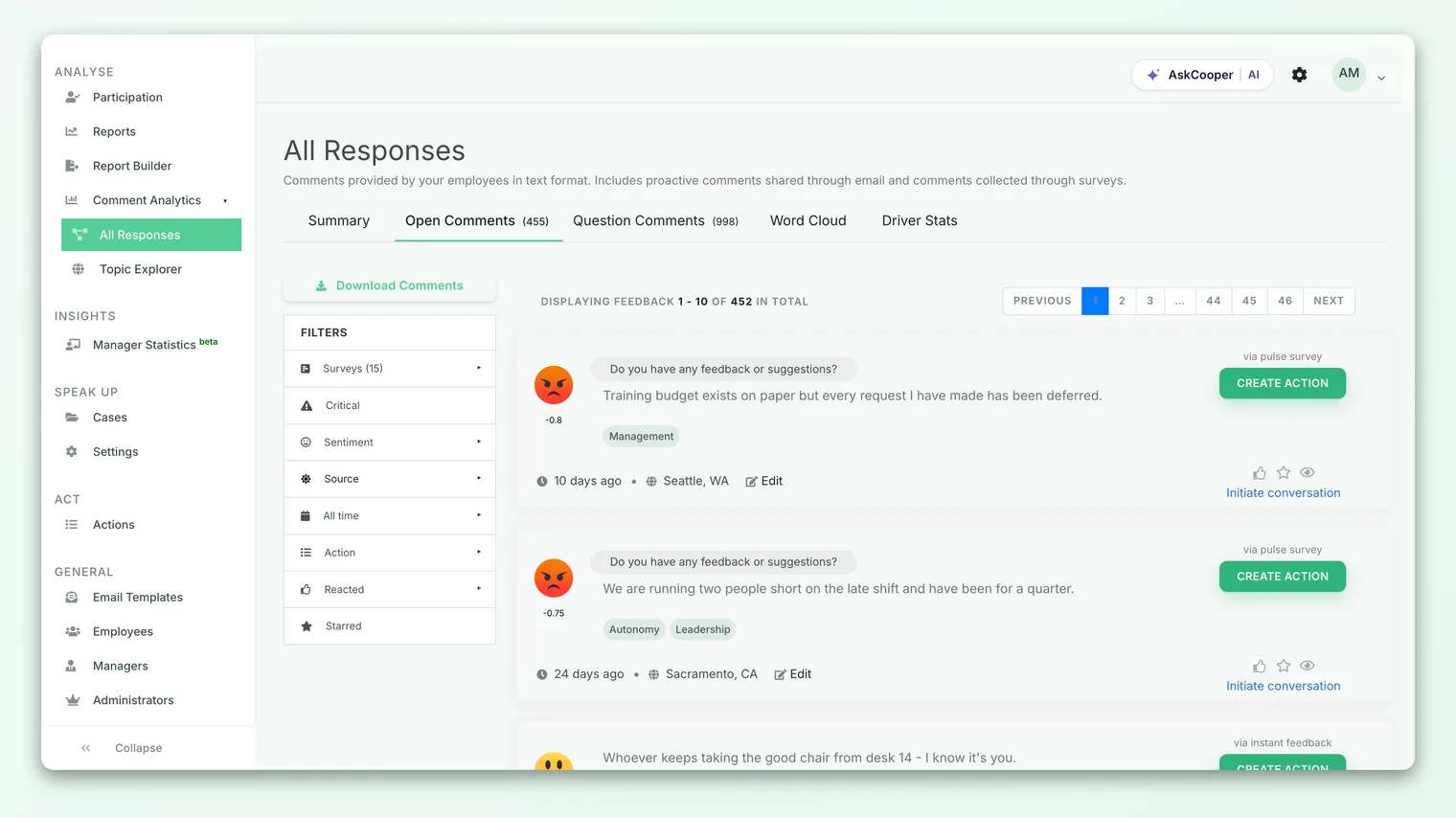
On every feedback card, look at the action row. If no conversation exists yet, you'll see an Initiate conversation link. Once a thread has at least one message, that link changes to View messages with a running count, for example View messages(3). Clicking it opens the full conversation in a new tab.
Two badges on the card tell you the state of a thread without having to open it:
- Employee Responded appears (and links straight to the thread) as soon as the employee has replied at least once. This is your cue that someone is waiting on you.
- Resolved appears once the conversation has been closed.
To narrow the list down, use the filters in the feedback side navigation. Starred is a handy way to bookmark feedback you're actively working through, so the threads you care about are one click away.
There's no dedicated "my open conversations" view, so star the feedback items you've opened conversations on. Combined with the Employee Responded badge, starring gives you a fast, reliable way to keep track of what still needs your attention.
Opening a conversation to reply
Click View messages on any feedback card that already has a thread. The conversation view opens with the full history at the top and a reply box at the bottom.
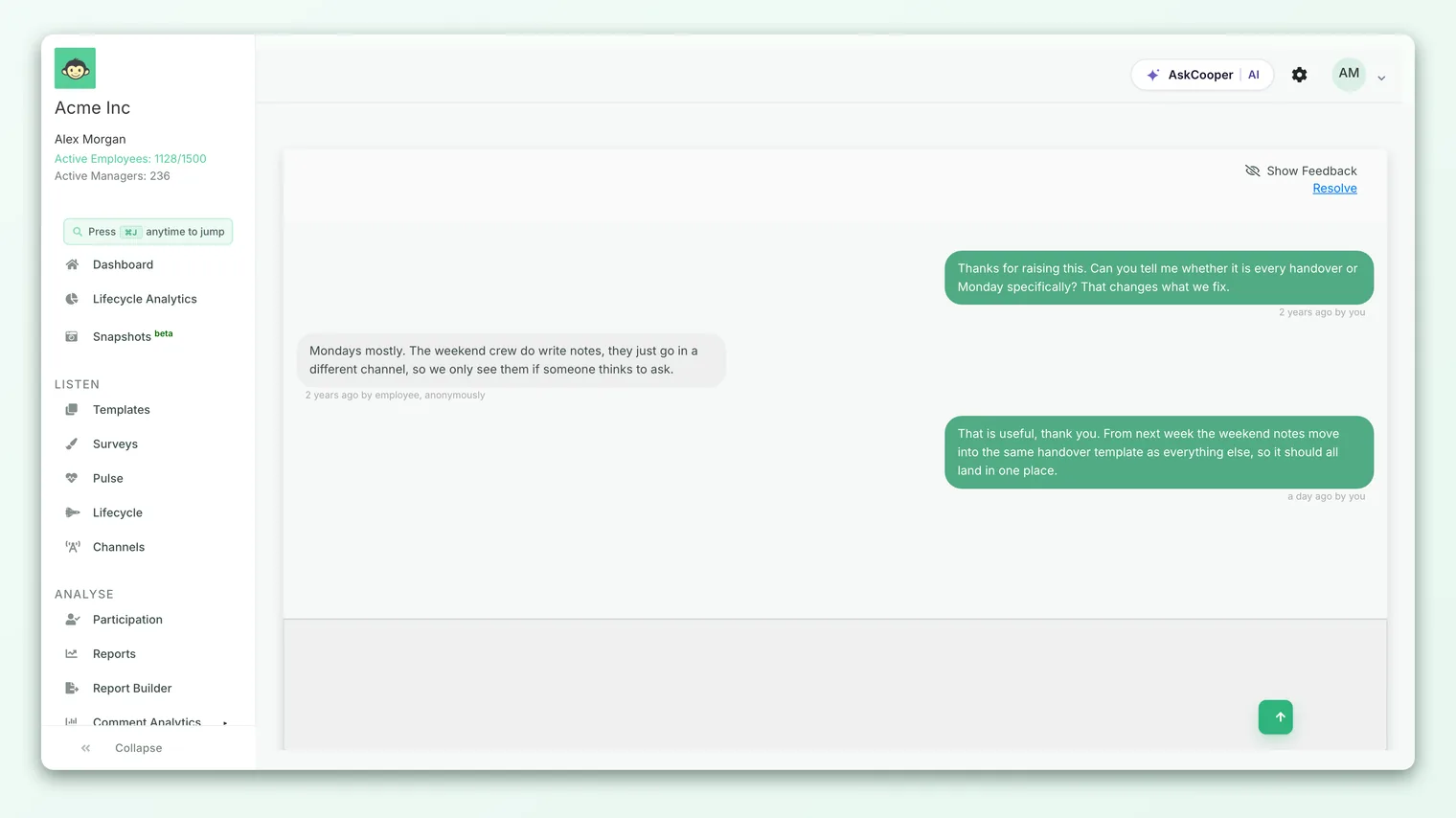
A few things to know about this view:
- The original feedback is hidden by default. There's a Show Feedback toggle at the top so you can pull the original comment back into view when you need the context, then tuck it away again.
- Every message is timestamped. Your messages are marked "by you" and the employee's are marked "by employee, anonymously," so it's always clear who said what without breaking anonymity.
- New replies appear live. The conversation uses a real-time channel, so if the employee replies while you have the thread open, their message shows up without a page refresh.
Sending a reply
Replying is as simple as typing in the box at the bottom of the conversation and sending.
- 1Open the thread - from the Feedback page, click View messages on the relevant card.
- 2Read the history - scroll the thread to catch up. Use Show Feedback if you need to re-read the original comment.
- 3Type your reply - write your message in the reply box. Keep the tone human and specific; the employee took a risk in speaking up, so acknowledge it.
- 4Send - click the send button (the upward arrow). Your message is added to the thread immediately and the employee is notified.
Your reply is delivered to the employee's private conversation link, the same anonymous link they received by email. They can respond whenever they like, and their reply comes straight back into this thread.
Anonymity is a promise, not a setting you can bend mid-conversation. Avoid asking questions that would out the employee ("which team are you on?", "who's your manager?"). If you genuinely can't help without more detail, ask them to share only what they're comfortable sharing, and make clear they're under no obligation.
Statuses: open vs resolved
A conversation has two states, and understanding them is the key to managing your queue well.
| Status | What it means | Can either side reply? | How it's set |
|---|---|---|---|
| Open | The conversation is active. This is the default from the moment the thread is created. | Yes - both you and the employee can send messages. | Automatic when the first message is sent. |
| Resolved | The conversation is closed. The issue has been addressed or the exchange has run its course. | No - the reply box is disabled for both sides. | You mark it resolved from the conversation view. |
An open conversation stays open indefinitely until you close it. There's no auto-timeout: a thread can sit quietly for weeks and still accept a new reply. That's useful, because some issues take time to work through.
Resolving is a one-way action from the interface. When you mark a thread resolved, the reply box is disabled and a RESOLVED badge appears in the conversation view, matching the Resolved badge on the feedback card. There's no in-app "reopen" button, so treat resolving as a deliberate "we're done here" step rather than a way to tidy your list.
Marking a conversation resolved genuinely disables sending for both you and the employee. It's the clean way to signal the exchange is complete, so don't resolve a thread while you're still expecting a reply.
How notifications keep both sides in sync
You don't have to sit and watch the Feedback page. CultureMonkey handles the back-and-forth with email notifications, and it's reasonably smart about when to send them.
- When you reply, the employee gets an email nudging them back to their private conversation link, provided they aren't already active in the chat.
- When the employee replies, you get an email letting you know there's a new message waiting in the conversation.
- Notifications are suppressed when the recipient is already online in the thread. If someone is actively looking at the conversation, there's no point emailing them, so CultureMonkey holds off. This is why you'll sometimes see a message appear live without a matching email.
The very first reply is a special case: when you open a conversation, the employee receives a "your feedback has been answered" email that carries their secure link. After that, ongoing messages use the standard "new message" notifications described above.
Email nudges are a safety net, not a guarantee of instant attention. For feedback you consider important, star it and check back on the thread yourself rather than waiting for an email to prompt you.
Closing the loop well
The point of a conversation isn't to reply once and move on. It's to make the employee feel genuinely heard and, where you can, to show that something is changing. A few practices make the difference:
- 1Acknowledge before you solve. Your first reply should make it clear you read and understood the feedback, even if you don't have an answer yet. "Thank you for raising this, it matters" goes a long way.
- 2Be honest about what you can and can't do. If something is outside your control, say so. Employees respect candor far more than vague reassurance.
- 3Turn recurring issues into action. If a conversation surfaces a real, systemic problem, create an action plan so the fix is tracked and owned. See Create an action from feedback.
- 4Resolve only when it's truly done. Once you've addressed the issue and the employee has nothing more to add, mark the thread Resolved. This is your explicit "we've closed the loop" signal.
Done consistently, this loop is one of the strongest levers you have on engagement. Employees who see their anonymous feedback taken seriously, replied to, and acted on are far more likely to keep speaking up, and far more likely to recommend the workplace to others.
Who can see and manage conversations
By default, admins who can access reactions and feedback can start and continue conversations. On some accounts this capability is narrowed: settings exist to hide the Initiate conversation control from sub-admins and from managers, so that only full admins carry conversations forward. If you're a sub-admin or manager and don't see the conversation controls on feedback cards, that capability has likely been turned off for your role.
Whatever your role, anonymity is never affected by who's replying. The employee's identity stays hidden from everyone on the admin side at every step.
Frequently asked questions
How do I find conversations that are waiting on my reply?
Look for the Employee Responded badge on feedback cards in the Analyse > Feedback list. It appears as soon as the employee has replied and links straight into the thread. Starring the feedback you've opened conversations on makes these even easier to track.
Can I reopen a conversation after resolving it?
CultureMonkey has no in-app button to reopen a resolved thread; resolving disables the reply box for both sides. Treat marking a conversation Resolved as a deliberate, final step, and only do it once you're confident the exchange is complete.
Will the employee know who I am?
No. Anonymity is protected at every stage. The employee sees your messages as coming from an admin, and you see theirs as left anonymously. Avoid asking anything that could identify them.
Do I get notified every time the employee replies?
CultureMonkey emails you when a new message arrives and you're not already active in the conversation. If you happen to have the thread open when they reply, the message appears live and no email is sent, since you've clearly already seen it.
Where do conversations show up - is there a separate inbox?
There's no separate conversations inbox. Threads live on the feedback cards themselves under Analyse > Feedback, where the View messages link, the message count, and the status badges all sit together.
What happens to the original feedback while we're chatting?
Nothing changes about it. The conversation is anchored to that feedback item, so its sentiment, drivers, and context stay attached. In the conversation view the original comment is hidden by default; use Show Feedback to bring it back when you need the context.
Where to go next
- Just getting started with a thread? Start a conversation from feedback
- Want the fuller picture behind the comments? Read free-text responses
- Ready to fix a systemic issue? Create an action from feedback
Your feedback helps us improve the Help Center.