

Filter your reports by team or location
How to narrow the list of people who report to you by direct or indirect reporting line, search, and sortable team and location columns, so you can focus on one group at a time.
On this page
When you have more than a handful of people reporting to you, "my team" stops being one thing. You have your direct reports, the people who report to them, and often several sub-teams spread across different offices. The full list is useful for a headcount, but most of the time you want to look at just one slice of it: only your direct reports, only the people in one location, or only one sub-team you are worried about.
This guide covers how to narrow the reportee list on your manager dashboard so you can focus on one group at a time. You will learn the difference between the direct and indirect views, how to search the list, and how to use the sortable Team and Location columns to bring one group together. It is a short, practical feature, so this is a short, practical guide.
Your CultureMonkey manager dashboard shows two reportee lists: Direct Reports (the people who report straight to you) and Indirect Reports (everyone in your reporting line, including their reports). Open either one, then narrow it with the search box (by name, employee ID, email, or phone) and by sorting the Team, Location, or Reporting To columns. Sorting brings everyone in a team or office together so you can read them as a group. You can download the filtered list at any point.
Direct vs indirect: your two starting views
Before you narrow anything, you choose which population you are looking at. Your dashboard gives you two tiles at the top, and each one opens its own list.
Direct Reports are the people who report straight to you, with no one in between. If you manage a team of eight, this is those eight people. This is the view you want for anything that is genuinely yours day to day: one-on-ones, your immediate team's engagement, who reports to you personally.
Indirect Reports are everyone in your reporting line, all the way down. It includes your direct reports plus the people who report to them, and so on down the tree. If you are a senior manager with team leads under you, this is your whole org: the leads and all of their people. This is the view you want when you are thinking about the wider group rather than just your immediate circle.
Each tile shows a count in the form active / total, so at a glance you can see how many of your reportees are currently active employees versus the full number on record. Choosing between these two views is the first and biggest filter you apply, because it decides whether you are looking at your immediate team or your entire reporting line.
"Direct Reports" and "Indirect Reports" are the default labels, but your organization may call them something else. An Account Admin can rename them to match your internal terminology, so you might see "My team" and "My org," or similar. The behavior is the same whatever they are called. See Customize your direct and indirect reportee labels.
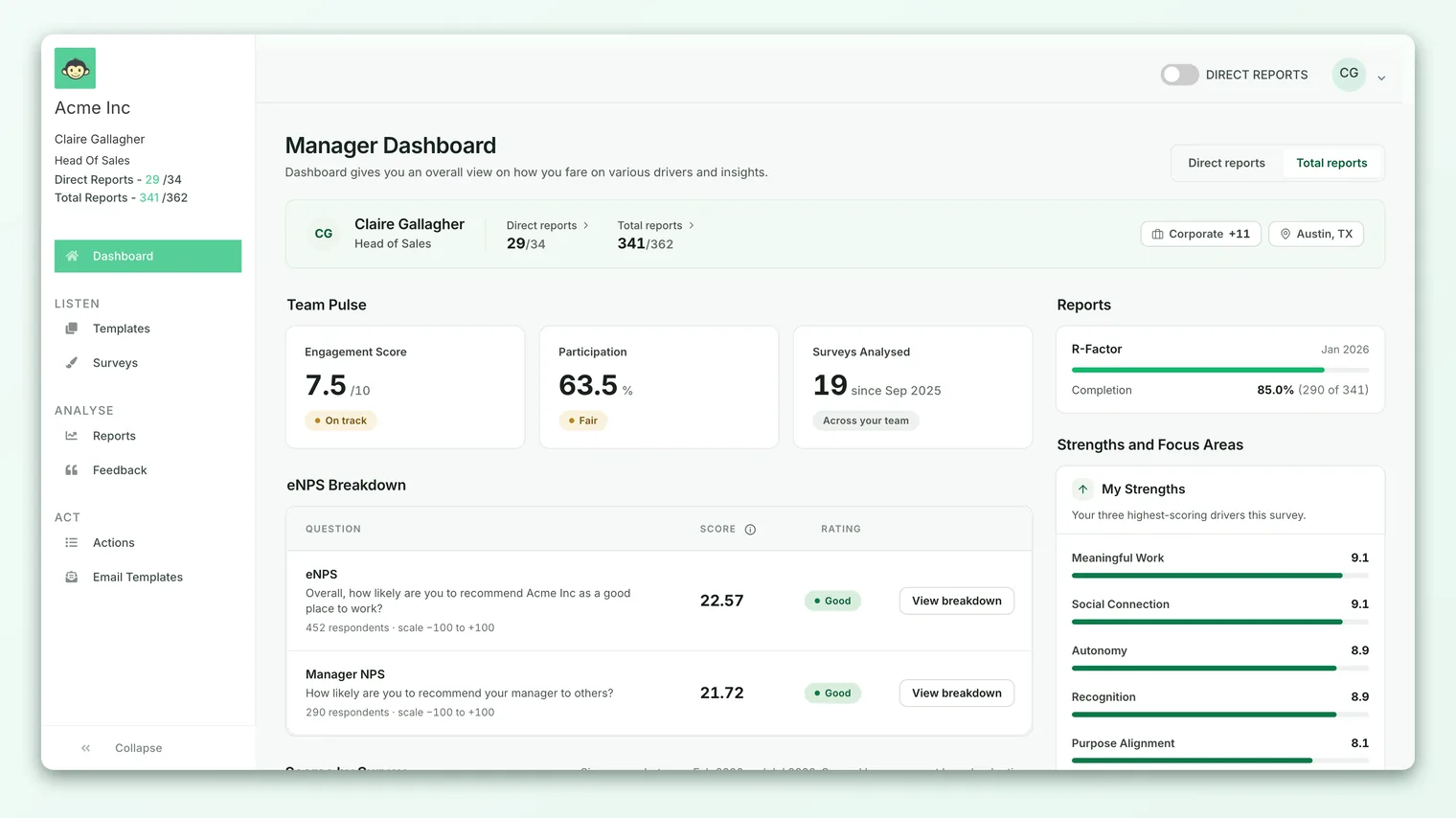
Opening a reportee list
Getting to the list you want to narrow takes one click.
- 1Go to your dashboard - open /manager-dashboard, the home screen you land on as a manager.
- 2Pick a starting view - click the Direct Reports tile to open your immediate team, or the Indirect Reports tile to open your whole reporting line.
- 3Read the summary - the panel that opens shows the active and total counts for that view, so you know the size of the group before you start narrowing it.
The list that opens is a table with a row per person, showing their Employee ID, Name, Team, Location, and who they are Reporting To. Everything you do next narrows or reorders that table without ever leaving the panel.
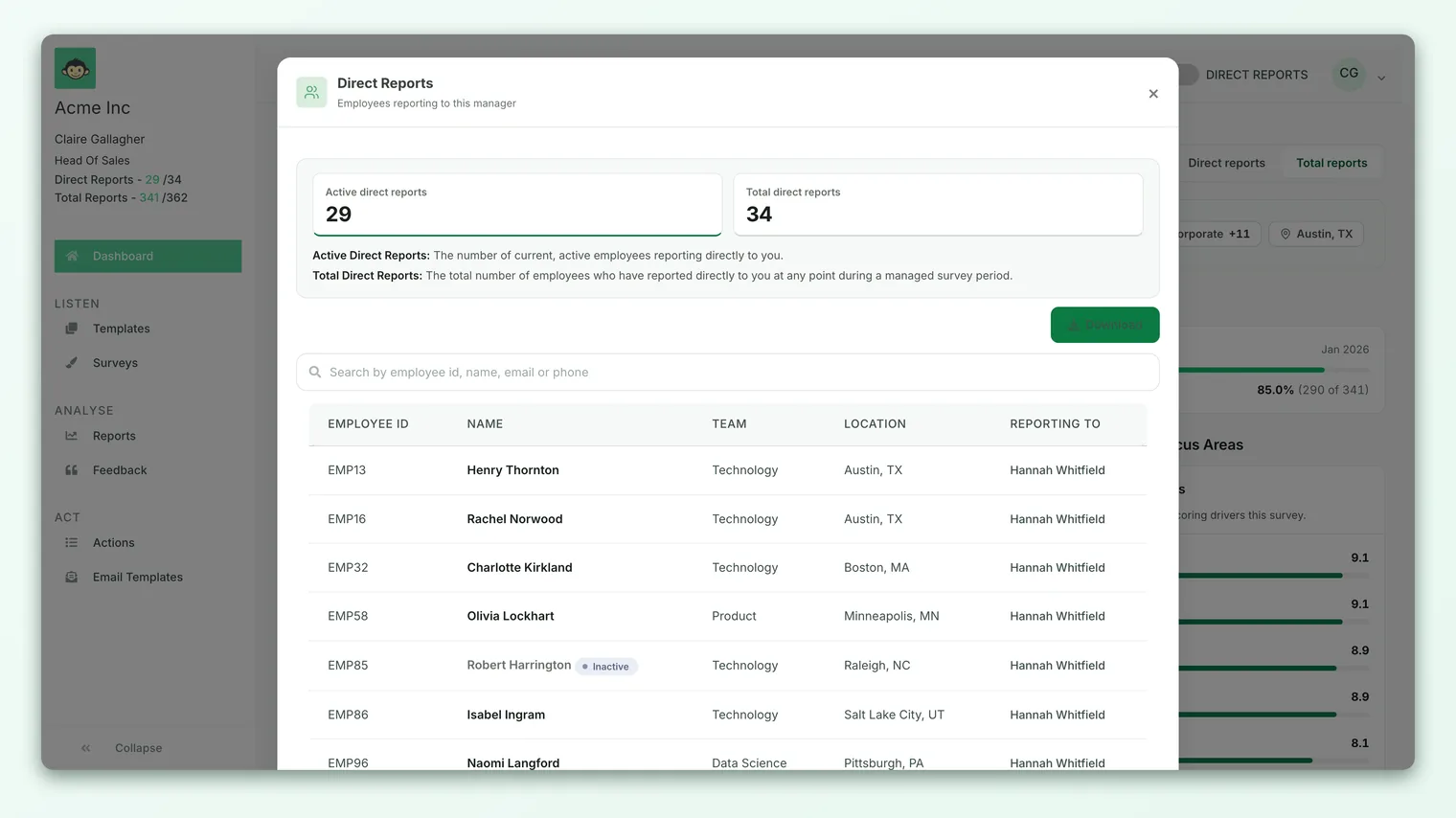
Search to find one person or a few
The fastest way to narrow a long list to a specific person is the search box at the top of the panel. It matches across four fields at once: name, employee ID, email, and phone number. Type any part of any of those and the list filters down to the matching people as you search.
This is a text match, so partial terms work. Typing part of a first or last name is usually enough, and searching an employee ID or an email address takes you straight to one person. Search is the right tool when you already know who you are looking for. When you want to bring a group together instead, sorting is the better tool, which is the next section.
Search only looks inside the list you opened. If you are in Direct Reports and search for someone who is actually an indirect report two levels down, they will not appear. Switch to the Indirect Reports view first, then search, to look across your whole reporting line.
Sort by team or location to focus on one group
To focus on one team or one office, use the column sorting. The Team, Location, and Reporting To column headers are all sortable: click a header and the table reorders by that column.
Sorting by Location groups everyone in the same office into a single run of rows, so you can read your London people, then your Bangalore people, as distinct blocks. Sorting by Team does the same for sub-teams, bringing everyone in one team together. Sorting by Reporting To clusters your indirect reports under the direct report they sit beneath, which is the quickest way to see one team lead's group as a unit inside your wider org.
This is grouping by reordering rather than by hiding. Everyone in your view is still present; sorting simply lines up the people you care about so you can read them together, compare the group against the rest, and spot who is where. Combined with the direct or indirect choice you made when you opened the list, that is enough to isolate almost any slice of your team: pick the reporting line, then sort to bring the team or location you care about into one block.
This reportee list is about the people who report to you, so it narrows by reporting line, search, and column sorting rather than a demographic dropdown. To re-scope an actual survey report to one team or location, so that every score and comment recalculates for just that group, use the demographic filters on the report itself. See Filter reports by demographic and attributes.
Download the group you have focused on
Once you have the view you want, you can export it. The Download button in the reportee panel produces a CSV of the current list. The file is named after you and the view you are in (for example your direct reports versus your indirect reports), so a downloaded direct-reports list and a downloaded indirect-reports list stay clearly separate.
This is handy for offline planning: pulling your team into a spreadsheet for a headcount review, a reorganization, or sharing a roster in a one-on-one. The export reflects the view you chose (direct or indirect), so decide which population you want before you download.
What this filtering does and does not do
It is worth being clear about the boundary of this feature, because it is narrower than the report filters elsewhere in CultureMonkey.
Narrowing your reportee list changes which of your people you are looking at. It does not change any scores, and it does not widen who you can see. You only ever see the people who genuinely report to you, directly or indirectly. Sorting by Location to focus on one office still shows you your people in that office, never the whole office.
If what you actually want is the engagement result for one team or location, that is a different tool. The reportee list helps you find and group people; a survey report with demographic filters recalculates scores for a subset. The two work together: use the reportee list to understand who is in a group, then open the matching survey report and filter it to that team or location to see how they are feeling. Remember that survey reports still obey your account's anonymity threshold, so a very small team's scores may stay hidden even when you can see its members here.
Best practices
- Choose direct or indirect first. It is the biggest filter you have. Decide whether you are looking at your immediate team or your whole reporting line before you search or sort.
- Search for a person, sort for a group. Use the search box when you know who you want; sort the Team or Location column when you want to read a whole group together.
- Sort by Reporting To to see one lead's team. In the indirect view, this is the fastest way to isolate one team lead's people as a block.
- Download the view you actually want. The export reflects the direct or indirect choice you made, so set that before you download.
- Switch to a survey report for scores. If you need engagement numbers for a team or location rather than a roster, filter the survey report instead.
Frequently asked questions
What is the difference between the direct and indirect lists?
Direct Reports are the people who report straight to you. Indirect Reports include those people plus everyone below them in your reporting line. Direct is your immediate team; indirect is your whole org tree.
Can I filter my reportees by a team dropdown?
Not in this list. The CultureMonkey reportee panel narrows by reporting line, search, and sortable Team, Location, and Reporting To columns rather than a dropdown. To re-scope a survey report to one team or location, use the demographic filters on the report itself. See Filter reports by demographic and attributes.
What can I search by?
The search box matches across name, employee ID, email, and phone number at the same time, so any part of any of those will find the person you are looking for.
Will sorting hide anyone?
No. Sorting reorders the list to bring a team or location together, but everyone in your current view stays visible. Only switching between the direct and indirect views changes who is in the list.
Why can I see my reportees here but not their individual survey answers?
This list shows who reports to you as people. CultureMonkey always aggregates survey results and protects them with your account's anonymity threshold, so you see group scores and anonymized feedback, never one person's individual response.
Does the download include the filtered view?
The download reflects which view you are in, direct or indirect. Choose the population you want before you export.
Where to go next
- See the full picture of who reports to you: See who reports to you
- Filter a survey report to one team or location: Filter reports by demographic and attributes
- Rename the direct and indirect labels: Customize your direct and indirect reportee labels
Your feedback helps us improve the Help Center.