

View your direct and indirect reports
How a manager sees the people who report to them in CultureMonkey - the difference between direct and indirect (total) reports, the reportee counts and lists on the dashboard, what per-person information is and isn't shown, and how the anonymity boundary protects individual results.
On this page
As a manager in CultureMonkey, everything you see is scoped to your people: your participation rate, your driver scores, the feedback and actions that belong to your part of the org. Underneath all of that sits a simple question you'll want to answer directly from time to time: who exactly counts as my team right now?
This guide is about seeing that team. It explains the two groups CultureMonkey recognizes for every manager - your direct reports and your indirect (total) reports - where the counts appear, how to open the reportee list and read it, what information each row does and doesn't show, and how the anonymity boundary keeps individual results private even from you. If you're an admin trying to configure who reports to whom, that's a different task; see Set up manager-employee relationships.
Every manager in CultureMonkey has two views of their team. Direct reports are the people who report straight to you, one level down. Indirect (shown as Total) reports are your whole reporting line - your direct reports plus everyone who reports to them, all the way down. You can see the counts for each, open a searchable list, and download it. The list shows roster details (name, team, location, who they report to), never an individual's survey answers - those stay protected by anonymity.
Direct vs. indirect reports
CultureMonkey works out your team from one piece of data on each employee record: their reporting manager. Chained together, those pointers form your reporting line, and from it CultureMonkey derives two groups for you.
| Group | Who it includes | Example (you manage Priya and Lee; Priya manages Alex) |
|---|---|---|
| Direct reports | Only the people whose reporting manager is you - your immediate team, one level down. | Priya and Lee |
| Indirect / Total reports | Your entire reporting line: your direct reports plus everyone who reports to them, at every level below you. | Priya, Lee, and Alex |
The single most important thing to hold onto: indirect reports include your direct reports. In the app this second group is labelled Total rather than "indirect only," precisely because it's the complete picture of everyone beneath you, not just the skip-level people. So the total is always the larger, fuller number, and direct is your immediate span of control carved out of it.
CultureMonkey builds your full downstream group by walking the reporting chain recursively - following each pointer down from you, level by level, gathering everyone underneath. That's the same structure that powers the org hierarchy, which is why the two always agree on who sits under you.
If you want to think of "indirect" in the strict sense - the people who don't report to you directly but sit somewhere below you - that group is simply your Total minus your Direct. In the example above, Alex is the skip-level report. CultureMonkey surfaces the two groups you'll actually use (Direct and Total), and the skip-level set is the gap between them.
Where your reportee counts appear
You don't have to go hunting for these numbers. Your reportee counts surface on your manager dashboard, alongside your participation and engagement figures, so you always know how big the team behind a score is.
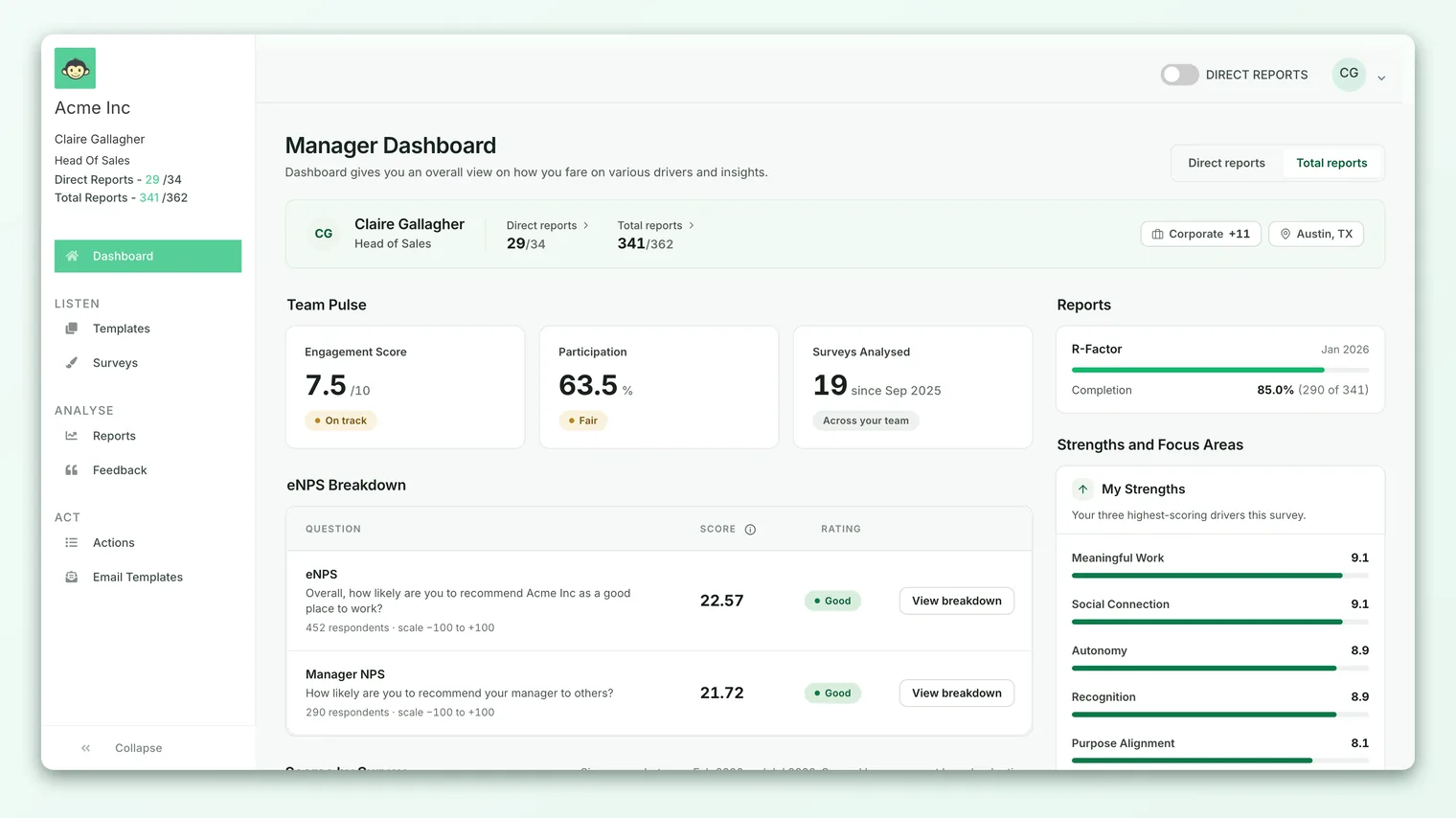
Two counts matter for each group:
- Active count - the number of current, active employees in the group. This is the live headcount reporting to you right now.
- Total count - the total number of employees who have been in the group at any point across your managed survey periods, including people who've since left or moved. This is why the total can be higher than the active count: it preserves the historical picture so your past reports still make sense.
You'll see this active-versus-total split for both Direct reports and Total (indirect) reports. It's a deliberate distinction: the active number tells you who's on the team today, while the total keeps historical reporting honest even after people move on.
Opening and reading your reportee list
The counts are the summary; the list is the detail. Opening it shows you exactly who those numbers represent.
- 1Open the reportees view from your dashboard. Selecting a reportee count opens a modal titled either Direct Reports or Total Reports (or your organization's custom label), with the subtitle "Employees reporting to this manager."
- 2Read the summary at the top. The modal restates the two figures for that group - the active count and the total count - with a short line explaining what each means, so there's no ambiguity about what you're looking at.
- 3Scan the list. Below the summary, every person in the group appears as a row you can sort and page through.
- 4Search when the team is large. A search box filters the list by employee ID, name, email, or phone number - handy when your reporting line runs to hundreds of people.
- 5Download it if you need it offline. A Download button exports the current group (Direct or Total) to a CSV - useful for headcount checks or sharing with HR.
Each row in the list shows the same roster columns:
| Column | What it tells you |
|---|---|
| Employee ID | The person's ID in your system. |
| Name | Their full name, with an Inactive marker if they've been deactivated but remain in the historical group. |
| Team | The team they belong to. |
| Location | Their location. |
| Reporting to | Their direct manager - which, for a skip-level report, is one of your direct reports, not you. That "Reporting to" column is the quickest way to see the shape of your reporting line at a glance. |
Because every row names who that person reports to, the Total list doubles as a lightweight org check. If someone shows up under a manager you didn't expect - or a person you manage isn't in the list at all - that's a sign a reporting-manager field needs fixing. Reporting relationships are set on the employee record by an admin; see Set up manager-employee relationships.
What the reportee list does and doesn't show
This is the part worth being precise about, because it's easy to expect more than the list is designed to give.
The reportee list is a roster, not a results view. It tells you who is on your team and how they're structured - their ID, name, team, location, and who they report to. It intentionally does not show any individual's survey answers: no personal eNPS, no per-person scores, no "how did this specific employee respond." That information isn't hidden by accident; it's withheld by design.
The reason is anonymity. CultureMonkey is built so that employees can answer honestly, which only works if no one - including their manager - can trace a response back to a named person. So the two things are deliberately kept apart:
- The reportee list answers "who is on my team?" using roster data that isn't sensitive.
- Your results (participation, driver scores, eNPS, feedback) answer "how does my team feel?" as aggregates, never attached to an individual.
Seeing someone in your reportee list does not mean you can see their individual answers. Results are always rolled up across a group, and that roll-up is what protects the honesty of the feedback. If you ever think you can identify an individual's response, that's a problem worth raising - not a feature.
The anonymity boundary on your results
The same reporting line that scopes what results you see also runs into anonymity when a group gets too small.
CultureMonkey applies an anonymity threshold - a minimum number of respondents required before results are shown for any group. By default that minimum is 3 respondents (some organizations set it higher). If a group - your direct team, a filtered slice, or even your whole reporting line - has fewer responses than the threshold, its results stay hidden rather than revealing enough to identify someone.
This has a practical consequence worth understanding, because it can look surprising:
- A leader with a large reporting line may see rich Total (indirect) results while their tiny direct team's numbers stay hidden - because the direct group alone is below the threshold, even though the full line clears it comfortably.
- A brand-new manager with one or two reports may see no results at all yet, even though those people clearly appear in their reportee list.
None of this is an error. The reportee list always shows who's on the team (it's just roster data); the results for that team only appear once enough people have responded to keep them anonymous. If a breakdown looks empty when you expected numbers, this threshold is almost always why. See Set up manager-employee relationships for how scoping and anonymity interact across your line.
The reportee list is never suppressed by anonymity - you can always see who reports to you. It's the results for a group that wait for the threshold. Keeping these two ideas separate saves a lot of confusion: "I can see my team, so why can't I see their scores?" is answered by "the group is still too small to report anonymously."
Switching between direct and total on your dashboard
Viewing the two lists tells you who's in each group; a separate control decides which group your whole dashboard reflects.
By default, your dashboard reflects your entire reporting line - the Total (indirect) group. That's the most useful starting point for a leader who wants the complete view of their part of the business. A direct-reports toggle in the app header lets you narrow every number on the dashboard - participation, driver scores, feedback - to your direct reports only. Toggling it off returns to the full line.
A couple of conditions govern that toggle:
- It appears only for managers with three or more direct reports. With one or two direct reports, "direct" and "total" are usually the same handful of people, so the switch is hidden - and if your direct count drops below three, the toggle resets to the full-line view.
- Your organization can hide the toggle account-wide if it prefers every manager always see their full reporting line.
The toggle is covered in depth, along with how the underlying relationships are configured, in Set up manager-employee relationships. To slice your team's results by team, location, or attribute rather than by reporting level, see Filter your team's results.
A quick worked example
Say you're a director. Two team leads, Priya and Lee, report to you. Priya has four people under her; Lee has three. Here's what you'd see:
- Direct reports: 2 (Priya and Lee). Your dashboard, with the direct toggle on, reflects just those two.
- Total reports: 9 (Priya, Lee, and their seven combined reports). With the toggle off - the default - your dashboard reflects all nine.
- Reportee list, Total: nine rows. Priya and Lee show "Reporting to: you"; the other seven show "Reporting to: Priya" or "Reporting to: Lee," so the shape of the two sub-teams is visible at a glance.
- Results: your Total line of nine clears a threshold of 3 easily, so you see engagement scores for the whole group. If you toggled to direct-only (2 people), those results would fall below the threshold and stay hidden - fewer than three respondents can't be shown anonymously.
That last point is the one that trips people up most often, so it's worth internalizing: seeing people in your list and seeing their results are governed by two different rules.
Frequently asked questions
What's the difference between direct and indirect reports?
Direct reports are the people who report straight to you, one level down. Indirect reports - shown in CultureMonkey as Total - are your whole reporting line: your direct reports plus everyone who reports to them, all the way down. Total always includes your direct reports, so it's the larger, complete group. The strict "skip-level only" set is simply Total minus Direct.
Why is my total (indirect) count higher than my active count?
Because the total preserves history. The active count is your current, live headcount; the total count includes everyone who was in the group at any point across your managed survey periods, including people who've since left or changed teams. This keeps your past reports accurate even after the team changes.
Can I see how a specific person on my team responded?
No. The reportee list shows roster details (name, team, location, reporting line) but never an individual's survey answers. Results are always aggregated across a group and protected by anonymity, so no response can be traced back to a named person - that's what keeps feedback honest.
Everyone shows up in my reportee list, so why can't I see their scores?
Because the list and the results follow different rules. The list always shows who reports to you. Results only appear once a group has enough respondents to meet the anonymity threshold (3 by default). A small direct team can be fully visible as a list while its results stay hidden.
Someone is missing from my reports, or reporting to the wrong person. How do I fix it?
Reporting relationships are set on each employee's record, usually by an admin. If a person is missing or shows the wrong "Reporting to," their reporting-manager field needs updating. See Set up manager-employee relationships.
Why can't I switch my dashboard to direct reports only?
CultureMonkey shows the direct-reports toggle only for managers with three or more direct reports; with fewer, direct and total are effectively the same small group, so it's hidden. Your organization can also hide it account-wide. See Set up manager-employee relationships.
Where to go next
- See how reporting lines are configured: Set up manager-employee relationships
- Slice your team's results by team, location, or attribute: Filter your team's results
- Understand what your role can see and do: Understanding roles
Your feedback helps us improve the Help Center.