

Grant guest report access in CultureMonkey
How to give an external person (a board member, consultant, or partner) read-only access to a CultureMonkey survey report without creating a full login, and how to keep it secure.
On this page
Sometimes the person who needs to see a survey result doesn't have (and doesn't need) a CultureMonkey account. A board member wants the quarterly engagement numbers. An external consultant is helping you build an action plan. A parent-company HR partner needs the eNPS trend. Creating a full administrator login for each of these people is heavy, slow, and gives them far more access than they need.
Guest report access solves this. It lets you hand someone a single link that opens one specific report in their browser, read-only, with no login and no account. This guide explains exactly how guest access works in CultureMonkey, what a guest can and cannot see, how the anonymity protections still apply, and how to keep the whole thing secure.
Every CultureMonkey survey report has a private, unguessable link. Anyone who opens that link sees a stripped-down, read-only version of the report in their browser without signing in. There's no separate "guest account" to create: guest access is the shareable link. That makes it fast, but it also means the link is the only key, so treat it like a password.
Guest access vs a full login
It helps to be clear about what "guest" means here, because it's genuinely different from adding an administrator or a manager.
| Guest report access | Full login (admin / manager) | |
|---|---|---|
| Requires an account | No | Yes |
| How they get in | A shareable link | Email and password (or SSO) |
| What they can reach | One specific report | Whatever their role permits, across the app |
| Can they act on data | No, read-only | Yes (create actions, flag feedback, export, and so on) |
| How you revoke it | Turn off sharing for the report | Deactivate the account |
| Best for | A one-off external viewer | An ongoing internal user |
The short version: a login is an identity inside your account. Guest access is a doorway into a single report. If the person needs to do their job inside CultureMonkey over time, they need a login. If they just need to look at one report, guest access is the right, lighter tool.
Guest access and the shareable link are the same thing
This is the single most important thing to understand, and it surprises people. In CultureMonkey there is no separate "invite a guest" flow that is distinct from getting a share link. The shareable link is the guest access.
Under the hood, each survey report carries a long, random access key (a UUID, something like a1b2c3d4-...). The shareable link is simply your report address with that key in it, for example:
> app.culturemonkey.io/reports/summary/a1b2c3d4-e5f6-7890-...
When anyone opens that link, CultureMonkey recognizes the key, and because the key itself proves they're allowed in, it serves the report without asking them to sign in. So "granting guest access" and "sharing the link" are two names for one action. If you've read Share a report via link, you already know how to create guest access. This article focuses on the guest experience and the security side of that same link.
Keeping guest access and the share link unified means there's exactly one thing to manage and one thing to revoke. You never have to wonder whether a person still has a "guest seat" somewhere: if they have the link and sharing is on, they can view; if not, they can't.
How to grant guest access
Granting access is the act of generating and sending the link. You do this from the report itself.
- 1Open the report - go to Analyse > Reports and open the survey report you want to share.
- 2Open the Share menu - in the top-right of the report, click the Share button. If you don't see it, sharing may be turned off for your account (see below) or your role may not permit it.
- 3Get the shareable link - choose Get shareable link. A dialog appears with the read-only link and a Copy link button. The dialog states plainly: "Anyone with this link can access this report."
- 4Send it to your guest - paste the link into an email or message to the external viewer. That's it. They open it in any browser and the report loads.
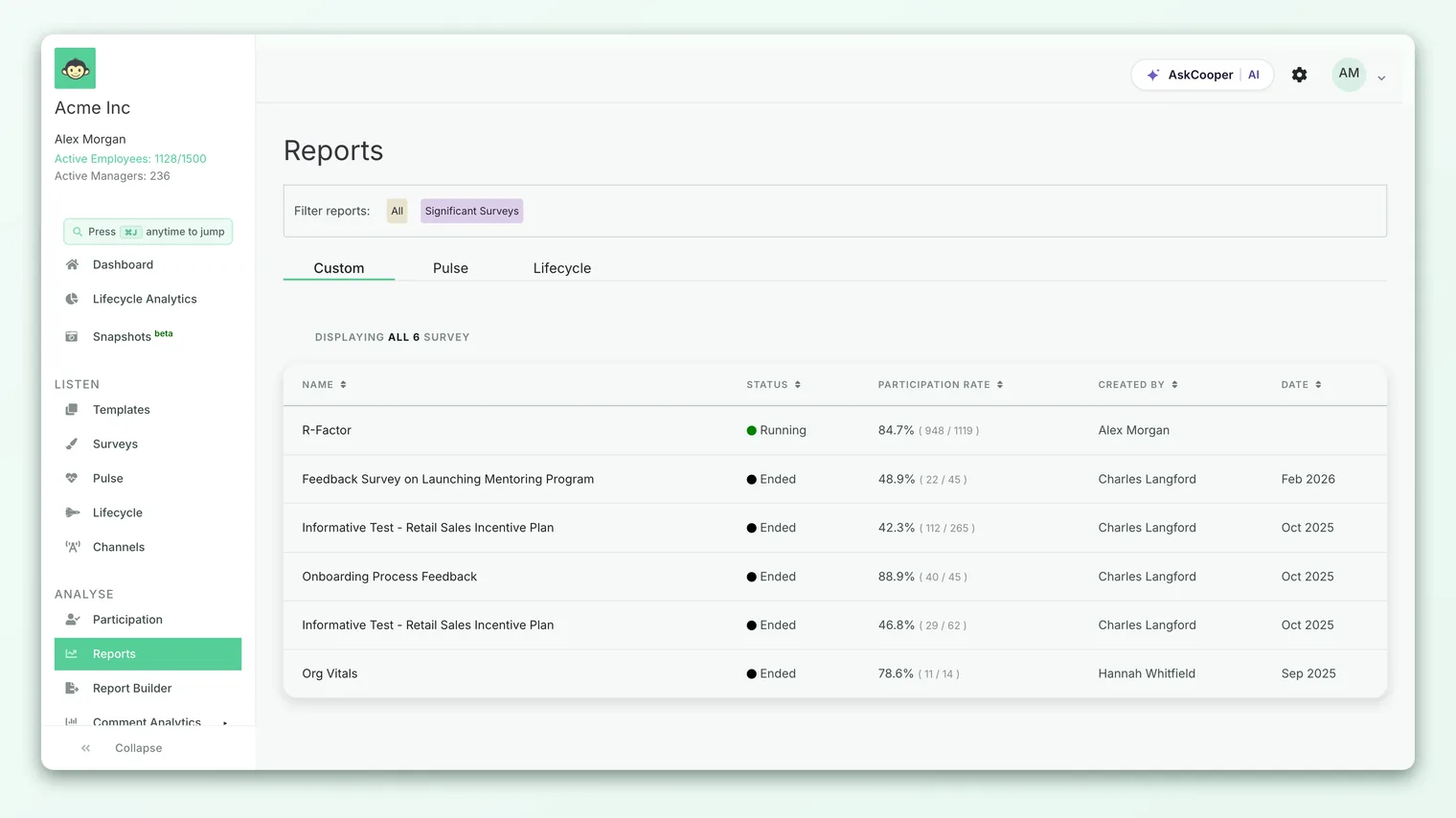
There's nothing for the guest to install, register, or confirm. The moment they have the link, they have access.
What a guest can see
A guest opens the report in a simplified, read-only layout. It's the report content without the surrounding application: no left-hand navigation to Listen, Analyse, or Act, no Dashboard, no settings, and no way to move to a different survey or a different part of your account. They are locked to the one report you shared.
Within that report, a guest can typically explore the same analytical views a logged-in viewer would, including:
- The report summary and headline scores (engagement, eNPS, participation).
- Question-by-question results and their breakdowns.
- The heatmap and demographic slices.
- Comments and open-text feedback, and the word cloud.
- Filters, so they can segment the same way you can.
In other words, a guest gets a faithful, browsable copy of the report, not a flat snapshot. They can dig into a low-scoring driver or read the comments behind a number, just as an internal viewer would.
What a guest cannot do
Guest access is deliberately view-only. Everything that would change data or reach beyond the report is blocked:
- No acting on feedback. Flagging a comment, changing its sentiment, or tagging it to a driver is refused for guests. These are internal workflow actions, not viewing.
- No creating actions or plans. Guests can read the results but can't turn them into action items.
- No exporting. Export options (PDF, PPTX, XLS, and the executive summary) depend on a signed-in user, so they don't appear for guests. If your external viewer needs a file to keep, generate the export yourself and send it. See Enable report exports.
- No navigation out of the report. There's no route from the guest view into the rest of your account.
This keeps guest access to exactly what its name promises: looking at one report, and nothing more.
Anonymity still applies, fully
This is the reassurance that matters most: sharing a report as a guest link does not weaken your anonymity protections. The thresholds that hide small-group results are enforced on the report data itself, before it's rendered, regardless of who is viewing. A guest sees precisely the same suppressed cells and hidden breakdowns that a logged-in admin would.
So if a team is too small to show a score, that cell stays blank for the guest too. If a demographic slice would expose an individual's comment, it's withheld from the guest exactly as it is internally. A guest can never "see around" anonymity by virtue of being external. If a guest tells you a breakdown looks empty, that's the anonymity threshold doing its job, the same behavior described in Why can't I see results yet?.
Anonymity suppression is about group size, not viewer identity, so it's identical for guests and admins. What differs is breadth: because the link exposes a full report, only roles that are allowed to share an organization-wide report can generate the link at all. That's a deliberate guard against a narrower role handing out a wider view than they themselves should give.
Security and the link itself
Because the link is the access, everything about security comes back to how you handle that link.
- The link is the only key. Anyone who holds it can view the report, whether or not you meant to send it to them. There's no second factor and no per-person check. Treat the link like a password.
- It's unguessable, not secret by design. The access key is a long random UUID, so nobody will stumble onto it by typing a URL. But if it's forwarded, pasted into a shared channel, or leaked, it works for whoever ends up with it.
- Share over private channels. Send the link in a direct email or message to a named person, not in a group chat, a public document, or a ticket that others can read.
- Match sensitivity to audience. A report full of raw comments is more sensitive than a scores-only summary. For very sensitive results, consider sending an export or a curated summary to the guest instead of live access.
CultureMonkey shows this warning right in the share dialog for a reason. There is no allowlist of email addresses on a guest link and no login prompt to stop a forward. If a link reaches the wrong hands, the fix is to turn off sharing (below), which invalidates that link.
Turning guest access off
There are two levers, one account-wide and one about who can share.
Account-wide. Guest sharing can be switched off for your whole account with the disable share report setting, which "hides the share button in reports page when enabled." This is an account-level control managed by CultureMonkey, so if your organization wants no guest links at all (for compliance or data-governance reasons), ask your CultureMonkey contact to enable it. With sharing disabled, the Share button disappears and existing links stop working.
By role. Not every role can generate a shareable link even when sharing is on. Full account administrators can, but narrower roles (managers and sub-admins, for instance) are intentionally prevented from creating the shareable URL, because that link exposes an organization-level report. This means guest access is something your senior admins control, not something any manager can hand out.
Frequently asked questions
Is "guest access" a separate account I have to create?
No. CultureMonkey has no guest user record and no seat to provision. Guest access is simply the shareable report link. You grant it by sending the link and revoke it by turning off sharing.
Does the guest need to be at my company?
Not at all. That's the point. The link works for anyone with a browser, including board members, consultants, and partners outside your organization. Because of that reach, share it carefully.
Can a guest see other surveys or the dashboard?
No. The guest layout is locked to the single report you shared. There's no navigation to other surveys, the Dashboard, or any settings.
Will a guest see anonymized data they shouldn't?
No. CultureMonkey applies anonymity thresholds to the data before it renders, independent of who's viewing. A guest sees the same suppressed cells and hidden small-group results that an internal admin sees.
How do I stop a link once I've sent it?
Turn off sharing for that report (or, account-wide, use the disable-share-report setting). Because the link is the only key, cutting off sharing is how you revoke access. If you need a fresh link afterward, re-share the report.
Can a guest download or export the report?
No. Export options require a signed-in user and don't appear in the guest view. If your guest needs a file, generate the export yourself and send it to them.
Where to go next
- Create the link step by step: Share a report via link
- Understand hidden results: Why can't I see results yet?
- Send a file instead of live access: Enable report exports
Your feedback helps us improve the Help Center.