

Share a report via link
How to generate a shareable report URL in CultureMonkey, what it exposes to viewers, who can create one, and how to think about scoping, expiry, and revoking access.
On this page
Sometimes the people who most need to see a survey result do not have a CultureMonkey login: a board member, an external consultant, a leader in another business unit, or a stakeholder who only needs to look once. For those moments, CultureMonkey lets you generate a shareable report link, a single URL that opens the full report in a browser with no sign-in required.
This guide covers how to create that link, exactly what it exposes, who is allowed to generate one, and how to think about the parts people always ask about next: scoping, expiry, and revoking access.
A shareable report link is a public URL built around the report's access key (a long, random UUID). Anyone who has the link can open that specific report without logging in to CultureMonkey. The link is created from the Share menu on the report, it does not expire on its own, and because it exposes an organization-level report, only your top-level admins can generate one.
What a shareable link is
Every survey in CultureMonkey carries a unique report access key. It is generated automatically when the survey is created, and it is a long random identifier (a UUID such as 3f7a1c9e-...), not a guessable number like the survey's internal ID.
A shareable link is simply the report's web address with that access key in place of the usual numeric survey ID. Instead of a URL like app.yourcompany.culturemonkey.io/reports/summary/482, the shareable version looks like:
app.yourcompany.culturemonkey.io/reports/summary/3f7a1c9e-8b2d-4a11-9c30-...
A guest link carries a long, random access key. CultureMonkey resolves that key back to the right report and serves it read-only, without asking for credentials. That single design choice is what makes the link work for people who have no account.
The access key belongs to a single survey. Sharing the link for your Q2 engagement survey does not give anyone access to any other survey, to the dashboard, or to your admin area. It opens that one report and nothing else.
How to generate a shareable link
You create the link from inside the report itself.
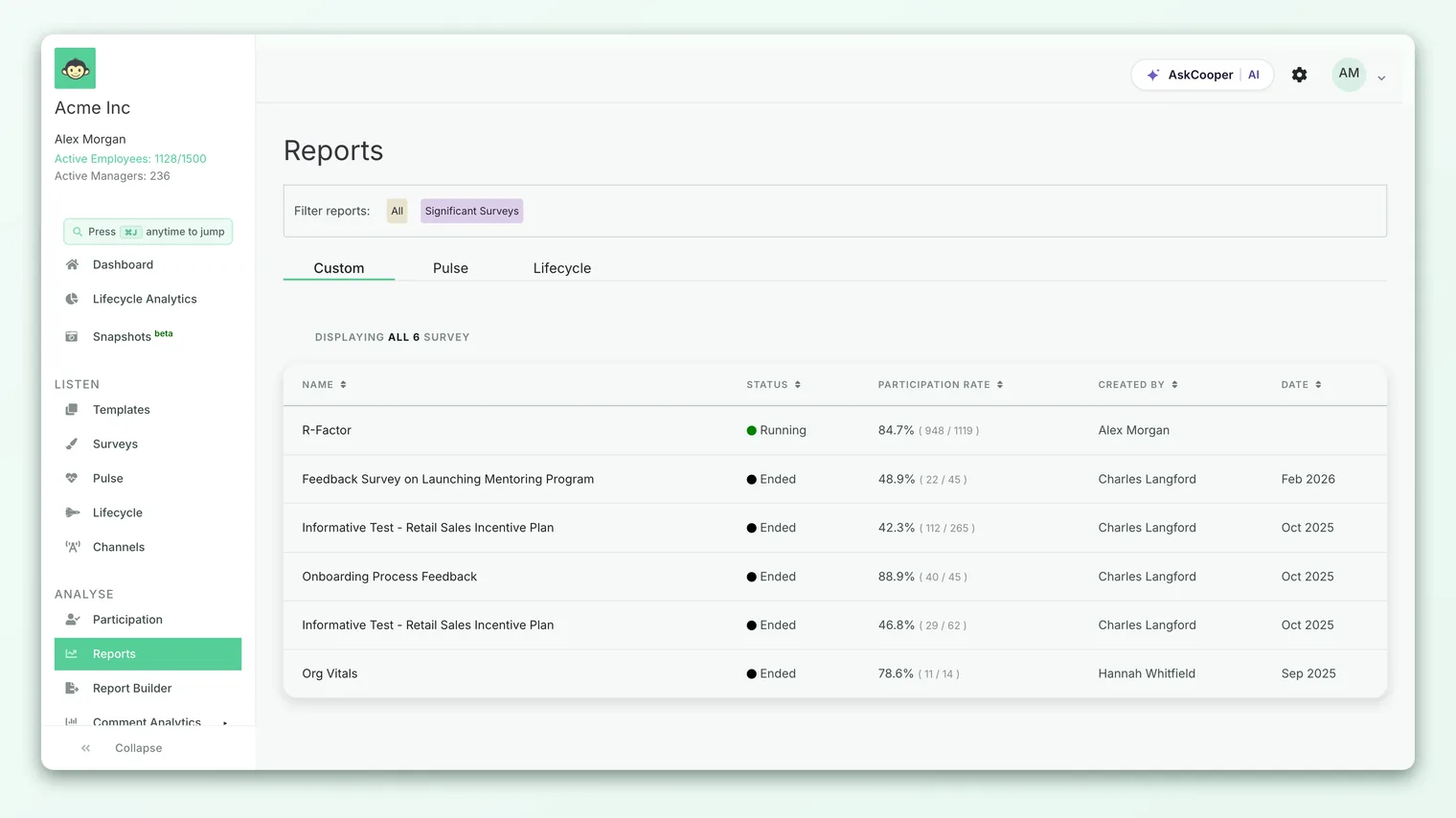
- 1Open the report - go to Analyse then Reports and open the survey you want to share. If you are not sure how to get there, see Open a survey report.
- 2Open the Share menu - in the top-right of the report, click the Share button. This is the same menu you use to export the report to XLS, PDF, or PPTX.
- 3Choose Get shareable link - select Get shareable link from the menu. A small dialog opens titled "Share this report."
- 4Copy the link - the dialog shows the full URL in a read-only field with a Copy link button. Click it to copy the link to your clipboard, then paste it wherever you need (an email, a Slack message, a calendar invite).
The dialog is deliberately blunt about what you are handing out. It reads: "Anyone with this link can access this report." That is the whole security model in one sentence, so it is worth taking literally, which the next section explains.
What the link exposes
When someone opens your shareable link, they see the report the way a viewer sees it, not the way an admin does. Understanding the difference matters before you send it.
They can see:
- The report summary, including the overall engagement score, eNPS, and participation.
- Driver and question scores, and the score breakdowns behind them.
- The feedback and comments tabs and word cloud, subject to the same anonymity rules that apply everywhere in CultureMonkey.
- Demographic slices of the report where those are enabled for the account.
They cannot:
- Log in, reach the dashboard, or see any other survey or report.
- Create actions, reply to feedback, or change anything. The link is read-oriented; the create-and-respond controls that admins see are hidden for guest viewers.
- Reach areas that are explicitly excluded from guest viewing. For example, the Benchmark and eNPS Benchmark tabs are not part of the guest-accessible report and will send an un-authenticated visitor to the sign-in page rather than showing benchmark data.
The link exposes an organization-level report, including scores and, where thresholds allow, employee comments. Treat it like a confidential document: send it only to people you would be comfortable showing the full report to, and prefer private channels over anything public or forwardable.
Anonymity protections still apply to a shared link. If a team or a filtered slice is too small to meet the anonymity threshold, its numbers stay hidden for a guest viewer exactly as they would for a logged-in one. Sharing a link never lowers the bar for what can be seen. If a section looks empty, that is the threshold at work, not a broken link (see Why can't I see results yet?).
Who can create a link
Generating a shareable link is a restricted action, and on purpose. Because the link exposes an organization-wide report to someone with no login, the ability to create one sits with your most senior admins only.
| Role | Can generate a shareable link? |
|---|---|
| Super admin (top-level admin) | Yes |
| Sub-admin | No - the Share menu does not offer the shareable-link option |
| Manager | No - managers see report exports, not the shareable link |
The shareable URL exposes an org-level report, so it is deliberately withheld from sub-admins and managers whose own view of results is normally scoped to their part of the organization. If you are a Survey Admin and you do not see the Get shareable link option, this is why, and the fix is to ask a super admin to generate and send the link.
Some accounts disable report sharing at the account level. When that setting is on, the Share button is hidden from the report page for everyone. If your organization has chosen that, no shareable links can be generated until an admin turns it back on. This is an account-wide control, not a per-report one.
Scoping, expiry, and revoking
These three questions come up every time someone shares a link, so here is the honest, grounded answer for each.
Scoping
The link is scoped to one survey's report, and there is no way to narrow it further (to a single team, driver, or demographic slice) through the link itself. Whoever opens it gets the full report for that survey, within anonymity limits. If you need to give someone a genuinely narrower view, sharing a link is the wrong tool. A better fit is a role-based account that sees only its scope, or exporting just the slice you want to share as a file.
Expiry
A shareable link is long-lived. Treat it as valid for as long as the survey and its report exist, so a link you send today can still work well after the moment you sent it. Plan for that: a link that lands in an email thread or a shared doc remains reachable long after you sent it.
Revoking
Because the link is long-lived, think carefully about who you send it to before you send it. If you need to cut off access to a link that is already out, contact support.
If you need to cut off access to a link you have already shared, the practical options are:
- Turn off report sharing for the account. Disabling the account-level Share setting hides the option and blocks the guest report path for everyone. This is a blunt instrument (it affects every report, not just the one you shared), but it is immediate.
- Contact CultureMonkey support to reset the report's access key. Regenerating the key breaks every previously shared link for that survey, because the old key no longer resolves to anything. Your support contact can arrange this.
A shareable link is ideal for a one-time or short-lived look. If someone needs to check a report repeatedly over time, give them a proper guest or role-based account instead. It is easier to review, easier to revoke, and it respects role scoping. See Give someone guest access to a report for how that works.
Best practices
- Send it privately. Use direct email, a DM, or a calendar invite. Avoid posting the link anywhere it could be indexed, forwarded broadly, or seen by people who should not have the results.
- Say what it is when you send it. A one-line note ("This is a live link to our Q2 engagement report, please keep it internal") sets expectations and reduces accidental re-sharing.
- Share ended surveys. A report is most meaningful once the survey has closed and results have settled. Sharing a mid-flight report can mislead a viewer with partial data.
- Remember comments are in scope. If your report includes employee comments, the recipient will see them (within anonymity limits). Make sure that is appropriate for the audience.
- Use accounts for recurring viewers. If the same person keeps needing the report, a scoped login beats a permanent public link every time.
Frequently asked questions
Does the recipient need a CultureMonkey account?
No. That is the whole point of the shareable link. It opens the report as a guest view, with no sign-in required. The access key in the URL is what authorizes the view.
Can a manager or sub-admin generate a shareable link?
No. Because the link exposes an organization-level report, only top-level (super) admins can generate one. Managers and sub-admins see report exports in the Share menu but not the shareable-link option. Ask a super admin to create and send the link.
Does the link expire after a set time?
No. There is no automatic expiry. The access key stays the same for the life of the survey, so the link keeps working until the survey is removed or the key is reset. Treat it as a long-lived credential.
How do I stop a link from working?
There is no one-click revoke on the report screen. You can disable report sharing at the account level (which affects all reports), or contact CultureMonkey support to reset the survey's access key, which breaks every existing link for that report.
Is a shareable link the same as guest access?
They are closely related but not identical. A shareable link is the fast, no-login way to let someone see one report. Guest access is the broader, more managed concept of letting people outside your admin team view results, which can include scoped accounts. See Give someone guest access to a report.
Will the recipient see individual employees?
No more than any logged-in viewer would. All of CultureMonkey's anonymity thresholds apply to the shared view, so small groups and narrow filters stay hidden. The link never weakens anonymity protection.
Where to go next
- Manage ongoing external viewers: Give someone guest access to a report
- Find your way around the report first: Open a survey report
- A shared report looks empty? Why can't I see results yet?
Your feedback helps us improve the Help Center.