

Image and emoji answer options for questions
How to give survey questions a visual answer format in CultureMonkey - the emoji (smiley) rating scale, adding your own logo image to a survey, and where image-based answer options fit today.
On this page
Not every question is best answered with words. Sometimes a row of faces communicates "how do you feel?" far more naturally than a 1-to-5 number line - especially for frontline, deskless, or multilingual audiences where a friendly visual beats a wall of text. CultureMonkey lets you make questions more visual, and this guide covers exactly what's available today: the emoji (smiley) rating scale, how to add your own logo image to a survey, and where image-based answer options stand right now.
The live way to give a question a visual answer format is the Smiley scale display on a Rating question - five expressive faces instead of numbers, scored identically to a normal rating. You can also brand the whole survey with a custom logo image. A separate "image answer options" question type exists in CultureMonkey's plumbing but isn't currently switched on for the survey builder.
The visual options available today
There are three distinct things people mean by "image question," and it helps to separate them:
| What you want | How to do it in CultureMonkey | Status |
|---|---|---|
| Answer with faces/emojis instead of numbers | Smiley display on a Rating question | Available |
| Put your own image (logo) on the survey | Custom logo in survey settings | Available |
| Answer by picking one of several images | Image-based answer options | Not currently exposed |
The rest of this article walks through the first two - the ones you can use right now - and is honest about the third.
The emoji (smiley) scale
The most common "visual question" request is answered by the smiley scale. It's not a separate question type - it's a display style for a standard Rating question. You write a normal rating question, then choose to show it as a row of five faces instead of a row of numbers.
The five faces map to a 5-point scale, from most negative to most positive:
| Face | Value | Label |
|---|---|---|
| 😣 Very sad | 1 | Very sad |
| 🙁 Sad | 2 | Sad |
| 😐 Neutral | 3 | Neutral |
| 🙂 Happy | 4 | Happy |
| 😄 Very happy | 5 | Very happy |
Because it's a rating underneath, the smiley scale behaves exactly like any other rating in your reports - the same averages, the same driver scores, the same trends. The faces are purely how the question looks to the person answering; nothing about the math changes.
For hourly, manufacturing, retail, and healthcare teams - or anywhere your survey spans several languages - faces cut through. There's nothing to read and nothing to misinterpret, so people answer faster and response rates tend to hold up better than with a plain number line.
Add an emoji scale to a question
You set the display style right inside the question editor, from the same builder you use for every other question. There's no special mode to turn on.
- 1Open the survey builder - go to Listen › Surveys, open your survey, and add or edit a question in the section you want.
- 2Add a custom question - click Add Custom Question to open the question editor.
- 3Choose the Rating type - set Question type to Rating. The smiley option only applies to ratings, so this step is required.
- 4Pick the Smiley display - in Scale Display Type, switch from Default to Smiley. The preview updates to show the five faces so you can see exactly what respondents will get.
- 5Set the driver and save - assign the question's driver as usual and save. Done.
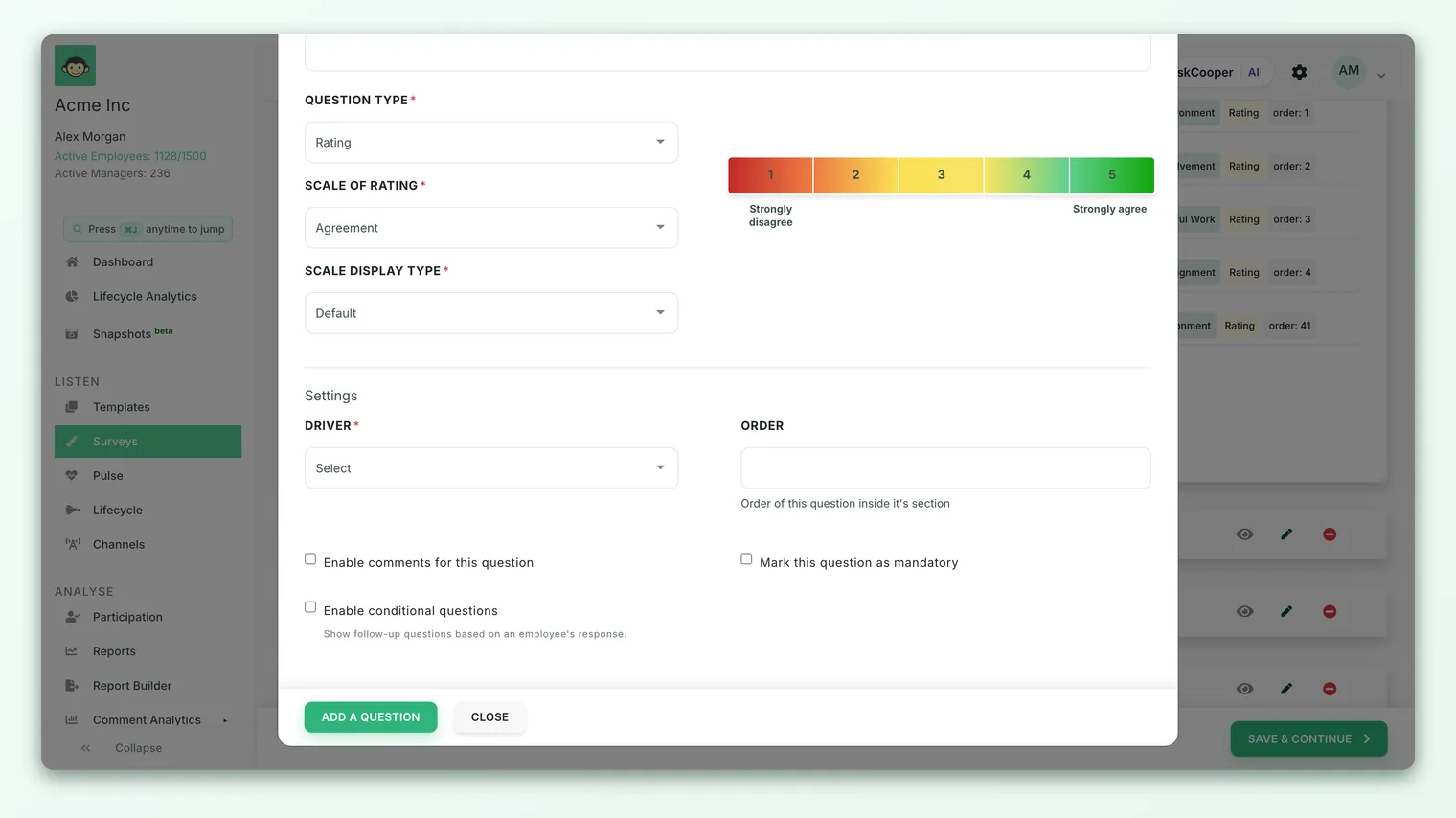
The smiley scale always shows the five faces above. If you need a different number of points - a 0-to-10 eNPS scale, for example - keep the Default display, which respects the full range of the rating scale you picked. Smiley is a 5-point format by design.
Add your own image (logo) to a survey
If what you actually want is your image on the survey - your company or brand mark at the top of the form - that's the survey logo, set in survey settings rather than on any single question.
In the survey's basic settings you'll find a logo control with two choices:
- Default - shows your organization's logo automatically. If business-group logos are configured, the relevant group's logo is shown to each employee taking the survey.
- Custom - upload a specific image to show to everyone in this survey, overriding the default.
To use your own image, choose Custom, then drag and drop (or browse for) a JPG, PNG, or JPEG file. A preview appears so you can confirm it looks right before you save.
Reach for a custom survey logo when a survey has its own identity - an onboarding journey, a leadership pulse, a co-branded survey run with a partner. For everyday engagement surveys, the default (your org logo) keeps things consistent with zero effort.
This is the supported way to put a picture into the survey experience today. It brands the whole form; it doesn't attach an image to one individual question.
Where image-based answer options stand
You may have seen references to picking an answer by choosing one of several images - a picture-choice question, where each answer option is an image rather than text. The building blocks for this exist inside CultureMonkey, but the feature is not currently switched on in the survey builder, so you won't see an "Add Image Question" option when you build a survey.
Because image-based answer options aren't exposed in the builder, don't design a survey that depends on them. If picture-choice answers are important to you, tell your Customer Success contact - that demand is what moves a gated feature up the roadmap.
If your real goal is a quick, visual, feeling-based answer, the smiley scale above already covers the large majority of those use cases - and it's fully live.
Reading visual questions in reports
A smiley question needs no special handling when you analyze results. Because it's a rating underneath, it flows into your reports exactly like any other rating:
- It contributes to the driver score you assigned it, just like a numbered rating.
- Its average and distribution appear in the survey report, where each face maps to its 1-to-5 value.
- It trends over time alongside your other ratings, so you can watch sentiment move across survey cycles.
In short, respondents see faces; your analytics see a clean 1-to-5 rating. That's the whole point - a friendlier front end with no analytical cost.
Best practices
- Match the format to the audience. Use smiley scales for frontline, deskless, and multilingual groups where speed and clarity matter most; keep numbered scales where you want finer gradation.
- Don't mix scales within one theme. If several questions measure the same driver, keep them on the same display style so respondents aren't switching mental gears mid-survey.
- Keep the wording feeling-oriented. Smiley questions read best when the prompt asks how someone feels ("How do you feel about the support from your manager?") rather than for a precise numeric judgment.
- Use the logo, not the question, for branding. If you want the survey to look like yours, set a custom survey logo - don't try to force imagery into individual questions.
- Preview before you launch. The editor shows the faces as respondents will see them; glance at the preview so there are no surprises on the live form.
Frequently asked questions
Is the smiley scale a separate question type?
No. It's a display style for a Rating question. You create a normal rating question and switch its Scale Display Type from Default to Smiley - the underlying data is still a rating.
Can I change how many faces appear?
No. The smiley scale is a fixed 5-face format (Very sad through Very happy). If you need a different number of points, use the Default display, which follows the full rating scale you chose.
Do smiley answers score differently from number answers?
No. CultureMonkey maps each face to a value from 1 to 5 and scores it identically to a numeric rating. Your averages, driver scores, and trends are unaffected by the display style.
Can I upload my own images as the answer choices?
Not at the moment. Image-based answer options aren't exposed in the CultureMonkey survey builder today. For a visual answer format, use the smiley scale; to add your own imagery to the survey, use the custom survey logo.
How do I put my logo on the survey?
In the survey's basic settings, set the logo to Custom and upload a JPG, PNG, or JPEG. It will show to everyone taking that survey, replacing the default organization or business-group logo.
Where to go next
- Set up the rating that powers the smiley scale: Rating scale questions
- Build the survey these questions live in: Create a survey from scratch
- Compare the other answer formats: Single and multiple select questions
Your feedback helps us improve the Help Center.