

Manage your survey templates
How to work with your template library in CultureMonkey - the difference between standard and custom templates, what you can and can't edit, and how to rename, refine, download and organize the templates your team reuses.
On this page
- Where your templates live
- Standard vs custom templates
- Editing a custom template
- Renaming a custom template
- Refining questions inside a template
- Downloading a template's questions
- Deleting, archiving and duplicating
- Organizing your template library
- Who can manage templates
- Frequently asked questions
- Where to go next
Templates are the reusable blueprints behind your surveys. CultureMonkey ships with a library of research-backed standard templates - engagement, onboarding, exit, pulse and more - and lets your account build its own custom templates for the surveys you run again and again. Over time that library becomes a small asset in its own right, and it pays to keep it tidy.
This guide is about managing that library rather than launching from it. It covers where your templates live, the important difference between standard and custom templates, exactly what you can and can't change on each, how to rename and refine a custom template, how to download its questions, and how to keep the whole collection organized so your team always reaches for the right starting point.
Go to Listen › Templates. The Library tab holds CultureMonkey's standard templates - you can preview and use them, but not edit them. The Custom tab holds the templates your account has built - those you can open and edit through a two-step editor (Basic → Questions), where you can rename them, reword and reorder questions, adjust sections and drivers, and add or remove content. Standard templates stay read-only so they remain a reliable, comparable baseline.
Where your templates live
Everything template-related sits under Listen › Templates. At the top of the page you'll find two tabs:
- Library - CultureMonkey's built-in standard templates, grouped into categories (engagement, onboarding, exit, wellbeing, and so on). Use the category pills to filter the library down to a theme.
- Custom - the templates your own account has created and saved. If you haven't built any yet, this tab shows an empty state inviting you to create your first one.
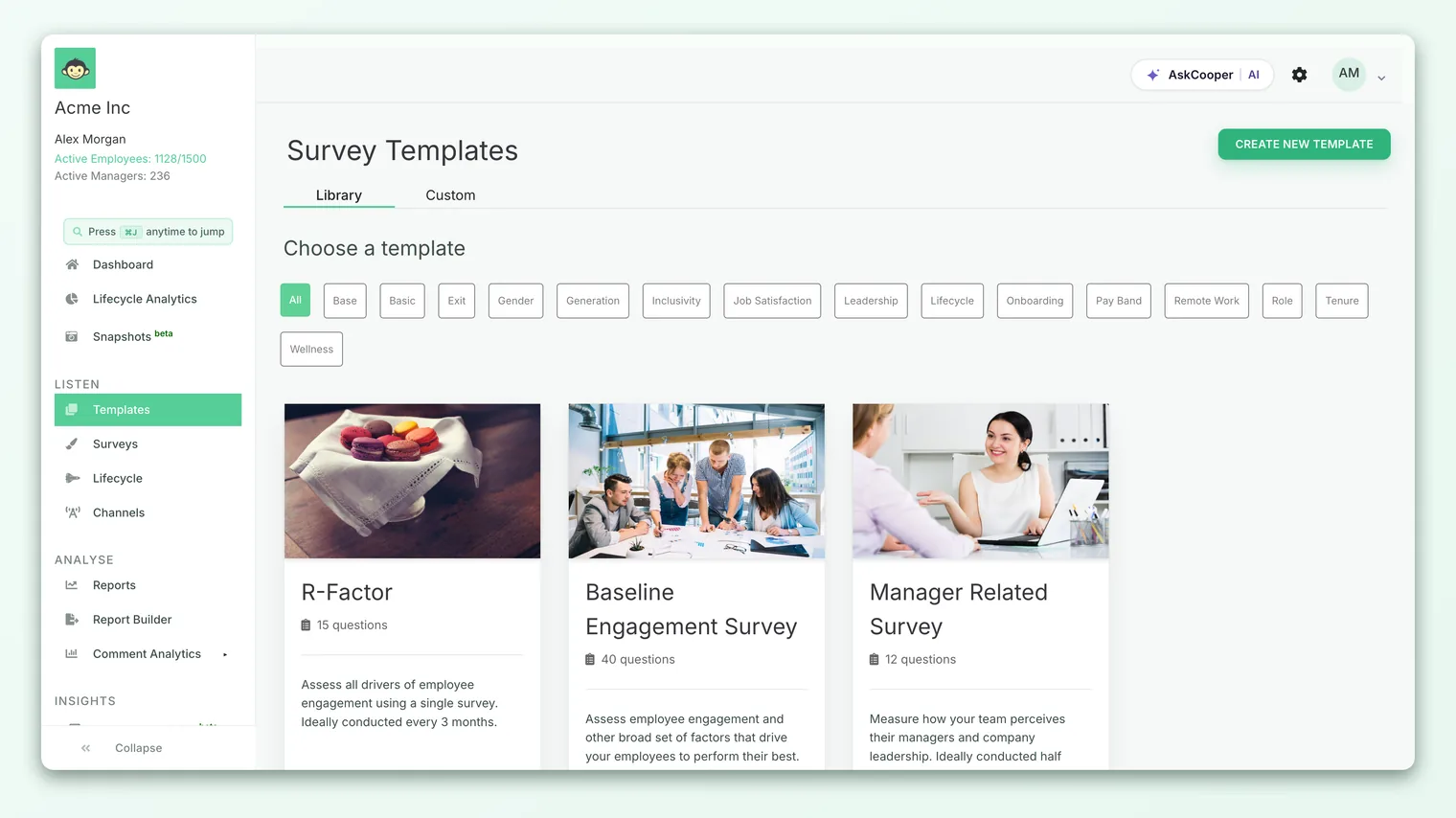
Each template card shows its title, a short description and a question count, plus a Preview link so you can walk through it exactly as a respondent would before committing to it. To turn any template into a live survey, you use Select this template, which opens it in the survey builder as a fresh draft - see Browse and use survey templates for that flow.
Standard vs custom templates
The single most important thing to understand about the library is that not every template behaves the same way. There are two distinct kinds, and what you can do with each is deliberately different.
| Standard (Library) | Custom | |
|---|---|---|
| Where | Library tab | Custom tab |
| Who made it | Built and maintained by CultureMonkey | Built by your account |
| Can you preview it? | Yes | Yes |
| Can you use it to start a survey? | Yes | Yes |
| Can you edit the template itself? | No - read-only | Yes - full editor |
| Can you rename it? | No | Yes |
| Grouped into categories? | Yes | Sorted in your Custom list |
Standard templates are read-only by design. They're validated, driver-mapped starting points that stay consistent for every account, so results built from them remain comparable across organizations and over time. You can preview a standard template and use it as the basis for a survey, but you can't rename it, reword its questions or change its structure in the library itself.
That's not a limitation so much as a workflow: when you want to change a standard template, you don't edit the original - you use it to create a survey, customize that survey freely in the builder, and (if it's a pattern you'll repeat) save the result as a custom template. See Save a survey as a custom template.
You can't alter a Library template directly, and you wouldn't want to - that baseline is what keeps benchmarking honest. Instead, select it to start a survey, make your changes there, and save it back as a custom template. Now you have your own editable version and CultureMonkey's original is still intact.
Editing a custom template
Custom templates are the ones you can genuinely manage. Open the Custom tab, find the template you want to change, and open it in the editor. The editor mirrors the survey builder but is deliberately shorter - a template captures content, not audience or scheduling - so it has just two steps: Basic and Questions.
- 1Basic - set the template's name and description. This is the identity your team sees on the card, so make it clear and self-explanatory.
- 2Questions - build the actual content: add sections, add questions (custom or from the library), reorder everything, map questions to drivers, and set up conditional follow-ups.
On the Questions step you have the same core tools you'd use when creating a survey from scratch:
- Sections - group related questions under a heading so a long template reads as structured rather than endless. Sections also make the reports built from this template roll up cleanly by theme.
- Questions - add your own with custom questions, or pull validated, driver-mapped ones from the question library. Every question can be reworded after it's added.
- Drivers - map each question to an engagement driver so results built from the template roll up into meaningful themes. Library questions come pre-mapped; assign drivers yourself on custom ones.
- Conditional questions - set follow-ups that only appear based on a previous answer, so the template stays short for each respondent while still capturing depth.
A template must contain at least one question before you can finish - CultureMonkey won't let you save an empty one.
Templates deliberately don't carry a participant list, channel, schedule or anonymity setting. Those are decided each time you launch a survey from the template, on the survey builder's Audience and Settings steps. That's what lets one template serve many different rollouts.
Renaming a custom template
Renaming is simply editing the Template Name field on the Basic step of a custom template, then saving. Because the name is what your whole team scans when they open the Custom tab, a good name is worth a moment's thought:
- Say what it's for, not when you made it. "Quarterly Engagement - Full" beats "Custom survey 12 Mar 25" (the latter is the default name CultureMonkey suggests, and it ages badly).
- Signal the cadence or use case where it helps - "Onboarding - 30 day", "Exit interview", "Monthly pulse - short".
- Keep a consistent prefix for families of templates so they sort together in the list (more on organizing below).
Refining questions inside a template
Most day-to-day template management happens on the Questions step. A few controls are worth calling out because they're where templates drift out of date if you don't tend to them:
- Reword a question - click into any question and edit its text. Even library-sourced questions can be reworded after they're added.
- Rename a section - use the pencil (edit) control on a section header to give it a clearer name. Well-named sections make the resulting reports far easier to read.
- Reorder - drag questions and sections into the sequence you want; the editor tracks their order.
- Remove a question - delete an individual question you no longer need from within the editor. You'll be asked to confirm, since removing a question also removes any follow-up (conditional) questions attached to it.
If a question has conditional follow-ups hanging off it, deleting the parent removes those follow-ups too, and that can't be undone. Check whether anything branches off a question before you take it out.
Downloading a template's questions
If your account has question download enabled, each template card in the library carries a small download control that exports the template's questions to a spreadsheet. This is handy for reviewing a template offline, sharing the wording with a stakeholder for sign-off, or keeping a record of what a survey cycle asked.
If you don't see a download icon on your template cards, that capability isn't switched on for your account - an administrator can enable it in your account settings.
Deleting, archiving and duplicating
This is the area where it's important to be precise about what the product does and doesn't offer today, so you're not hunting for a button that isn't there.
- Deleting an individual question inside a custom template is supported - that's the delete control described above.
- Deleting or archiving a whole template from the library is not a self-serve action in the templates area today. There's no delete or archive button on the template cards. If you have a custom template you truly want removed, contact CultureMonkey support.
- Duplicating a template directly isn't a one-click action either. The practical equivalent is to use the template to start a survey and then save that survey as a new custom template - which gives you an independent copy you can edit without touching the original. See Save a survey as a custom template.
A template can sit behind many surveys and, indirectly, a lot of historical reporting. Making whole templates trivially deletable would be an easy way to lose a reusable asset your team depends on - which is why removal is a deliberate, supported step rather than a stray click.
Organizing your template library
Once you've built more than a handful of custom templates, a little organization keeps the Custom tab useful instead of cluttered:
- Name for sorting. Custom templates are listed by their saved order, so a consistent naming convention - a shared prefix per family, a suffix for length or audience - keeps related templates grouped and scannable. "Engagement - Full", "Engagement - Pulse", "Engagement - Exec" will naturally cluster.
- Write descriptions that disambiguate. The card description is your chance to explain when to reach for this template versus a similar one. "Use for the annual all-company survey; the pulse version is for monthly check-ins."
- Keep one canonical version per use case. Resist letting near-duplicate templates pile up. If you've iterated, fold improvements back into the one template your team should use, rather than leaving three slightly different "engagement" templates that invite the wrong choice.
- Lean on the standard library. Before building yet another custom template, check whether a Library template already covers it. Standard templates are maintained for you and keep your results comparable - reserve custom templates for genuinely bespoke needs.
Your template library is a shared resource the whole survey team draws on. The same instincts that keep a codebase healthy apply: clear names, no confusing duplicates, one obvious right choice per situation, and a description that tells the next person why it exists.
Who can manage templates
Working with templates is a survey-building capability, so it follows the same access rules as creating surveys. In practice, managing templates is available to super admins, sub-admins and admin managers - except where an account has specifically switched off survey creation for sub-admins or for managers. If you can create and launch surveys, you can manage custom templates; if you can't, you'll typically be able to view and use templates but not build or edit them.
The templates editor is gated by your account's survey-creation permission. Super admins always have it; sub-admins and admin managers have it unless an administrator has disabled survey creation for their role. If the editor or the "Create New Template" button isn't showing for you, ask an administrator to check your access.
Frequently asked questions
Can I edit one of CultureMonkey's standard templates?
Not directly - Library templates are read-only so they stay consistent and comparable across accounts. To get an editable version, use the standard template to start a survey, customize that survey, and save it as a custom template. You'll then have your own copy to manage while the original stays intact.
How do I rename a template?
Open the custom template from the Custom tab, go to the Basic step, edit the Template Name field, and save. Standard (Library) templates can't be renamed.
Where's the button to delete a whole template?
There isn't a self-serve delete or archive button for an entire template in the templates area today. You can delete individual questions inside a custom template, but to remove a whole custom template, contact CultureMonkey support.
How do I duplicate a template?
There's no one-click duplicate. Instead, use the template to create a survey and then save that survey back as a new custom template - that gives you an independent copy you can edit freely.
Why don't I see a download icon on my template cards?
Downloading a template's questions is controlled by an account setting that isn't enabled everywhere. If you don't see the download control, ask an administrator to turn it on for your account.
If I change a custom template, do my past surveys change?
No. A survey created from a template is its own independent copy. Editing the template afterward changes only what future surveys built from it will contain - it doesn't reach back and alter surveys you've already launched.
Where to go next
- Start a survey from a template: Browse and use survey templates
- Turn a great survey into a reusable template: Save a survey as a custom template
- Build content from a blank canvas: Create a survey from scratch
Your feedback helps us improve the Help Center.