

Create action plans for your team
How a manager turns a focus area into a tracked team action - creating an action from your dashboard, starting from a template, assigning it, and following it through to done, all scoped to the people you lead.
On this page
Seeing your team's scores is only half the job. The half that actually changes how your people feel is what you do next: picking one thing to work on and following it through. In CultureMonkey, that follow-through has a home. As a manager you have your own Actions area, scoped to the people you lead, where a focus area from your dashboard becomes a named, owned, time-bound piece of work you can track to completion.
This guide is written for you as a manager. It covers the manager's path from insight to action: where actions live in your view, how to turn a focus area into a team action, how to start from a ready-made template instead of a blank page, who you can assign the work to, and how to keep an eye on it as it moves. The mechanics of the action form itself are shared with admins, so where the detail is identical we'll point you to it rather than repeat it.
Your CultureMonkey Manager Dashboard shows your team's Strengths and focus areas and an Action summary with a New action button. Click it to open the same action form admins use: give the action a name, driver, owner, and deadline, and save. Everything you create sits on your own Actions board, which shows only actions tied to your team - the ones you own, created, or collaborate on. You track them through To do, In progress, and Completed, and your dashboard keeps a running count.
Why managers get their own actions
Engagement doesn't improve in the aggregate. It improves team by team, in the specific things a manager decides to do differently. That's why CultureMonkey gives managers a first-class path to action rather than leaving follow-through to HR alone.
Having your own actions matters for three reasons:
- Ownership sits with the person closest to the team. You know the context behind a low Recognition score in a way a central report never can. An action you raise and run is grounded in that context.
- It closes the loop your people can feel. When employees see that their feedback led to something concrete on your team, they're far more likely to keep speaking up honestly. Visible follow-through is one of the strongest ways to lift sentiment.
- It keeps the work in one honest place. Instead of a private to-do list or a forgotten note from a one-on-one, the action lives on a board with an owner and a deadline, next to everything else you're tracking.
An action in CultureMonkey is a single named piece of work with a driver it supports, an owner who's accountable, and a deadline it's due by. It moves across a small board of statuses until it's done. That definition is the same whether an admin or a manager creates it.
Where your actions live
Everything to do with actions is under Act in the main navigation, which opens the Actions module. As a manager you reach it the same way an admin does, but what you see there is scoped to your team rather than the whole organization (more on that below).
You also have two shortcuts straight from your Manager Dashboard, which is usually where you'll start because that's where the signal is:
- The Action summary panel. In the right-hand column of your dashboard, an Action summary box shows your total actions split across To do, In progress, and Done, with a New action button right at the top. That button is the fastest way from "I've spotted a problem" to "I've raised something about it."
- The Actions section. Lower on the dashboard, a Turning insight into action block summarizes your action plans by status, shows who assigned them, and links to View all so you can jump straight to the full board.
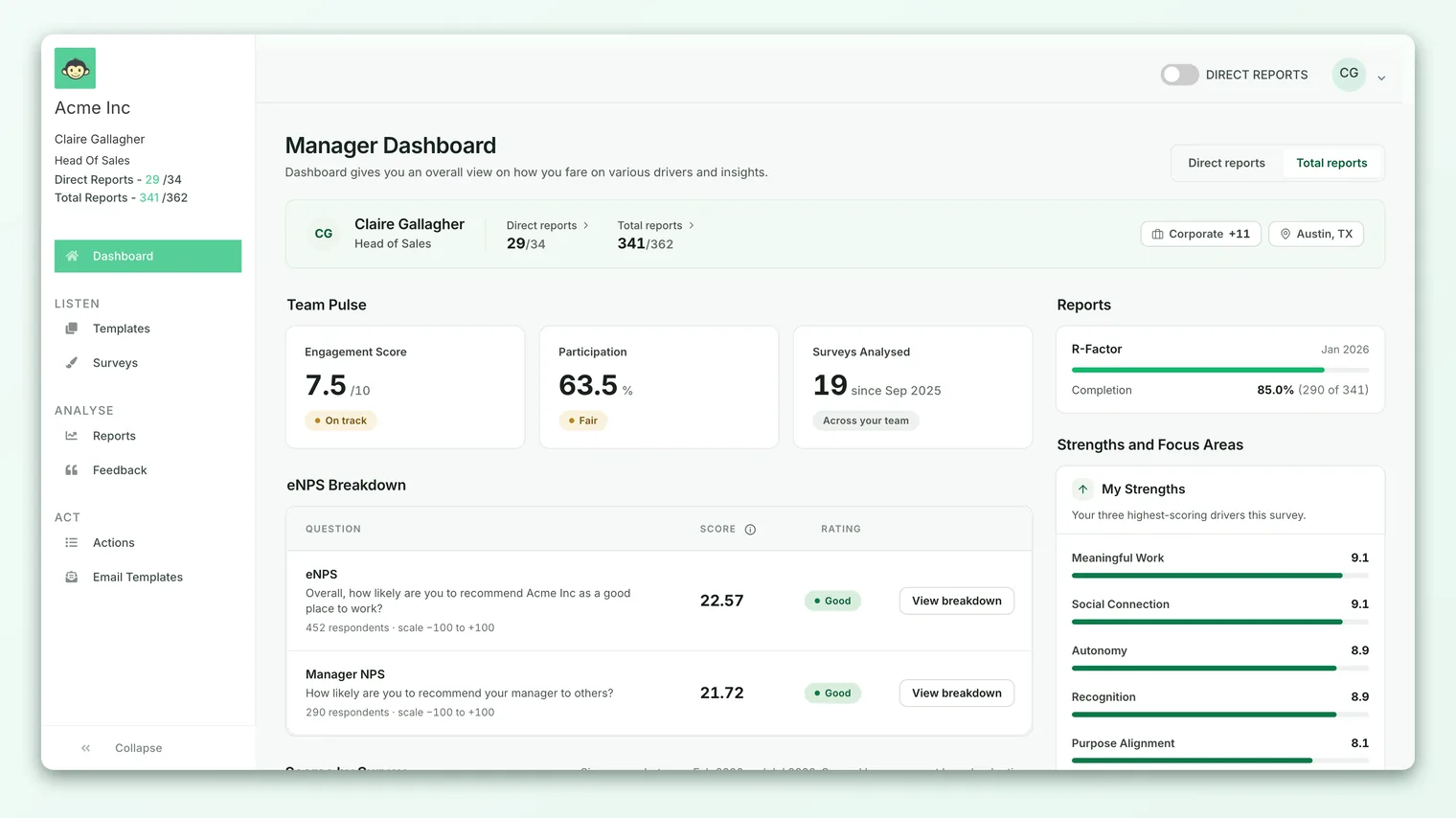
The Actions module is permission-gated. As a manager you can access and view actions, but you see a team-scoped slice, not every action in the organization. Your board shows the actions you own, the ones you created, and the ones you're a collaborator on, plus those belonging to the people who report to you. You won't see the organization-wide action list that Account Admins see.
From focus area to action
The natural starting point is your dashboard's Strengths and focus areas panel. Your focus areas are the drivers with the most room to improve across your team's rating questions - the places where your attention moves the needle most. Your strengths are the drivers already scoring well. For how to read that panel and decide which focus area is worth acting on, see Read your team's strengths and focus areas.
Once you've picked a focus area, turning it into an action is a short hop:
- 1Read the focus area first. Look at which driver is lagging and, if you can, pair it with your team's open-text feedback so you're acting on the real root cause, not just a number.
- 2Open a new action. Click New action in the Action summary panel on your dashboard (or open Act and use the create button there). Both open the same form.
- 3Set the driver to the focus area. Choose the driver that matches the focus area you're addressing. This is the thread that connects the work back to the score you're trying to move.
- 4Name it as an outcome. Write the action name as the change you want, for example "Start weekly peer shout-outs in the Monday stand-up," not "recognition thing." The name is what you'll scan on the board later.
- 5Assign an owner and a deadline. Set who's accountable and when it's due, then save.
The action form and its rules - which fields are required, what each one is for, what happens the moment you save - are shared across managers and admins. Rather than repeat them, see Create a new action for the full field-by-field walkthrough. The key point for you as a manager: the driver is what ties this action back to the focus area that prompted it, so choose it deliberately.
Don't reach for a driver because it feels important in the abstract. Start from the focus area your dashboard is actually flagging, and set the action's driver to match. That's what lets you tell a clean story next cycle: "our lowest driver was X, so we did Y, and here's how it moved."
Starting from a template instead of a blank page
Deciding what to do about a lagging driver is often harder than spotting it. You don't have to invent the plan from nothing. CultureMonkey ships an Action Plan Repository: a library of ready-made action plans, each tied to a driver, that you can browse and turn into a live action in a couple of clicks.
From the action form you'll find an Action Plan Repository button that opens the library. Filter to the driver behind your focus area, pick a plan that fits, and click Take this action. The template's title, description, and driver come across pre-filled onto a new action, and all you add is the owner and the deadline. Nothing is locked - rewrite the title and description to fit your team before you save.
This is often the best route for a manager, because it turns "I know Recognition is low but I'm not sure what to try" into a concrete, editable starting point. For the full tour of the library, how it's organized, and how to use it, see Browse and use action templates.
A template gives you a plausible what to do; it can't tell you why your driver is low. Pair it with your team's comments so the action addresses the real cause, then personalize the wording so it lands for your specific team.
Assigning the action within your team
Every action has exactly one owner - the single person accountable for getting it done. When you create an action, the owner defaults to you, which is usually right for a team action you're going to run yourself. The habit worth building is to set the owner deliberately: if the work really belongs to a team lead or another admin, hand it to them before you save, because the owner is who's shown as responsible and who gets the assignment email.
A couple of things are specific to the manager context:
- The owner is chosen from valid admins. The owner dropdown lists eligible admins for your account, so an action's accountable owner is always someone with an admin-level login. If you want to loop in employees on your team who aren't admins, that's what collaborators are for.
- Collaborators bring in the rest of the team. Below the required fields you can add collaborators - a team member whose input you need, a stakeholder, a subject-matter expert. They support the work; the owner still carries it. You can leave each collaborator a short kick-off note as you add them.
For the full picture of how the owner and collaborator roles differ and how notifications flow to each, the shared explanation in Create a new action covers it, including exactly when the assignment email goes out (only when the owner is someone other than you).
It's tempting to spread accountability across the team so no one feels singled out. Resist it. A single named owner with a real deadline is what actually gets an action done; collaborators are how you bring everyone else in without diluting who's responsible.
Tracking your team's actions
Once an action exists, it lands in the To do column of your Actions board and starts showing up in your dashboard counts. Your board is the same set of status columns admins use, and you move a card across them as the work progresses.
| Column | What it means for your team action |
|---|---|
| To do | Newly created, not yet started. Every action begins here. |
| In progress | You or the owner are actively working on it. |
| On hold | Paused - blocked or deprioritized for now. |
| Completed | The work is done. |
| Cancelled | Dropped and won't be pursued. |
Your Manager Dashboard keeps a live read of all this so you don't have to open the board to know where you stand:
- The Action summary panel shows your total actions and the split across To do, In progress, and Done, as a bar and as counts.
- The Actions section ("Turning insight into action") breaks your actions down by status, shows how many were assigned by Human Resources versus the CultureMonkey Coach, and shows a Feedback to action ratio - how many of your team's feedback items became tracked actions. It also lists your pending actions by driver, so you can see at a glance which focus areas still have open work.
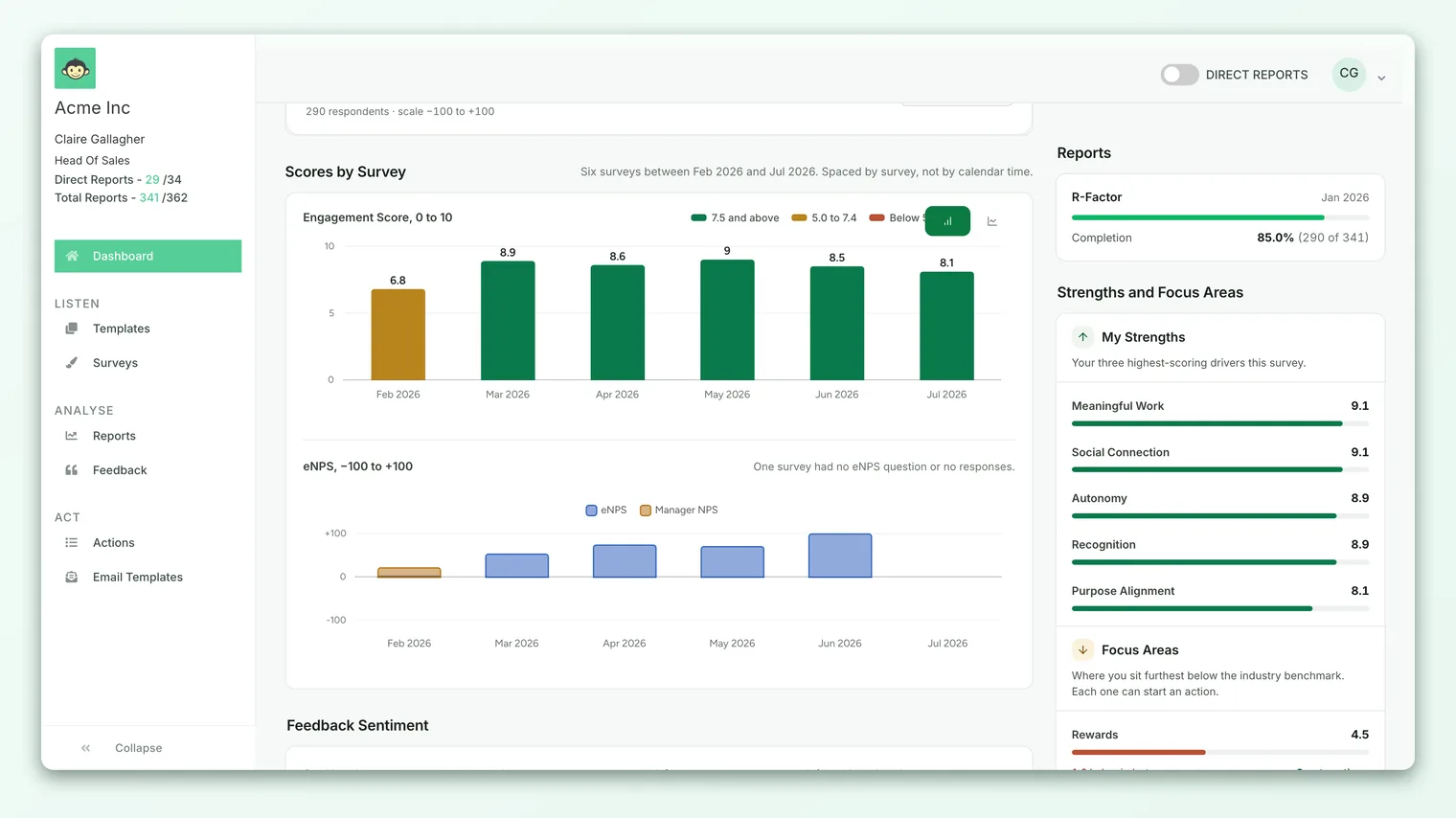
When you want the detail, click View all to open the full board, where each card shows its name, driver, owner, and deadline, and where a table view lets you sort and filter across everything at once.
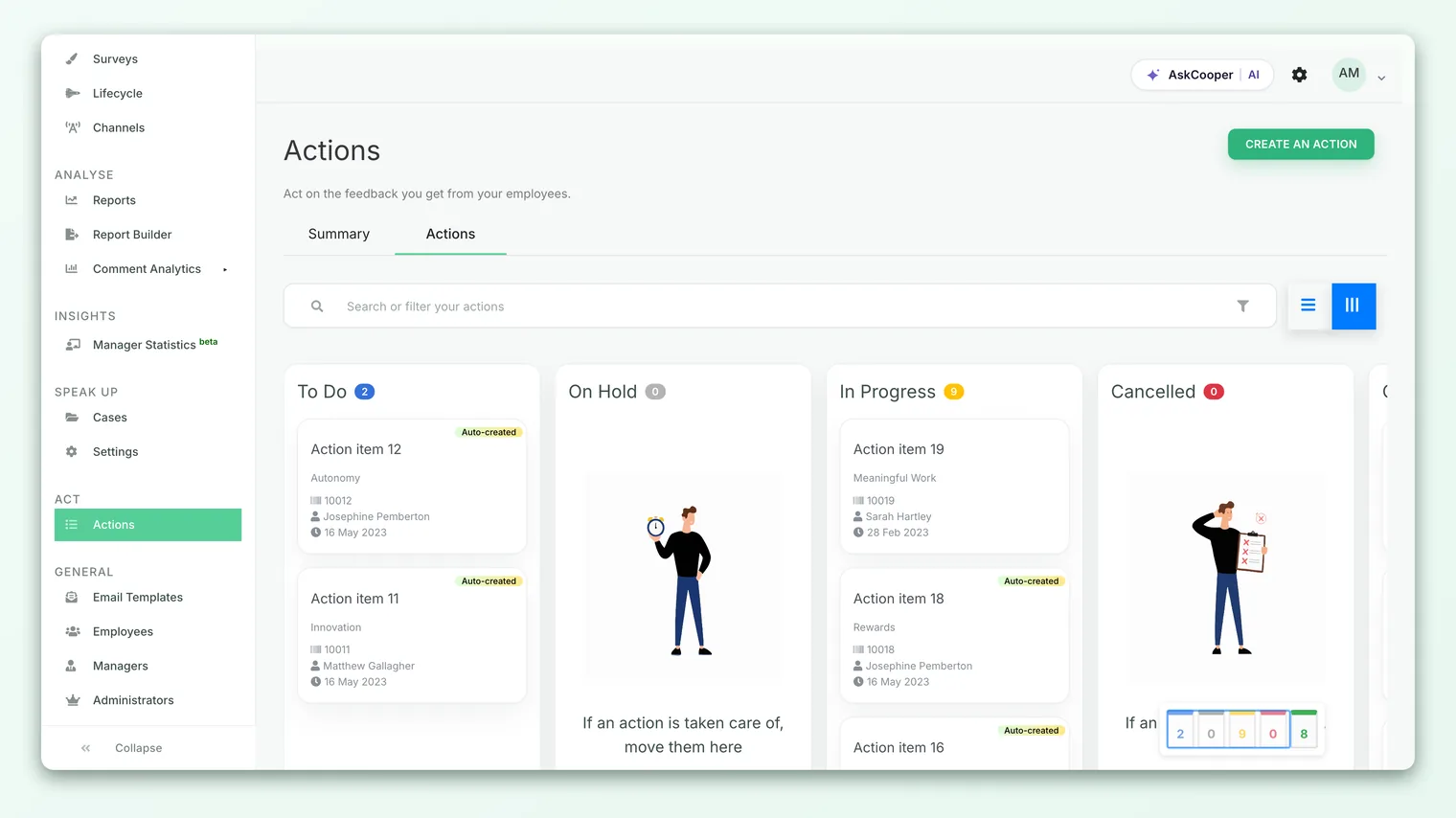
The board you see as a manager isn't the whole organization's action list. It's filtered to the actions connected to you and the people you lead - the ones you own, created, or collaborate on. This keeps your view focused on the work that's actually yours to move.
If your account has enabled it, you can also export your actions to a CSV from the board, which is handy for a one-on-one with your own manager or an offline review. If you don't see an export option, it hasn't been turned on for your account.
Best practices for team action plans
- Pick one focus area, not five. A single well-run action beats a long list of half-started ones. Let your lowest-scoring driver choose your first move.
- Set the driver to match the focus area. It's the thread that connects the action to the score you're trying to move, and it's what lets you show progress next cycle.
- Make yourself the owner when it's your work. Own the actions you'll actually run, and hand off deliberately only when someone else truly owns the outcome.
- Give it a real deadline. A date you'd be willing to be asked about keeps the board honest. A vague "someday" action rarely gets done.
- Close the loop with your team. Tell your people what you heard and what you're doing about it. The act of visibly following through is itself one of the biggest levers on how they'll feel next time.
Frequently asked questions
Do I see every action in the organization, or just my team's?
Just your team's. As a manager your Actions board is scoped to the actions connected to you and the people you lead - the ones you own, created, or collaborate on. You don't see the organization-wide action list that Account Admins have.
Where's the fastest place to create a team action?
The New action button in the Action summary panel on your Manager Dashboard. It opens the same action form you'd reach through Act, and it sits right next to your team's focus areas, so the signal and the action are in one place.
Can I assign an action to someone on my team?
You can set any eligible admin as the owner, and you can add team members as collaborators. An action's single accountable owner is always an admin-level user; collaborators are how you involve the rest of the team without changing who's responsible.
Do I have to write the plan from scratch?
No. Open the Action Plan Repository from the action form, filter to the driver behind your focus area, and click Take this action on a plan that fits. CultureMonkey pre-fills the title, description, and driver, and you add the owner and deadline. See Browse and use action templates.
How do I know how my actions are progressing without opening the board?
Your Manager Dashboard shows it. The Action summary panel gives you the To do / In progress / Done split, and the Actions section breaks it down further by status, by who assigned it, and by which drivers still have pending work.
What happens when I set an owner other than myself?
CultureMonkey emails that owner to let them know the action is theirs, and they're shown as accountable on the board. If you keep yourself as owner, no email goes out - you already know. The full notification behavior is covered in Create a new action.
Where to go next
- The manager's process, start to finish: A manager's guide to acting on your CultureMonkey survey results
- Decide what to work on first: Read your team's strengths and focus areas
- Learn the action form in full: Create a new action
- Skip the blank page: Browse and use action templates
Your feedback helps us improve the Help Center.