

Open a survey report
How to find the Reports list under Analyse, pick the right survey, and open its report - plus what "report ready" means and what to do when a report isn't available yet.
On this page
Every survey you run in CultureMonkey produces a report: the place where raw responses become scores, trends, and comments you can actually act on. Before you can read any of that, you need to open the report for the survey you care about. This guide walks you through exactly where the Reports list lives, how to pick the right survey, when a report becomes available, and what to do if the one you want isn't ready yet.
Reports live under Analyse - Reports. Each row in the list is one survey's report; click a row to open it. CultureMonkey only lists a report once the survey has collected enough responses to meet its response threshold (the survey's minimum-answers setting). Until then, the survey is still gathering data and won't show in the list.
Where the Reports list lives
CultureMonkey groups everything you do into three areas in the left navigation: Listen (where you build and send surveys), Analyse (where you read results), and Act (where you turn insights into action plans).
Reading a survey report is an Analyse task, so that's where you'll go.
- 1Open the left navigation. Look for the Analyse group in the sidebar.
- 2Click Reports. Under Analyse you'll see Participation, Reports, Report Builder, and Feedback. Choose Reports.
- 3Land on the Reports list. You'll see a grid of survey report cards, most recent first.
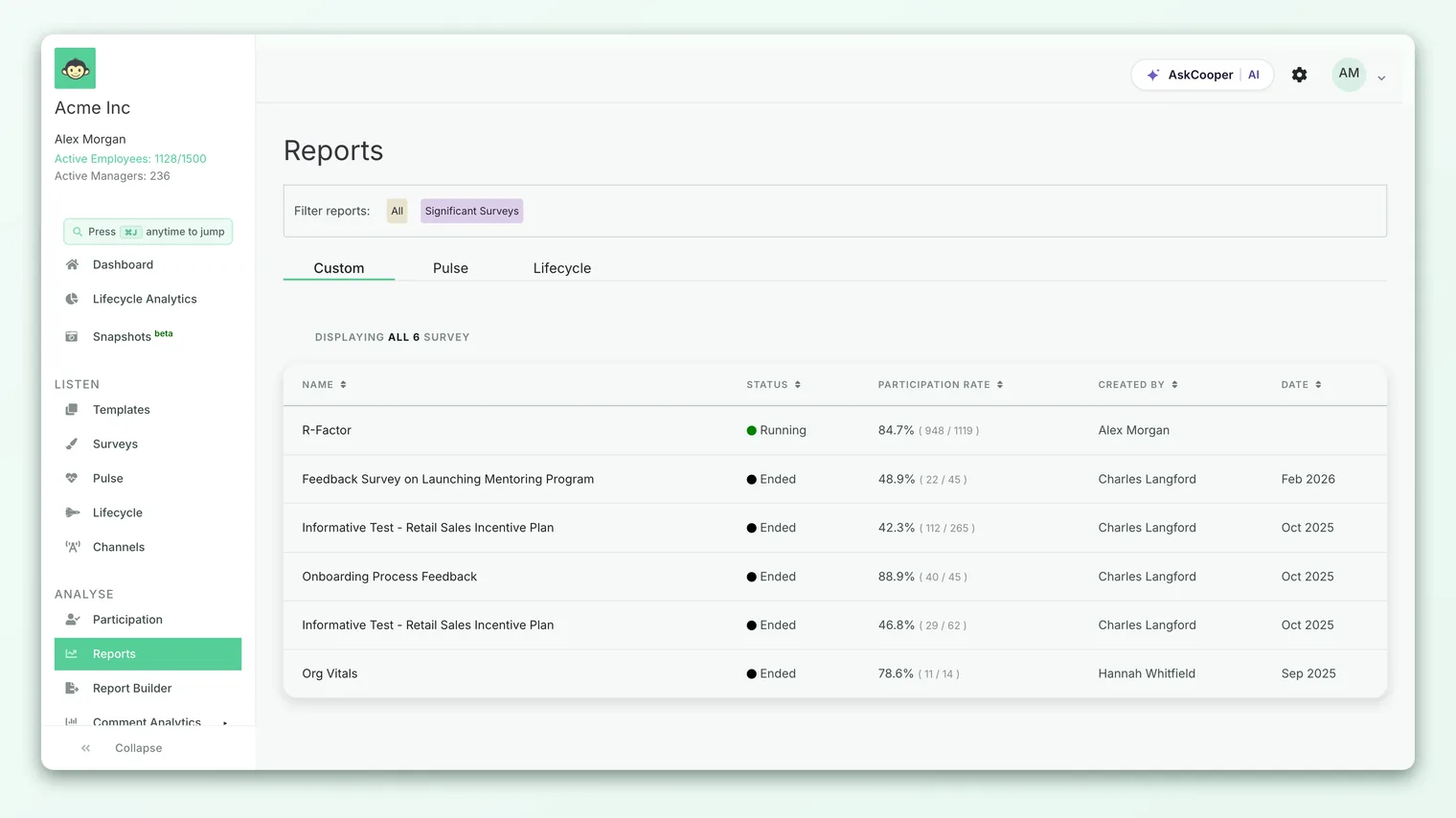
The Reports list is the home for your engagement and custom surveys. Lifecycle surveys (onboarding, exit, and other autopilot journeys) have their own view. If you're looking for one of those, use the lifecycle reports area rather than the main Reports list.
What you'll see in the list
Each card in the Reports list represents a single survey and gives you enough at-a-glance context to pick the right one:
- Survey name - the title you gave the survey when you created it.
- Timeframe - when the survey ran, so you can tell this quarter's pulse from last quarter's.
- Participation - roughly how many people responded, which helps you judge how representative the results are.
The list is ordered with the most recent surveys first, and it's paginated once you have more than a screen's worth. If your organization runs a lot of surveys, use the filters at the top of the list to narrow by name or timeframe rather than scrolling.
The Reports list only shows surveys that are report ready (see below). A survey you launched five minutes ago, or one that only a couple of people have answered so far, won't have a card yet. That's expected, not a bug.
Selecting a survey and opening its report
Once you've found the survey you want, opening it is a single click.
- 1Scan or filter the list to locate the survey by name and timeframe.
- 2Click the survey's card. This opens that survey's full report.
- 3Land on the report. You'll arrive at the report view, where scores, eNPS, drivers, and comments are laid out in sections.
From there, the report itself is organized into distinct areas so you can move from the headline down to the detail. For a tour of everything a report contains, see What a survey report contains. If you want the fastest possible read, start with the report summary, which pulls the most important numbers and highlights into one view.
There isn't a separate "open" and "generate" step. When a survey becomes report ready, its report is live and continuously reflects responses as they arrive. Opening the report always shows you the current picture, not a frozen snapshot from when the survey closed.
When does a report become available?
This is the part that trips people up most often, so it's worth being precise.
A survey's report becomes available the moment the survey has collected at least its minimum number of responses. In CultureMonkey each survey carries a minimum-answers setting (sometimes called the response threshold), and the report stays hidden until the count of submitted responses reaches that number.
The threshold exists for one reason: anonymity. If a report could open after a single response, you could sometimes infer who said what, especially in a small team. Requiring a minimum number of responses before any results appear protects the confidentiality that makes people answer honestly in the first place.
What the threshold actually is
The exact number depends on how the survey is configured:
| Survey type | Default minimum responses before the report opens |
|---|---|
| Anonymous survey | 3 responses (this is a hard floor and can't be set lower) |
| Confidential / non-anonymous survey | Your account's configured minimum (commonly 3) |
A few things follow from this:
- Anonymous surveys have a floor of 3. Even if an admin tries to set the minimum lower, an anonymous survey won't open its report until at least three people have submitted. This keeps individual answers un-attributable.
- Your admin may set it higher. Account admins can raise the minimum above the default, so some organizations require more responses (for example 5) before any report appears. If your reports seem to need more responses than a colleague's at another company, this setting is usually why.
- It counts submissions, not sends. Inviting 200 people does nothing on its own. The report opens based on how many people actually responded, not how many were asked.
Sending a survey starts the clock, but the report only shows up once responses cross the threshold. If you launched a survey today and no card appears in Reports yet, the most likely reason is simply that not enough people have answered so far.
What to do if the report isn't ready
If you go to Analyse - Reports and the survey you expected isn't there, don't assume something is broken. Work through these in order.
- 1Confirm the survey has actually been sent. A survey saved as a draft or scheduled for later hasn't collected anything yet. Check its status in Listen - Surveys.
- 2Check the response count. In Analyse - Participation you can see how many people have responded so far. If that number is below the survey's minimum (often 3), the report simply isn't ready yet.
- 3Give it time. Responses trickle in over hours and days after a send, especially across time zones. A survey that's one response short today may cross the threshold tomorrow.
- 4Send a reminder. If participation has stalled below the threshold, a gentle reminder to non-responders is the fastest way to get the report to open.
- 5Confirm your access. Managers and sub-admins only see reports for surveys and teams they're permitted to view. If a colleague can see a report you can't, it may be a permissions difference rather than a readiness one.
If the whole Reports list is empty, CultureMonkey shows a short "no reports yet" message rather than a blank screen. That message means none of your surveys have crossed their response threshold yet, not that anything has gone wrong.
The smaller the group, the longer it takes to reach the threshold, and the more likely a report or a filtered segment stays hidden. This is by design. For a fuller explanation of empty or hidden results, including filtered breakdowns inside an open report, see Why can't I see results yet?.
Readiness vs anonymity inside a report
It helps to separate two related ideas, because they use the same underlying protection but show up at different moments:
| Report readiness | In-report anonymity | |
|---|---|---|
| When it applies | Before you can open the report at all | After the report is open, when you filter or slice |
| What it gates | The whole survey's report | A specific segment (team, location, manager) |
| What you see | The survey has no card in the Reports list | An individual chart or breakdown appears empty |
| Why | Too few total responses so far | Too few responses in that specific slice |
So a report can be perfectly available at the survey level, yet a narrow filter inside it (say, a team of four) can still come up empty. Both behaviors come from the same commitment to keeping individual answers private.
Best practices for finding reports fast
- Name surveys clearly. A name like "Q3 2026 Engagement Pulse" is far easier to spot in the list than "Survey 14." Good names pay off every time you come back to read results.
- Bookmark reports you revisit. If you check the same survey's report often, bookmark its URL so you skip the list entirely.
- Filter instead of scroll. Once you have dozens of surveys, use the list filters rather than hunting by eye.
- Check Participation first for new surveys. If a fresh survey isn't in Reports yet, Participation tells you exactly how close it is to the threshold, so you know whether to wait or to nudge.
Frequently asked questions
I sent a survey but there's no report. Did it fail?
Almost certainly not. The most common reason is that the survey hasn't reached its minimum number of responses yet. Check the response count in Analyse - Participation. If it's below the threshold (often 3), the report just isn't ready. Once enough people respond, the card appears on its own.
How many responses does a report need?
By default, three. Anonymous surveys always require at least three responses, and that floor can't be lowered. Non-anonymous surveys use your account's configured minimum, which is commonly three as well but can be set higher by an account admin.
Where's the report for my onboarding or exit survey?
Lifecycle surveys (onboarding, exit, and other autopilot journeys) don't appear in the main Reports list. They have their own lifecycle reports view. Look there rather than under Analyse - Reports.
A teammate can see a report I can't. Why?
Access to reports follows permissions. Managers and sub-admins only see reports for the surveys and teams they're authorized to view. If a report is missing for you but visible to a colleague, the difference is usually access rights, not readiness.
Do I have to close a survey before I can read its report?
No. As long as the survey has crossed its response threshold, its report is live and updates as new responses come in. You can open and read it while the survey is still collecting.
Why can't I lower the minimum below three?
That floor protects anonymity. With only one or two responses, individual answers could be inferred, which would break the confidentiality people rely on to answer honestly. Three is the smallest group CultureMonkey will show anonymous results for.
Where to go next
- Understand the layout: What a survey report contains
- Start with the highlights: Read the report summary
- Report or a segment looks empty? Why can't I see results yet?
Your feedback helps us improve the Help Center.