

Preview a survey before sending
How to see exactly what employees will see - using the Preview link to walk the respondent experience, sending yourself a test email, checking it on desktop and mobile, and using a test survey for a full dry run.
On this page
Before a survey goes out to hundreds or thousands of people, it's worth spending five minutes seeing it exactly the way they will. A typo in a question, a rating scale that runs the wrong way, an emoji that doesn't render, an invitation email with the wrong sender name - these are trivial to fix before launch and awkward to fix after. Once people start responding, editing questions can distort your results, and re-sending a corrected invite makes the whole thing look sloppy.
CultureMonkey gives you three complementary ways to check a survey before it ships: a Preview of the respondent experience, a test email so you can see the actual invitation land in an inbox, and - for a full end-to-end rehearsal - a test survey. This guide walks through each, what it does and doesn't show, and how to check the experience on both desktop and mobile.
Use the Preview link on the survey to walk through the exact respondent view - questions, scales, sections, and completion screen - without recording a response. Send yourself a test email from the notifications step to check the invitation itself. CultureMonkey opens Preview in a new browser tab, so you can resize it or open it on your phone to check mobile. None of this touches your real results.
Why previewing matters
A survey is one of the few things you send to your entire organization at once. That reach is exactly what makes a small mistake expensive:
- Questions can't always be edited cleanly after launch. Once responses start coming in, changing a question's wording or scale can make earlier and later answers non-comparable. Catching it in preview avoids the problem entirely.
- The invitation is the first impression. If the sender name, subject line, or survey link is wrong, participation suffers before anyone even opens a question.
- Rendering varies by device. A layout that looks fine on your laptop can wrap awkwardly on a phone - and for frontline and deskless teams, mobile is the primary way they'll answer.
- Trust is fragile. People are more candid when the experience feels polished and intentional. A rough survey quietly signals that their feedback might get the same treatment.
Previewing is the cheapest insurance you'll buy in the whole survey process.
The Preview link - see the respondent view
The main tool is the Preview link. It renders your survey using the same respondent-facing screen that real employees see, so what you're looking at isn't an approximation - it's the actual form.
You'll find Preview in two places:
- On the survey's overview (Show) page, near the survey status and admin, as a small "Preview" link with an external-link icon.
- In the survey builder's step navigation, as a Preview button alongside the Basic details, Questions, Audience, and Settings steps.
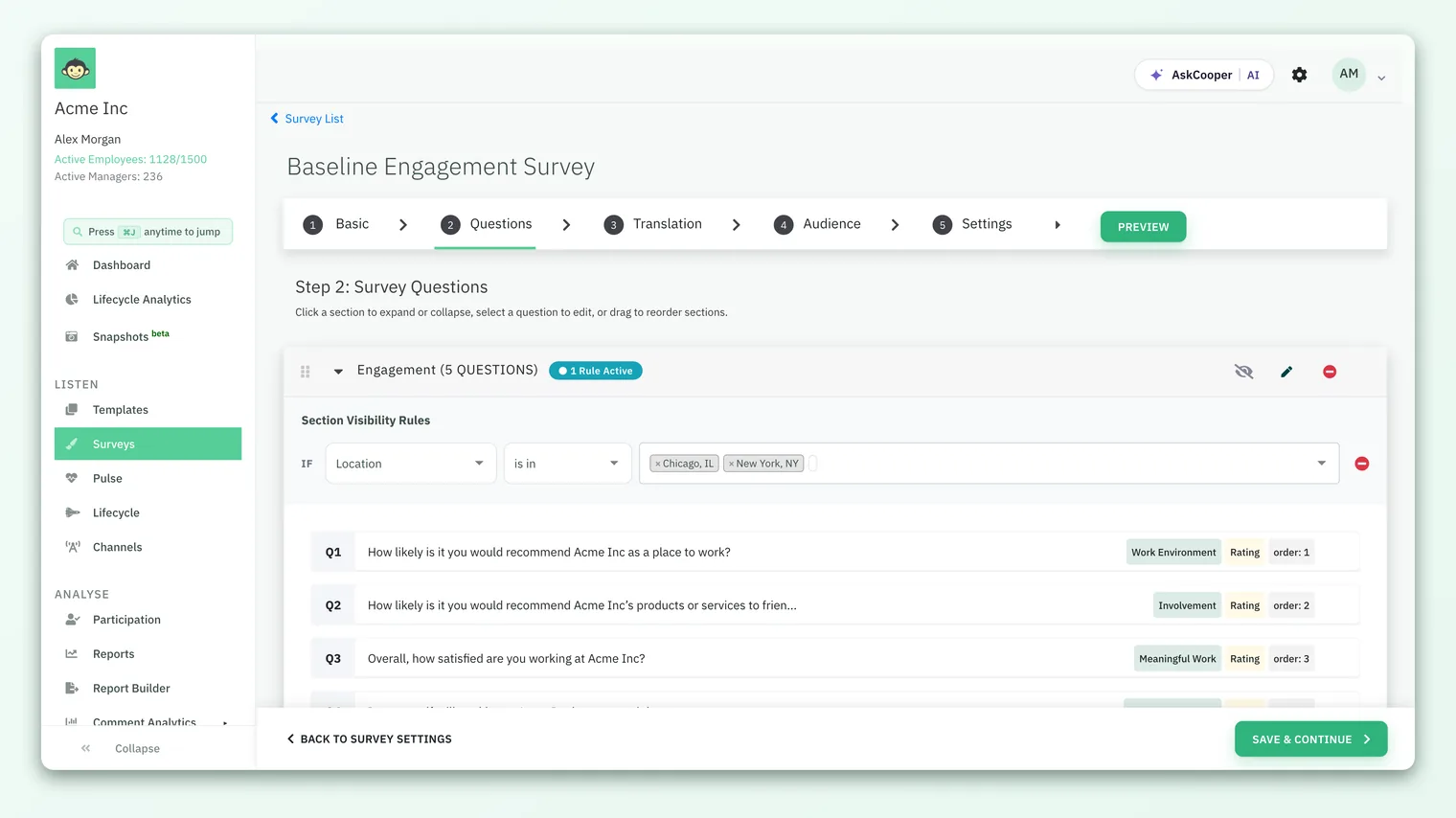
Clicking it opens the survey in a new browser tab (it's set to open in a separate tab on purpose, so you don't lose your place in the builder). In that tab you'll see:
- The start / welcome screen with your survey's title (or display name), logo, and background, plus the estimated time to complete and the number of questions.
- Every question, in order, grouped into any sections you've defined, using the exact rating scales, emoji or star views, multiple-choice options, and open-text fields you configured.
- The completion / thank-you screen that people see after they submit, including any custom completion message.
Because it's the real form, you can click through it as a respondent would - pick answers, move between sections, and reach the end.
Under the hood, a survey is only "previewable" when it has at least one question. If you don't see the Preview link yet, add a question first - then it appears automatically. There's nothing else to switch on.
What preview shows (and what it doesn't)
Preview is faithful to the respondent view, but it's deliberately a dry run. A few things behave differently from a live response, and it helps to know which:
| In preview | Behavior |
|---|---|
| Your answers | Not saved. Preview runs with autosave turned off, so nothing you click is recorded. |
| Your submission | The completion screen renders, but no response is stored - you won't appear in participation or results. |
| Questions & scales | Exactly as respondents see them. This is the whole point - trust what you see here. |
| Sections & order | Rendered in the real order, so you can sanity-check flow and grouping. |
| Translations | If the survey is multilingual, the preview uses the translated question text and completion message. |
| Conditional logic | Follow-up questions that depend on earlier answers appear as configured, so you can test the branches. |
The practical takeaway: preview is safe to click through as many times as you like. You will never accidentally submit a real response or skew your numbers by exploring it.
Preview shows the content and experience, not the delivery. It won't tell you whether your audience filter caught the right people, whether the schedule is correct, or whether reminders are set up. Verify those on the Audience and Settings steps separately.
Send yourself a test email
The Preview link shows the survey; it doesn't show the invitation email that carries people to it. Since the email is what determines whether anyone shows up, check it too.
From the survey's notifications step (where you choose the invitation and reminder email templates), open the Send test email option. A small modal appears titled "SEND TEST EMAIL" with a single field:
- 1Open the notifications step - go to the survey and open the notifications / email settings for it.
- 2Choose Send test email - this opens the "SEND TEST EMAIL" modal.
- 3Enter a recipient - type the address you want the test sent to (your own is the obvious choice).
- 4Send - CultureMonkey delivers the actual invitation email template to that inbox, and confirms with a "Test Mail sent to …" message.
The test uses the real email template you've selected, so it's the genuine article: sender name, subject line, body copy, branding, and the call-to-action button. Open it on your phone as well as your desktop - email clients render very differently, and this is the fastest way to catch a broken logo or an awkward line break.
If you can, send the test to a couple of different email clients - say Outlook and Gmail - and to both a laptop and a phone. Corporate email clients are notorious for rendering images and buttons inconsistently, and it's better to find out now.
If your account uses multilingual email templates, the test email respects the language you pick, so you can confirm that translated invitations look right too.
Check it on desktop and mobile
A large share of employees - especially frontline, retail, manufacturing, and field teams - answer surveys on a phone. Always check both.
Because Preview opens in an ordinary browser tab, checking mobile is easy:
- Resize the window. Drag the preview tab narrow, or use your browser's device-emulation view (the responsive/mobile toggle in developer tools), to see the survey reflow to a phone-sized screen.
- Open it on an actual phone. The most reliable check is the real thing. If you also sent yourself the test email, just open that email on your phone and tap through to the survey.
- Use the QR code. From the survey's share options you can generate a QR code that opens the survey on a mobile device - handy both for checking the mobile experience yourself and, later, for posting the survey where deskless teams can scan it.
When you look at the mobile view, watch for the usual suspects: long questions that wrap into a wall of text, rating scales that get cramped, buttons pushed below the fold, and any emoji or icon that doesn't render.
There's no separate "mobile preview" mode - the respondent view is responsive, so the same Preview link is your mobile preview once you make the window small enough or open it on a device.
Do a full dry run with a test survey
Preview and test emails cover almost everything. When you want a genuine end-to-end rehearsal - invitation email, live link, real submission, and a look at how a response lands - you can run a small test survey: build a copy, add yourself (and perhaps a colleague) as the only audience, and launch it. This exercises the whole pipeline in a way preview intentionally doesn't.
CultureMonkey supports this with a "Mark as test survey" setting on the survey's Basic details. Marking a survey as a test changes one important thing: a test survey can be deleted after it has ended, whereas a normal published survey cannot be deleted once it's launched (this protects your historical results from being erased). So a test survey lets you rehearse for real and then clean up afterward, leaving no clutter in your survey list.
Because deleting launched surveys is sensitive, the "Mark as test survey" toggle is restricted and may not appear for every admin - it's typically enabled with help from CultureMonkey support. If you don't see it and you want to run a full dry run that you can later delete, reach out to your CultureMonkey contact.
If you can't mark a survey as a test, you can still do most of a dry run safely: keep the audience to just yourself, and simply leave the finished survey in place (a one-person survey has negligible impact on your data and stays hidden by anonymity thresholds anyway).
A recommended pre-launch checklist
Put it all together and a solid five-minute check looks like this:
- 1Preview the survey - click Preview and read every question in order. Check wording, scales, sections, and the thank-you screen.
- 2Check the branches - if you use conditional questions, answer in a way that triggers each follow-up and confirm it appears.
- 3Send a test email - deliver the real invitation to your inbox and check the sender, subject, branding, and link.
- 4Open it on your phone - from the test email or a QR code, confirm the mobile experience reads cleanly.
- 5Confirm audience and timing - separately verify the Audience filter and the launch schedule, since preview doesn't cover these.
- 6(Optional) Full dry run - for high-stakes launches, run a small test survey end to end, then delete it once you're satisfied.
Frequently asked questions
Does previewing a survey affect my results?
No. CultureMonkey runs Preview with autosave disabled and never stores a response, so nothing you click in the preview shows up in participation or reporting. You can click through it as many times as you want.
Why can't I see the Preview link?
The Preview link only appears once the survey has at least one question. Add a question in the Questions step and the link will show up automatically - there's no separate switch to enable it.
Will the people I preview as get notified?
No. Preview is a private, admin-only view of the form. It doesn't email anyone, create a participant, or count toward participation. The only message that reaches an inbox is a test email you deliberately send from the notifications step.
Can I preview the invitation email, not just the survey?
Yes - that's what the Send test email option on the notifications step is for. CultureMonkey delivers the actual invitation (or reminder) template to any address you enter, so you see exactly what employees will receive.
How do I check the mobile experience?
Preview opens in a normal browser tab, so you can shrink the window or use your browser's mobile-emulation view, open the survey on an actual phone, or scan the survey's QR code. There's no separate mobile mode - the respondent view is responsive.
What's the difference between preview and a test survey?
Preview is a no-strings look at the form itself. A test survey is a real, launched survey (usually with just you in the audience) that rehearses the whole flow - email, link, and submission - and, because it's marked as a test, can be deleted afterward.
Where to go next
- Build the survey first: Create a survey from scratch
- Get the invitation right: Set up survey invitation emails
- When you're happy with it: Launch and schedule a survey
Your feedback helps us improve the Help Center.